battery
calibrate
laptop
linux
linux desktop
battery wear linux, linux battery calibration, linux battery life, linux battery optimization, linux laptop battery tips, linux power management, thinkpad battery linux, tlp battery care, tlp battery settings, tlp battery threshold, tlp charge control, tlp configuration, tlp linux, tlp recalibrate, tlp thinkpad
9M2PJU
0 Comments
Extend Your Laptop Battery Life with TLP: Charge Thresholds & Recalibration on Linux
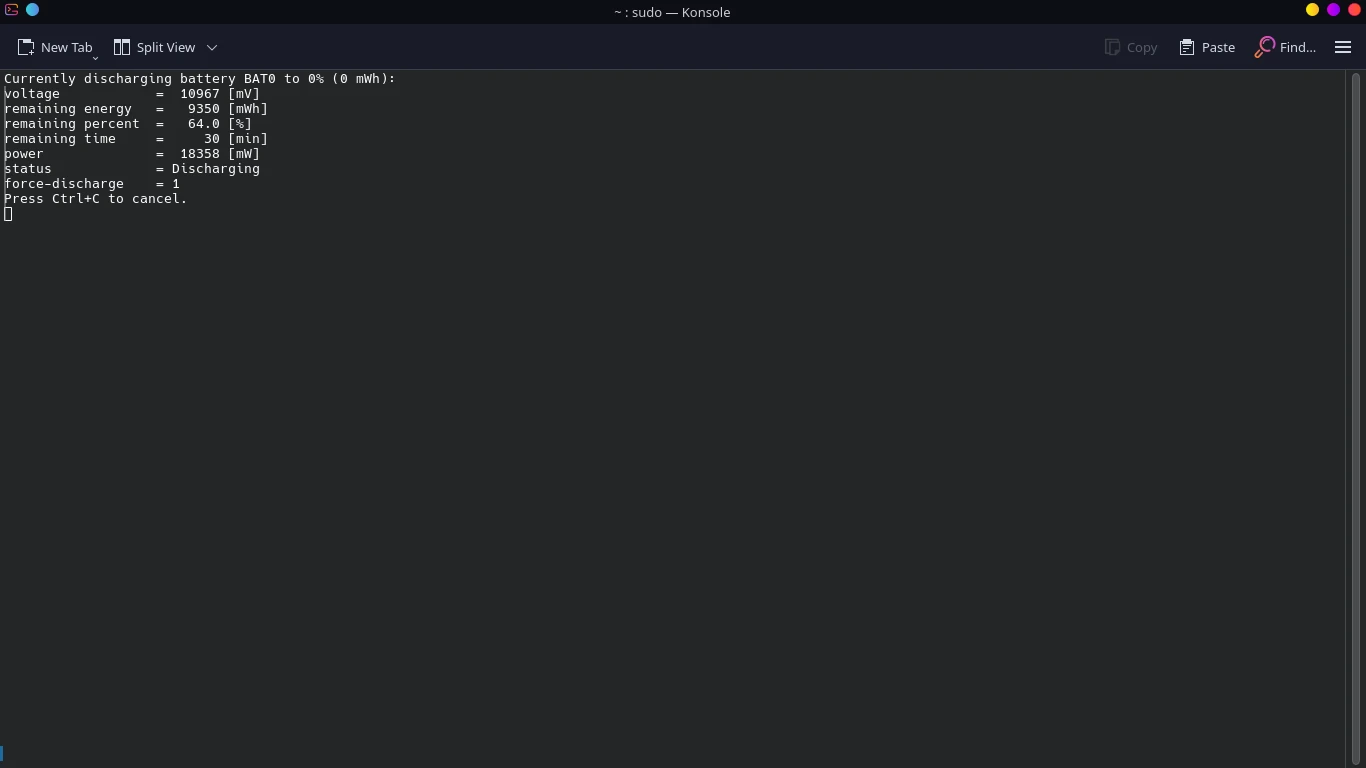
If you’re a Linux user on a laptop—especially a ThinkPad (For Windows user, visit https://www.lenovo.com/us/en/software/vantage) —you owe it to yourself to install TLP. This brilliant power management tool doesn’t just improve battery runtime — it gives you real control over how your battery is treated, helping extend its lifespan through smart features like charge thresholds and battery recalibration.
🚀 Why TLP?
Out of the box, most laptops will charge your battery to 100% every time, even if you’re always plugged in. That’s not ideal. Repeatedly keeping a lithium-ion battery at full charge shortens its lifespan.
TLP changes the game. Once installed and configured, it helps you:
- Avoid unnecessary full charges
- Prevent overheating
- Preserve battery health over time
Let’s look at two of TLP’s most powerful features: charge thresholds and battery recalibration.
✅ Set Smart Charge Thresholds
TLP allows you to limit how much your battery charges. On supported hardware (like ThinkPads), you can configure a start and stop percentage.
Here’s an example in /etc/tlp.conf:
START_CHARGE_THRESH_BAT0=75
STOP_CHARGE_THRESH_BAT0=80
What does this do?
- Your laptop will only start charging when the battery drops below 75%
- It will stop charging when it reaches 80%
This keeps your battery in a much healthier state — avoiding the constant 100% charge stress.
💡 This is especially useful for users who work plugged in most of the time.
You can check your current threshold settings with:
sudo tlp-stat -b
Example output:
/sys/class/power_supply/BAT0/charge_control_start_threshold = 75 [%]
/sys/class/power_supply/BAT0/charge_control_end_threshold   = 80 [%]
If your battery is above the stop threshold, TLP will intentionally not charge it — exactly as it should.
🔧 Recalibrate to Restore Accuracy
Battery readings can become inaccurate over time. If your system shows 100% charge but you get very little runtime, it’s probably time to recalibrate.
TLP offers an easy way to do this:
sudo tlp recalibrate BAT0
What happens during recalibration:
- Your laptop will fully discharge the battery
- Then it will recharge it completely, recalibrating the battery controller
⚠️ Important:
- Save your work! Your laptop will power off during the discharge phase.
- Don’t use this feature too frequently — once every few months (or when needed) is enough.
📊 Check Battery Health
Want to see how worn your battery is? Use:
sudo tlp-stat -b
You’ll get output like:
energy_full_design = 23200 [mWh]
energy_full        = 14610 [mWh]
This tells you your battery only holds 63% of its original capacity — a sign of aging.
✨ Why This Matters
TLP isn’t just another background tool — it gives power users real control over how their system manages energy. On ThinkPads and similar laptops, it unlocks features that were once limited to Windows-only tools.
By using:
- ✅ Charge thresholds to prevent unnecessary wear
- 🔧 Recalibration to fix reporting errors
- 📈 Battery health stats to plan replacements
…you’re not just using Linux — you’re using it smarter.
🛠 Install TLP on Linux
TLP is available in most distro repositories:
Arch / Manjaro / CachyOS:
sudo pacman -S tlp
Ubuntu / Debian:
sudo apt install tlp
Then enable and start it:
sudo systemctl enable tlp --now
Optionally install extra tools:
sudo apt install tp-smapi-dkms acpi-call-dkms
❤️ Final Thoughts
If you care about your laptop’s health, TLP is a must-have. It’s free, lightweight, and gives you enterprise-grade control over your Linux system’s power management.



Post Comment