amateur radio
linux
open source
Technology
ALSA loopback, Dire Wolf, fldigi Linux, ham radio Linux audio, helvum, JACK audio, Linux virtual audio cable, pavucontrol, PipeWire virtual sink, PulseAudio null sink, qpwgraph, SDR audio routing, VAC alternative, VB-Cable Linux, Virtual Audio Cable, WSJT-X Linux
9M2PJU
0 Comments
Linux Virtual Audio Cable: Free VAC Alternatives with PipeWire, PulseAudio and JACK
TL;DR: A Linux virtual audio cable is free and built in. Create a PipeWire or PulseAudio null sink, set one app to play to it, set the next app to record from its monitor, and wire it visually with qpwgraph. JACK fits low latency work and ALSA snd-aloop fits headless servers. Full commands, ham radio workflows and a VAC comparison table inside.
What a Linux Virtual Audio Cable Is
A Linux virtual audio cable is a virtual audio device that routes sound from one application to another entirely in software, with no physical cable or sound card involved.
If you come from Windows, you know Virtual Audio Cable (VAC) by Eugene Muzychenko and VB-Cable by VB-Audio. You install a driver, it creates a device called Cable Input and Cable Output, you set your SDR program to play to Cable Input, you set WSJT-X or a recorder to listen to Cable Output, and audio flows digitally with no loss from speaker to microphone. On Linux the same idea exists, but there’s no paid driver to buy. The audio server itself can create these virtual devices on demand, rename them, script them, and delete them when you are done.
This guide shows the four native ways to do it on modern Linux, which one to pick for ham radio, and exact copy-paste commands for PipeWire, PulseAudio, JACK2 and ALSA loopback. It is written for radio amateurs moving an HF or VHF digital station from Windows to Linux. But the same patterns work for podcasting, streaming, transcription and accessibility routing.
A Short History: Why Windows Needs VAC and Linux Does Not
Windows audio was built around one assumption: one app owns the sound card at a time for playback, and recording comes from a microphone jack. Routing app-to-app audio was never part of the original Windows Multimedia Extensions, DirectSound or WASAPI design. That gap is why third party drivers appeared. VAC launched in 1999 as a WDM/KS filter driver that exposed virtual endpoints. VB-Cable followed later with a simpler donationware model. Both work well, but both are kernel drivers you must install, license and maintain through every Windows feature update.
Linux took a different path. Audio moved into user space servers early:
- 1998 to 2003: OSS and then ALSA in the kernel handled hardware, but mixing was primitive. Apps fought over /dev/dsp.
- 2004: PulseAudio (then called Polypaudio) added per-app volumes, network audio and software mixing. It introduced the null sink module, which is effectively a virtual cable.
- 2002 onward: JACK Audio Connection Kit served pro-audio users with sample-accurate patching between apps, the model qpwgraph still copies today.
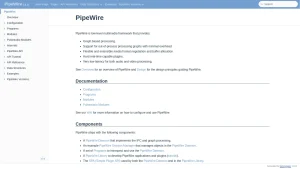
- 2017 onward: PipeWire by Wim Taymans replaced both roles. It speaks PulseAudio, JACK and ALSA protocols on one daemon, adds video routing for Wayland screen sharing, and uses a graph where any output can connect to any input.
That history explains the culture shock. On Windows you ask which VAC app to buy. On Linux you ask which layer you already run, then you create a sink in one command. Ubuntu 22.10, Fedora 35 and later, Debian 12 and later, Arch, openSUSE Tumbleweed and Raspberry Pi OS Bookworm all ship PipeWire by default. If you run one of those, you already own the VAC equivalent.
How to Check What Audio Server You Run
Open a terminal and run:
pactl info | grep -i "server name"
pw-cli info 0 | grep -i "version"
ps aux | grep -E "pipewire|pulseaudio|jackd" | grep -v grep
Typical results:
Server Name: PulseAudio (on PipeWire 1.2.x)means you run PipeWire with PulseAudio compatibility. Use the PipeWire section below.Server Name: PulseAudio 16.xwith no PipeWire process means classic PulseAudio. Use the PulseAudio section.jackd -d alsarunning means JACK is active. You can still use PipeWire tools if PipeWire owns the hardware.
For ham radio, lock your sample rate early. Most SDR and digital mode software expects 48000 Hz. Check with:
pw-metadata -n settings 2>/dev/null | grep clock
pactl list sinks | grep -i "sample spec"
cat /proc/asound/cards
If your interface runs at 44100 Hz and WSJT-X expects 48000 Hz, the server will resample. PipeWire does this cleanly, but fixing the rate at the source removes one cause of warble and decode loss.
Option 1: PipeWire Null Sink, the Recommended VAC Replacement
PipeWire is the best Linux virtual audio cable for most hams in 2026. It is installed by default, it accepts old PulseAudio commands, it talks native JACK, and its graph tools look like a VAC repeater panel.
Create a virtual cable in one command
pactl load-module module-null-sink sink_name=VAC1 sink_properties=device.description=VAC1 channel_map=stereo rate=48000
That creates:
- A playback device called
VAC1that shows up in every app - A recording source called
Monitor of VAC1that carries whatever plays intoVAC1
Route audio like this:
- In your source app (SDR++, GQRX, CubicSDR, browser, fldigi TX monitor), set audio output to
VAC1. - In your sink app (WSJT-X, JS8Call, FreeDV, Audacity, OBS), set audio input to
Monitor of VAC1. - Open
pavucontrolPlayback and Recording tabs to verify meters move.
No reboot, no driver signing, no license key.
Make it survive reboot
pactl load-module lasts until logout. For a permanent shack cable, add a PipeWire config drop-in:
mkdir -p ~/.config/pipewire/pipewire.conf.d/
Create ~/.config/pipewire/pipewire.conf.d/10-vac.conf with:
context.modules = [
  { name = libpipewire-module-adapter
    args = {
      factory.name = support.null-audio-sink
      node.name = "VAC1"
      node.description = "VAC1"
      media.class = "Audio/Sink"
      audio.channels = 2
      audio.rate = 48000
    }
  }
]
Then reload:
systemctl --user restart pipewire pipewire-pulse wireplumber
pactl list sinks short | grep VAC1
For a club station with two independent paths (for example HF receiver to WSJT-X plus VHF receiver to Dire Wolf), create VAC1 and VAC2 with two blocks. Name them by function such as HF-RX and VHF-APRS so pavucontrol stays readable during a contest.
Wire it visually with qpwgraph or Helvum
Command line sinks are exact, but a graph is faster when you patch three apps live. Two free tools dominate:
qpwgraph(Qt, in Debian/Ubuntu asqpwgraph, Fedora asqpwgraph, Arch AUR asqpwgraph): full patchbay with saveable patch snapshots. Save one snapshot per activity such asft8.jsonandsat.json.Helvum(GTK, Flatpakorg.pipewire.Helvum): simpler canvas, good on GNOME and touch laptops.
Install on Debian/Ubuntu:
sudo apt install qpwgraph pavucontrol pipewire-jack
Install on Fedora:
sudo dnf install qpwgraph pavucontrol helvum
Workflow in qpwgraph:
- Left side shows outputs such as SDR++ and browser. Right side shows inputs such as WSJT-X and recorder.
- Drag from source output to
VAC1:inputor directly to decoder input for temporary tests. - Monitor ports start with
Monitor_. Connect those to decoders, not the sink input itself. - Use the red disconnect button before major repatching to avoid feedback loops to speakers.
Helvum shows the same graph with less clutter and is ideal for field laptops where screen space is tight.
PipeWire loopback for speaker plus decoder monitoring
VAC on Windows often pairs with Audio Repeater to hear what you decode. On PipeWire, load a loopback to copy the cable to your speakers without breaking the digital path:
pactl load-module module-loopback source=VAC1.monitor sink=@DEFAULT_SINK@ latency_msec=50
Set latency to 50 ms for voice monitoring, 10 to 20 ms for CW sidetone work if your CPU allows. Unload with pactl unload-module and the module index shown by pactl list modules short.
Useful PipeWire commands for the shack notebook
pactl list sinks short
pactl list sources short
pactl set-default-sink alsa_output.usb-Device-00.analog-stereo
pw-top
pw-dump | grep -A2 VAC1
pw-loopback -m '[ FL FR ]' --capture-props='media.class=Audio/Sink' --playback-props='media.class=Audio/Source'
pw-top is the PipeWire equivalent of top for audio. It shows quantum, rate and DSP load per node. If DSP load spikes above 80 percent during 192 kHz SDR use, raise the quantum in ~/.config/pipewire/pipewire.conf.d/20-quantum.conf or drop SDR sample rate before decoding.
Option 2: PulseAudio Null Sink on Older Systems
If you still run classic PulseAudio (Ubuntu 20.04 LTS, older Mint, some Pi images), the method is nearly identical because PipeWire kept the same module names.
Create the cable:
pactl load-module module-null-sink sink_name=VAC1 sink_properties=device.description=VAC1 rate=48000 channels=2
pactl load-module module-loopback source=VAC1.monitor sink=alsa_output.pci-0000_00_1b.0.analog-stereo latency_msec=60
pactl list sinks short
Make it permanent by adding to /etc/pulse/default.pa or ~/.config/pulse/default.pa:
load-module module-null-sink sink_name=VAC1 sink_properties=device.description=VAC1 rate=48000 channels=2
load-module module-loopback source=VAC1.monitor latency_msec=60
Then restart PulseAudio (PipeWire users shouldn’t do this):
pulseaudio -k
pulseaudio --start
Control volumes with:
pavucontrol &
pacmd list-sinks | grep -E "name:|description"
pactl set-sink-volume VAC1 100%
pactl set-source-volume VAC1.monitor 100%
Keep virtual cables at 100 percent (0 dB) for digital modes. Attenuation here is digital scaling before the decoder, not analog gain, and lowering it only costs SNR in WSJT-X or fldigi. Adjust speaker volume at the hardware sink instead.
PulseAudio limits each null sink to one format at a time. If you mix a 44100 Hz browser stream and a 48000 Hz SDR into the same cable, the daemon resamples one of them. That is normally fine for voice, but for weak signal work give FT8 its own dedicated cable at 48000 Hz and let YouTube share a second cable at default rate.
Option 3: JACK2 for Low Latency and Pro-Audio Routing
JACK is the original Linux virtual patchbay and still the lowest latency option. It is overkill for FT8 alone, but it shines when you route CW keying, remote audio over netjack, or guitar-style effects chains alongside radio.
Install on Debian/Ubuntu:
sudo apt install jackd2 qjackctl
Install on Fedora:
sudo dnf install jack-audio-connection-kit qjackctl
Basic start for a USB interface at 48000 Hz with 128 frame period:
jackd -d alsa -d hw:1 -r 48000 -p 128 -n 2 &
qjackctl &
In QjackCtl Connect panel, outputs appear on the left, inputs on the right. Connect sdr:Audio Out to wsjtx:in, or insert calfjack filters in between for notch and EQ. Save the patchbay snapshot per band.
PipeWire users get JACK compatibility without running jackd:
sudo apt install pipewire-jack
pw-jack wsjtx &
pw-jack fldigi &
This runs each app with PipeWire pretending to be JACK, so JACK-only meters and recorders connect in qpwgraph alongside PulseAudio apps. Latency is slightly higher than bare metal JACK but far lower than classic PulseAudio, and you keep Bluetooth, USB and browser audio working at the same time, which bare JACK historically broke.
Use JACK when you need sub 10 ms round trip for CW sidetone, when you bridge two machines with jack_netsource, or when you already own a JACK effects workflow. For simple decode routing, PipeWire alone is easier.
Option 4: ALSA Loopback for Headless Servers and Containers
On a headless Raspberry Pi, a VPS, or a Docker container with no desktop audio server, the kernel snd-aloop driver creates hardware-looking loopback cards that any ALSA app can open.
Load it:
sudo modprobe snd-aloop index=1 pcm_substreams=2
aplay -l | grep Loopback
This creates card 1 with two subdevices. App A plays to hw:Loopback,0,0. App B records from hw:Loopback,1,0. Data written to the first appears on the second with no server in between.
Make it load on boot:
echo "snd-aloop index=1 pcm_substreams=2" | sudo tee /etc/modules-load.d/snd-aloop.conf
Typical ham uses:
- Dire Wolf on a Pi without desktop, fed from an SDR over
stdinorudpthen out toplughw:Loopback multimon-ngdecoding from a loopback whilertl_fmfeeds it, all in a systemd service- Recording overnight VHF beacons with
arecord -D hw:Loopback,1,0 -f S16_LE -r 48000 night.wavwhile the receiver writes tohw:Loopback,0,0
ALSA loopback has no volume control, no meters and no GUI. It is sample-accurate and immune to desktop crashes, which is why repeater controllers and APRS iGates favor it. Pair it with alsamixer -c Loopback only to verify the card exists, not to set digital mode levels.
Windows VAC Versus Linux Options at a Glance
| Item | Windows VAC / VB-Cable | PipeWire null sink | PulseAudio null sink | JACK2 | ALSA snd-aloop |
|---|---|---|---|---|---|
| Cost | Paid per cable pack or donationware | Free, in distro | Free, in distro | Free, open source | Free, in kernel |
| Install | Kernel driver plus reboot | Already installed on modern distros | Already installed on older distros | jackd2 plus qjackctl package |
modprobe snd-aloop |
| Max cables | Limited by license, typically 1 to 4 | Unlimited, one command each | Unlimited, one command each | Unlimited ports per client | Limited by pcm_substreams param |
| GUI patchbay | Audio Repeater, third party mixer | qpwgraph, Helvum, Coppwr | pavucontrol, paprefs | QjackCtl, Carla, Patchage | None, device names only |
| Latency typical | 10 to 30 ms WDM/KS | 10 to 25 ms at 48 kHz | 30 to 80 ms | 3 to 10 ms tuned | Near zero kernel copy |
| Sample rate | Fixed per cable in control panel | Per sink, resampled on the fly | Per sink, daemon resample | Single graph rate, strict | Fixed by apps opening device |
| Scriptable | Limited command line | Full CLI plus WirePlumber Lua | Full pactl and pacmd CLI |
Full jack_* CLI plus Python |
Shell plus aplay and arecord |
| Survives reboot | Yes, driver persists | Yes with config drop-in | Yes with default.pa edit |
Only with session manager | Yes with modules-load.d |
| Best ham fit | Windows-only shack | Daily SDR to WSJT-X routing | Older laptops and Pis | CW, remote audio, effects | Headless iGate and recorder |
If you only remember one row: PipeWire gives you unlimited free cables, a visual patchbay, and compatibility with both PulseAudio and JACK apps at once. That combination is why it replaced the other two for most desktop hams after 2022.
Practical Ham Radio Workflows on Linux
SDR receiver to WSJT-X or JS8Call
This is the number one VAC use case moving to Linux. Example with SDR++ and WSJT-X on PipeWire:
- Create
VAC1at 48000 Hz as shown above. - In SDR++, set Audio output to
VAC1. Set SDR++ demodulator to USB, filter 3 kHz, volume around 70 percent so the monitor meter peaks near -10 dB. - In WSJT-X, set Audio input to
Monitor of VAC1. Set output to your speakers or a second cable for TX monitoring. - In
pavucontrolRecording tab, confirm WSJT-X showsMonitor of VAC1. In Playback tab, confirm SDR++ showsVAC1. - Tune to 14.074 MHz FT8, watch WSJT-X waterfall and decode list. If the waterfall is flat, you patched the wrong monitor. If it is red and overloaded, lower SDR++ AF gain, never the sink volume.
Save this wiring in qpwgraph as hf-ft8.qpwgraph so one click restores it after a reboot.
Browser WebSDR to fldigi decode
Many amateurs decode SSTV, HELL or WEFAX from a browser-based KiwiSDR or WebSDR. Browsers on Linux output to PulseAudio/PipeWire by default, so they work with the same cable:
- Create
VAC2namedWebSDR. - Play the KiwiSDR stream in Firefox or Chrome. In
pavucontrolPlayback, move that browser stream toWebSDR. - In fldigi or QSSTV, set capture to
Monitor of WebSDR. - For Robot 36 SSTV on 14.230 MHz, set fldigi Op Mode to SSTV and enable auto slant correction before relying on levels.
This replaces the Windows trick of setting VAC as default playback device and then losing all system sounds. On Linux only the browser tab you move goes to the cable. Discord, Zoom and system alerts keep playing to speakers.
Dire Wolf APRS iGate with separate RX and TX paths
Packet work benefits from two cables to avoid TX audio leaking into the RX decoder:
VAC-APRS-RXcarries receiver audio to Dire Wolf input.VAC-APRS-TXcarries Dire Wolf output to the transmitter interface or to a dummy recorder for testing.
Example direwolf.conf snippet:
ADEVICE plughw:Loopback,1,0 plughw:Loopback,0,0
CHANNEL 0
MODEM 1200
On desktop PipeWire, substitute ADEVICE VAC-APRS-RX VAC-APRS-TX via the PulseAudio compatibility names shown in pactl list sources short. Test with aplay test-packet.wav -D VAC-APRS-RX and watch Dire Wolf decode without keying hardware.
Recording and streaming without mic bleed
For YouTube demos, club training nights or remote Elmering:
- Route radio audio to
VAC-REC. - In OBS Studio, add source Audio Input Capture set to
Monitor of VAC-REC. - In OBS Advanced Audio, enable Monitor and Output on that source to hear it while viewers hear clean radio audio with no room echo.
- Record with
parec -d VAC-REC.monitor --file-format=wav rec.wavfor archival IQ-adjacent audio.
This is cleaner than the Windows stereo mix hack because the recording tap is per cable, not whole-system output.
Latency, Levels and Troubleshooting
Digital modes care about levels and stability more than ultra low latency. Voice and CW care about latency. Use these rules:
- Keep virtual sinks at 0 dB. Control loudness at the app AF gain or at the hardware sink. A red clipping indicator on a null sink means digital overflow before the decoder, and no amount of RF gain will fix it.
- Match rates where you can. Run interface, sink and decoder at 48000 Hz for WSJT-X, FreeDV and most SDRs. Use 44100 Hz only if every app in that chain is music-oriented.
- Watch quantum on PipeWire. Default 1024 frames at 48000 Hz is about 21 ms. Lower to 256 or 128 for CW sidetone, raise to 2048 for weak CPU netbooks decoding while compiling.
- If audio stutters only when the browser is open, the browser likely opened the sink at a different rate and forced resampling. Give the browser its own cable.
- If
pavucontrolshows no apps, the app may be using raw ALSA and bypassing the server. Installpipewire-alsaor launch withapulseshim, or switch that app to its PulseAudio output option in preferences. - If qpwgraph shows duplicate connections after resume from suspend, press Disconnect All on the virtual node and reload your saved patch snapshot.
- For permission errors in Flatpak apps (Bottles, OBS from Flathub), grant audio with Flatseal or
flatpak override --socket=pulseaudio --socket=pipewire-0 <app-id>.
A quick health check script for the shack:
pactl list sinks short | grep -E "VAC|HF|VHF"
pactl list sources short | grep monitor
pw-top -n 1
If sinks exist, monitors exist, and pw-top shows no XRUN counter climbing, the virtual cable layer is healthy. Any remaining decode problem is RF gain, filter width or mode mismatch, not Linux audio.
Which Linux Virtual Audio Cable Should You Choose
- Daily HF digital on a modern laptop or desktop: PipeWire null sink plus qpwgraph. It’s the closest one-to-one VAC replacement, it’s already installed, and it handles SDR, browser and decoder at once.
- Older LTS install or Raspberry Pi with PulseAudio only: PulseAudio null sink plus pavucontrol. No need to migrate a stable field Pi just for VAC.
- Low latency CW, guitar-style processing, or multi-machine audio: JACK2 or
pw-jackwrappers. Accept the extra tuning for sub 10 ms performance. - Headless iGate, beacon monitor or Docker recorder with no GUI: ALSA snd-aloop. It survives desktop crashes and uses almost no CPU.
- Mixed shack with Windows still in the rack: keep VAC on Windows, use PipeWire on Linux, bridge machines with
roc-toolkit,netjack2or even plainffmpegover LAN. Don’t try to pass VAC drivers through Wine, it is unstable and unsupported.
You don’t need to buy anything. You don’t need to reboot into a signed driver. Create the sink, patch the graph, save the snapshot, and get back on the air.
Sources and Further Reading
- Virtual Audio Cable by Eugene Muzychenko: https://vac.muzychenko.net/
- VB-Audio VB-Cable: https://vb-audio.com/Cable/
- PipeWire project documentation: https://docs.pipewire.org/
- PipeWire Wiki, Virtual Devices: https://gitlab.freedesktop.org/pipewire/pipewire/-/wikis/Virtual-Devices
- PulseAudio null sink and loopback modules: https://wiki.archlinux.org/title/PulseAudio
- PipeWire virtual devices and Arch guide: https://wiki.archlinux.org/title/PipeWire
- JACK Audio Connection Kit: https://jackaudio.org/
- QjackCtl: https://qjackctl.sourceforge.io/
- Qpwgraph PipeWire graph manager: https://github.com/rncbc/qpwgraph
- Helvum GTK patchbay: https://gitlab.freedesktop.org/pipewire/helvum
- Pavucontrol volume control: https://freedesktop.org/software/pulseaudio/pavucontrol/
- ALSA project documentation: https://www.alsa-project.org/wiki/Main_Page
- SDR++ receiver project: https://github.com/AlexandreRouma/SDRPlusPlus
- WSJT-X weak signal software: https://wsjt.sourceforge.io/
- Dire Wolf packet modem: https://github.com/wb2osz/direwolf
73 de 9M2PJU







Post Comment