Disk Cloning for the Shack: Backing Up Your PCs from Norton Ghost to Clonezilla
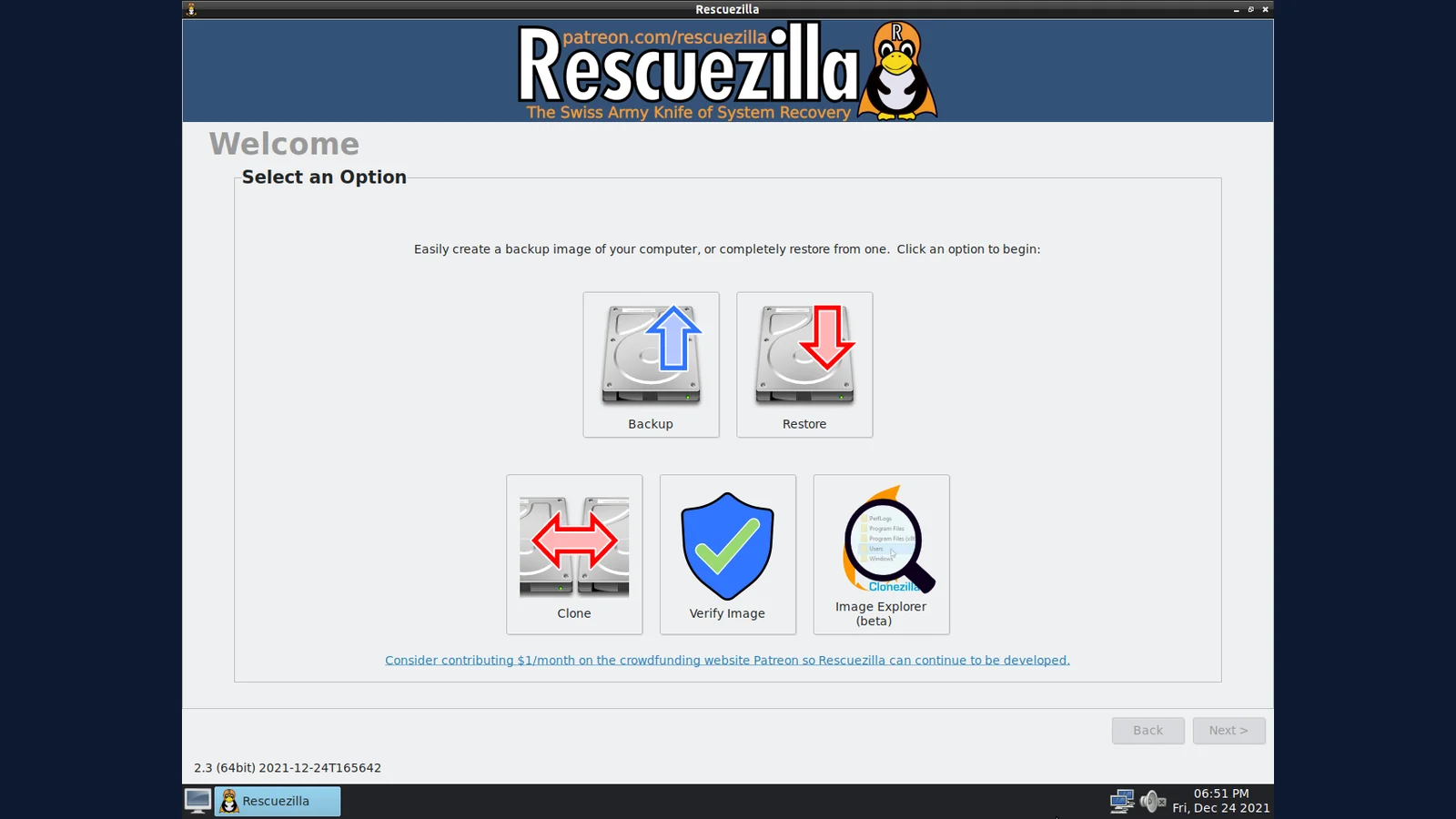
TL;DR: Disk cloning Clonezilla style is how a ham shack survives a dead SSD or a corrupted update: copy the whole drive, boot sectors and all, so a restore takes an hour instead of a rebuild weekend. Norton Ghost ruled this world in the 2000s and was discontinued in 2013. Its open source successor is Clonezilla, free and still actively developed, with Rescuezilla as its friendly face, FOG Project for cloning whole club fleets over the network, and rpi-clone for Raspberry Pi SD cards. Image your machines now, label the images, test the restore, and keep a rescue USB in the go kit.
What Disk Cloning Is
Disk cloning is the sector-by-sector copying of an entire drive, partitions, boot loader, operating system, drivers, applications, settings, and data, either into a compressed image file for later restore or straight onto another drive for immediate swap-in. Three terms get mixed up constantly, so here is the short version:
| Method | What it copies | Restores a bootable PC? |
|---|---|---|
| File backup | Selected files and folders | No, needs a working OS first |
| Disk image | Every used sector into one file | Yes, via a rescue USB |
| Disk clone | Every used sector straight onto another drive | Yes, swap the drive and boot |
Good tools copy only used sectors by understanding the filesystem, so a 1 TB drive holding 60 GB of data produces a roughly 30 to 60 GB compressed image instead of a 1 TB one. Bad or ancient tools copy every sector blindly, slow and wasteful. After writing, always verify the image. An unverified backup is a rumor, not a backup.
Why Hams Should Clone Their Disks
File backups save your logs and configs. They don’t save you when the shack PC refuses to boot at 11 pm before a contest, when a Windows update bricks the digital modes machine, or when the SD card in the APRS igate dies silently after three years of continuous logging. A disk image is a snapshot of everything: partitions, boot loader, operating system, drivers, applications, settings, and data. Restore it to a fresh drive and the machine comes back exactly as it was.
Three jobs cover nearly every amateur need:
- Backup – take an image of a working machine and store it on an external drive. When disaster strikes, restore.
- Duplicate – copy one known good setup to more hardware. One configured DietPi APRS igate becomes five identical igates. One field day logging laptop becomes six.
- Migrate – move everything to a bigger SSD without reinstalling anything.
Cloning is the unglamorous insurance policy behind every reliable shack, club station, repeater site, and emergency communications deployment.
Norton Ghost: The King of the 2000s
If you worked in IT between roughly 1998 and 2010, you knew Ghost. Understanding its story explains why the whole field works the way it does today.
Origins in Auckland
GHOST, an acronym for General Hardware-Oriented System Transfer, was written in 1995 by Murray Haszard for a small New Zealand company called Binary Research in Auckland. It was a DOS program that could copy a hard drive sector by sector and squeeze the result into .gho image files, and it was remarkably fast for its era. Symantec bought the technology in 1998, and development stayed in Auckland until 2009. The full product history is on Wikipedia’s Norton Ghost page.
The golden age: Ghost 2003
The version everyone remembers is Norton Ghost 2003, released in September 2002 and bundled with Norton SystemWorks 2003 Professional. You made a DOS boot floppy, booted the dead PC from it, and pulled an image back over the network. It just worked, on hardware its own installer barely understood, and an entire generation of technicians learned their trade from it.
Ghost’s killer feature for institutions was GhostCast Server: multicast one image to a whole classroom, computer lab, or office floor simultaneously. Schools and universities imaged hundreds of identical PCs in an afternoon. At its peak Ghost was the default deployment tool of corporate IT, bundled in the yellow Norton boxes sold in every computer shop. Its popularity had a shadow side too: the same .gho convenience made it the standard format for pirated pre-activated Windows distributions across Asia in the 2000s.
The PowerQuest takeover and the long decline
At the end of 2003 Symantec bought its biggest competitor, PowerQuest, and in August 2004 released Norton Ghost 9.0 built on PowerQuest’s Drive Image 7 codebase instead of the original Ghost engine. The image format changed to .v2i and was incompatible with old .gho files. Old hands considered it a different product wearing a familiar name, and the classic DOS based engine survived only in the enterprise Ghost Solution Suite line.
Versions 10 through 15 followed, the last in 2009 to 2010, but the world had moved on: UEFI firmware, GPT partition tables, BitLocker encryption, and Linux filesystems like ext4, which only arrived in the enterprise edition in 2017, long after the consumer line was dead. Symantec discontinued Norton Ghost on April 30, 2013, with support ending June 30, 2014, and pointed customers at Symantec System Recovery. The enterprise Ghost Solution Suite lingered on under Broadcom ownership, but for ordinary users the Ghost era was over.
Ghost’s legacy is the vocabulary itself. Hams of a certain age still say “ghost the drive” the way people say “xerox a copy”. But nobody should be ghosting anything in 2026: the last consumer release can’t handle UEFI boot, modern NVMe drives, or current filesystems, and it has received no fixes in over a decade.
Clonezilla: The Open Source Successor
While Ghost was declining, its replacement was already growing in Taiwan. Clonezilla was designed by Steven Shiau and developed by the NCHC Free Software Labs (National Center for High-Performance Computing), with the project starting around 2003 to 2004. It is free software under the GPL, and unlike abandonware it’s still actively developed, with releases rolling through 2026 on modern kernels. Downloads live at clonezilla.org/downloads.php.
Clonezilla comes in two flavors:
- Clonezilla Live – boots from USB, clones one machine to an image or straight to another disk. This is the one hams want.
- Clonezilla Server Edition (SE) – deploys one image to many machines over the network, the open source answer to GhostCast.
Under the hood it is a smart integration of best of breed open source parts: Partclone (by Thomas Tsai, also NCHC) for filesystem aware copying, Partimage, ntfsclone, and udpcast for multicast. It understands ext4, NTFS, FAT, HFS+, and current releases have restored btrfs support via Partclone 0.3.36. Recognition followed: SourceForge Project of the Month in January 2010, millions of downloads, and a permanent place in every technician’s USB toolkit.
Why it beat Ghost for our purposes: it costs nothing, it handles Linux filesystems natively, it boots on UEFI and NVMe without drama, and the multicast server edition is free for clubs that need to image a fleet.
Modern Cloning Tools Compared
| Tool | Cost | Interface | Best for |
|---|---|---|---|
| Clonezilla Live | Free, open source | Text menus | The default choice for whole disk backup and restore |
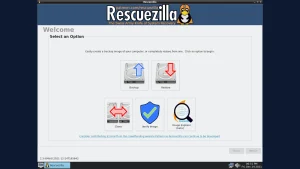
| Rescuezilla | Free, open source | Graphical | Beginners, anyone scared of Clonezilla menus, fully Clonezilla image compatible |
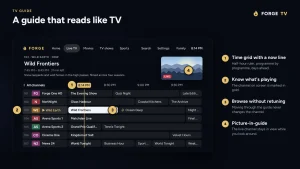
| FOG Project | Free, open source | Web console | Clubs imaging many PCs over the network, PXE boot fleets |
| Redo Rescue | Free, open source | Graphical | Simple point and click rescue imaging |
| Foxclone | Free | Graphical | Linux Mint and Ubuntu desktops |
| Veeam Agent | Free edition | Windows GUI | Scheduled image backups of a running Windows shack PC |
| Hasleo Backup Suite | Free | Windows GUI | Modern free Windows imaging after Macrium’s exit |
| Macrium Reflect | Paid subscription | Windows GUI | Polished Windows tool, but the free edition was retired in January 2024 and Reflect X is subscription only |
| Acronis / vendor tools | Paid or bundled | Windows GUI | Samsung Data Migration and similar are fine for one way SSD upgrades |
| dd / ddrescue, GNOME Disks | Free, built in | Command line / GUI | Raw copies, damaged drives (ddrescue), quick SD card dumps |
Two notes for the nostalgic. First, old Macrium Reflect Free v8 still floats around download sites, but it stopped receiving even security patches in January 2024, so don’t build a backup strategy on it. Second, anything that only runs on DOS era boot media belongs in a museum next to the floppy disks, not in your go kit.
Workflows for the Shack
Workflow 1: Back up a Windows shack PC
- Download Rescuezilla, flash it to a USB stick with Balena Etcher or Rufus.
- If the PC uses BitLocker, suspend protection first so the rescue environment can read the drive.
- Boot the USB, choose Backup, select the internal drive, and save the image to an external USB drive.
- Let it verify, then label the image with machine, date, and Windows version, for example
shack-hp-EliteDesk_win11_2026-11-03. - Once a year, actually restore to a spare drive and confirm it boots. An untested image is a hope, not a plan.
Workflow 2: Duplicate a Raspberry Pi node
This is the bread and butter for APRS igates, DX cluster nodes, and ADS-B feeders:
- While the Pi is still running and healthy, attach a second SD card over a USB reader and run rpi-clone. It copies the live system to the spare card.
- Alternatively power the Pi down, pull the card, and take an image with Raspberry Pi Imager or
ddon another machine. - Boot the clone once to confirm it works, then bag it with a label and keep it at the site or in the go kit.
- Tip: give each duplicate its own hostname and, for network services, check for address or callsign collisions before putting two copies on the same LAN.
Workflow 3: Clone a Linux SSD to a bigger one
- Connect the new SSD over USB, boot Clonezilla Live.
- Use
device-devicemode,disk_to_local_disk, source old drive to target new drive. - Let Clonezilla grow the partitions with the
-k1option, then boot the new drive and expand the filesystem to fill it. - Special case that bites people: a btrfs multi device pool spread over two partitions or drives is one filesystem wearing two hats. Clone the entire disk, never a single partition, or the pool won’t reassemble. Current Clonezilla releases understand btrfs, but whole disk mode is still the safe path.
Workflow 4: Golden rules for all of the above
- Stop the databases first. A live MariaDB, DXSpider spot database, or logging program copied mid write restores corrupted. Shut down containers or services, or use filesystem snapshots, before imaging.
- Verify every image and test boot the important ones.
- Label everything: machine, OS, date. Future you won’t remember what
backup-final-2.imgcontains. - Keep the rescue USB with the images. An image without bootable restore media is a paperweight.
- Cloning Windows to different hardware may need driver repair and reactivation. For fleets of identical club PCs this rarely matters; for mixed hardware, look into sysprep generalize before capturing the master image.
- Retire spinning rust images regularly. Re-image after major changes: new radio software, antenna rotator drivers, contest logger upgrades.
Gotchas Worth Knowing
- UEFI vs legacy boot: modern PCs boot UEFI from GPT disks. Clonezilla and Rescuezilla handle both, but make sure the rescue USB itself boots in UEFI mode or the restored disk may not start.
- Secure Boot: current Clonezilla Live releases boot fine with Secure Boot on. Ancient tools don’t.
- Smaller target drives: images restore to equal or larger drives. Shrinking partitions to fit a smaller SSD is possible but fiddly; avoid it by buying the bigger drive.
- 4K sector drives: mixing old 512 byte and new 4K native sector drives can misalign partitions and cost performance. Whole disk clone tools normally handle alignment, partition only copies sometimes don’t.
- SD card wear: cards in 24/7 Pi service die of write exhaustion. Imaging the card preserves the software, but replace aging cards proactively and keep writes low with tmpfs and RAM logging.
Conclusion
Norton Ghost earned its legend: a fast DOS tool from Auckland that taught the world what disk imaging could be, then faded when its owner stopped keeping up with UEFI, modern filesystems, and Linux. Clonezilla picked up the torch as free software and never put it down. For a ham, the practical stack is small: Rescuezilla or Clonezilla Live on a USB stick for the PCs, rpi-clone for the Pi fleet, FOG Project if the club runs a training room, and a labelled external drive holding tested images. Pair the backup habit with disk encryption on portable drives, covered in the VeraCrypt guide, and build the images on a quiet Sunday. Then the next dead drive becomes a story about a one hour restore instead of a lost contest weekend.
Sources and Further Reading
- Clonezilla official site and downloads: https://clonezilla.org/
- Clonezilla Live download page: https://clonezilla.org/downloads.php
- Rescuezilla official site and download: https://rescuezilla.com/
- FOG Project community imaging platform: https://fogproject.org/
- Partclone filesystem aware imaging library: https://partclone.org/
- Rpi-clone live Pi cloning script: https://github.com/billw2/rpi-clone
- Redo Rescue point and click rescue imaging: https://github.com/redorescue/redorescue
- Norton Ghost product history: https://en.wikipedia.org/wiki/Norton_Ghost
- Encrypt portable backup drives with VeraCrypt: https://hamradio.my/veracrypt-disk-encryption-ham-radio/
73 de 9M2PJU

Post Comment