Podroid: Run Real Docker, Podman, and LXC Linux Containers on Android Without Root
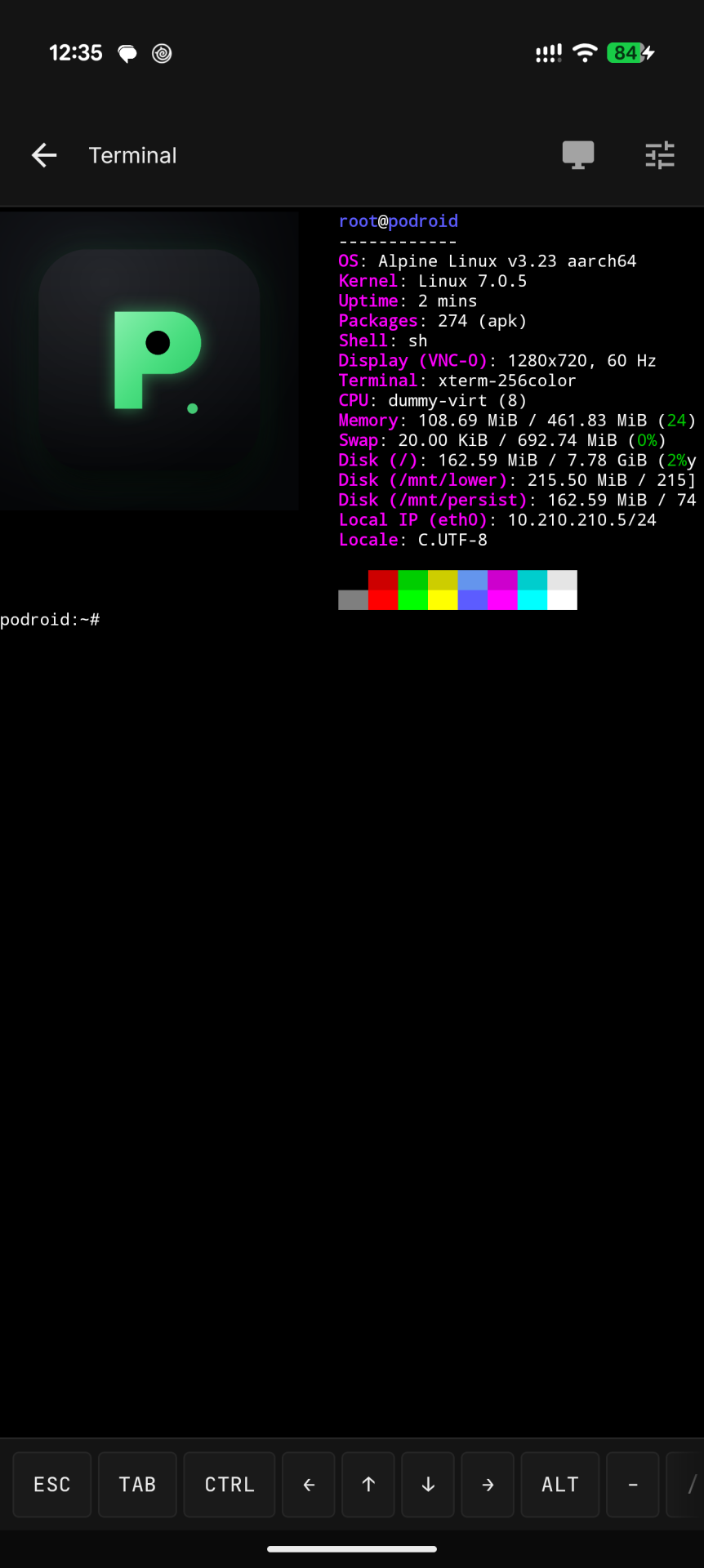
TL;DR: Podroid is an open-source Android application by ExTV that runs a full Alpine Linux virtual machine with a custom Linux kernel directly on ARM64 Android devices without root access. Unlike Termux PRoot or chroot environments that share the host kernel and fail on container syscalls, Podroid provides true kernel-level isolation, cgroups v2, network namespaces, and overlayfs. It ships with rootless Podman, Docker CE, and LXC pre-installed, features an in-app Termux-powered terminal with 122 themes, an integrated X11 GUI desktop viewer with audio, dynamic in-guest port forwarding via
podroid-forward, USB passthrough, and supports hardware-accelerated AVF (pKVM) on modern Google Pixel devices.
What is Podroid?
Podroid is an open-source Android application that runs a dedicated Alpine Linux virtual machine with its own custom Linux kernel, enabling rootless Podman, Docker, and LXC container workloads and X11 desktop environments without root privileges.
+-------------------------------------------------------------------------+
|                      PODROID SYSTEM ARCHITECTURE                        |
+-------------------------------------------------------------------------+
|                                                                         |
|  [ ANDROID HOST LAYER (Android 8+ / arm64-v8a / No Root Required) ]      |
|  - Jetpack Compose & Material 3 Interface (Single Activity)             |
|  - Podroid Foreground Service (WakeLock, Process Lifetime, Autostart)   |
|  - Native Binaries (16KB Page-Aligned): QEMU, Bridge, Launcher, SLIRP   |
|                                                                         |
+------------------------------------+------------------------------------+
| HYPERVISOR ENGINE A (DEFAULT)      | HYPERVISOR ENGINE B (PIXEL pKVM)   |
+------------------------------------+------------------------------------+
| - QEMU TCG Software CPU Emulation  | - Android Virtualization Framework |
| - Multi-Threaded TCG Translation   | - Hardware-Accelerated pKVM        |
| - Virtio Bus: hvc0, hvc1, hvc2     | - Vsock Control & Port Forwarding  |
| - SLIRP User-Mode Network NAT      | - In-Process 9P2000.L File Server  |
| - QMP Socket (Hotplug / Ports)     | - Near Bare-Metal Execution Speed  |
|                                    |                                    |
+------------------------------------+------------------------------------+
|                                                                         |
|  [ GUEST LINUX VIRTUAL MACHINE (Alpine Linux 3.24 / Linux 7.1.5 Kernel) ]|
|  - Storage: Read-Only SquashFS (/dev/vdb) + Persistent ext4 (/dev/vda)  |
|  - Init: init-podroid initramfs -> switch_root -> OpenRC (PID 1)        |
|  - Kernel Features: cgroups v2, netfilter/nftables, veth, bridge, FUSE  |
|                                                                         |
+------------------------------------+------------------------------------+
| CONTAINER ENGINES & DAEMONS        | CLIENT INTERFACES & BRIDGES        |
+------------------------------------+------------------------------------+
| - Rootless Podman + crun engine    | - In-App Termux xterm-256color PTY |
| - Docker CE Daemon (OpenRC service)| - Built-In X11 / Xvnc GUI Viewer   |
| - LXC (Linux Containers)           | - PulseAudio Sound Loopback        |
| - Netavark + Aardvark DNS          | - podroid-hostd Android Bridge     |
| - Dropbear SSH Server (Port 9922)  | - podroid-forward Port Tool        |
|                                    |                                    |
+------------------------------------+------------------------------------+
For years, developers, sysadmins, and homelab enthusiasts have attempted to use Android smartphones as portable servers. While modern smartphones pack 8-core 64-bit processors, 8 GB to 16 GB of RAM, and fast UFS storage, running standard Linux containers on unrooted Android has remained impossible due to how Android manages process security.
Tools like Termux and PRoot intercept system calls using ptrace in user space. While PRoot can emulate a standard file hierarchy, it runs directly on top of Android’s host kernel. Android kernels lack essential features required by container engines: cgroups v2 resource controllers, network namespaces (netns), virtual ethernet pairs (veth), bridge filtering, and writable overlayfs mounts. Strict SELinux policies and Seccomp filters block unprivileged users from managing system daemons.
Podroid solves this problem by taking an architectural leap: instead of patching user space syscalls, it boots a full virtual machine with a custom-compiled Linux kernel inside an unprivileged Android application. Inside this isolated virtual machine, Alpine Linux boots with OpenRC as PID 1, exposing full kernel capabilities so that Docker, Podman, and LXC run natively without modifications.
Under the Hood: Hypervisor Backends and Storage Architecture
Podroid achieves portability and performance through a modular engine abstraction (VmEngine) that routes execution to either a universal software emulator or a hardware-accelerated hypervisor.
1. The Dual Hypervisor Engines
- QEMU Backend (TCG Software Emulation – Default): Works on any 64-bit ARM device running Android 8.0 or higher (API level 26+). It utilizes QEMU with Tiny Code Generator (TCG) multi-threading to translate guest ARM64 instructions into host ARM64 instructions at runtime. The QEMU engine communicates over dedicated Virtio serial channels (
terminal.sock,ctrl.sock,host.sock, andqmp.sock) and provides user-mode networking through an embedded SLIRP stack. - AVF / pKVM Backend (Hardware Virtualization): On modern Google Pixel devices (Pixel 8, 8 Pro, 8a, Pixel 9 series running Tensor G3/G4 chips) that expose the Android Virtualization Framework (
android.software.virtualization_framework), Podroid can run on top of pKVM (Protected KVM). This executes guest CPU instructions directly on the physical processor cores with near-native performance. AVF uses AF_VSOCK channels for control and an in-process 9P2000.L server for high-speed file sharing.
+-------------------------------------------------------------------------+
|                  QEMU (TCG) VS. AVF (pKVM) BACKEND DATA FLOW            |
+-------------------------------------------------------------------------+
|                                                                         |
|  [ QEMU TCG ENGINE (Universal Android 8+) ]                             |
|  App UI  <-->  libpodroid-bridge.so  <-->  terminal.sock  <-->  /dev/hvc0 |
|  App UI  <-->  Window Resize Handler <-->  ctrl.sock      <-->  /dev/hvc1 |
|  App UI  <-->  Host Request Server   <-->  host.sock      <-->  /dev/hvc2 |
|  App UI  <-->  QmpClient (Port Fwd)  <-->  qmp.sock       <-->  QEMU Core |
|                                                                         |
|  [ AVF pKVM ENGINE (Google Pixel 8 / 9 Hardware Virtualized) ]          |
|  App UI  <-->  Console Fanout Stream <-->  Vsock Console  <-->  Alpine VM |
|  App UI  <-->  VsockControlChannel   <-->  Vsock Port 9100<-->  Alpine VM |
|  App UI  <-->  Host Request Server   <-->  Vsock Port 9101<-->  Alpine VM |
|  App UI  <-->  Ninep2000LServer      <-->  Vsock 9P Share <-->  Downloads |
|                                                                         |
+-------------------------------------------------------------------------+
2. Storage Architecture: SquashFS Lower + Persistent ext4 Upper
To keep the application download lightweight while guaranteeing data persistence across updates, Podroid employs a two-tier overlayfs storage model:
- Read-Only SquashFS (
/dev/vdb): The complete Alpine Linux 3.24 base operating system, OpenRC services, container runtime packages, and pre-compiled host tools are compressed using Zstandard (zstd) into analpine-rootfs.squashfsimage bundled in the APK assets. - Persistent ext4 Image (
/dev/vda): A dedicatedstorage.imgdisk image created in the application’s private data directory acts as the writable upper overlay layer. Every installed package (apk add), container image, Docker volume, home directory file, and SSH key is written to this ext4 layer. - True
switch_rootInitialization: During boot, Podroid’s custom initramfs script (init-podroid) mounts both block devices, stacks the overlayfs, and executesswitch_rootinto Busybox/sbin/init. Unlikechrootimplementations that breakcrunandpodman execby retaining raw kernel mount paths,switch_rootreorganizes the kernel mount tree so that namespace forks see a pristine root filesystem.
+-------------------------------------------------------------------------+
|                 TWO-TIER PERSISTENT OVERLAY ARCHITECTURE                |
+-------------------------------------------------------------------------+
|                                                                         |
|  [ Merged Unified Rootfs: / ]                                           |
|  Visible to: OpenRC (PID 1), Podman, Docker, Shell, User Home           |
|       ^                                                                 |
|       | (overlayfs union mount created by init-podroid)                 |
|  +----+------------------------------------------------------------+    |
|  |                                                                 |    |
|  | [ UPPER LAYER: /mnt/persist/upper ]                             |    |
|  | Location: /dev/vda (storage.img ext4 disk image)                |    |
|  | Stores: Modified configs, user files, apk packages, containers  |    |
|  | Persistence: Preserved across app upgrades and VM restarts      |    |
|  |                                                                 |    |
|  | [ LOWER LAYER: /mnt/lower ]                                     |    |
|  | Location: /dev/vdb (alpine-rootfs.squashfs zstd compressed)      |    |
|  | Stores: Pristine Alpine base, default OpenRC daemons, binaries  |    |
|  | Persistence: Replaced seamlessly when updating the APK          |    |
|  |                                                                 |    |
|  +-----------------------------------------------------------------+    |
|                                                                         |
+-------------------------------------------------------------------------+
3. Zero-Wipe Upgrades via podroid-migrate
When you update the Podroid APK, the new version replaces the read-only SquashFS lower layer. Because Podroid uses a plain overlayfs configuration (avoiding metacopy, index, and redirect_dir), the upper persistent layer automatically layers over the updated system.
On boot, the podroid-migrate OpenRC service checks /etc/podroid/system-version against the persistent /mnt/persist/.podroid/applied-version. If an update occurred, it executes any incremental migration scripts in /etc/podroid/migrations/ sequentially before handing control over to podroid-bootstrap. You never lose installed packages, databases, or container configurations during app updates.
Key Features and Built-In Capabilities
Podroid includes everything necessary to run a full Linux workstation or container node from a single mobile interface.
+-------------------------------------------------------------------------+
|                      PODROID CORE FEATURE MATRIX                        |
+-------------------------------------------------------------------------+
|                                                                         |
|  +---------------------------+       +-------------------------------+  |
|  | ROOTLESS CONTAINER STACK  |       | IN-APP TERMUX TERMINAL        |  |
|  | - Podman (crun engine)    |       | - xterm-256color & True Color |  |
|  | - Docker CE (dockerd)     |       | - 122 Curated Color Themes    |  |
|  | - LXC (Linux Containers)  |       | - 13 Monospace Fonts          |  |
|  | - Netavark & Aardvark DNS |       | - Dynamic Text Size Slider    |  |
|  | - fuse-overlayfs          |       | - Hardware Extra-Key Row      |  |
|  +---------------------------+       +-------------------------------+  |
|                                                                         |
|  +---------------------------+       +-------------------------------+  |
|  | BUILT-IN X11 GUI DESKTOP  |       | GUEST-TO-HOST BRIDGE          |  |
|  | - Integrated RFB/Xvnc     |       | - podroid-forward CLI         |  |
|  | - Touch-to-Mouse Gestures |       | - podroid-notify Notifications|  |
|  | - External Mouse/Keyboard |       | - Shared Downloads (9P/vsock) |  |
|  | - PulseAudio Sound Stream |       | - SSH Server on Port 9922     |  |
|  | - Desktop Res Presets     |       | - USB Passthrough (SCM_RIGHTS)|  |
|  +---------------------------+       +-------------------------------+  |
|                                                                         |
+-------------------------------------------------------------------------+
1. Pre-Installed Container Stack
The guest system includes rootless Podman, Docker CE, and LXC out of the box:
- Podman: Configured for immediate rootless operation using
crun,netavark,aardvark-dns,fuse-overlayfs, andslirp4netns. Podman runs without any background daemon. - Docker CE: The official Docker daemon (
dockerd) is managed via an OpenRC service (rc-service docker start), allowing users who rely on standard Docker CLI workflows or Docker Compose to operate smoothly. - LXC: Full Linux Containers support for running lightweight system containers.
2. High-Performance Terminal Interface
Podroid vendors the Termux terminal engine directly into Jetpack Compose:
- Terminal Emulation: Full
xterm-256colorcompatibility with true color support and mouse tracking. - Live Sizing and Customization: Includes a quick-settings drawer with 122 built-in color themes (Dracula, Nord, Catppuccin, Gruvbox, Tokyo Night, Solarized, and Base16), 13 monospace fonts (JetBrains Mono, Fira Code, Cascadia Code, Hack, Iosevka), custom
.ttffont loading, and dynamic font resizing sliders. - Debounced Resize Synchronization: A dedicated host-to-guest control socket (
ctrl.sock) debounces window resize events and notifies an in-guest resize daemon to adjuststtyparameters instantly without tearing terminal interfaces.
3. Integrated X11 Desktop and Audio Viewer
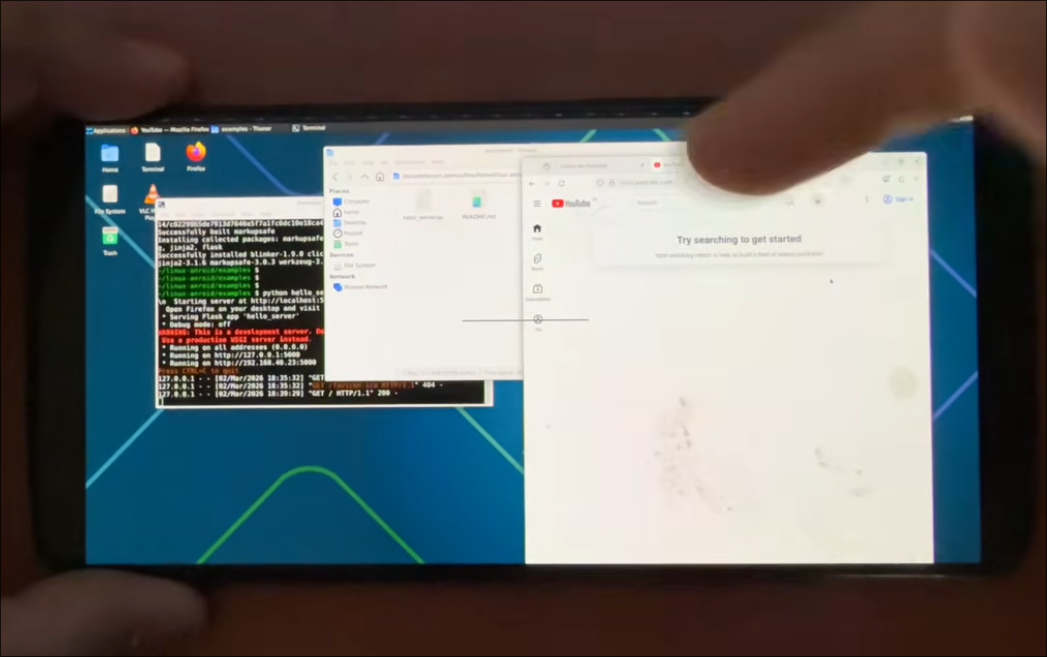
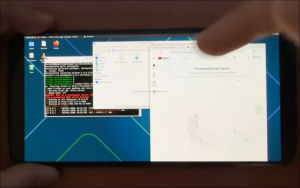
Podroid includes a native X11 viewer that connects directly to Xvnc running inside the guest:
- Graphical Desktop Support: Run full desktop environments (such as XFCE4, LXQt, or Openbox) or standalone graphical tools (GIMP, LibreOffice, Firefox, VS Code).
- Touch and Peripheral Support: Supports direct touch gestures, simulated trackpad cursor control, external Bluetooth/USB mice, hardware keyboards, and clipboard synchronization.
- Audio Redirection: Real-time PCM audio streaming from the VM to Android speakers via a PulseAudio loopback.
4. Guest-to-Android Host Bridge (podroid-hostd)
A custom C daemon (podroid-hostd) inside the guest provides command-line utilities to interact with Android:
podroid-forward: Dynamically add, list, or remove port forwarding rules directly from the terminal shell without opening app settings (for example,podroid-forward add 8080 8080 tcp).podroid-notify: Send native Android notifications from shell scripts or container health checks (for example,podroid-notify "Backup" "Docker container backup completed successfully").
5. USB Passthrough and Shared Storage
- USB Hardware Passthrough (QEMU Backend): Forward physical USB devices (such as USB-to-Serial adapters, RTL-SDR software-defined radio dongles, or flash drives) directly into the virtual machine using Android’s
UsbManagerand QEMU’s QMPadd-fdmechanism. - Shared Downloads Directory: Access files stored in Android’s
/sdcard/Downloadfolder directly inside the VM through high-speed 9P2000.L file sharing.
Comparison Table: Podroid vs. Other Android Linux Solutions
To understand where Podroid fits in the mobile computing landscape, consider this comparison against alternative approaches:
| Feature / Capability | Podroid (QEMU / AVF) | Termux + PRoot Distro | UserLAnd | Linux Deploy (Chroot) | Generic UTM / Bochs |
|---|---|---|---|---|---|
| Root Access Required | No (Stock Android 8+) | No | No | Yes (Root required) | No |
| Virtualization Method | Full VM (QEMU TCG / AVF pKVM) | Syscall Emulation (ptrace) |
PRoot / Custom Bindings | Chroot on Host Kernel | Generic Emulation |
| Dedicated Linux Kernel | Yes (Custom Linux 7.1.5) | No (Shares Android Kernel) | No (Shares Android Kernel) | No (Shares Android Kernel) | Yes |
| Cgroups v2 & Namespaces | Full Support | Not Supported | Not Supported | Partial (Host dependent) | Full Support |
| Native Docker / Dockerd | Yes (Runs out of the box) | No (Kernel unsupported) | No (Kernel unsupported) | Partial (Requires custom kernel) | Slow (Manual setup) |
| Rootless Podman Support | Yes (Pre-installed) | No | No | No | Manual install |
| System Init System | OpenRC (PID 1) | Fake Init / Manual Scripts | PRoot Process Scripts | SysVinit / OpenRC / Systemd | Varies |
| Hardware Acceleration | Yes (on AVF/pKVM Pixels) | Native CPU (PRoot overhead) | Native CPU (PRoot overhead) | Native CPU | No (TCG only) |
| In-Guest Port Forwarding | Yes (podroid-forward CLI) |
Host loopback only | App settings only | Host network shared | Complex QEMU args |
| Integrated X11 Viewer | Yes (with PulseAudio) | Requires Termux-X11 / VNC | Built-in VNC viewer | Requires external VNC app | VNC / Spice |
| Setup Complexity | One-Tap APK Install | Multi-step command scripts | Moderate | High (Root + busybox) | Complex (Config files) |
Step-by-Step Quick Start: Running Containers on Android
Getting started with Podroid takes less than two minutes on any arm64 Android phone:
Step 1: Install and Initialize
- Download the latest release APK from the Podroid Releases page.
- Open the application and complete the initial setup wizard to allocate your persistent storage size (4 GB to 16 GB recommended).
- Tap Start VM on the home screen. Within a few seconds, the boot stage indicator will change from Booting kernel… to Ready!.

Step 2: Open the Terminal and Test Rootless Podman
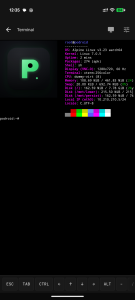
Tap the Terminal tab to open the full-screen terminal shell. Verify the environment and run your first container:
# Inspect the Alpine Linux system environment
fastfetch

# Verify that cgroups v2 and namespaces are active
podman info

# Run a lightweight Alpine container test
podman run --rm alpine echo "Hello from a real rootless container on Android!"
Step 3: Run an Nginx Web Server and Expose Ports
You can spin up an Nginx web server and expose it to your local Wi-Fi network with two commands:
# Start an Nginx web server container
podman run -d --name my-web-server -p 8080:80 docker.io/library/nginx:alpine

# Forward guest port 8080 to Android host port 8080
podroid-forward add 8080 8080 tcp

# Test the connection locally inside the VM
wget -qO- http://localhost:8080
Now open Chrome or Firefox on your Android phone (or on your laptop connected to the same Wi-Fi network) and navigate to http://<your-phone-ip>:8080. Your containerized web server is fully accessible.
# View all active port forwarding rules
podroid-forward list

# Remove all forwarded rules when finished
podroid-forward clean
Step 4: Access the VM via SSH from Your Laptop
Podroid includes a built-in Dropbear SSH server. To manage your mobile container node comfortably from a desktop keyboard:
- Enable the SSH server in Podroid’s Settings or during setup.
- Check your phone’s IP address on the Podroid Status screen.
- Open a terminal on your computer and connect on port 9922 (default password:
podroid):
ssh [email protected] -p 9922Practical Use Cases: Self-Hosting, Edge Nodes, and Ham Radio
Podroid transforms spare Android phones into silent, power-efficient micro-servers. Because smartphones include a built-in battery backup (UPS), Wi-Fi, 4G/5G connectivity, and a touchscreen, they make ideal low-power appliances.
+-------------------------------------------------------------------------+
|                  PRACTICAL DEPLOYMENT TOPOLOGIES                        |
+-------------------------------------------------------------------------+
|                                                                         |
|  [ HOMELAB & EDGE COMPUTING ]                                           |
|  - Micro Web Server: Nginx / Caddy / Hugo static site generation        |
|  - Lightweight Database: SQLite / DuckDB / Redis container              |
|  - Home Automation: Mosquitto MQTT Broker / Node-RED flows              |
|  - File Sync: Syncthing / MinIO lightweight S3 storage                  |
|                                                                         |
|  [ AMATEUR RADIO & EMERGENCY COMMUNICATIONS (EMCOMM) ]                  |
|  - APRS Digipeater / iGate: Direwolf software TNC + aprx container      |
|  - DX Cluster Node: DXSpider telnet node on port 7300                   |
|  - Tactical Mesh Mapping: OpenTAKServer lightweight server              |
|  - RF Monitoring: RTL-SDR stream server (rtl_tcp / spyserver via USB)   |
|                                                                         |
|  [ AUTONOMOUS AI AGENT WORKSPACES ]                                     |
|  - Integration with RikkaHub Agent (ExTV/rikkahub-agent)                |
|  - Local LLM executes shell tasks, compiles code, and manages Docker    |
|                                                                         |
+-------------------------------------------------------------------------+
1. Silent Shack Servers and Ham Radio Nodes
- APRS Digipeater & iGate: Run a containerized instance of Direwolf or
aprx. By connecting a USB audio interface or USB-to-serial adapter via Podroid’s USB passthrough, your phone acts as an independent 24/7 APRS gateway that survives mains power outages. - DXSpider DX Cluster Node: Host a local DX cluster node for your radio shack or field club.
- Emergency Mesh TAK Server: Run a lightweight OpenTAKServer instance to coordinate situational awareness maps (ATAK/iTAK) during search-and-rescue or severe weather drills without needing a dedicated laptop.
2. Micro Self-Hosting and Edge Development
- Local Web Development & API Mocking: Run lightweight microservices, Node.js or Python backend APIs, and SQLite databases on the go.
- Portable Mosquitto MQTT Broker: Deploy a dedicated MQTT broker in the field to ingest sensor data from ESP32 nodes, weather stations, or IoT beacons.
- Private Syncthing Relay: Create a portable, continuous file synchronization hub between your mobile devices and field gear.
3. Autonomous On-Device AI Agents
Podroid integrates with RikkaHub Agent, an on-device Android AI agent framework by ExTV. RikkaHub Agent can log into a running Podroid VM via SSH (localhost:9922) to execute shell scripts, run builds, pull container images, and inspect logs autonomously based on natural language prompts.
Performance Realities, Limitations, and Optimization Tips
Running a full virtual machine on mobile hardware requires understanding the performance characteristics of software emulation versus hardware virtualization.
Understanding the Double-JIT Bottleneck under QEMU TCG
On non-Pixel devices running the default QEMU backend, every CPU instruction is translated in software by TCG:
- Compiled C/Go/Rust Binaries: Run smoothly at roughly 2x to 5x native execution time. Services like Nginx, Caddy, Direwolf, Mosquitto, and standard command-line tools feel responsive.
- JIT-Compiled Languages (Node.js, JVM, Python PyPy): Experience significant slowdowns. This is known as the double-JIT problem: the guest runtime (such as V8 in Node.js) dynamically compiles code into guest machine instructions, which QEMU’s TCG must then intercept and re-translate into host instructions. For CPU-intensive interpreted stacks, execution can be 10x to 20x slower than native.
Recommended Configuration Tips
- vCPU Allocation: Under QEMU TCG, allocating too many virtual cores increases translation lock contention. On an 8-core smartphone processor, setting the VM to 4 vCPUs consistently yields faster benchmarks and lower thermal throttling than allocating all 8 cores.
- RAM Sizing: Allocate between 1024 MB and 2048 MB of RAM for lightweight container workloads. Podroid automatically enables ZRAM with LZ4 compression inside the guest at half the allocated RAM size.
- Preventing Android Background Kills: Android’s Low Memory Killer (LMK) will terminate background virtual machines if battery optimization is active. In your phone’s system settings, configure Podroid’s battery usage to Unrestricted and lock the app in the recent tasks overview.
- Port Numbering: Android security prevents unprivileged applications from binding to host ports below 1024. When configuring port forwarding rules, map guest container ports (such as port 80 or 443) to host ports numbered 1024 or higher (such as 8080 or 8443).
Frequently Asked Questions (FAQ)
Does Podroid require root access or an unlocked bootloader?
No. Podroid runs entirely within standard Android user space permissions. It doesn’t require root access, custom ROMs, an unlocked bootloader, or Magisk/KernelSU modifications on any 64-bit Android 8.0+ device.
How does Podroid run Docker and Podman when Termux cannot?
Termux shares Android’s host kernel, which lacks cgroups v2, network namespaces, and overlayfs. Podroid boots a virtual machine with its own Linux kernel, providing the exact kernel subsystems required by container daemons.
Can I run graphical Linux desktop apps with Podroid?
Yes. Podroid includes a built-in X11 viewer with PulseAudio sound loopback. You can install desktop environments like XFCE4 or LXQt and launch graphical applications directly using touch gestures or external Bluetooth peripherals.
How does performance compare between QEMU and AVF?
The QEMU backend uses software CPU emulation (TCG) and runs 2x to 10x slower than native execution. The AVF backend on supported Google Pixel devices uses hardware virtualization (pKVM) for near-native CPU speeds.
How do I access web services running inside Podroid containers?
Use the built-in podroid-forward add <host_port> <guest_port> tcp command inside the terminal. You can then connect via your phone’s browser or external devices on the same Wi-Fi network using the host port.


Post Comment