Vero N-Series Beta Firmware Upgrade Guide: Radios, Bluetooth Mics, and OTA Flashing
Vero N-Series Beta Firmware Upgrade Guide: Radios, Bluetooth Mics, and OTA Flashing
TL;DR: Upgrading beta firmware on Vero Telecom N-Series devices (including the VR-N76 handheld, VR-N7500 headless mobile, VR-N7600 mobile, and BHM-88 / BHM-79 Bluetooth speaker microphones) is managed directly over the air (OTA) through the VERO HT App on Android and iOS. Connect your device via Bluetooth, navigate to [Device Settings], tap the [Firmware Version] field, select “Experience Beta Firmware” in the top right corner, and enter the official release invitation code (such as
510937for VR-N76,519037for VR-N7600, or5103101for BHM-88). Beta pools are capped at 200 testers per release. Always maintain constant power during flashing, and unpair and re-pair Bluetooth speaker microphones immediately after installation to sync protocol layers.
Modern amateur radio gear increasingly relies on connected software ecosystems. Vero Telecom (VGC) built their N-Series platform around this concept, replacing bulky control heads and traditional programming cables with Bluetooth Low Energy (BLE) links and smartphone app management. Because these transceivers and accessories run active firmware on internal microcontrollers, Vero pushes regular updates that refine APRS beaconing, optimize Bluetooth audio DSP, accelerate GPS locks, and add user interface improvements.
Accessing experimental features before general release requires enrolling in Vero’s beta firmware channel. This guide explains how the Vero N-Series firmware pipeline works, walks through the step-by-step OTA upgrade procedure, details the mandatory post-update re-pairing protocol for wireless microphones, and provides troubleshooting advice for common bench issues.
What Is the Vero N-Series Beta Firmware Upgrade System?
The Vero N-Series beta firmware upgrade system is a cloud-authorized, over-the-air firmware distribution mechanism integrated into the VERO HT mobile application that allows licensed operators to flash pre-release microcontroller firmware to connected N-Series transceivers and Bluetooth accessories using temporary invitation codes.
+-----------------------------------------------------------------------------------+
|                     VERO N-SERIES OTA FIRMWARE PIPELINE ARCHITECTURE              |
+-----------------------------------------------------------------------------------+
|                                                                                   |
|   +---------------------------+       +---------------------------------------+   |
|   |   VERO CLOUD REPOSITORY   |       |   VERO HT MOBILE APP (iOS / Android)  |   |
|   |   • Firmware binaries     | ====> |   • Validates invitation code         |   |
|   |   • 200-user pool quota   |  SSL  |   • Checks 200-slot cloud quota       |   |
|   |   • Version manifest logs |       |   • Buffers binary payload chunks     |   |
|   +---------------------------+       +---------------------------------------+   |
|                                                           |                       |
|                                              Bluetooth BLE / SPP                  |
|                                              Over-The-Air (OTA)                   |
|                                                           v                       |
|   +-----------------------------------------------------------------------------+ |
|   |                          TARGET HARDWARE SUBSYSTEMS                         | |
|   +-----------------------------------------------------------------------------+ |
|   |                                                                             | |
|   |   +---------------------------+       +---------------------------------+   | |
|   |   |   N-SERIES TRANSCEIVERS   |       |   BLUETOOTH SMART ACCESSORIES   |   | |
|   |   |   • VR-N76 Handheld       |       |   • BHM-88 (1.44" LCD + GPS)    |   | |
|   |   |   • VR-N7500 50W Mobile   |       |   • BHM-79 (Tactile Audio Mic)  |   | |
|   |   |   • VR-N7600 Mobile       |       |   • BST-88 / Wireless PTT       |   | |
|   |   +---------------------------+       +---------------------------------+   | |
|   |                 |                                     |                     | |
|   |                 v                                     v                     | |
|   |   +---------------------------+       +---------------------------------+   | |
|   |   |   INTERNAL FLASH WRITE    |       |   MANDATORY POST-UPDATE SYNC    |   | |
|   |   |   Bootloader validates    |       |   Unpair mic from app and       |   | |
|   |   |   payload CRC & writes    |       |   re-pair with radio station    |   | |
|   |   +---------------------------+       +---------------------------------+   | |
|   |                                                                             | |
|   +-----------------------------------------------------------------------------+ |
|                                                                                   |
+-----------------------------------------------------------------------------------+
Unlike traditional radios that require dedicated FTDI cables, proprietary flashing tools, and desktop operating system drivers, the entire Vero ecosystem updates wirelessly over Bluetooth. The mobile app acts as an intelligent bridge: it queries the cloud repository, validates tester permissions, downloads the binary payload, and streams it chunk-by-chunk to the target device bootloader.
Part 1: The Vero N-Series Hardware Ecosystem
To understand how firmware updates affect your station, consider the primary radios and accessories in the Vero Telecom lineup.
Supported Radios and Smart Accessories
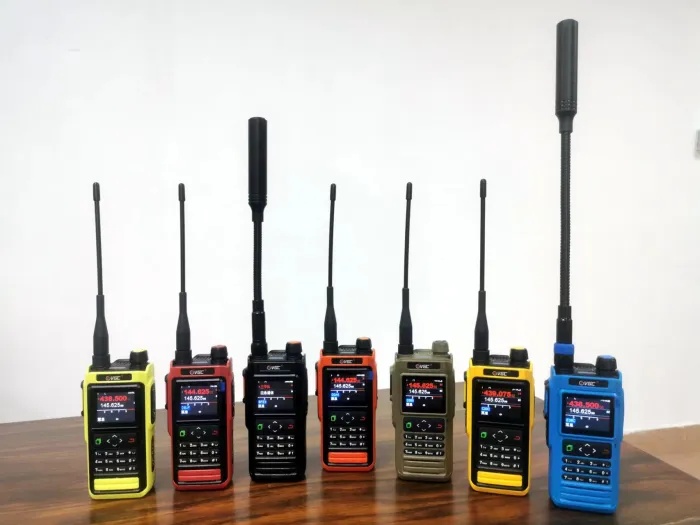
- Vero VR-N76 Handheld Transceiver: A rugged 5W VHF/UHF handheld featuring a sharp color display, built-in GPS APRS positioning, Bluetooth audio and data, multi-color casing options, and direct app configuration.
- Vero VR-N7500 Headless 50W Mobile: A 50W VHF / 40W UHF mobile transceiver designed without a traditional physical control head. Operators install the RF brick under a car seat or in a trunk and control everything through the smartphone app or a wireless speaker microphone.
- Vero VR-N7600 Mobile Transceiver: A high-power mobile station equipped with an integrated front display and dual Bluetooth modules for simultaneous voice routing and APRS packet handling.
- Vero BHM-88 Bluetooth Speaker Microphone: A premium wireless hand mic with a built-in 1.44-inch color TFT screen, dedicated GPS receiver, digital compass, accelerometer, and 1200mAh rechargeable battery via USB-C. It provides visual frequency readouts and channel control for headless radios.
- Vero BHM-79 Bluetooth Speaker Microphone: A compact, screenless Bluetooth 5.0 speaker mic optimized for tactile blind operation, low-latency audio, and rugged field use. It also pairs with radios like the Icom IC-705 and ID-52.
- BST-88 and Wireless PTT Buttons: Low-energy wireless push-to-talk switches designed for steering wheels, handlebars, or finger mounts.
Hardware Specification and Firmware Matrix
| Device Model | Form Factor | Primary Interface | Bluetooth Specs | Key Firmware Functions |
|---|---|---|---|---|
| VR-N76 | Handheld (5W Dual-Band) | Color LCD + Keypad + App | BLE + Audio | RF baseband, APRS TNC, GPS sync, battery telemetry, BSS rooms |
| VR-N7500 | Headless Mobile (50W) | App + Wireless Mic | Dual Bluetooth | Headless RF engine, APRS gateway, cross-band repeat, audio routing |
| VR-N7600 | Mobile Station | Front Panel + App | Dual Bluetooth | Baseband control, display driver, APRS network bridging |
| BHM-88 | Smart Wireless Mic | 1.44-inch TFT Screen | BLE + Audio | Display UI, internal GPS decoding, compass orientation, mic DSP |
| BHM-79 | Tactile Wireless Mic | Physical Buttons | Bluetooth 5.0 | Low-latency audio codec, channel toggling, PTT protocol sync |
Part 2: Why Upgrade to Beta Firmware?
Firmware updates on the Vero platform deliver more than simple bug fixes. Because the N-Series architecture offloads substantial user-interface and data-processing tasks to software, firmware patches directly enhance operational capabilities in the field.
Common Beta Enhancements
- APRS Engine Improvements: Updates refine AX.25 packet decoding sensitivity, APRS-IS gating reliability, and position beacon timing intervals.
- Bluetooth Audio DSP Optimization: Enhancements reduce audio latency, improve noise reduction filtering, and fix handshaking quirks with third-party vehicle infotainment systems (such as Apple CarPlay and Android Auto Bluetooth stacks).
- GPS Lock Speed and Precision: Updates streamline cold-start satellite acquisition times and coordinate passing between the BHM-88 microphone and the base transceiver.
- BHM-88 Display Features: Beta releases frequently add new layout themes, signal meter smoothing, and expanded menu options on the microphone screen.
- Cross-Band and Network Radio Bridging: Refined logic for linking RF channels to internet-based voice rooms (BSS) without audio clipping.
Stable Channel vs. Beta Channel Comparison
| Evaluation Metric | Official Stable Channel | Official Beta Channel |
|---|---|---|
| Access Requirement | Automatic in VERO HT App | Invitation code required |
| User Pool Limit | Unlimited | Capped at 200 testers per build |
| Release Cadence | Periodic (fully validated) | Frequent (rapid feature deployment) |
| Target Audience | General operators, daily use | Early adopters, bench testers, bug reporters |
| Risk Profile | Minimal risk of software quirks | Potential edge-case bugs or protocol sync issues |
| Feedback Channel | Standard customer support | Direct developer email ([email protected]) |
Part 3: Pre-Upgrade Checklist and Safety Rules
Flashing firmware over a wireless Bluetooth connection requires strict adherence to power and link stability rules. A dropped connection during bootloader flashing can leave hardware in an unbooted state.
- Charge All Batteries Above 80%: If updating the VR-N76 handheld or BHM-88/BHM-79 microphones, ensure internal batteries are near full charge. For mobile rigs (VR-N7500/VR-N7600), connect to a stable 13.8V DC power supply with the engine running or battery charger connected.
- Keep the Phone Close: Place your smartphone within 1 meter (3 feet) of the target device during the update process to prevent BLE packet dropouts.
- Disable Screen Timeout and Do Not Switch Apps: Keep the VERO HT app open in the active foreground throughout the download and write phases. Don’t switch to social media, take phone calls, or allow your phone to enter sleep mode.
- Verify the Latest Invitation Code: Confirm that the invitation code you enter matches your exact hardware model and firmware version from Vero Telecom’s release logs.
- Isolate RF Transmissions: Don’t transmit on other radios in close proximity to your testing bench while flashing firmware over Bluetooth.
Part 4: Step-by-Step Walkthrough: Flashing Beta Firmware
Follow this procedure to upgrade your Vero radio or Bluetooth accessory via the official VERO HT mobile application.
+-----------------------------------------------------------------------------------+
|                        STEP-BY-STEP UPGRADE WORKFLOW MAP                          |
+-----------------------------------------------------------------------------------+
|                                                                                   |
|  [1. Connect Bluetooth] ===> [2. Device Settings] ===> [3. Tap Firmware Version]  |
|          |                                                      |                 |
|          v                                                      v                 |
|  [6. Wait for 100%]    <=== [5. Validate Quota]   <=== [4. Enter Invitation Code] |
|          |                                                                        |
|          v                                                                        |
|  [7. Post-Update Mic Re-Pair] ===> [8. Operational Verification on Air]           |
|                                                                                   |
+-----------------------------------------------------------------------------------+
Step 1: Pair and Connect Your Target Device
Power on your radio or Bluetooth microphone. Open the VERO HT App on your smartphone and ensure Bluetooth is enabled. Verify that the device connects successfully and that the app displays live operational status (battery level, current channel, or frequency).
Step 2: Navigate to Device Settings
Tap the [Device Settings] menu icon (the gear or sliders icon) in the main interface of the VERO HT app. This menu lists all configurable hardware parameters, including audio gain, APRS settings, and firmware identifiers.
Step 3: Open the Firmware Update Module
Locate the [Firmware Version] row in the settings list. Tap directly on the version number field. The app opens the dedicated firmware update screen, displaying your current installed build and checking the cloud server for newer stable releases.
Step 4: Access the Beta Authorization Portal
Look at the upper right-hand corner of the firmware update screen. Tap the text button labeled “Experience Beta Firmware”.
A modal dialog box appears on your screen prompting you for a numeric invitation code.
Step 5: Enter the Version Invitation Code
Input the official invitation code associated with your device model and target firmware release. Known reference codes from official Vero Telecom release logs include:
- VR-N76 Handheld Transceiver:
510937(associated with v0.9.3 series) - VR-N7600 Mobile Station:
519037 - BHM-88 Bluetooth Speaker Microphone:
5103101(associated with v0.3.9 series)
Note: Invitation codes change as new firmware versions enter testing. Always consult the latest release announcement on Vero Telecom’s support pages if a specific code expires.
Tap Confirm or OK. The VERO HT app transmits the authorization request to Vero’s cloud backend.
Step 6: Download and Flash the Firmware
If the code is valid and the 200-tester quota pool isn’t exhausted, the app begins downloading the binary image. Once downloaded, the app initiates the wireless transfer to the target device.
Watch the on-screen progress indicator. You’ll see the percentage climb from 0% to 100%.
- Do Don’t touch buttons on the radio or mic., Don’t power off either unit., Don’t exit the VERO HT app.**.
When the progress bar reaches 100%, the device automatically resets and boots into the new firmware.
Part 5: Critical Post-Upgrade Procedure for Bluetooth Mics
If you updated a BHM-88 or BHM-79 Bluetooth speaker microphone, completing the flash is only the first half of the process. You must perform a fresh Bluetooth pairing cycle between the microphone and your radio.
+-----------------------------------------------------------------------------------+
|               WHY POST-UPGRADE MIC RE-PAIRING IS MANDATORY                        |
+-----------------------------------------------------------------------------------+
|                                                                                   |
|  OLD BLUETOOTH CACHE                         NEW FIRMWARE PROTOCOL                |
|  [ Stale GATT Packet Map ]   ==========>     [ Updated Command Buffers ]          |
|  [ Old Button Control Map]   MISMATCH!       [ Extended UI & Display Data ]       |
|                                                                                   |
|  SYMPTOMS IF NOT RE-PAIRED:                                                       |
|  • Audio passes but PTT fails to key the transmitter                              |
|  • BHM-88 LCD screen displays frozen frequency or missing GPS icon                |
|  • Volume adjustment buttons lag or become unresponsive                           |
|                                                                                   |
|  SOLUTION:                                                                        |
|  1. Disconnect mic from VERO HT App                                               |
|  2. Unpair / forget device in phone Bluetooth settings                            |
|  3. Put mic in pairing mode and reconnect cleanly to radio                        |
|                                                                                   |
+-----------------------------------------------------------------------------------+
Why Re-Pairing Is Necessary
When Vero releases a new firmware build for smart microphones, the underlying Bluetooth Serial Port Profile (SPP) and Generic Attribute Profile (GATT) packet structures often change. If the microphone continues communicating over a cached Bluetooth session established under older firmware, the radio MCU can’t parse incoming control frames.
Common symptoms of skipping the re-pairing step include:
* Audio output works through the mic speaker. But pressing PTT fails to key the transmitter.
* The BHM-88 display shows a frozen channel name or fails to update signal strength bars.
* Channel up/down buttons on the mic produce no response on the radio.
Step-by-Step Re-Pairing Steps
- Disconnect from the App: In the VERO HT app, disconnect the active session with the microphone.
- Clear Phone Bluetooth Pairing: Open your phone’s system Bluetooth settings, find the BHM-88 or BHM-79 entry, and select Forget This Device.
- Power-Cycle the Microphone: Turn off the speaker mic, wait 5 seconds, and turn it back on.
- Initiate Fresh Radio Pairing: Put the microphone into pairing mode (hold the power/pair button until the indicator LED flashes rapidly). On your VR-N7500, VR-N76, or VR-N7600, trigger Bluetooth device search via the radio menu or pairing button.
- Confirm Protocol Sync: Once reconnected, test PTT transmission, audio reception, and screen updates on the mic. The new firmware protocol layers will now communicate smoothly.
Part 6: Troubleshooting and Edge Cases
When participating in beta firmware testing, you may occasionally run into edge-case issues. Here is how to diagnose and resolve them.
1. App Shows “No Response” When Entering Invitation Code
- Cause: The 200-tester quota pool for that specific beta version is completely full, or the invitation code has expired following a general release.
- Fix: Wait for the next beta release cycle or update to the latest official stable build in the main firmware menu.
2. Update Freezes Partway Through Flashing
- Cause: Bluetooth packet collision, phone background task interruption, or low battery voltage.
- Fix: Don’t panic. Keep the radio and phone close together. Restart the VERO HT app. Re-establish the Bluetooth connection and navigate back to the firmware menu. The built-in bootloader will accept a fresh flash attempt.
3. BHM-88 Screen Shows Distorted Graphics or Inverted Colors
- Cause: Incompatible LCD controller initialization string in a pre-release build.
- Fix: Verify you flashed the correct model firmware. Re-flash the stable production firmware or email the diagnostic details and build number to Vero support.
4. How to Report Bugs to Vero Telecom
Beta testing relies on constructive feedback from active operators. When you discover a bug, record the following details:
- Radio/Accessory model and hardware revision.
- Installed beta firmware version number.
- Smartphone OS version (iOS or Android build).
- Clear description of steps to reproduce the issue.
- Send feedback directly through the VERO HT app feedback tool or via email to
[email protected].
Frequently Asked Questions
How do I get an invitation code for Vero beta firmware?
Invitation codes are published by Vero Telecom in official firmware release logs and product update announcements on verotelecom.com. Enter the code in the VERO HT app under Device Settings > Firmware Version > Experience Beta Firmware.
Why does the VERO HT app show no response when I enter the code?
Vero limits beta testing pools to 200 users per firmware release. If entering a valid invitation code yields no response or an authorization failure, the testing quota for that specific build is currently full.
Why must I re-pair my BHM-88 or BHM-79 microphone after updating?
Firmware updates often change Bluetooth GATT and SPP packet structures. Unpairing and re-pairing the microphone clears stale connection caches and synchronizes updated control protocols between the mic and the radio baseband processor.
Can I flash beta firmware without an internet connection?
No. The VERO HT app requires an active internet connection to authenticate your invitation code against Vero’s cloud servers and download the binary payload before pushing it over Bluetooth to your radio.
Can I revert back to stable official firmware if a beta build has bugs?
Yes. Open Device Settings > Firmware Version in the VERO HT app and select the latest public stable build. The app will flash the production firmware over Bluetooth, restoring factory behavior.
Conclusion
The Vero Telecom N-Series ecosystem brings practical, modern smartphone integration to amateur radio. By managing firmware updates wirelessly over the air through the VERO HT app, Vero allows operators to keep handhelds, mobile transceivers, and smart Bluetooth speaker microphones running current software without fiddling with desktop drivers or serial cables.
If you test beta builds on your VR-N76, VR-N7500, or BHM-88, remember the golden rules: secure a steady power supply, stay within the 200-tester pool limit, and always re-pair your Bluetooth microphones after updating. Happy testing, share constructive logs with the developer team, and enjoy the latest features on the air.
73, and keep your station up to date.
Sources and Further Reading
- Vero Telecom Official Guide – Beta Firmware Upgrade for N-Series Accessories: Vero Telecom Official Guide
- Vero Telecom Official Website and Firmware Logs: Vero Telecom
- VGC Tech Firmware and Software Downloads: VGC Tech Portal
- Vero VR-N7500 Dual-Band Headless Mobile Transceiver Overview: Vero VR-N7500 Product Page
- Vero VR-N76 Handheld GPS APRS Transceiver Specifications: Vero VR-N76 Product Page
- Vero BHM-88 Smart Wireless Microphone Specifications: Vero BHM-88 Product Page
- VERO HT App for Android (Google Play / APK): VERO HT Downloads
- HamRadio.my Amateur Radio Guides and Hardware Reviews: HamRadio.my
- About 9M2PJU Station Profile and Open Source Projects: 9M2PJU Profile




Post Comment