amateur radio
linux
open source
Technology
9M2PJU, amateur radio software, AppImage, ARISS, digital SSTV, DSSTV, EasyPal, ham radio software, HAMDRM, ISS SSTV, Jason Weisberger, JB60, Johan Maes, Linux ham radio, Martin, MMSSTV, NT0Y, NTP, ON4QZ, open source, PD120, PD120W, QSSTV, QSSTV-Experimental, Qt 6, Robot, Scottie, slow scan television, sound card, sstv, WWV
9M2PJU
0 Comments
QSSTV-Experimental 10.0: The Modern Open Source SSTV and HAMDRM Revival for Linux, Windows and macOS
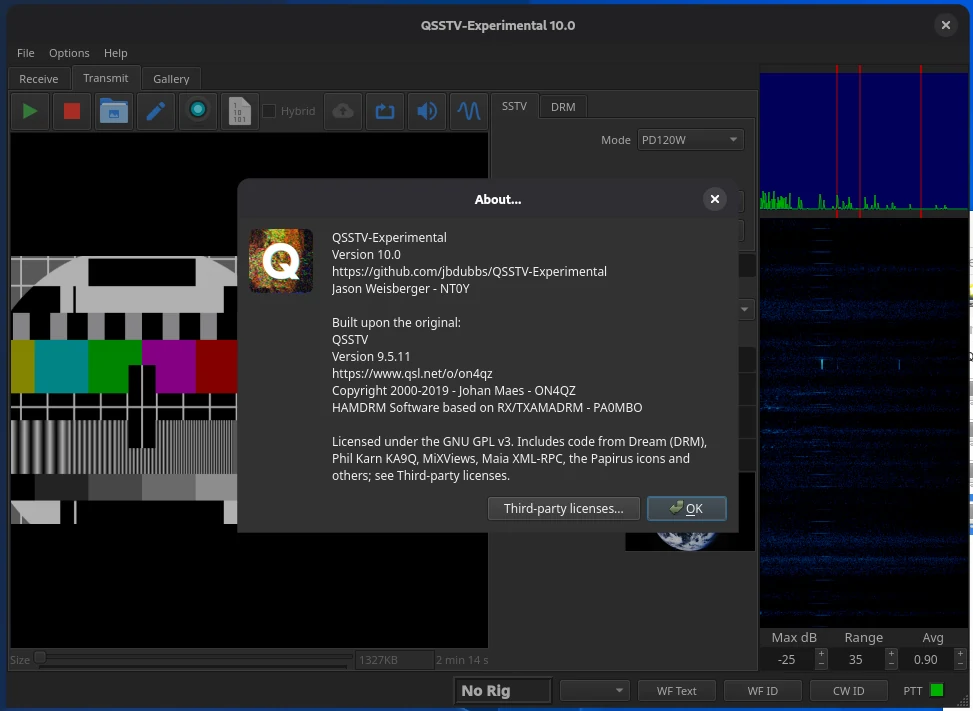
TL;DR: Quick Summary
QSSTV-Experimental is a free and open source (GPL-3.0) amateur radio program for sending and receiving slow-scan television (SSTV) and HAMDRM digital SSTV pictures through a sound card. Version 10.0, released on 16 October 2026, is a thorough modernization of Johan Maes ON4QZ’s classic QSSTV 9.5.11, maintained by Jason Weisberger NT0Y. It adds the new JB60 and PD120W SSTV modes, stitched 1×2, 2×1 and 2×2 grid images, pan and zoom transmit framing, decoding of SSTV from WAV, MP3, FLAC, OGG and AAC files at about 10 times real time, a headless command line with scriptable exit codes, sample rate calibration from WWV time ticks or NTP servers, progressive DRM image reception, ADIF logbook broadcast over UDP, and an interface that follows your desktop’s dark theme. If you have ever wanted to decode pictures from the International Space Station on 145.800 MHz or join the SSTV nets on 14.230 MHz with software that installs in one download, this is the program to get.
What Is QSSTV-Experimental?
QSSTV-Experimental is an amateur radio program for sending and receiving slow-scan television (SSTV) and HAMDRM digital SSTV (DSSTV) pictures through a computer sound card, built as a fork of QSSTV 9.5.11 with substantial changes and released under the GNU General Public License version 3.
In practice that means one program covers both halves of the ham picture-swap hobby. On the analog side it receives and transmits 48 SSTV modes across the common families: Martin, Scottie, Robot, PD, Wraase SC2, Pasokon, AVT, black and white, FAX480 and the MP, MR, ML and MC families. On the digital side it receives and transmits HAMDRM, the ham adaptation of the Digital Radio Mondiale waveform that carries a compressed picture with error correction across a 2.2 or 2.5 kHz channel. The project states plainly that it is compatible with most of MMSSTV and EasyPal, the two classic Windows programs most stations on the air grew up with.
Everything else you expect from a mature SSTV station is in the box: an image gallery for received and transmitted pictures with a built-in viewer, a transmit image editor with templates, macros, text and image items, image import and export in PNG, JPEG, GIF, BMP, JPEG 2000 and now WebP, AVIF and HEIC, rig control through Hamlib CAT, serial RTS/DTR lines or VOX, XML-RPC remote control, CW identification, FSK ID callsign capture, and a live spectrum, waterfall and scope display.
A Short History of SSTV: From Phosphor Tubes to Sound Cards
1957: Copthorne Macdonald and the 3 kHz television problem
Amateur radio’s picture mode was born from a bandwidth calculation. Copthorne Macdonald, then WA2BCW, a 21 year old communications engineering student, worked out that a 120 line black and white still picture with roughly 120 pixels per line could squeeze through the same 3 kHz channel that carries a telephone conversation or a single sideband voice signal. He introduced the slow-scan television concept in 1957 and 1958, and the first live tests ran on the 11 meter ham band, before that band became the CB service in the United States.
The trick was trading time for bandwidth. Broadcast television needs several megahertz because it moves 25 or 30 full frames every second. SSTV sends one still frame in about eight seconds, and Macdonald’s own recollection of those early days, preserved in his essay “The Early Days of Amateur Radio Slow-Scan TV”, describes an art of flying spot scanners, homebuilt modems and borrowed surplus radar CRTs.
The hardware era: howling modems and glowing phosphor
The FCC legalized SSTV for Advanced class licensees in 1968, and commercial systems started appearing in 1970. A station of that era had three pieces of serious equipment:
- A scanner or camera to turn a photograph into a video signal
- A custom modem that generated the characteristic audio howl between 1200 and 2300 Hz and turned received audio back into picture signals
- A cathode ray tube salvaged from a radar set, coated with long persistence phosphor that held a complete picture on screen for about ten seconds
That last item is the part modern hams find hardest to imagine. There was no storage. The picture existed as a faint green glow that faded as you watched it, and the only way to keep a particularly good image from a distant station was to photograph the face of the tube.
The mode families we still use today were largely minted in that hardware era and immediately after it. Robot Research Corporation of San Diego built the classic scan converters and designed the Robot modes. Martin Emmerson G3OQD created the Martin family that Europe still favors, and Eddie Murphy GM3SBC created the Scottie family popular in North America; both lineages began life as ROM enhancements for Robot hardware. Paul Turner G4IJE and Don Rotier K0HEO designed the PD family, from PD50 up to the PD290, whose larger picture sizes carried SSTV into the modern era. Ben Blish-Williams, AA7AS, then N4EJI, designed the synchronous AVT modes around 1990 at Black Belt Systems for the Amiga Video Transceiver.
SSTV in space before it was cool on the ground
Slow-scan picture transmission earned its place in spaceflight history long before laptops sat in shacks:
- Luna 3 (1959): the Soviet probe returned the first images ever seen of the far side of the Moon using a slow-scan facsimile system.
- Faith 7 (1963): Gordon Cooper’s Mercury-Atlas 9 flight carried a slow-scan experiment transmitting 320 line frames at one frame every two seconds.
- Apollo 7, 8, 9 and 11: NASA’s early Apollo television cameras used slow-scan transmission, 10 frames per second at 320 lines, including the first TV from the lunar surface during Apollo 11.
- The International Space Station (today): ARISS, the amateur radio program on the ISS, still runs periodic SSTV events, transmitting pictures on the 145.800 MHz FM downlink, typically in PD120 mode. Decoding a picture from orbit with nothing but a 2 meter handheld and a patch cable is a rite of passage for a whole generation of new hams.
The sound card era and the two big classics
In the early 1990s the personal computer swallowed the SSTV station whole. The sound card became the modem, the screen became the display, and a digital camera or photo file became the source. Two programs came to define the era:
- MMSSTV, by Makoto Mori JE3HHT of Japan, became the Windows standard with its wide mode coverage and template system, and it is still the reference implementation most net controls expect on the air.
- QSSTV, by Johan Maes ON4QZ (copyright 2000 to 2019), became the standard open source answer for Linux, wrapping the analog mode families and a full HAMDRM implementation in a Qt interface.
HAMDRM itself deserves a line of lineage: the DRM code inside QSSTV descends from RX/TXAMADRM by PA0MBO and the open source Dream DRM receiver, with Phil Karn’s Reed-Solomon codec doing error correction duty. On Windows, EasyPal popularized digital SSTV to the point that “send it in EasyPal” became shorthand for sending a picture with forward error correction instead of watching noise streaks crawl across an analog frame.
Meanwhile the shack went mobile: Android apps such as DroidSSTV put SSTV decoding on phones years ago, and projects like the Android SSTV Alarm we covered here at HamRadio.MY have kept experimenters decoding pictures in creative ways, including an alarm clock that won’t shut up until you decode its morning broadcast.
Then the classic era quietly stalled. QSSTV upstream stopped at version 9.5.11 in 2019, built on Qt 5 and the qmake build system, just as the Linux desktop world finished its migration to Qt 6. Building the old code on a modern distribution got progressively harder, and a stream of small bugs, from TX audio levels to a gallery that misfiled images when one was deleted, went unfixed.
From QSSTV to QSSTV-Experimental: The Fork Story
Who picked it up
QSSTV-Experimental is maintained by Jason Weisberger, NT0Y, publishing on GitHub as jbdubbs. If that name rings a bell beyond amateur radio, it should: Weisberger is the longtime publisher of Boing Boing, one of the oldest continuously running independent websites on the internet. The skill set transfers surprisingly well. Running a venerable publication and resurrecting a venerable ham program both come down to the same job: keeping beloved legacy software alive on modern infrastructure without breaking what made it beloved in the first place.
The fork is honest about its lineage. The original QSSTV by Johan Maes ON4QZ is credited everywhere it should be, the About box keeps the original copyright and attribution, and the license stays GPL-3.0 with source, COPYING and LICENSE files plus a THIRD_PARTY_LICENSES.md covering everything bundled in the binary releases: code from QSSTV, RXAMADRM, the Dream DRM software, Phil Karn’s Reed-Solomon codec, and binary bundling of Qt, Hamlib, FFTW and image libraries.
Contributions to the Qt 6, macOS and FreeBSD porting and to fixes came from Jörg Wunsch DL8DTL, Daniele Forsi, hspil, Ruxton, AsciiWolf, Barry de Graaff, Greg Tangey and Sam Saccone. Jörg Wunsch in particular is a name FreeBSD people will recognize as a longtime committer, which tells you the porting work was done by people who care about building clean software across platforms.
At the time of writing the repository carries 338 commits, CI workflows, a tests directory, a packaging directory and a fully rewritten user guide, and the inaugural release of the fork, version 10.0, went out on 16 October 2026 with eleven release assets covering Linux, Windows and macOS.
AI-assisted development, human-tested, honestly disclosed
One section of the project README deserves a spotlight because it says a lot about how legacy ham software is going to get maintained in this decade. The AI-assisted development disclosure states plainly that the fork’s new and changed code, documentation, build and packaging scripts and metadata were generated or assisted with extensive AI involvement, specifically Anthropic’s Claude via Claude Code. It then states, equally plainly, that every change has been tested by humans, that the result was quality-controlled by multiple individuals involved in the project, and that nothing is released on the basis of AI output alone.
That’s the correct way to run this experiment: a 25 year old codebase with a dormant upstream is exactly the kind of project where AI assistance dramatically lowers the cost of a Qt 6 port, and a maintainer who documents the involvement instead of hiding it earns trust both from users and from the original author’s community.
What’s New in Version 10.0
A cross-platform Qt 6 rebuild
The foundation of everything else is the modernization of the foundation:
- Qt 5/qmake moved to Qt 6/CMake, which is what lets the program build and run cleanly on current Linux distributions.
- Platform-specific audio, camera and serial port code moved to Qt’s abstracted device layer, so one code path now serves every operating system instead of one per platform.
- Packaging is real now: a self-contained Linux AppImage for x86_64 and arm64 that bundles Qt 6 and its runtime libraries, a plain extract-and-run win64 zip for Windows, and an experimental macOS build.
- The interface follows desktop themes, so on a dark-themed Linux desktop the whole program goes dark.
- Automatic update notifications tell you when a new release drops, which a 2019-era program had no mechanism to do.
Decode SSTV from audio files
This is the feature that changes daily operating habits the most. File > Decode SSTV From File (Ctrl+O), or the folder-with-a-note button on the Receive tab, takes a recording in WAV, MP3, FLAC, OGG or AAC at any sample rate and plays it into the receiver at about ten times real time. You watch the picture appear exactly as if it were live, and afterwards the sound card receiver resumes automatically. Decoded pictures are handled like any received picture, landing in the gallery next to live catches. To decode a DRM recording you simply switch to the DRM settings tab first.
The practical use is obvious to anyone who has recorded a busy contest weekend or an ARISS pass: the recordings pile up while you’re doing other things, and the pictures get decoded afterwards, one after another.
Headless batch decode and encode: SSTV grows a pipeline
Going further, the same capability exists without a window at all:
qsstv --batch --out-dir pictures/ pass1.wav pass2.mp3
qsstv --batch --mode PD120 --timeout 600 long-recording.flac
qsstv --batch --drm dsstv.wav
--batch decodes without a window, saves every picture found, prints the results and exits. Your settings are read but never written. Pictures are named <file>_<n>_<MODE>.png in the output directory, and DRM decodes print a drm-stats: line per file with sync, FAC and MSC percentages, MSC flaps, and FAC and MSC MER numbers. Exit codes are scriptable: 0 when every file produced a picture, 1 when at least one file produced none, 2 for an unusable file or a bad option, 3 for timeout. The default timeout is the file’s length plus 30 seconds.
There’s an encoder too, which turns the program into a complete SSTV toolchain even with no radio attached:
qsstv --encode rose.png --mode PD120 --wav-out pd120.wav
qsstv --encode rose.png --drm --drm-mode B --drm-qam 16 --drm-bw 2.5 --wav-out rose-drm.wav
--encode converts a picture into the SSTV audio for the chosen mode through the normal transmit path and writes it to a WAV file, no sound card involved. With --drm you can pin every DRM parameter on the command line: robustness mode A, B or E, bandwidth 2.2 or 2.5 kHz, QAM 4, 16 or 64, protection high or low, interleave short or long, Reed-Solomon level 0 to 4, and the target compressed size in bytes.
The user guide suggests the perfect installation test: encode a picture, then decode the resulting WAV with --batch. If a clean picture comes back, your entire receive and transmit chain works.
Sample rate calibration: the end of slanted pictures
Every sound card’s clock is slightly off its nominal 48000 samples per second. For voice, a few parts per million is nothing. For SSTV it is everything: a picture received from a perfectly accurate sender will lean, slant, if your sound card is a few ppm off, and the errors add when both stations are off. Version 10.0 answers this with a calibration dialog offering three references:
- WWV time ticks. Tune a receiver to WWV or WWVH on 2.5, 5, 10, 15 or 20 MHz in AM or USB, feed the audio to your sound card input, press Start and let it run about five minutes. The program measures your sample rate against the one-per-second ticks of a national physics laboratory.
- NTP time servers. No radio needed. The program compares the sound card’s sample counter against network time, defaulting to time.nist.gov, time.cloudflare.com and 0.pool.ntp.org. Thirty minutes of NTP agreed with a five minute WWV run to within about 2 ppm on the developer’s real sound card.
- Another SSTV station. For when neither reference is reachable. The program transmits a black PD120 picture with one straight white line, the other station listens, and the slant of the received line measures the relative difference between the two stations’ clocks.
The measured value lands in Configuration > Sound as Input and Output Clock Frequency, valid for that audio device, and there is a checkbox to apply the same result to the transmit clock. If one particular station still slants while everyone else comes through straight, the fault is that station’s sound card, and Auto Slant on the Receive tab can still straighten the picture after the fact.
New SSTV modes: JB60 and PD120W
Two modes are minted fresh in this fork:
- JB60 is a color mode of about 61 seconds with a 640×496 picture. The user guide is refreshingly blunt about its status: as far as is known, no other SSTV program decodes it. It’s a genuinely experimental mode, and a fascinating one, since it delivers PD120-class picture size in roughly half the transmission time.
- PD120W is a widescreen 16:9 variant of PD120, carrying a 768×432 picture in about 131 seconds instead of PD120’s 640×496 in 126 seconds.
Both exceed the 512×400 threshold that makes a mode grid-eligible, which matters below.
Stitched grid images and pan/zoom framing
Modes whose picture is larger than 512×400 pixels can now carry a stitched grid of several pictures: Grid 1×2, Grid 2×1 or Grid 2×2. The picture area divides into cells, right-clicking a cell loads, edits, copies or pastes into it, the Delete key removes it, and the gallery’s To TX button fills the first empty cell, with an Auto / Grid N submenu to pick a cell by hand. On the air this turns one PD120 transmission into a four-image photo album, which fits the way SSTV nets naturally show several pictures in a row.
Framing control grew matching muscles. Where the old program fitted images automatically, the Framing selector now offers Stretch, Crop, Fit and Free. Free mode is the interesting one: mouse wheel to zoom, drag to pan, and place the image exactly how you want it in frame before transmission, with a right-click to reset. Your holiday photo no longer needs to be center-cropped by a machine that doesn’t understand composition.
Gallery, viewer and image format upgrades
The gallery itself received a round of everyday-ergonomics work:
- Multi-select to delete or send several images to TX, with the Del key for quick deletion
- Smooth mouse-wheel zoom and drag-to-pan in the image viewer
- Clipboard support, copy images from anywhere and paste into the transmit window or TX stock
- WebP, AVIF and HEIC import alongside PNG, JPEG, GIF, BMP and JPEG 2000, with EXIF and HEIF orientation applied on import
- Fixed: images no longer show 0x0 dimensions in the viewer, gallery properties shift correctly when an image is deleted, and TX stock survives relaunching the app
HAMDRM improvements
The DRM half of the program got its own share of attention:
- Progressive Image Reception: the picture preview assembles as segments arrive, improving in quality over time, instead of keeping you blind until the final block lands.
- Live size-slider preview: the DRM picture preview updates as you drag the size slider, so you see the quality and transmit time trade-off live.
- Fixed: DRM failed to display an image even though one was received on later builds; the transmitter and receiver mismatched “boosted pilot tables”; and CW ID at the end of a DRM image now works.
- The MER (modulation error ratio) readout and FAC/MSC constellation plots remain the quickest health check of a DRM link.
ADIF logbook broadcast over UDP
Every received picture with an FSK ID now logs itself. The callsign from the sender’s FSK ID is captured automatically, the LOG QSO button writes the entry, and the log is broadcast as an ADIF record over UDP to localhost port 2333, on every operating system. Any logger with an ADIF UDP listener can pick these up, which quietly turns a picture net into a logged operation without retyping a single callsign.
Nineteen fixes that make the difference between a demo and a daily driver
The full changelog lists the details, but the shape of the work is worth seeing, because these are the bugs that killed real operating sessions in the old program:
| Fixed in 10.0 | Why it mattered on the air |
|---|---|
| Changing audio devices left the receiver not starting back up correctly | Anyone with a USB interface that re-enumerates |
| TX audio levels versus MMSSTV, plus stereo output | Stations that sounded right in one program and wrong in the other |
| Preamble and postamble TX tones, including FSK ID | VOX and CAT keying reliability |
| TX Test Pattern in both SSTV and DRM modes | The most basic bench check was broken |
| Crash when aborting a file dialog TX with “To sound card and record” | Lost transmissions mid-setup |
| Crash when an audio device fails to initialize on startup | Booting with the interface unplugged |
| Camera would not save over 1280×960 from certain flakey devices | Live camera captures |
| Mode and sensitivity combos needed a receiver restart to take effect | Mid-net mode changes |
| Image editor elements disappeared off-screen instead of centering | Template building |
| Save Waterfall Image now works | Evidence capture for signal reports |
The remaining entries are of the same character: size and fitment UI issues, test signal dialog settings not saving, dead and abandoned code removed, splash and icons renewed, and the documentation rebuilt into a guide that now works both offline inside the app (Help > Users Guide) and online.
The Complete SSTV Mode Reference: All 48 Modes
The program knows 48 SSTV modes, and qsstv --list-modes prints the short names. Here is the complete list as documented in the official user guide, with durations (not counting the calibration header) and picture sizes:
| Family | Mode name | --mode |
Duration | Picture size |
|---|---|---|---|---|
| Martin | Martin 1 | M1 |
114.3 s | 320×256 |
| Martin | Martin 2 | M2 |
58.1 s | 320×256 |
| Scottie | Scottie 1 | S1 |
109.6 s | 320×256 |
| Scottie | Scottie 2 | S2 |
71.1 s | 320×256 |
| Scottie | Scottie DX | SDX |
268.9 s | 320×256 |
| Wraase SC2 | SC2 60 | SC2-60 |
61.5 s | 320×256 |
| Wraase SC2 | SC2 120 | SC2-120 |
121.7 s | 320×256 |
| Wraase SC2 | SC2 180 | SC2-180 |
182.0 s | 320×256 |
| Robot | Robot 24 | R24 |
24.0 s | 160×120 |
| Robot | Robot 36 | R36 |
36.0 s | 320×240 |
| Robot | Robot 72 | R72 |
72.0 s | 320×240 |
| Pasokon | P3 | P3 |
203.1 s | 640×496 |
| Pasokon | P5 | P5 |
304.6 s | 640×496 |
| Pasokon | P7 | P7 |
406.1 s | 640×496 |
| Black and white | B/W 8 | BW8 |
8.0 s | 160×120 |
| Black and white | B/W 12 | BW12 |
12.0 s | 160×120 |
| PD | PD50 | PD50 |
49.7 s | 320×256 |
| PD | PD90 | PD90 |
90.0 s | 320×256 |
| PD | PD120 | PD120 |
126.1 s | 640×496 |
| PD | PD120W | PD120W |
130.8 s | 768×432 |
| PD | PD160 | PD160 |
160.9 s | 512×400 |
| PD | PD180 | PD180 |
187.1 s | 640×496 |
| PD | PD240 | PD240 |
248.0 s | 640×496 |
| PD | PD290 | PD290 |
288.7 s | 800×616 |
| MP | MP73 | MP73 |
73.0 s | 320×256 |
| MP | MP115 | MP115 |
115.5 s | 320×256 |
| MP | MP140 | MP140 |
139.5 s | 320×256 |
| MP | MP175 | MP175 |
175.4 s | 320×256 |
| MR | MR73 | MR73 |
73.3 s | 320×256 |
| MR | MR90 | MR90 |
90.2 s | 320×256 |
| MR | MR115 | MR115 |
115.3 s | 320×256 |
| MR | MR140 | MR140 |
140.4 s | 320×256 |
| MR | MR175 | MR175 |
175.2 s | 320×256 |
| ML | ML180 | ML180 |
180.2 s | 640×496 |
| ML | ML240 | ML240 |
239.7 s | 640×496 |
| ML | ML280 | ML280 |
280.4 s | 640×496 |
| ML | ML320 | ML320 |
320.1 s | 640×496 |
| JB60 | JB60 | JB60 |
61.3 s | 640×496 |
| Fax | FAX480 | FAX480 |
133.6 s | 512×500 |
| AVT | AVT24 | AVT24 |
22.5 s | 128×120 |
| AVT | AVT90 | AVT90 |
90.0 s | 320×240 |
| AVT | AVT94 | AVT94 |
93.8 s | 320×200 |
| MP/MC narrow | MP73-Narrow | MP73-N |
73.0 s | 320×256 |
| MP/MC narrow | MP110-Narrow | MP110-N |
109.8 s | 320×256 |
| MP/MC narrow | MP140-Narrow | MP140-N |
139.5 s | 320×256 |
| MP/MC narrow | MC110-Narrow | MC110-N |
109.7 s | 320×256 |
| MP/MC narrow | MC140-Narrow | MC140-N |
140.4 s | 320×256 |
| MP/MC narrow | MC180-Narrow | MC180-N |
180.4 s | 320×256 |
A few pointers from the official documentation:
- Which mode to use: Martin 1, Scottie 1 and PD120 are the most widely used on the HF frequencies, and PD modes give a larger, better picture. What your local net uses matters more than anything else, so listen first.
- JB60 and PD120W are new in this fork. JB60 in particular isn’t decodable by other programs yet, so use it for experiments with stations running QSSTV-Experimental, not for general nets.
- Modes larger than 512×400 pixels (the size of PD160), such as PD120, PD180, PD240, PD290, the Pasokon modes, the ML modes and JB60, can carry stitched grid images.
- Black and white modes (B/W 8, B/W 12) are the quickest, and Robot 24 and AVT24 are low-resolution fast color modes.
- The Narrow variants are narrow-bandwidth versions of the MP and MC modes.
How Analog SSTV Works Under the Hood
Understanding the audio makes everything else about SSTV click, including why calibration matters and what you are looking at in the waterfall. Look at a spectrogram of an SSTV transmission and you can read it like a diagram:
- Calibration header: a 300 millisecond leader tone at 1900 Hz, a 10 ms break at 1200 Hz, then another 300 ms leader at 1900 Hz. This is the double-stripe you see at the start of every SSTV signal on the waterfall.
- VIS code: the mode identification. Bits are 30 milliseconds each: a start bit at 1200 Hz, seven data bits sent least significant first with 1100 Hz meaning 1 and 1300 Hz meaning 0, an even parity bit, and a stop bit at 1200 Hz. This is why Mode: Auto works: the mode is announced in the header before any picture data flows.
- Scanlines: the picture itself, sent line by line from left to right. Brightness is frequency modulation of an audio subcarrier: 1500 Hz is black, 2300 Hz is white, and everything in between maps to the gray levels. Color modes send the red, green and blue components of each line separately, or luminance and chrominance pairs in YC modes. Each line finishes with a 5 millisecond sync pulse at 1200 Hz, which is the vertical striping you see between lines on the waterfall.
The entire picture is therefore just audio in the 1200 to 2300 Hz range, which is why it fits through any single sideband transmitter, and why a sound card plus software can be the whole modem. The horizontal rate is analog, so the nominal 320 or 640 pixel line widths are really sample counts, and the aspect ratio is conventionally 4:3.
This is also precisely why sample rate error slants pictures. The receiver reconstructs each line by sampling audio at a rate it assumes is 48000 per second. If the sound card actually delivers 47999.7, the receiver’s line length slowly drifts against the sender’s, and the straight vertical lines of a test card lean like a fence in the wind. A few ppm of clock error becomes a visible lean across a 126 second PD120 frame. Hence the calibration dialog.
HAMDRM: Digital SSTV with Error Correction
What it is and why you would choose it
HAMDRM, also called DSSTV or simply DRM, treats a picture as data. The image is compressed, protected with error correction, and carried on many orthogonal frequency division multiplexing (OFDM) carriers inside a 2.2 or 2.5 kHz channel, the same amount of spectrum an analog SSTV picture occupies. The philosophical difference from analog SSTV is the failure mode:
- Analog SSTV degrades gradually. Noise becomes visible lines and color speckle, but a partially received picture is still a picture, and even a rough copy of a friend’s shack is worth having.
- DRM is a cliff. If the signal is good enough, the received picture is a bit-perfect copy of the original. If it isn’t, whole segments fail, and you see nothing for those blocks. But the Fix File mechanism can request exactly the missing pieces.
For HF paths where fades eat chunks of a two minute analog transmission, DRM’s ability to retransmit only the missing blocks is the decisive advantage, at the cost of patience: a large picture at 4-QAM robustness can take many minutes.
The transmit parameters
| Setting | Choices | Meaning |
|---|---|---|
| Mode | A, B, E | DRM robustness mode. Higher letters are more robust but slower |
| QAM | 4, 16, 64 | Bits per carrier. 4 is most robust; 64 is fastest but needs a clean signal |
| BW | 2.2 kHz, 2.5 kHz | Occupied bandwidth. Wider is faster |
| Interl. | Short, Long | Time interleaving. Long survives longer fades but adds delay |
| Prot. | High, Low | Error correction strength |
| Rs | None, RS1 to RS4 | Extra Reed-Solomon coding on file data. More redundancy is slower but more robust |
| Profile | 1 to 3 | Saved parameter presets, editable in Configuration > DRM |
The default profile is a good starting point. If the other station reports errors, move to more robust settings: lower QAM, higher protection, long interleave, or a higher Rs level. The size slider (or --drm-size on the command line) controls how far the picture is compressed, with the trade-off between quality and transmit time shown live in the 10.0 preview.
Receiving: the indicators that tell you everything
Select the DRM tab on the Receive page and watch four indicators come alive in order: TIME (symbol timing sync found), FRAME (frame sync locked), FAC (Fast Access Channel decoded, so the mode and parameters are known), and MSC (Main Service Channel, the actual picture data, green when receiving, yellow when this picture was already received, red for no valid data). The FAC and MSC MER numbers report link quality in dB, higher is better, and the constellation plots show a tight cluster of points when the signal is clean.
When the picture is complete it saves automatically to the RX DRM Images directory and appears in the gallery’s RX DRM tab. When it isn’t complete, that’s where 10.0’s progressive reception helps: you see the picture assembling and improving instead of waiting blind.
Fix File: the killer feature inherited and polished
If segments were lost, press Fix File. A dialog lists the incomplete pictures, and you choose Compatible or Easypal to match what the other station’s software understands. The program then transmits a BSR, a block status report, asking the sender to retransmit exactly the missing segments. Combined with hybrid mode (below), this is the closest thing ham radio has to TCP for pictures.
Binary files and hybrid mode
The binary file toolbar button sends an arbitrary file as DRM data, and hybrid mode goes one step further: the picture goes to an internet server as well as over the air, and the Upload Now button uploads without transmitting. On the receive side, the Who is on? Button reads the online status directory from the hybrid server and lists stations that published a status within the last hour. So you can see who else is in DRM mode before you start calling.
Calibration in Practice: Killing the Slant
The calibration workflow deserves its own walk-through because it’s the single biggest quality-of-life improvement for serious SSTV operating:
- Open Options > Calibrate. The receiver pauses while the dialog is open and resumes afterwards.
- Pick the reference you can reach. WWV needs a receiver and five minutes. NTP needs only the internet and about thirty minutes. The other-station method needs a friend.
- Let the graph stabilize, press Save, and tick “Also use this result for the transmit clock” if you transmit from the same device.
- The measured rate lands in Configuration > Sound and is used for both reception and transmission.
Two cautions from the documentation are worth repeating. The result is valid for that audio device only: swap your USB interface for another one and you calibrate again. And with NTP, use a direct sound card device, not one the system resamples, or you’re measuring the resampler.
Installation Guide
Linux: the AppImage
Most Linux users should take the AppImage, a single self-contained file bundling Qt 6 and the runtime libraries, built for both x86_64 and arm64:
chmod +x QSSTV-Experimental-*.AppImage
./QSSTV-Experimental-*.AppImage
On first start the program offers to add a menu entry and icons for you, or you can run qsstv-experimental --install and --uninstall from the AppImage to manage desktop integration by hand. If your distribution no longer ships FUSE 2 (Ubuntu 24.04 and Fedora are the named examples), run it with APPIMAGE_EXTRACT_AND_RUN=1 in the environment or the --appimage-extract-and-run option.
Windows
Requires 64-bit Windows 10 version 1809 or later, or Windows 11. Download the win64 zip from the Releases page, extract it anywhere, and run qsstv-experimental.exe. Nothing needs installing.
macOS (experimental)
Builds exist for macOS 15 or later on both Intel and Apple Silicon. But the maintainer states plainly that they’re untested because there’s no macOS test hardware. The README’s instruction is refreshingly direct: give it a try, and file an issue if it doesn’t work.
Building from source
The short version of BUILDING.md for Linux uses CMake and Qt 6 (Core, Widgets, Network, Xml, SerialPort, Multimedia), plus FFTW3 in both double and float flavors, OpenJPEG and Hamlib. CMake 3.16 or newer is needed, and PulseAudio, ALSA and V4L2 development packages are no longer required.
Fedora:
sudo dnf install cmake gcc-c++ pkgconf-pkg-config qt6-qtbase-devel qt6-qtmultimedia-devel \
    qt6-qtserialport-devel fftw-devel openjpeg-devel hamlib-devel
Debian or Ubuntu 24.04 or newer:
sudo apt install cmake pkg-config g++ qt6-base-dev qt6-base-dev-tools qt6-multimedia-dev \
    qt6-serialport-dev libfftw3-dev libopenjp2-7-dev libhamlib-dev
Build and install:
cmake -S src -B build -DCMAKE_BUILD_TYPE=Release
cmake --build build -j$(nproc)
sudo cmake --install build
If your distribution’s Hamlib is too old or missing, build Hamlib yourself and pass -DHAMLIB_ROOT=/path/to/hamlib/install to the first cmake command. Debug builds additionally need Qwt. BUILDING.md also covers the AppImage build, the arm64 build, and the Windows cross-compile from Fedora. One note for source builders: the AVIF and HEIC image formats depend on the Qt image-format plugins installed on your system, while the AppImage and Windows packages include them.
Command-Line Reference
The complete option set, from the official documentation:
| Option | Description |
|---|---|
-d, --decode <file> |
Decode the recording (repeatable; bare arguments are treated as files too). Opens the window |
-b, --batch |
Headless: decode, save the pictures, print results and exit |
-o, --out-dir <dir> |
With --batch: directory for the pictures |
-m, --mode <mode> |
With --batch or --decode: receive only this mode. With --encode: the mode to transmit |
--timeout <seconds> |
With --batch: give up on a file after this many seconds |
--drm |
With --batch: receive DRM. With --encode: transmit as DRM |
--drm-mode <A\|B\|E> |
With --encode --drm: robustness mode |
--drm-bw <kHz> |
With --encode --drm: bandwidth 2.2 or 2.5 |
--drm-qam <4\|16\|64> |
With --encode --drm: QAM |
--drm-prot <high\|low> |
With --encode --drm: protection level |
--drm-interleave <short\|long> |
With --encode --drm: interleaver |
--drm-rs <n> |
With --encode --drm: Reed-Solomon 0 (none) to 4 |
--drm-size <bytes> |
With --encode --drm: compress the picture to about this many bytes (default is the size slider setting, 5000) |
--rx-gain <dB>, --rx-noise <dBFS> |
Test aids for --batch: amplify or attenuate, or add white noise |
--encode <image> |
Headless: write the transmit audio for a picture to a WAV file |
--wav-out <file> |
With --encode: the WAV file to write |
--list-modes |
Print the mode names and exit |
--install, --uninstall |
AppImage only: add or remove the desktop menu entry and icons |
-h, --help, -v, --version |
Print help or version and exit |
Batch exit codes for scripting:
| Exit code | Meaning |
|---|---|
| 0 | Every file gave a picture |
| 1 | At least one file gave no picture |
| 2 | An unusable file or a bad option |
| 3 | Timeout |
Practical Shack Workflows
Receive your first picture
- Open Options > Configuration. On Operator enter your callsign; on Sound choose the audio devices connected to your radio; on CAT set up rig control and PTT if you want the program to key the transmitter.
- Connect your receiver’s audio to the sound card input.
- Tune to an SSTV frequency (see below) in USB on HF, and watch the spectrum: SSTV shows up as a signal moving between roughly 1200 and 2300 Hz.
- Leave Mode on Auto. When a picture starts, the status line names the mode, and with Autosave on, completed pictures land in the gallery by themselves.
- No radio yet? An RTL-SDR in a browser-based receiver such as BrowSDR or any WebSDR site lets you find and record live SSTV audio to decode with File > Decode SSTV From File.
Where to tune
The conventional SSTV gathering frequencies on HF, with regional variations:
| Band | Frequency | Sideband | Notes |
|---|---|---|---|
| 80 m | 3.845 MHz (3.73 in Europe) | LSB | Regional evening picture activity |
| 40 m | 7.171 MHz (7.165 in Europe) | LSB | Also 7.181 MHz suggested for General class |
| 20 m | 14.230 MHz | USB | The main worldwide analog SSTV calling frequency |
| 20 m | 14.227 and 14.233 MHz | USB | Overflow to relieve crowding on 14.230 |
| 15 m | 21.340 MHz | USB | Daytime propagation dependent |
| 10 m | 28.680 MHz | USB | Sporadic-E season favorite |
And the one frequency every new SSTV operator should know: 145.800 MHz FM, the ARISS SSTV downlink from the International Space Station during scheduled events, typically transmitted in PD120. A 2 meter handheld with a cable to your sound card, or even a phone app decoding from a speaker, will pull pictures down from orbit during a pass. Record the pass and decode it afterwards with --batch if you like; the ISS doesn’t mind waiting.
Send a photo album in one transmission
- Pick a grid-eligible mode (PD120 is the natural choice) and set Grid to 2×2 on the Transmit tab.
- Right-click each cell to load a picture, or use the gallery’s To TX with its Auto / Grid N submenu to fill cells in order.
- Use the Framing control per cell: Free framing with mouse-wheel zoom and drag-to-pan composes each photo exactly.
- Check the estimated transmission time below the picture and press the green button.
Four holiday photos cross the ocean in one 126 second sweep, and if the band eats a few seconds of it, the picture still looks like four photos, just with a scar.
Let the log fill itself
Turn on FSK ID detection, press LOG QSO when the sender’s callsign appears, and point an ADIF UDP listener at localhost port 2333. Minimalist loggers like llog with an ADIF UDP listener can then capture your picture QSOs alongside your SOTA and POTA contacts without touching the keyboard.
Calibrate once, then forget
Five minutes against WWV once per audio device, or thirty minutes of NTP while you do something else, and slanted pictures stop being a thing you apologize for on the net. Auto Slant remains available as a per-picture rescue for stations whose sound cards are off.
Comparison: QSSTV-Experimental and the Classics
| Attribute | QSSTV-Experimental 10.0 | QSSTV 9.5.11 (upstream) | MMSSTV | EasyPal |
|---|---|---|---|---|
| Operating systems | Windows 10 1809+/11, Linux x86_64 and arm64, macOS 15+ (experimental) | Linux (Qt 5 era builds) | Windows | Windows |
| License | GPL-3.0, source on GitHub | GPL-3.0, source | Freeware | Freeware |
| Maintenance | Active fork, 10.0 released October 2026 | Upstream ended 2019 at 9.5.11 | Long-running classic | Aging classic |
| SSTV modes | 48, including new JB60 and PD120W | The classic families | The classic families, wide coverage | DRM focus |
| HAMDRM receive and transmit | Yes, with BSR fix, hybrid, binary files | Yes | No | Yes, the classic DRM client |
| Decode SSTV from audio files | WAV, MP3, FLAC, OGG, AAC, GUI and CLI | No | No | No |
| Headless batch operation | --batch and --encode with exit codes |
No | No | No |
| Encode to WAV without a sound card | Yes, all DRM parameters on the CLI | No | No | No |
| Sample rate calibration | WWV, NTP, another station | Not in 9.5.11 | Manual per-image adjust | Manual |
| Stitched grid images | 1×2, 2×1, 2×2 on large modes | No | No | No |
| Image formats | PNG, JPEG, GIF, BMP, JPEG 2000, WebP, AVIF, HEIC | PNG, JPEG, GIF, BMP, JPEG 2000 | JPEG, BMP | JPEG, BMP |
| Dark mode | Follows desktop themes | Classic fixed light UI | Windows-era UI | Windows-era UI |
| Update notifications | Built-in | None | Manual | None |
The honest takeaway: MMSSTV remains the mode reference the world’s nets expect, and if your shack is Windows-only and everything already works, there is no emergency. But if you run Linux, or you want batch decoding, grids, calibration, or an actively maintained codebase, QSSTV-Experimental is now the most capable SSTV and HAMDRM station package in open source, and it’s the only one that runs across all three desktop platforms.
Honest Limitations
- macOS is genuinely untested. The builds exist, the maintainer says there is no test hardware, and you are invited to file issues. Treat it as a beta.
- JB60 is a fork-exclusive mode. No other program decodes it as far as is known, so it is for experiments between QSSTV-Experimental stations, not for general nets.
- DRM at maximum robustness is slow. Large pictures at 4-QAM can take many minutes. That’s the physics of a 2.5 kHz channel doing forward error correction, not a bug.
- AVIF and HEIC depend on Qt image-format plugins when you build from source. The AppImage and Windows packages include them.
- The fork is young. Version 10.0 is the inaugural release of a 338 commit modernization. File bugs on the issue tracker; that’s how a fork earns its keep.
Why It Matters
There is a quiet crisis in amateur radio software: an enormous amount of the digital mode infrastructure we use daily was written by individuals who have since gone silent, in frameworks that the world has since moved past. QSSTV sat at version 9.5.11 on Qt 5 for seven years while its user base aged onto Qt 6 distributions, and nothing about that story was unusual. What is unusual is what happened next: someone with the publishing instinct to keep a 30 year old website alive picked up a 25 year old ham program, did the unglamorous porting work with a transparently disclosed toolchain, kept the original author’s name on the About box, and shipped a 10.0 with a real user guide, real packaging and real CI.
The result is more than nostalgia. SSTV is having a genuine renaissance: ARISS events still pull entire generations of students toward the hobby through pictures from orbit, 14.230 still fills up every weekend, and the analog modes remain one of the most satisfyingly visual things a ham can do with 3 kHz. Every mode table, every calibration trick and every DRM parameter in this article works today on a free download. The fork even gives the mode space a place to experiment again; nobody was minting new SSTV modes for years, and now there are two fresh ones.
And there is a lesson in the AI disclosure worth naming for every ham developer reading this: the way to bring dormant GPL software forward is exactly this. Disclose the tooling, keep the attribution, test everything by hand, ship it under the same license, and write documentation a newcomer can actually follow. If that pattern spreads to the other sleeping classics in our shacks, the next decade of ham software will be in better health than the last one.
Frequently Asked Questions (FAQ)
What is QSSTV-Experimental?
It is a free GPL-3.0 amateur radio program for sending and receiving SSTV and HAMDRM digital pictures through a sound card. It’s a modernized fork of QSSTV 9.5.11, maintained by Jason Weisberger NT0Y, running on Linux, Windows and macOS.
Is it compatible with MMSSTV and EasyPal?
Yes. It transmits and receives the standard Martin, Scottie, Robot, PD and other families that MMSSTV uses, and interworks with EasyPal-style HAMDRM including block status report resend requests. Only JB60 is exclusive to it.
Can I decode SSTV without a radio?
Yes. File > Decode SSTV From File or the --batch command decodes WAV, MP3, FLAC, OGG and AAC recordings, and --encode renders a picture to SSTV audio WAV. Encoding then batch-decoding that WAV makes a complete no-radio round-trip test.
What are the new JB60 and PD120W modes?
JB60 is a roughly 61 second, 640×496 color mode new in this fork; no other program decodes it yet. PD120W is a 16:9 widescreen, 768×432 variant of PD120 at about 131 seconds. Both can carry stitched grid images.
How do I fix slanted SSTV pictures?
Calibrate. Options > Calibrate measures your sound card’s real sample rate against WWV time ticks, NTP servers or another station’s picture, and the result fixes both reception and transmission. Auto Slant on the Receive tab rescues individual pictures after the fact.
Sources and Further Reading
- QSSTV-Experimental GitHub Repository – Official source, issue tracker, changelog of all changes versus upstream, and third-party license inventory.
- QSSTV-Experimental 10.0 Release – The inaugural release, published 16 October 2026, with AppImage, Windows and macOS assets.
- QSSTV-Experimental User’s Guide – The complete official manual, also built into the app under Help > Users Guide.
- QSSTV-Experimental BUILDING.md – Full build instructions for Linux, Windows and macOS, including AppImage and cross-compile details.
- Original QSSTV by Johan Maes ON4QZ – The upstream program this fork builds on, copyright 2000-2019.
- Slow-Scan Television History: Copthorne Macdonald’s Early Days Essay – The inventor’s own account of SSTV’s beginnings.
- Wikipedia: Slow-Scan Television – Mode family history, VIS header structure, modulation details and frequency table.
- The Development of the PD Modes by Paul Turner G4IJE – Primary source on the PD mode family lineage.
- MMSSTV Home Page at Hamsoft – The classic Windows SSTV program by Makoto Mori JE3HHT.
- ARISS SSTV Award and Event Gallery – International Space Station SSTV event announcements and award details.
- NIST Radio Station WWV – The 2.5 to 20 MHz time tick reference used by the calibration dialog.
- Hamlib Radio Control Library – The CAT rig control backbone behind the program’s transceiver integration.
- GNU General Public License v3 – The license that keeps this lineage of ham software free.
- Boing Boing About Page – Background on maintainer Jason Weisberger NT0Y’s day job publishing one of the internet’s longest-running independent sites.
73 de 9M2PJU

Post Comment