Extend Your Laptop Battery Life with TLP: Charge Thresholds & Recalibration on Linux
If you’re a Linux user on a laptop-especially a ThinkPad (For Windows user, visit https://www.lenovo.com/us/en/software/vantage) -you owe it to yourself to install TLP. This brilliant power management tool doesn’t just improve battery runtime – it gives you real control over how your battery is treated, helping extend its lifespan through smart features like charge thresholds and battery recalibration.
🚀 Why TLP?
Out of the box, most laptops will charge your battery to 100% every time, even if you’re always plugged in. That’s not ideal. Repeatedly keeping a lithium-ion battery at full charge shortens its lifespan.
TLP changes the game. Once installed and configured, it helps you:
- Avoid unnecessary full charges
- Prevent overheating
- Preserve battery health over time
Let’s look at two of TLP’s most powerful features: charge thresholds and battery recalibration.
✅ Set Smart Charge Thresholds
TLP allows you to limit how much your battery charges. On supported hardware (like ThinkPads), you can configure a start and stop percentage.
Here’s an example in /etc/tlp.conf:
START_CHARGE_THRESH_BAT0=75
STOP_CHARGE_THRESH_BAT0=80
What does this do?
- Your laptop will only start charging when the battery drops below 75%
- It will stop charging when it reaches 80%
This keeps your battery in a much healthier state – avoiding the constant 100% charge stress.
💡 This is especially useful for users who work plugged in most of the time.
You can check your current threshold settings with:
sudo tlp-stat -b
Example output:
/sys/class/power_supply/BAT0/charge_control_start_threshold = 75 [%]
/sys/class/power_supply/BAT0/charge_control_end_threshold   = 80 [%]
If your battery is above the stop threshold, TLP will intentionally not charge it – exactly as it should.
🔧 Recalibrate to Restore Accuracy
Battery readings can become inaccurate over time. If your system shows 100% charge but you get very little runtime, it’s probably time to recalibrate.
TLP offers an easy way to do this:
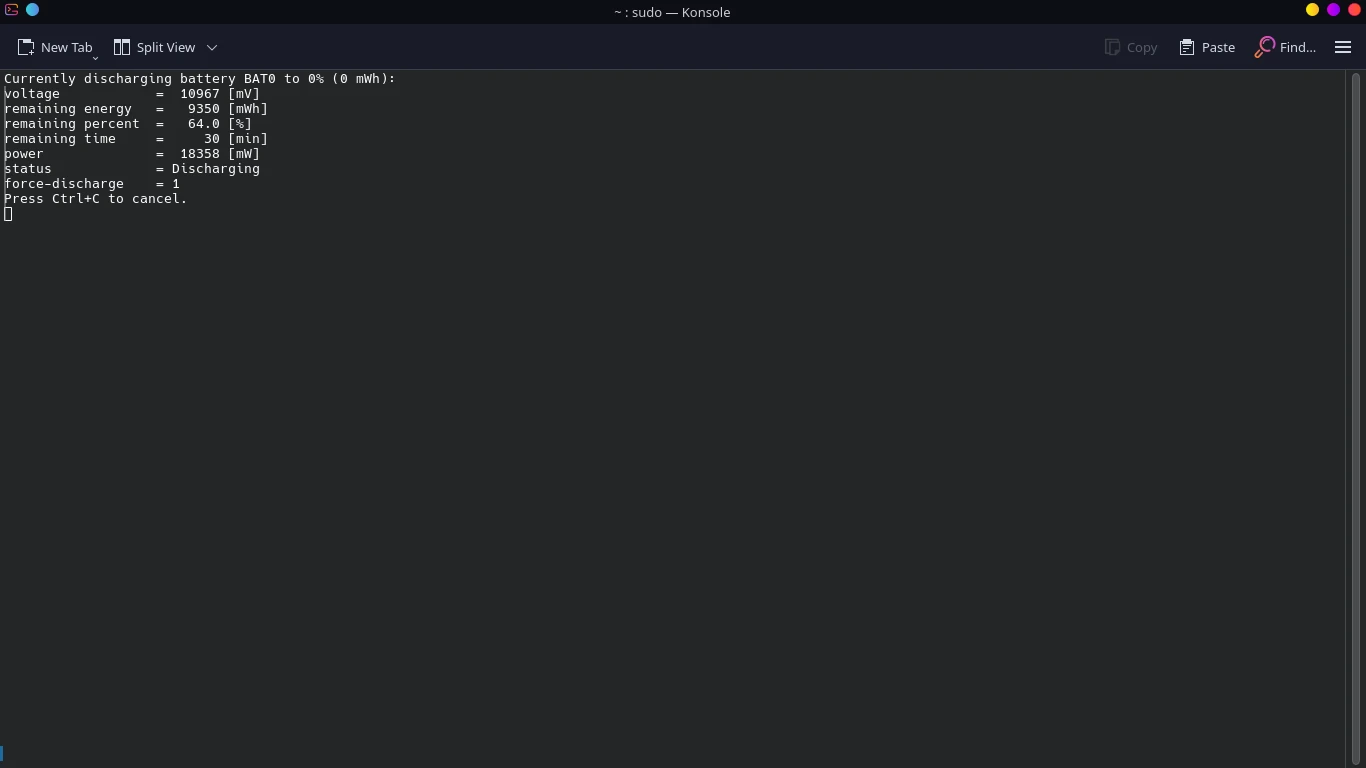
sudo tlp recalibrate BAT0
What happens during recalibration:
- Your laptop will fully discharge the battery
- Then it will recharge it completely, recalibrating the battery controller
⚠️ Important:
- Save your work! Your laptop will power off during the discharge phase.
- Don’t use this feature too frequently – once every few months (or when needed) is enough.
📊 Check Battery Health
Want to see how worn your battery is? Use:
sudo tlp-stat -b
You’ll get output like:
energy_full_design = 23200 [mWh]
energy_full        = 14610 [mWh]
This tells you your battery only holds 63% of its original capacity – a sign of aging.
✨ Why This Matters
TLP isn’t just another background tool – it gives power users real control over how their system manages energy. On ThinkPads and similar laptops, it unlocks features that were once limited to Windows-only tools.
By using:
- ✅ Charge thresholds to prevent unnecessary wear
- 🔧 Recalibration to fix reporting errors
- 📈 Battery health stats to plan replacements
…you’re not just using Linux – you’re using it smarter.
🛠 Install TLP on Linux
TLP is available in most distro repositories:
Arch / Manjaro / CachyOS:
sudo pacman -S tlp
Ubuntu / Debian:
sudo apt install tlp
Then enable and start it:
sudo systemctl enable tlp --now
Optionally install extra tools:
sudo apt install tp-smapi-dkms acpi-call-dkms
❤️ Final Thoughts
If you care about your laptop’s health, TLP is a must-have. It’s free, lightweight, and gives you enterprise-grade control over your Linux system’s power management.







Post Comment