QCluster: A Native macOS DX Cluster Client for Amateur Radio
Mac users have limited choices for amateur radio software. DX cluster clients often run as Windows ports, Java apps, or web wrappers. They feel out of place on macOS and lack native integrations.
G6NHU built QCluster to solve this problem. It is a fast, focused Mac application for connecting to DXSpider-compatible clusters. It filters noise and shows the spots that matter to you.
QCluster is a native SwiftUI macOS app. It requires macOS 14 Sonoma or later and runs natively on both Apple Silicon and Intel Macs. It features persistent settings, local and UTC time display, and QRZ lookup. It is free to download and use.
Intelligent Spot Filtering
A busy DX cluster stream is unreadable. QCluster provides powerful filtering options to manage the flow. You can filter spots by band, mode, continent, DX entity, and spotter entity.
You can also use custom distance-based spotter selections. This keeps your spot feed relevant to your location and propagation conditions.
Rate-Limited Custom Alerts
You need to know when a rare station appears, but you do not want an endless stream of notifications. QCluster lets you configure up to five distinct alerts.
Four alerts let you specify DXCC entity, band, and mode. The fifth alert targets specific callsigns and supports wildcards. Each alert features its own highlight colour and optional sound notification.
Crucially, each alert includes a “maximum once every” limit. A busy band will not flood your screen with pings.
Club Log and LoTW Integration
QCluster integrates with standard amateur radio databases. You can build alert lists directly from your Club Log DXCC matrix. This allows you to target not-worked and not-confirmed entities.
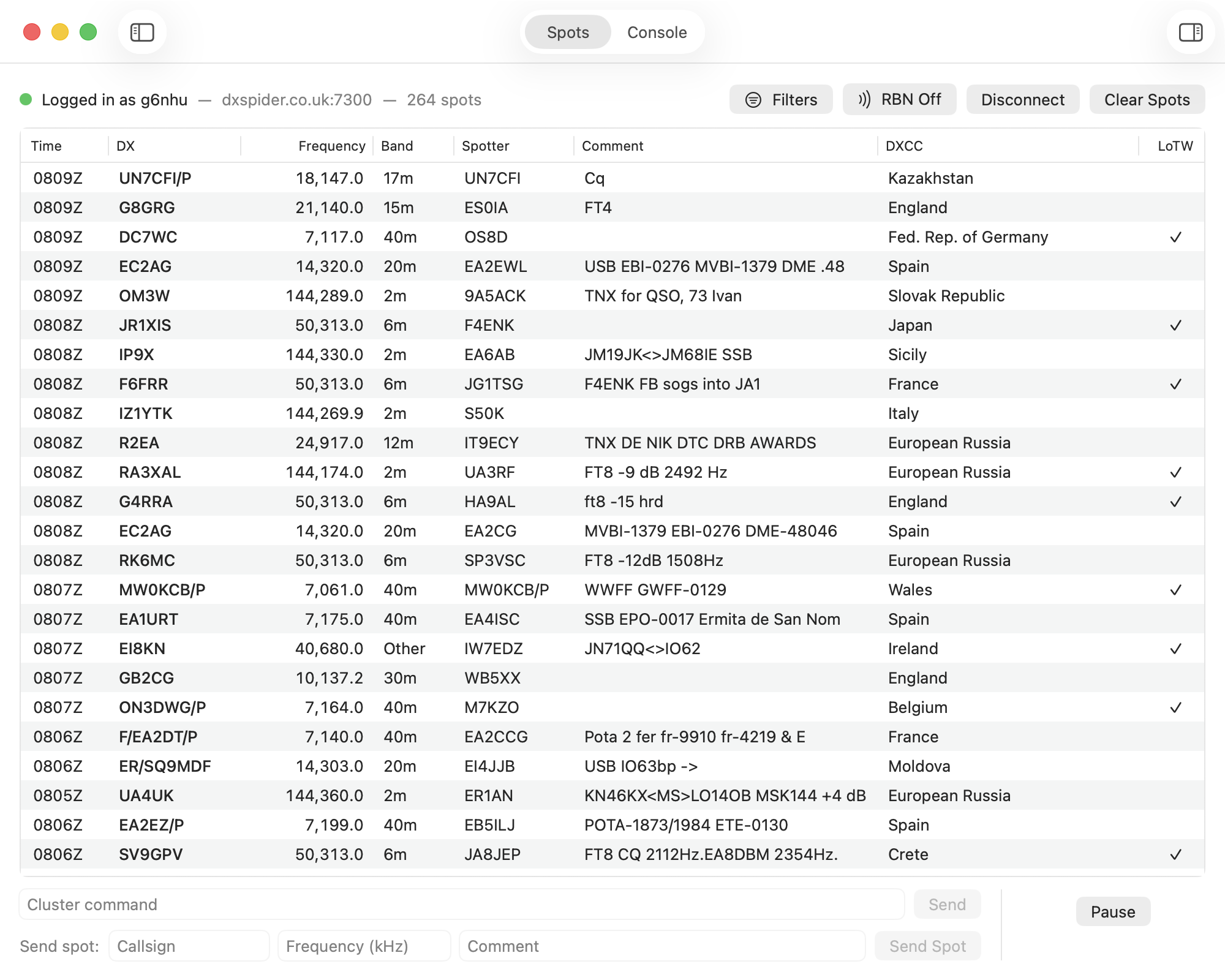
The spot table shows Logbook of the World (LoTW) upload status. A tick in the LoTW column confirms the station uploaded their log within the last year. Hover over the tick to see the exact date of their last upload.
Background Spot Queuing
Spot tables often jump around when new spots arrive. This makes it hard to click a callsign. QCluster fixes this by continuing to receive and filter spots while you pause the display.
You can scroll through the table and review older spots. When you return to the top or resume the display, the queued spots appear instantly.
RBN Control and Telnet Routing
QCluster lets you control Reverse Beacon Network (RBN) spot types directly from its interface. You do not need to memorise DXSpider commands.
The app includes a local telnet server. It passes your filtered spot stream directly to your logging software or other radio applications.
A dedicated raw console is kept entirely separate from the main spot table. You can send your own spots to the cluster or enter direct commands without cluttering your main view.
Gatekeeper Installation Steps
QCluster is distributed directly from the developer, not through the Mac App Store. macOS Gatekeeper will block the application on its first launch.
Follow these steps to open the app:
- Download the universal disk image from the QCluster website.
- Drag the QCluster icon to your Applications folder.
- Double-click QCluster. macOS will say it cannot verify the app. Click “Done”. Do not click “Move to Bin”.
- Open System Settings and select Privacy & Security in the sidebar.
- Scroll down, click “Open Anyway” next to the QCluster warning, and confirm you want to open it.
This is a one-time process. QCluster will open normally on all future launches.
Download and Support
QCluster is independent amateur radio software. It respects your privacy. It checks for updates and sends an anonymous installation identifier daily for usage statistics, but it collects no callsigns or personal configuration data.
You can download the latest universal binary from the QCluster website. For support, bug reports, and feature requests, join the QCluster groups.io community.