DXMon: Build N4MI’s Dedicated ESP32-S3 Touchscreen DX Monitor for Ham Radio
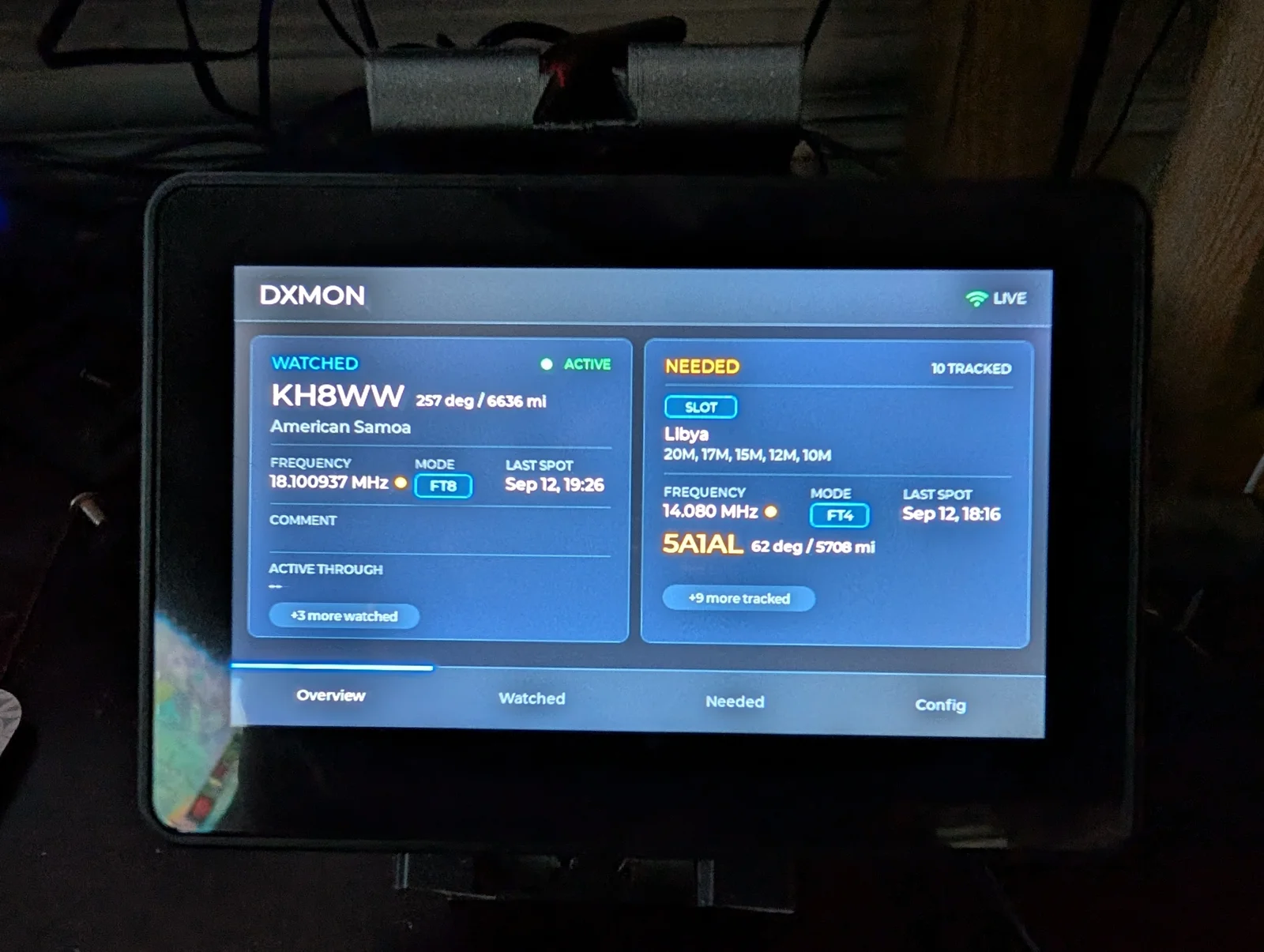
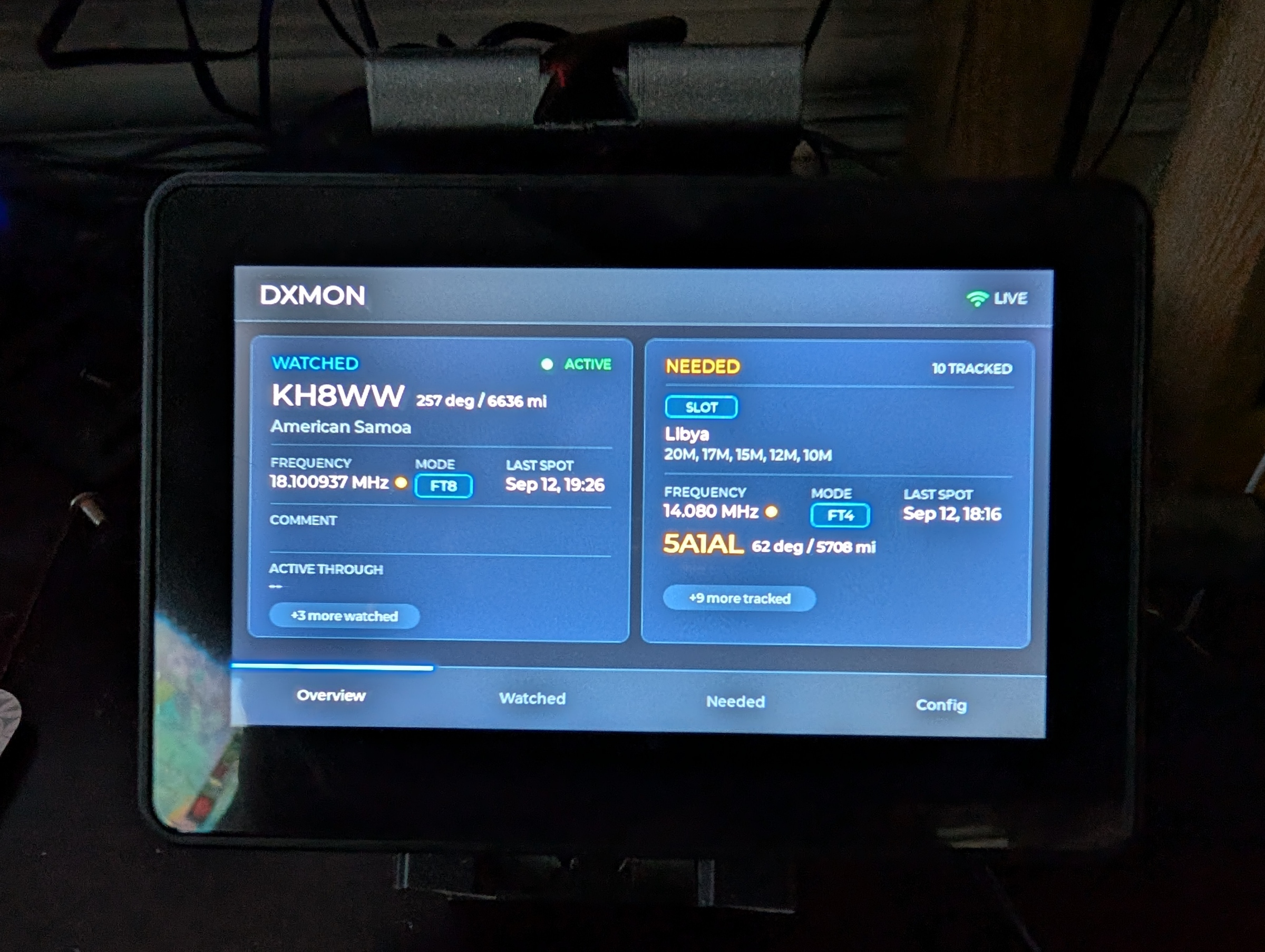
TL;DR: DXMon by Dan Marshall (N4MI) is an open source amateur radio desk instrument designed to solve a single operational dilemma: “Is a DX station I care about active right now, and where should I listen?” Powered by a Waveshare ESP32-S3-Touch-LCD-4.3B capacitive touchscreen display and a lightweight two-container Docker backend, DXMon combines real-time HamAlert Telnet spot delivery, NG3K Announced DX Operations (ADXO) schedule caching, and pyhamtools great-circle beam heading calculations. With glanceable side-by-side Watched and Needed feeds, live visual spot flashes, PropMon band condition integration, captive-portal Wi-Fi setup, and an in-browser curation suite with an automated trigger builder, DXMon turns passive DX cluster browsing into targeted, actionable shack awareness.
What Is DXMon?
DXMon is an open source amateur radio desk instrument built on the Waveshare ESP32-S3 Touch LCD 4.3B that tracks watched DXpeditions and needed DXCC entities in real time using HamAlert spots, NG3K announced operations, and automated beam heading calculations.
+-----------------------------------------------------------------------------------------+
|                                  DXMON SYSTEM TOPOLOGY                                  |
+-----------------------------------------------------------------------------------------+

 [ External Data Feeds ]                 [ Docker Server Stack ]              [ Ham Shack Display ]
 ┌────────────────────────┐              ┌──────────────────────────┐         ┌────────────────────────┐
 │ HamAlert Telnet Service│              │ dxmon-hamalert (Port 8084│         │ Waveshare ESP32-S3     │
 │ (hamalert.org:7300)    │ ──Telnet───► │ - Persistent TCP socket  │         │ Touch-LCD-4.3B         │
 └────────────────────────┘   (JSON)     │ - Liveness echo keepalive│         │ (800x480 IPS Display)  │
                                         │ - Rolling 100-spot buffer│         │                        │
 ┌────────────────────────┐              └────────────┬─────────────┘         │ - Overview Feed        │
 │ NG3K ADXO Schedules    │                           │ Internal HTTP         │   (Watched vs Needed)  │
 │ (Daily Plain Scrape)   │ ──HTTP─────┐              ▼                       │ - Live Spot Visual     │
 └────────────────────────┘            │ ┌──────────────────────────┐         │   Screen Flashing      │
                                       └►│ dxmon-adxo (Port 8083)   │         │ - Beam Heading & Mi/Km │
 ┌────────────────────────┐              │ - Flask REST API & Web UI│◄──Wi-Fi─│ - PropMon Band Dot     │
 │ PropMon API            │ ──HTTP─────► │ - pyhamtools Beam Headings         │ - Spot Source Badges   │
 │ (Local Band Condition) │              │ - Trigger Recipe Builder │         │ - On-Device Wi-Fi Setup│
 └────────────────────────┘              │ - JSON File Persistence  │         │   Captive Portal       │
                                         └──────────────────────────┘         └────────────────────────┘
Chasing DX on the High Frequency (HF) bands has always required patience, sharp timing, and continuous situational awareness. For decades, operators relied on packet radio DX clusters and desktop logging software windows. In modern shacks, computer screens are routinely cluttered with digital mode waterfalls (WSJT-X), software-defined radio panadapters, electronic logbooks, antenna rotators, and web browsers.
When you split your attention between an active rig, work monitors, and scrolling cluster windows, high-priority DX stations slip by. You look away for twenty minutes, and an elusive Pacific island expedition finishes their brief opening on 10 meters and disappears into the noise.
Smartphone push notifications from services like HamAlert help. But they present their own frustrations: notification fatigue, silenced phones during work hours, or digging a device out of your pocket every time a generic cluster spot fires.
Dan Marshall (N4MI) created DXMon to solve this operational friction. Rather than adding another window to a multi-monitor computer desktop, DXMon packages high-priority DX intelligence into a dedicated, silent, standalone desk appliance. It sits directly beneath or beside your transceiver, continuously presenting only the specific stations and entities you need, alongside instant antenna azimuth headings and real-time propagation indicators.
The N4MI Desktop Instrument Series Philosophy
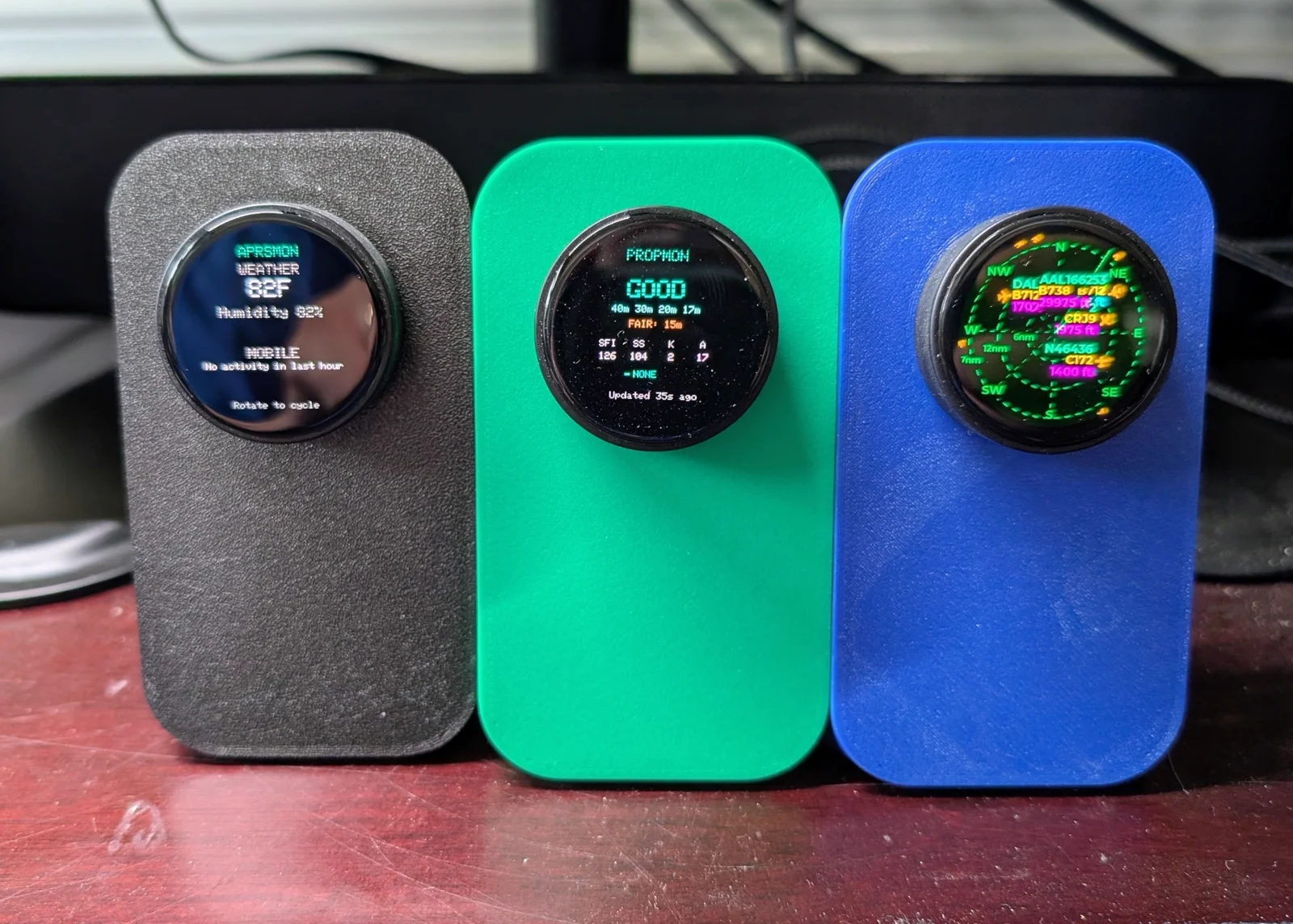
DXMon represents the third installment in N4MI’s family of purpose-built amateur radio desk instruments. Each device in the series answers exactly one operational question at a glance, without requiring manual querying or operating system distractions:
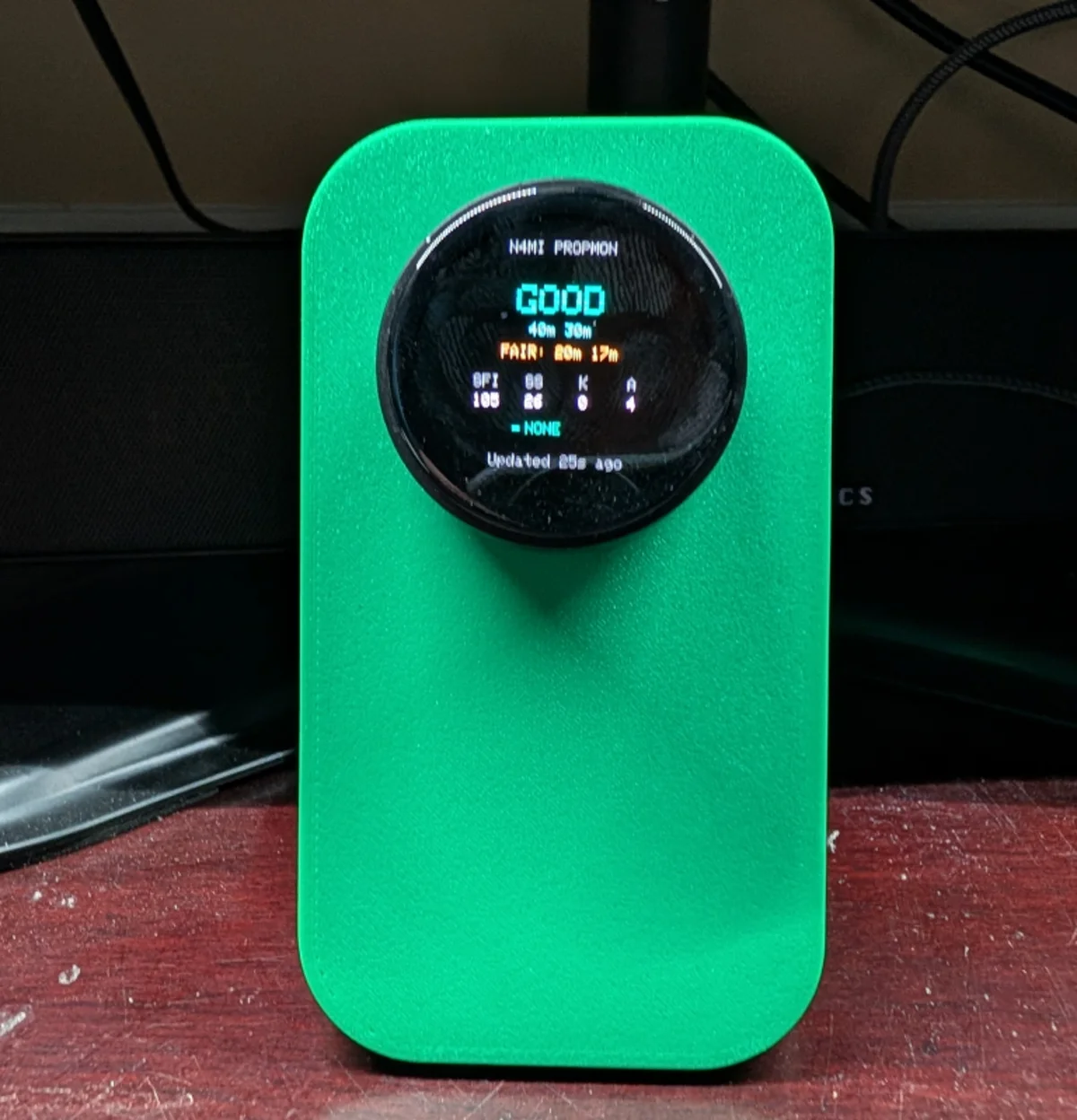
- PropMon (Propagation Monitor): Answers “Can I make the contact?” by displaying solar indices (SFI, K-index, A-index), geomagnetic storm warnings, and live HF band condition summaries on a compact circular display.
- APRSMon (APRS & Weather Monitor): Answers “What is happening around me?” by tracking local APRS packets, repeaters, moving mobile stations, and live weather conditions.
- DXMon (DX Monitor): Answers “Is a DX station I care about active right now, and where should I listen?”
While PropMon and APRSMon leverage compact round displays with rotary encoders, DXMon adopts a wide landscape touchscreen format. Displaying dense lists of callsigns, frequencies, beam headings, and timestamps requires horizontal screen real estate and direct touch navigation.
DXMon vs Traditional DX Tracking Solutions
To understand why a dedicated hardware instrument improves shack workflow, consider how DXMon compares with conventional spot-monitoring setups:
| Spotting Solution | Hardware Form Factor | Display Type & UI Control | Target Focus & Filtering | Antenna Azimuth Calculation | Band Cond Status | Cognitive Overhead |
|---|---|---|---|---|---|---|
| DXMon (N4MI) | Dedicated ESP32-S3 Desk Unit | 4.3″ 800×480 Touchscreen (Capacitive) | Two-tier Watched vs Needed Slots | Automatic Great-Circle via Grid | Live PropMon Dot | Zero (Glance & Flash) |
| Desktop DX Cluster (DXSpider / CC) | Primary PC Workstation | PC Monitor Window / App (Mouse/Keys) | Global Firehose or Basic Prefix Filter | Requires Log Integration or Rotor App | External Browser Tab | High (Loss in Window Clutter) |
| Standalone Hardware Cluster Clients | ESP32-S3 / M5Stack Micro-Box | 2.4″-3.5″ Button/Knob (Scroll Only) | Cluster Telnet Stream Filter (No Curation) | Rare / Prefix Only | None | Low (Raw Stream Noise) |
| Mobile HamAlert App (iOS / Android) | Personal Smartphone | Push Popup / Notification Tray | Trigger-Based (No Visual Shack Feed) | Static Prefix Angle Only | None | Medium (Phone Distraction) |
| Transceiver Panadapter Spotting | Built-in Rig Display (IC-7610/K4) | Radio Screen Overlay (Buttons/VFO) | Frequency-Centric Spot Map | Manual Rig / Log Intersect | None | Low (Must Be in Band Scope) |
Most hardware cluster monitors simply dump the entire DX cluster Telnet stream onto a small screen. DXMon rejects the firehose approach. It divides monitoring into two human-curated operational channels:
- Watched: Active DXpeditions with known start and end dates that you are actively hunting right now.
- Needed: Unworked DXCC entities or specific missing band/mode slots that you have never confirmed.
System Architecture: Two Microservices Behind the Glass
DXMon splits its workload between an embedded display frontend and a lightweight two-container backend designed to run on a local home server, NAS (such as Synology, QNAP, or TrueNAS), or Raspberry Pi.
+─────────────────────────────────────────────────────────────────────────────────────────+
|                               DXMON BACKEND ARCHITECTURE                                |
+─────────────────────────────────────────────────────────────────────────────────────────+

  [ hamalert.org:7300 ]
           │
           │ Persistent TCP Telnet Socket (Auth + set/json)
           ▼
  ┌───────────────────────────────────────────────────────────┐
  │ dxmon-hamalert (Container Port 8084)                      │
  │ - Maintains persistent connection with auto-reconnect     │
  │ - Sends undocumented keepalive "echo <token>\r\n"         │
  │ - Captures JSON spot events into memory deque (100 spots) │
  │ - Exposes /api/hamalert/spots HTTP endpoint               │
  │ - Persists pause/resume state in /app/data/state.json     │
  └─────────────────────────────┬─────────────────────────────┘
                                │ Internal HTTP Fetch
                                ▼
  ┌───────────────────────────────────────────────────────────┐
  │ dxmon-adxo (Container Port 8083)                          │
  │ - Flask Application with Web Curation Interface           │
  │ - Daily cron-style fetcher for NG3K ADXO text data        │
  │ - Real-time pyhamtools Great-Circle heading engine        │
  │ - PropMon HTTP cache client (5-minute TTL)                │
  │ - Two-tier spot matcher:                                  │
  │     * Callsign / Full compound match against watched.json │
  │     * Entity / Band / Mode match against needed.json      │
  │ - Rolling spot history tracker: spot_history.json         │
  │ - Firmware REST endpoints: /api/dxmon/*                   │
  └─────────────────────────────┬─────────────────────────────┘
                                │ JSON REST polling (Wi-Fi)
                                ▼
  ┌───────────────────────────────────────────────────────────┐
  │ Waveshare ESP32-S3-Touch-LCD-4.3B (Firmware)              │
  │ - LVGL v8 graphics engine with 4 primary navigation tabs  │
  │ - Real-time visual flash alert for genuinely fresh spots  │
  │ - Interactive drill-down spot history views               │
  │ - Captive portal Wi-Fi setup manager                      │
  └───────────────────────────────────────────────────────────┘
1. The HamAlert Listener Service (dxmon-hamalert)
The dxmon-hamalert container (hamalert_listener.py) maintains an active, low-latency Telnet session to hamalert.org:7300.
Rather than scraping webhooks or polling APIs, it uses HamAlert’s native Telnet emulation server:
- Authentication: Upon connection, it handles the standard login challenge using your HamAlert username and Telnet password.
- JSON Protocol Mode: Immediately after authentication, the listener issues the command
set/json\r\n. HamAlert responds withOperation successful\n, and from that moment on, all trigger hits arrive formatted as clean, structured JSON payloads. - Liveness Keepalive: Internet routers and NAT firewalls drop silent TCP connections. The HamAlert developer (Manuel Kasper, HB9DQM) confirmed on the support forum that sending
echo <token>\r\nproduces an immediate<token>\nresponse. DXMon sends this heartbeat every 60 seconds. If a reply is not received within 30 seconds, it tears down the socket and reconnects with exponential backoff. - Rolling Deque: Spots are buffered in a thread-safe rolling queue of the last 100 spots and served via HTTP to the main service on port 8084.
- Persistent Vacation Pause: If you leave the shack for an extended period, you can pause spot reception via a simple curl command (
curl -X POST http://<server>:8084/api/hamalert/disable). This state is written tostate.jsonon the persistent volume so it survives NAS reboots.
2. The Core ADXO and Curation Service (dxmon-adxo)
Running on port 8083, adxo_service.py provides the web UI, schedule parser, and firmware API:
- NG3K ADXO Ingestion: Bill Feidt (NG3K) maintains the amateur radio community’s gold standard for announced DXpedition schedules. DXMon scrapes the plain text version once daily at 00:30 Eastern Time. It caches the schedule locally, calculating start dates, active status, and countdown flags (“Ends in 3 days”, “Ends tomorrow”, “Ends today”).
- Great-Circle Beam Heading Calculations: The service embeds
pyhamtoolsbacked by amateur radio country files (country-files.com). When configured with your local Maidenhead grid square (STATION_GRID), DXMon calculates the exact antenna azimuth bearing and distance in miles or kilometers to any spotted callsign. - PropMon Band Condition Cross-Referencing: If you run N4MI’s PropMon instrument on your local network, DXMon queries its
/api/instrument/propagationendpoint every 5 minutes. When a spot arrives on 15 meters, DXMon checks PropMon’s current assessment for 15m and flags it green (good), amber (fair), or red (poor). - Target Matching Logic: The service evaluates incoming HamAlert spots against your curated targets. It handles compound callsigns (e.g., matching
9N/OM0GAwhen ADXO reports the base prefix9N) and cross-references spotter continents to prevent European spots from misleading North American or Asian operators.
Hardware Specifications: Waveshare ESP32-S3-Touch-LCD-4.3B
DXMon is built on the Waveshare ESP32-S3-Touch-LCD-4.3B, a fully integrated development board combining compute, display, and touch sensing on a single rigid PCB.
+─────────────────────────────────────────────────────────────────────────────────────────+
|                  WAVESHARE ESP32-S3-TOUCH-LCD-4.3B HARDWARE PROFILE                     |
+─────────────────────────────────────────────────────────────────────────────────────────+

  Microcontroller:    Espressif ESP32-S3 (Xtensa 32-bit LX7 Dual-Core @ 240 MHz)
  Internal Memory:    512 KB SRAM, 384 KB ROM
  External Memory:    16 MB Quad-SPI Flash, 8 MB Octal-SPI PSRAM (OPI)
  Wireless:           2.4 GHz Wi-Fi (802.11 b/g/n) + Bluetooth 5.0 LE
  Display Panel:      4.3-inch TFT LCD, IPS Technology (Wide Viewing Angles)
  Resolution:         800 x 480 Pixels (16:9 Aspect Ratio, RGB Interface)
  Touch Controller:   GT911 5-Point Capacitive Touch via I2C Bus
  IO Expander:        CH422G I2C IO Expander for Panel Control Lines
  Power Interface:    USB Type-C Connector (Native USB-CDC / Serial JTAG)
  Physical Form:      Landscape Desktop Instrument, 106.10 mm x 67.80 mm
+-----------------------------------------------------------------------+
| Waveshare ESP32-S3-Touch-LCD-4.3B Hardware Layout |
+-----------------------------------------------------------------------+
┌────────────────────────────────────────────────────────┐
│ 800 x 480 Capacitive Touch IPS Panel (RGB Interface) │
│ │
│ [Overview] [Watched] [Needed] [Config] │
│ │
│ 5A1AL -- 17m CW -- 18.074 MHz (Beam: 62 deg / 5708 mi)│
│ │
└────────────────────────────────────────────────────────┘
│ │
▼ ▼
┌──────────────────┐ ┌──────────────────┐
│ ESP32-S3 Core │ │ CH422G Expander │
│ 16MB Flash │◄───I2C Control──►│ Reset & Backlight│
│ 8MB Octal PSRAM │ │ Lines │
└────────┬─────────┘ └──────────────────┘
│
▼
┌──────────────────┐
│ USB-C Connector │ (Requires direct PC/hub port for CDC)
└──────────────────┘Display and Touch Architecture
The 4.3B variant uses an RGB interface rather than a slow SPI bus. This direct RGB link provides high frame rates and instantaneous page transitions in LVGL. Touch input is handled by the Goodix GT911 capacitive touch IC over I2C, enabling fluid list scrolling, tab switching, and button presses.
Power and Cabling Considerations
The ESP32-S3 uses native USB-CDC for programming and serial monitoring. As noted in the project documentation, flashing large 16MB firmware binaries over unpowered USB hubs or cheap front-panel case cables can trigger intermittent upload failures. Always connect the board using a high-quality USB Type-C cable directly to a motherboard rear USB port or an independently powered hub.
Firmware Architecture: LVGL v8 and the pioarduino Toolchain
Building high-resolution graphical interfaces on microcontrollers requires careful memory management. DXMon pairs LVGL v8.4.0 with the pioarduino toolchain fork.
The Toolchain: Why pioarduino?
Standard PlatformIO uses the upstream espressif32 platform development branch, which lags behind the specific Espressif Arduino core versions required for Waveshare’s RGB panel timing drivers. DXMon specifies the pioarduino community platform in platformio.ini:
[env:esp32-s3-touch-lcd-4-3b]
platform = https://github.com/pioarduino/platform-espressif32/releases/download/51.03.07/platform-espressif32.zip
board = esp32-s3-devkitc-1
framework = arduino

board_build.partitions = default_16MB.csv
board_upload.flash_size = 16MB
board_build.flash_size = 16MB
board_build.arduino.memory_type = qio_opi

lib_deps =
    https://github.com/esp-arduino-libs/ESP32_Display_Panel.git#v1.0.4
    https://github.com/esp-arduino-libs/ESP32_IO_Expander.git#v1.1.1
    https://github.com/esp-arduino-libs/esp-lib-utils.git#v0.3.0
    https://github.com/lvgl/lvgl.git#v8.4.0
    bblanchon/[email protected]
Notice the pinned library dependencies:
ESP32_Display_Panel(v1.0.4) contains the exact timing constants for the 800×480 RGB panel. Using a different version or a different Waveshare panel (such as the 5-inch or 7-inch models) causes display synchronization drift.ArduinoJsonis pinned to version 7.4.3, leveraging the v7JsonDocumentarchitecture for rapid parsing of HTTP API responses.
On-Device Wi-Fi Captive Portal
Rather than hardcoding your home Wi-Fi SSID and WPA2 password into firmware source code, DXMon includes an integrated on-device captive portal (wifi_portal.cpp).
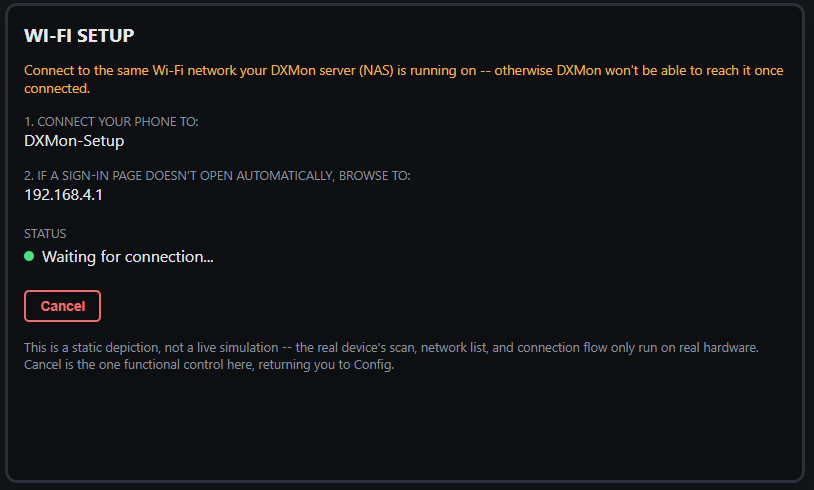
When you tap Wi-Fi Setup on the device’s Config screen:
- The ESP32 scans 2.4 GHz channels and starts a local software Access Point named
DXMon-Setup. - Connecting your smartphone to
DXMon-Setuptriggers an automatic captive portal prompt (or browse to192.168.4.1). - You select your home network from the scanned SSID dropdown, enter the password, and hit Save.
- The credentials are saved to ESP32 Non-Volatile Storage (NVS). The device reboots and connects automatically to your home LAN.
+─────────────────────────────────────────────────────────────────────────────────────────+
|                           CAPTIVE PORTAL ON-BOARDING WORKFLOW                           |
+─────────────────────────────────────────────────────────────────────────────────────────+

  [ Device Display ]                 [ Wi-Fi Controller ]               [ User Smartphone ]
  ┌──────────────────┐               ┌──────────────────┐               ┌──────────────────┐
  │ User taps        │               │ Starts softAP:   │               │ Connects to      │
  │ "Wi-Fi Setup"    │ ────────────► │ "DXMon-Setup"    │ ────────────► │ "DXMon-Setup"    │
  └──────────────────┘               └──────────────────┘               └────────┬─────────┘
                                                                                 │
                                                                                 ▼
  ┌──────────────────┐               ┌──────────────────┐               ┌──────────────────┐
  │ Reboots and      │               │ Writes SSID &    │               │ Selects home SSID│
  │ joins home Wi-Fi │ ◄──────────── │ Password to NVS  │ ◄──HTTP POST─ │ and submits WPA2 │
  └──────────────────┘               └──────────────────┘               └──────────────────┘
Display Timing Drift and the 12-Minute Reboot Mitigation
In the project’s User Guide, Dan Marshall includes a transparent engineering note: every 12 minutes, the device screen briefly blanks for two seconds before restoring normal operation.
This behavior is a deliberate watchdog mitigation. The underlying ESP32-S3 LCD peripheral driver occasionally experiences micro-pixel clock drift against the RGB controller, causing the bottom tab bar to creep upward by a few pixels over time. A silent, scheduled 2-second reload completely resets the hardware framebuffer and clears any drift without losing state, target lists, or active spot history.
Exploring the Physical Device Interface
The 4.3-inch touchscreen organizes operational data into four dedicated tabs located across the bottom navigation bar:
+-----------------------------------------------------------------------+
|  WATCHED: 5A1AL (Libya)           |  NEEDED: VK9X (Christmas Island)  |
|  17m CW -- 18.074 MHz  ● Good     |  10m FT8 -- 28.074 MHz  ● Fair    |
|  Spotted: 2m ago via RBN          |  Spotted: 5m ago via Cluster      |
|  Heading: 62 deg / 5708 mi        |  Heading: 274 deg / 10214 mi      |
|  [3 other expeditions active]     |  [12 entities currently tracked]  |
+-----------------------------------------------------------------------+
|   [ OVERVIEW ]     [ WATCHED ]     [ NEEDED ]     [ CONFIG ]          |
+-----------------------------------------------------------------------+
1. The Overview Screen (The Primary Shack Glance)
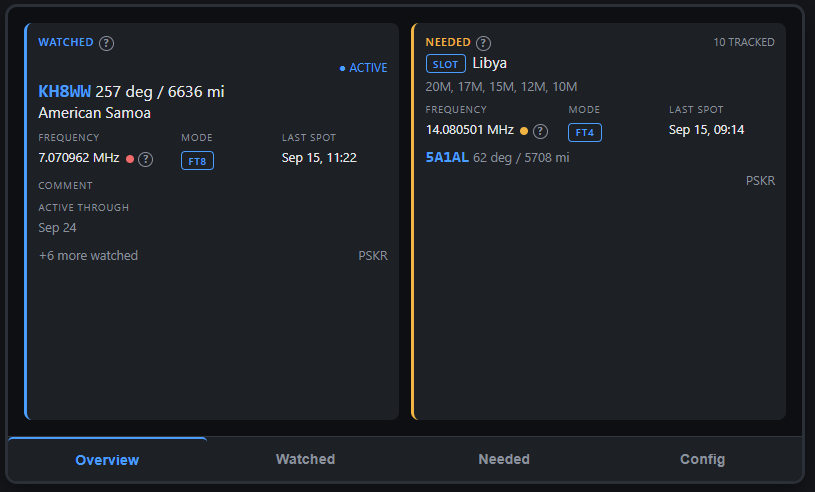
The Overview tab splits the screen into two equal side-by-side cards:
- Left Panel (Watched): Displays the single most recently spotted expedition from your Watched list.
- Right Panel (Needed): Displays the single most recently spotted entity or band/mode slot from your Needed list.
Each card presents key operational facts:
- Callsign and DXCC Entity: Instant recognition of who is on the air.
- Frequency, Band, and Mode: Tells you exactly where to tune your VFO.
- PropMon Band Condition Dot: A colored dot adjacent to the frequency (Green = Good, Amber = Fair, Red = Poor). If PropMon is offline or unreachable, the dot gracefully disappears rather than throwing an error.
- HamAlert Spotting Source: Indicates whether the hit originated from a traditional DX Cluster, the Reverse Beacon Network (RBN), or PSK Reporter.
- Azimuth Beam Heading and Distance: Great-circle calculations based on your home Maidenhead grid square. You know instantly where to turn your antenna rotator.
- New-Spot Visual Alert Flash: When a genuinely new spot hits the backend, the callsign text and card border flash brightly for several seconds. If you are sitting across the room soldering or logging, your peripheral vision catches the flash immediately.
2. The Watched Tab
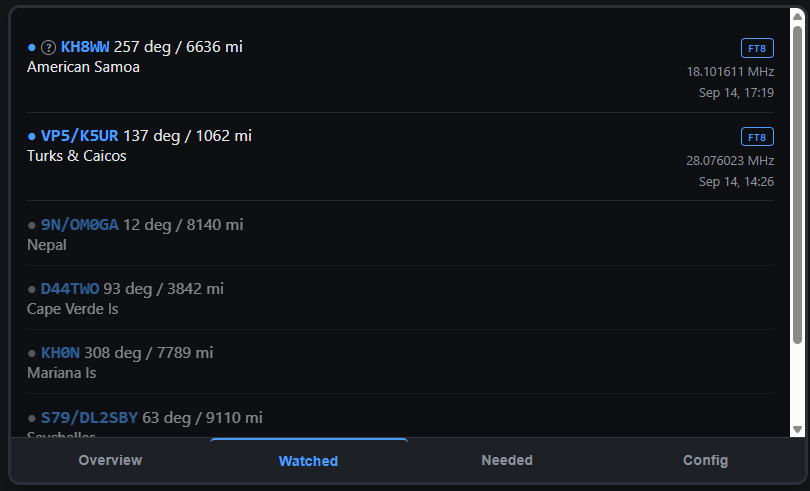
The Watched tab presents a scrollable vertical roster of every active or upcoming DXpedition you have flagged in the system. Each entry shows its current status (Active Now, Upcoming, or Waiting for Spot), its last spotted frequency and timestamp, and its beam heading.
3. The Needed Tab
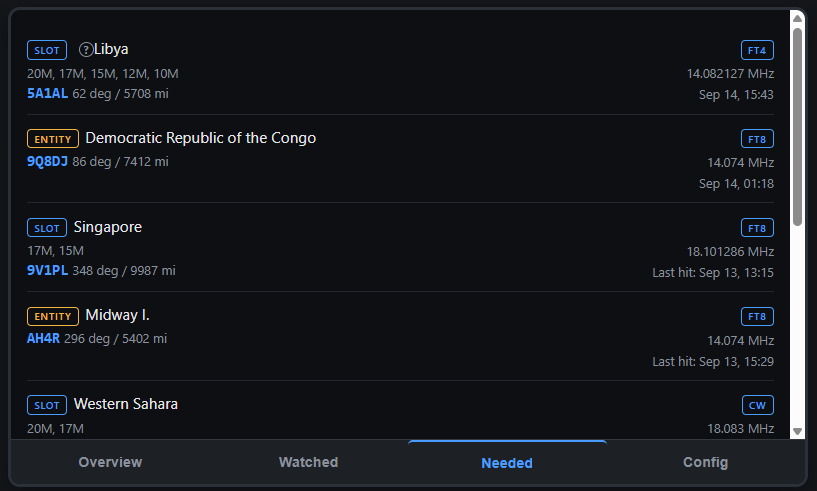
The Needed tab displays all your target DXCC entities and specific band/mode openings. Each row features high-contrast visual badges:
- ENTITY Badge: Indicates a country or territory you have never confirmed on any band or mode.
- SLOT Badge: Indicates an entity you have previously worked, but need on a specific band or mode (e.g., 80m CW or 10m FT8).
- PINNED Badge: High-priority entities that you want permanently positioned near the top of the roster, even when inactive.
4. Interactive Drill-Down Screens
Tapping the screen reveals deeper operational layers:
- Category Activity Feed: Tapping either panel on the Overview screen expands a full-screen, chronological feed of every recent spot across that entire category (all watched DXpeditions or all needed entities).
- Single-Target Spot History: Tapping any individual spot row opens a dedicated history view showing the last 10 spots for that specific callsign or entity. For a Needed entity, this history displays every different station that has activated the entity recently, complete with individual beam headings.
+─────────────────────────────────────────────────────────────────────────────────────────+
|                              DEVICE NAVIGATION DRILL-DOWN                               |
+─────────────────────────────────────────────────────────────────────────────────────────+

  [ Overview Screen ]
  ┌─────────────────────────────┐
  │ Watched Panel  Needed Panel │
  └──────────────┬──────────────┘
                 │ Tap Panel
                 ▼
  [ Category Activity Feed ]
  ┌─────────────────────────────────────────────────────────────┐
  │ Chronological scrollable list of all spots in this category │
  └──────────────┬──────────────────────────────────────────────┘
                 │ Tap Spot Row
                 ▼
  [ Single-Target Spot History ]
  ┌─────────────────────────────────────────────────────────────┐
  │ Last 10 spots for callsign/entity with individual headings  │
  └─────────────────────────────────────────────────────────────┘
The Web Curation Interface
DXMon enforces a clean separation of concerns: the physical device is a display instrument, not a data-entry terminal. All curation happens via a clean web interface hosted by the dxmon-adxo container at http://<your-server-ip>:8083/.
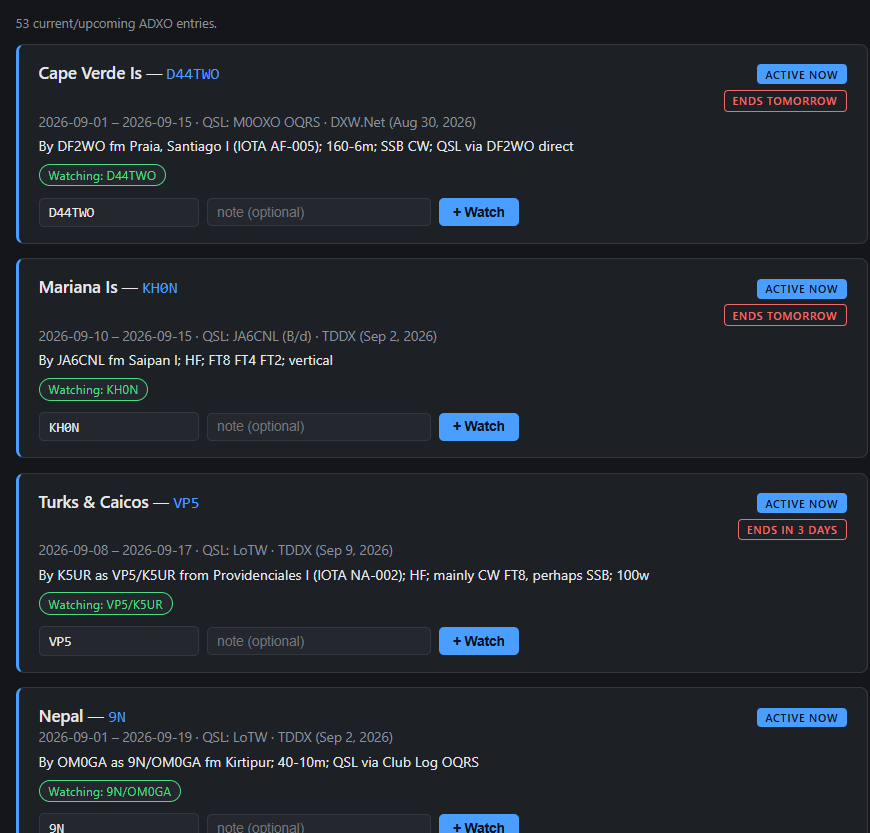
1. Browse Announced DXpeditions (/)
The home page parses the daily NG3K Announced DX Operations feed into a filterable table. You can review upcoming operations, dates, operators, and target bands. Clicking Watch adds an expedition to your active tracking list. Any expedition scheduled to conclude within three days displays an urgency flag (“Ends in 3 days”, “Ends tomorrow”, “Ends today”).
2. Watched Management (/watched)
The Watched dashboard displays all currently tracked expeditions. It includes an inline editor allowing you to modify callsigns. This is useful when ADXO announces an operation under a home prefix (e.g., 9N Nepal) but the operator activates with a compound callsign (e.g., 9N/OM0GA). Changing the entry to the exact compound callsign ensures seamless HamAlert matching. When an operation ends, DXMon tags it with an amber Ended flag, reminding you to clean up your triggers.
3. Needed Entity and Slot Tracking (/needed)
On the Needed curation page, you can add unworked DXCC entities and specific band/mode slots.
- Entity Name Accuracy: Entity names must match HamAlert’s DXCC condition strings exactly.
- Slot Filtering: You can select specific bands (160m through 6m) and modes (CW, SSB, FT8, FT4).
- Entity Pinning: Clicking the star icon pins high-value targets to the top of your device roster. Pinned entries remain prominently visible during band openings even when inactive.
4. The Automated Trigger Builder (/triggers)
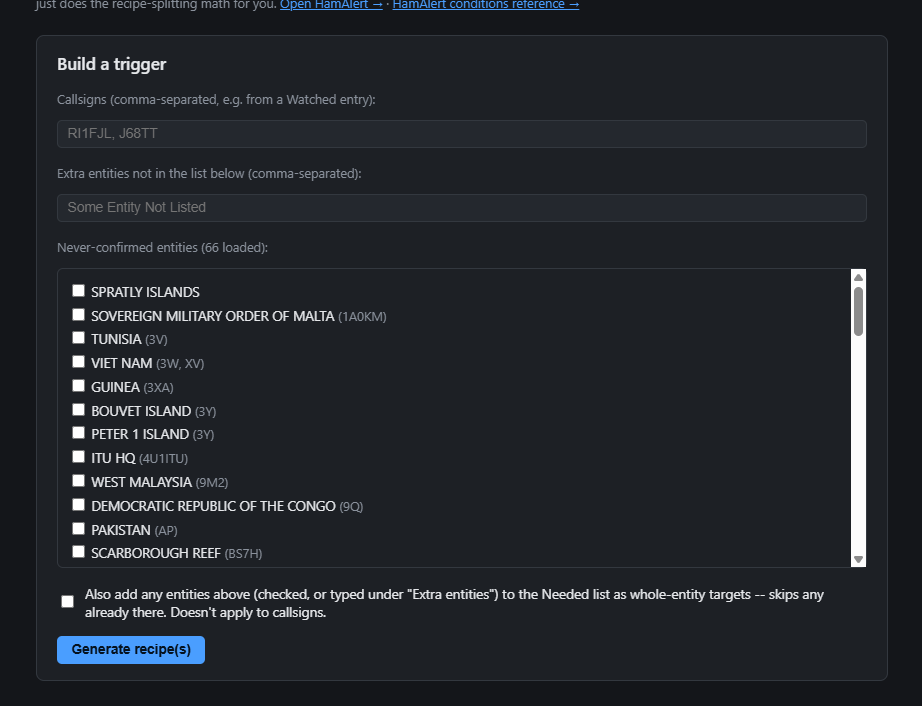
HamAlert limits the number of spots a single user trigger can generate per day. If you create a single trigger containing 50 needed DXCC entities, you will quickly exhaust your daily trigger quota during major international contests.
DXMon’s Trigger Builder solves this problem. It analyzes your target entities and automatically splits them into smaller, volume-safe trigger recipes. It renders ready-to-paste condition blocks that you can copy directly into your hamalert.org account settings.
5. In-Browser Device Preview (/preview)
The web suite includes a virtual 800×480 simulation of the DXMon device display. You can monitor your shack instrument from an office computer or mobile browser anywhere on your local network.
Step-by-Step Build and Deployment Guide
Setting up DXMon involves deploying the Docker backend and flashing the ESP32-S3 firmware.
Phase 1: Deploying the Docker Microservices
Create a project directory on your server and deploy the two services using Docker Compose or Portainer.
Step 1: Create docker-compose.yml for dxmon-adxo
version: "3.8"

services:
  dxmon-adxo:
    build:
      context: https://github.com/N4MI73/n4mi-dx-monitor.git#main:server
      dockerfile: Dockerfile
    container_name: dxmon-adxo
    restart: unless-stopped
    ports:
      - "8083:8083"
    environment:
      - PORT=8083
      - STATION_GRID=EM83               # Replace with your Maidenhead grid square
      - HAMALERT_LISTENER_URL=http://dxmon-hamalert:8084
      - PROPMON_URL=http://192.168.1.50:8076/api/instrument/propagation # Optional
      - POLL_HOUR_ET=0
      - POLL_MINUTE_ET=30
    volumes:
      - dxmon_data:/app/data

volumes:
  dxmon_data:
Step 2: Create docker-compose-hamalert.yml for dxmon-hamalert
version: "3.8"

services:
  dxmon-hamalert:
    build:
      context: https://github.com/N4MI73/n4mi-dx-monitor.git#main:server
      dockerfile: Dockerfile.hamalert
    container_name: dxmon-hamalert
    restart: unless-stopped
    ports:
      - "8084:8084"
    environment:
      - PORT=8084
      - HAMALERT_USER=YOUR_CALLSIGN     # Your HamAlert username
      - HAMALERT_PASS=YOUR_TELNET_PASS # Your HamAlert Telnet password
      - HEARTBEAT_INTERVAL_SECONDS=60
      - HEARTBEAT_TIMEOUT_SECONDS=30
    volumes:
      - dxmon_data:/app/data

volumes:
  dxmon_data:
Launch both containers:
docker compose -f docker-compose-hamalert.yml up -d
docker compose -f docker-compose.yml up -d
Verify that dxmon-hamalert successfully logs into HamAlert by inspecting its container logs:
docker logs -f dxmon-hamalertYou should see: Connected to hamalert.org:7300, login successful, JSON mode enabled.
Phase 2: Building and Flashing the ESP32-S3 Firmware
Step 1: Clone the Repository
git clone https://github.com/N4MI73/n4mi-dx-monitor.git
cd n4mi-dx-monitor/firmware
Step 2: Configure Server Connection
Open include/config.h in your code editor and point the firmware to your Docker server’s LAN IP address:
#pragma once

// IP address and port of your dxmon-adxo server
#define DXMON_SERVER_HOST "192.168.1.100"
#define DXMON_SERVER_PORT 8083

// Captive portal SSID name
#define WIFI_SETUP_AP_NAME "DXMon-Setup"
Step 3: Build and Upload via PlatformIO
Connect your Waveshare board to a direct USB port using a quality USB-C cable:
# Compile and flash the firmware
platformio run -t upload

# Open the serial monitor to verify boot
platformio device monitor -b 115200
Step 4: Complete On-Device Wi-Fi Setup
Once the device boots, tap the Config tab on the touchscreen, select Wi-Fi Setup, connect your phone to the DXMon-Setup network, and input your local Wi-Fi credentials. The device will restart and establish communication with your server.
Best Practices for HamAlert and DXMon Integration
To ensure reliable spot tracking, follow these operational best practices:
+─────────────────────────────────────────────────────────────────────────────────────────+
|                         THE DUAL-MATCH REQUIREMENT PIPELINE                             |
+─────────────────────────────────────────────────────────────────────────────────────────+

  HamAlert Trigger (hamalert.org)                   DXMon Target Database
  ┌──────────────────────────────────┐              ┌──────────────────────────────────┐
  │ Condition: Callsign = 5A1AL      │              │ /watched: 5A1AL                  │
  │ Destination: Telnet Port 7300    │              │ (Announced Libyan DXpedition)    │
  └────────────────┬─────────────────┘              └────────────────┬─────────────────┘
                   │                                                 │
                   ▼                                                 ▼
  ┌────────────────────────────────────────────────────────────────────────────────────┐
  │ Spot Match Evaluation: Both conditions met -> Alert displayed on device screen     │
└────────────────────────────────────────────────────────────────────────────────────┘- The Rule of Two Halves: A spot only appears on your screen if it satisfies both systems simultaneously. You must configure the trigger on
hamalert.organd add the matching entry to DXMon’s/watchedor/neededpage. A trigger without a DXMon entry generates unused traffic; a DXMon entry without a HamAlert trigger sits empty. - Apply Spotter Continent Filters: Always add a Spotter Continent condition (e.g., North America or Asia) in your HamAlert triggers. If you are operating from Japan or Malaysia, a 10m spot reported by a European station does not mean the band is open in your region. Filtering by spotter continent suppresses irrelevant alerts.
- Copy Entity Names Exactly: When adding entities to the Needed list, copy the exact spelling from HamAlert’s DXCC selector. While DXMon ignores case differences, spelling mismatches will prevent spots from linking.
The N4MI Shack Triad: Complete Station Situational Awareness
+─────────────────────────────────────────────────────────────────────────────────────────+
|                              THE N4MI DESK INSTRUMENT TRIAD                             |
+─────────────────────────────────────────────────────────────────────────────────────────+

  ┌─────────────────────────┐   ┌─────────────────────────┐   ┌─────────────────────────┐
  │         PROPMON         │   │         DXMON           │   │         APRSMON         │
  │   (Propagation Unit)    │   │      (DX Monitor)       │   │    (Activity Tracker)   │
  ├─────────────────────────┤   ├─────────────────────────┤   ├─────────────────────────┤
  │ Round LCD / Rotary Knob │   │ 4.3" Capacitive Touch   │   │ Round LCD / Rotary Knob │
  │ "Can I make the contact?│   │ "Is my target active?"  │   │ "What's around me?"     │
  │ Solar Flux, K-index,    │   │ Watched DXpeditions,    │   │ Local weather, APRS     │
  │ Band Condition Reports  │   │ Needed DXCC, Azimuth    │   │ beacons, repeaters      │
  └────────────┬────────────┘   └────────────▲────────────┘   └─────────────────────────┘
               │                             │
               └────── PropMon API Link ─────┘
Together, N4MI’s three desk appliances provide complete, distraction-free shack awareness:
- PropMon watches the ionosphere.
- DXMon watches your priority stations and calculates antenna headings.
- APRSMon tracks local RF activity and weather.
Because DXMon queries PropMon’s internal API directly, you get real-time band condition indicators beside incoming DX spots, combining target tracking with propagation awareness on a single screen.
Frequently Asked Questions (FAQ)
Does DXMon require an active desktop PC to run?
No. Once the Docker backend is running on a local server, NAS, or Raspberry Pi, the ESP32-S3 touchscreen instrument operates entirely standalone. You don’t need a computer powered on in the shack to receive live DX spots and beam headings.
How does DXMon calculate antenna beam headings?
DXMon embeds pyhamtools and uses your station’s Maidenhead grid square (STATION_GRID) alongside country file databases (country-files.com). It calculates the true great-circle initial azimuth bearing and distance in miles or kilometers to any spotted station’s prefix or callsign.
Why does the device screen reboot every 12 minutes?
The periodic 2-second screen refresh is a deliberate watchdog mitigation. The ESP32-S3 RGB display controller can experience subtle pixel clock timing drift over extended runtimes. The automated reset reinitializes the display buffer, preventing visual artifacts without losing your target lists or spot history.
Can DXMon function without PropMon installed?
Yes. PropMon integration is entirely optional. If the PROPMON_URL endpoint is unreachable or left unconfigured, DXMon gracefully hides the band condition indicator dot while continuing to display all spot details, beam headings, and visual alerts normally.
How does DXMon prevent exceeding HamAlert daily trigger limits?
DXMon includes an automated Trigger Builder web utility. When you select multiple unworked DXCC entities, the tool splits them into volume-safe condition recipes, preventing single multi-target triggers from hitting HamAlert’s daily spot caps during major international operating events.
Sources and Further Reading
- DXMon Source Repository: N4MI73/n4mi-dx-monitor on GitHub
- N4MI Project Overview: DX Monitor: A Desk Instrument for Chasing DX (n4mi.tech)
- N4MI Propagation Monitor: PropMon on GitHub
- N4MI APRS Monitor: APRSMon on GitHub
- Announced DX Operations (ADXO): NG3K ADXO by Bill Feidt
- HamAlert Spotting Service: HamAlert by Manuel Kasper (HB9DQM)
- Hardware Display Module: Waveshare ESP32-S3-Touch-LCD-4.3B
- Python Ham Radio Library: pyhamtools by Tobias Wellnitz (DH1TW)
- Amateur Radio Country Files: AD1C Country Files (country-files.com)
73 de 9M2PJU


Post Comment