amateur radio
open source
Technology
Android webcam, contest logging, Electron, EmComm, FLRig, GPL-3.0, KDE Connect alternative, Linux Wayland, mouse sharing, open source, Phone Link alternative, POTA, remote desktop, screen sharing, shack automation, shared clipboard, sota, Synergy alternative, TwinDesk, WSJT-X
9M2PJU
0 Comments
TwinDesk: One Open Source Desk for Mac, Windows, Linux and Android with No Account and No Cloud
TL;DR: Quick Summary
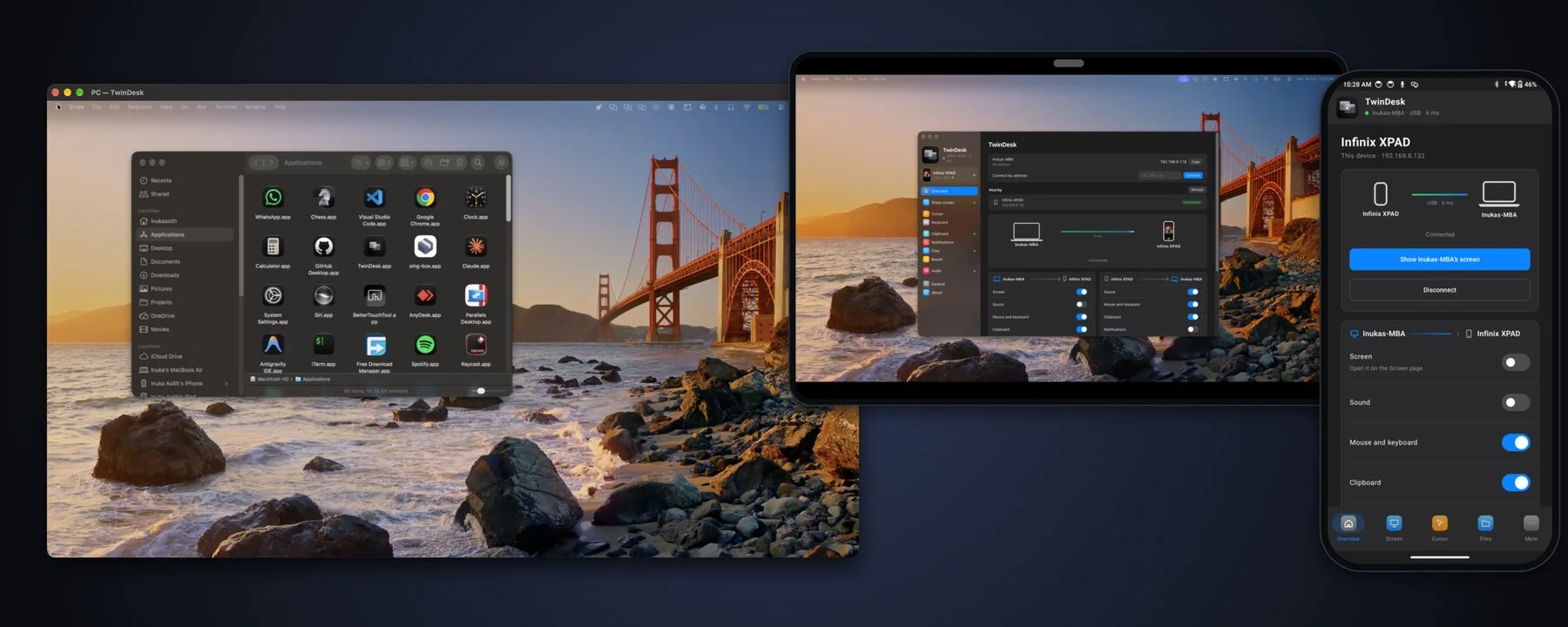
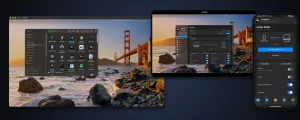
TwinDesk is a free and open source GPL-3.0 application by Inuka Asith that makes a Mac, a Windows PC, a Linux box and an Android phone work as one desk. One mouse and keyboard drive every screen, files drag across the screen edge, clipboard text and pictures paste on any device, and an Android phone contributes calls, texts, photos, camera, remote control and gamepad input. It works over the same Wi-Fi, a USB cable, Bluetooth, on-demand Wi-Fi Direct, or a phone hotspot, with no account, no cloud relay and no telemetry. Version 2.4.0 covers macOS 13 plus, Windows 10 and 11, Linux on X11 and Wayland, and Android 10 plus. For amateur radio operators this solves the classic multi-device shack problem: run the rig-control PC, the logging laptop and the cluster tablet from one keyboard, answer the phone without leaving the chair, push waterfall screenshots between machines, and keep everything working on Field Day with no network at all.
What Is TwinDesk?
TwinDesk is a free open source device-unification application that shares screens, apps, files, clipboard, cameras, calls, texts, notifications, mouse and keyboard between Mac, Windows, Linux and Android over a direct encrypted link with no account and no cloud.
Install the same app on each computer and phone, pair once with a code, then turn on only the features you want. Push the pointer off the edge of one screen and keep working on the next computer. Open a Windows app on a Mac in its own window. Extend a desktop onto an Android tablet. Answer a phone call from the PC. Copy a screenshot on one machine and paste it on another. Every feature starts switched off on a fresh install and isn’t even loaded until enabled, which keeps idle memory low (about 125 MB in the tray on Windows in v2.3 plus).
The project lives at https://github.com/InukaAsith/TwinDesk with website and live browser demo at https://twin-desk.vercel.app. It holds about 1,400 stars and 109 forks, 269 commits, and ships Electron apps for desktops plus a native Kotlin Jetpack Compose app for Android.
Project Snapshot
| Item | Detail |
|---|---|
| Project | TwinDesk by Inuka Asith |
| License | GNU GPL-3.0, free and open source |
| Latest release | 2.4.0 (2.3.0 added phone camera, remote, gamepad, picture clipboard, cursor lock) |
| Platforms | macOS 13 Ventura plus (Apple Silicon and Intel), Windows 10 and 11 (x64 and ARM64), Linux X11 and Wayland (deb, AppImage, Arch, NixOS), Android 10 plus (standard and full APK) |
| Codebase | Electron on desktops, Swift helper on macOS, C# helper on Windows, C helper on Linux, Kotlin on Android, shared JS protocol core |
| Network | Same Wi-Fi, USB cable for phones, Bluetooth LE, on-demand Wi-Fi Direct, phone hotspot; TCP 47800 and UDP 47801 on LAN |
| Privacy model | No account, no cloud relay, no telemetry; devices talk only to paired peers over TLS; only internet request is an optional GitHub update check |
| Links | GitHub repo, website and demo, releases |
Why the Shack Ends Up with Three Keyboards
A typical amateur station grows device by device. A Windows PC runs WSJT-X, FLRig or Ham Radio Deluxe and the soundcard interface. A Linux laptop runs logging, cluster telnet and propagation tools. A phone buzzes with SMS spot alerts, club chat and family calls. A tablet could show a band plan or a logbook but sits unused because there’s no keyboard left for it.
The usual fixes each solve one slice. A hardware KVM switches video but not phones. Shared benefit and Barrier share mouse and keyboard between computers but know nothing about calls, texts or cameras. KDE Connect links one phone to one Linux desktop but not Mac to Windows fleets. Phone Link ties Android to Windows only and routes through a Microsoft account and cloud. Universal Control ties Apple devices to Apple devices only.
TwinDesk aims at the whole desk at once: any combination of computers plus Android as a full peer, over whatever link is available, with each capability behind its own switch.
Computer to Computer: One Desk Across Mac, Windows and Linux
The same app runs on every desktop OS, so a Mac and a PC pair just like two Macs.
One mouse and keyboard
Push the pointer off the configured screen edge and keep working on the other computer as if the two displays were one large surface. The keyboard follows the pointer, including shortcuts with optional Ctrl and Command swapping. Trackpad gestures such as Spaces swipes, pinch to zoom and show desktop carry over. A double tap of the hotkey brings everything home. Edge resistance, pointer speed and which side each peer sits on are configurable per pair.
Version 2.3 added cursor lock: press Scroll Lock (F14 on a Mac), or use the Cursor tab or tray menu, and the pointer stays on its current computer. This matters during contests when a stray edge crossing could dump keystrokes into the wrong log.
Extended display and remote screen
Extend a Mac onto a PC or another Mac with a real virtual display, or mirror it. Alternatively bring the other computer’s screen into a window and control it from there. Streams use low latency H.264 with Fastest and Smooth playback modes plus optional frame generation. On Linux, GNOME Wayland uses the Mutter virtual monitor path, while X11 uses a spare output of the graphics driver (not available on the NVIDIA proprietary driver).
For hams this is the cheapest second monitor available: an old laptop or mini PC becomes the cluster, propagation and log-check display without buying a panel.
The other computer’s apps in windows of their own
Instead of a full remote desktop, TwinDesk can open a single app from the far computer in a window of its own on the local machine, with its own Dock icon or Start menu pin. A Windows-only logger can sit beside native Mac apps. A Mac-only utility can sit beside Windows digital-mode software. On Linux this per-app mode needs an Xorg session.
Camera sharing
Show the other computer’s camera in a window, or expose it as the TwinDesk Camera virtual webcam that Zoom, Teams, Meet or a browser can select. A computer shares only when its owner turns on the allow switch, and a popup on the sharing side names the watcher. Install is one prompt: a Windows 11 camera driver with one administrator approval, v4l2loopback on Linux with one password prompt, OBS Virtual Camera path on macOS.
Files, shared folders and terminal
Drag files across the screen edge and drop them anywhere, with live progress on both sides. Or copy with Ctrl plus Alt plus C and paste with Ctrl plus Alt plus V (Control plus Option plus C and V on macOS), into a folder or straight into the foreground app such as a chat or email. Send from the macOS Share menu or Explorer Send To, or share a folder that appears as a network drive on the other side (Samba based on Linux, Finder mount on Mac). For shell access, ssh twindesk opens a session on the paired computer with no password setup.
Shared clipboard
Copy on one computer and paste on the other, instantly or on switch-over. Text plus pictures up to 10 MB travel, so a screenshot taken with Win plus Shift plus S on the PC pastes directly on the Mac. Password manager entries are skipped by design. A Recent list keeps the last few copies with image previews.
Notifications, sound and Wake-on-LAN
One computer’s notifications appear as native notifications on the other, and audio can flow either way. A sleeping machine wakes via Wake-on-LAN. Every switch is shared by both sides of a pair and remembered, so a contest layout survives a reboot.
More than two devices and TwinDesk Mesh
Pair as many computers and phones as desired. Switch moves the session to another nearby paired device, Take over claims a busy one, Disconnect lets go. TwinDesk Mesh (beta on Windows, Mac and Linux, enabled in the Multi-device tab) connects the whole fleet at once with direct peer links and no hub: one mouse across every screen arranged on a desk map, one clipboard where newest copy wins, one pooled notification stream, and automatic introduction when a new device pairs with any member. Cameras, picture clipboard and multi-target file drag are still being brought into Mesh, phones attach to one computer at a time in Mesh, and Linux Mesh peers need the same Wi-Fi for now.
Phone and Tablet: Android as a Full Peer
Most phone links stop at notifications and file drop. TwinDesk treats Android 10 plus as a full peer that pairs like a computer and adds phone-only capabilities.
Calls and messages
Answer, decline and place the phone’s calls from the computer. An incoming call pops a small window with Answer and Decline plus caller ID. Over Bluetooth the computer acts as the phone’s headset for talk and listen. The Calls page adds a dial pad, contacts and history. The Messages page carries full SMS conversations including pictures, with a sidebar unread count and new-conversation by number.
For an operator mid-pileup, this means no headset swap and no missed call from the net control or family.
Photos and phone files
Browse the phone gallery under Photos, open shots full size, and save one or many to the computer with no cable and no cloud. Phone Files browses whole-device storage with save, upload, rename and delete, plus drag and drop onto the page. Shared folders work both ways: a phone-shared folder opens in Finder, Explorer or the Linux file manager, and a computer-shared folder appears in the phone Files app. The Android share sheet gains Send to computer and Copy to computer entries for any app.
Field photos of antennas, mast work, QSL cards and shack wiring move to the log folder in seconds.
Phone camera as shack webcam
Use the phone back or front camera in a window on the computer, or as the TwinDesk Camera virtual webcam in any meeting app. Switch cameras and rotate from the Camera tab or from the phone Camera page. Phone cameras beat most laptop webcams, which helps for club presentations, remote exam proctoring, livestreams and net check-ins with a view of the bench.
Remote and gamepad
The phone Remote page turns the handset into a touchpad plus keyboard with the keys phone keyboards lack (Esc, Tab, Ctrl, Alt, arrows, media and volume), with landscape rotation. The gamepad layout follows an Xbox controller: buttons can press chosen keys, or Real gamepad mode exposes an actual controller to the PC (Xbox 360 controller on Windows, TwinDesk Gamepad on Linux). A separate Bluetooth gamepad mode pairs the phone in the computer Bluetooth settings with no TwinDesk needed on that host, including Macs.
Tune from the couch, advance slides during a club talk, or drive a media PC from the operating chair.
Media controls and sound
The Overview card shows current phone media with art, Previous, Play or Pause, Next and a seek bar. On Windows and Linux, Play phone sound here turns the computer into the phone Bluetooth speaker. The reverse path plays computer audio on the phone.
Phone screen, single apps and tablet as second screen
Mirror the whole phone screen in a desktop window with mouse, trackpad and keyboard control, or open single Android apps in windows of their own beside desktop apps, pinnable to Dock or Start menu with Enter to send in WhatsApp, Instagram and Telegram. Prop up a tablet and Extend or Mirror the desktop onto it, using touch as mouse or touchpad mode with tap, hold, drag and two-finger scroll.
An old Android tablet therefore becomes a zero-cost logging side screen, cluster board or band scope repeater.
The Android app layout
Phones get bottom tabs, tablets get a full sidebar. Pages include Overview (connection, nearby peers, wireless debugging card), Screen, Cursor, Keyboard, Remote, Camera, Clipboard (per-direction switches), Notifications, Files, Sound, General and About. Outside the app there are share-sheet entries, Quick Settings tiles for Send clipboard and wireless debugging, home-screen shortcuts, and a persistent notification with Exit. Files copied on the computer arrive as a phone notification with Copy and Save actions.
Two APK variants exist: standard for direct download, and full which adds notification access, SMS permissions and the Accessibility service for mouse and keyboard without wireless debugging. Play Protect blocks those capabilities in sideloaded apps, so the easiest path is letting the paired computer install the full APK over wireless debugging from Phone page, Notifications from the phone. Settings and pairing carry over.
Connections: Works Where Field Radio Works
TwinDesk never forces a single transport. It uses the same Wi-Fi when present, moves a phone to USB when plugged in, falls back to Bluetooth LE when Wi-Fi is absent or client-isolated (hotel, cafe, Field Day tent), and raises a fast direct Wi-Fi link only while a screen, camera, file or photo transfer needs it before dropping back to Bluetooth. Press Connect with Wi-Fi Direct to hold the fast link, or let the computer join the phone hotspot with remembered password. The active link and latency stay visible at the top of the window, for example 38 ms over Bluetooth.
| Capability | Same Wi-Fi | USB cable | Bluetooth | Plus Wi-Fi Direct or hotspot |
|---|---|---|---|---|
| Session, clipboard text, notifications | Yes | Yes | Yes | Yes |
| Mouse and keyboard, remote | Yes | Yes | Yes | Yes |
| Calls and texts | Yes | Yes | Yes | Yes |
| Screens, apps, cameras, files, photos, clipboard pictures | Yes | Yes | Auto-moves to Wi-Fi Direct | Yes |
Terminal between computers (ssh twindesk) |
Yes | No | Over Wi-Fi Direct | Yes |
Bluetooth discovery is fenced by two switches: Bluetooth with phones (on by default) and Bluetooth with computers (off until wanted), on Overview and in General. Ports on LAN are TCP 47800 for control plus files and UDP 47801 for discovery.
How Amateur Radio Operators Can Utilise TwinDesk
This is where a generic productivity tool becomes shack infrastructure. The patterns below map directly to contesting, DXing, portable work and EmComm.
1. One keyboard for the contest desk
Put the Windows logger (N1MM Logger Plus, DXLog, WriteLog) on one machine and the digital-mode or spotting machine on the other. Line them up on the TwinDesk desk map so the pointer flows left to right. Type callsigns, exchanges and comments wherever the pointer sits, with no KVM box and no second keyboard crowding the key. Enable cursor lock during a run so a fast mouse flick can’t leak keystrokes into the wrong window in the last ten minutes of a sprint.
2. Digital-mode sidecar without extra monitors
Run WSJT-X or JS8Call with FLRig or Hamlib rigctld on the radio PC, and keep Log4OM, Cloudlog, DX cluster telnet and VOACAP propagation on the second machine. Slide across for a lookup, drag the ADIF export back, paste the worked-before result into the QSO box. Shared clipboard carries frequencies as text (for example 14.074 FT8) and screenshots of decodes for the club chat.
3. Old tablet as dedicated cluster, log-check or satellite panel
Extend the desktop onto a retired Android tablet and park always-on windows there: DXSpider telnet, HamClock or Open Hamclock Backend dashboard, satellite pass list, or a browser-based logger. Touch taps work as clicks. This saves a monitor purchase and keeps RF-quiet low-power displays near the rig instead of another noisy PC.
4. Never miss a call or spot while hands are on the rig
With TwinDesk paired, incoming phone calls and SMS appear on the shack PC as native windows. Answer through the computer headset path, reply to SMS with a full keyboard, and keep the phone charging across the room away from RF pickup. Spot alerts, POTA activation pings and club Telegram messages that arrive on the phone are readable without breaking a run.
Practical tip: mute single noisy apps in the Notifications page before a contest, and optionally hide message text so visitors or stream viewers see only the sender.
5. Move the exact evidence, not a description of it
Waterfall screenshots, antenna analyzer traces, SWR plots, error dialogs and QSL scans travel as picture clipboard up to 10 MB or as edge-dragged files with progress bars. Copy on the measurement laptop, paste into the log notes, email or club forum post on the main PC. Ctrl plus Alt plus V pastes straight into the foreground app instead of forcing a detour through a folder.
6. Clean ADIF, Cabrillo and audio flow
Export ADIF from the logger, drag it to the upload machine for LoTW, eQSL or Club Log. Pull Cabrillo for contest submission the same way. Record QSO audio or SSTV captures on one box and drop them to the archive share that appears as a network drive. Shared folders in both directions remove the USB-stick shuffle that loses files on Field Day.
7. Phone camera as shack camera, stream camera or inspection scope
Point the phone at the bench, tower base or antenna tuner and bring it up as a window or virtual webcam on the shack PC. Use it for club Zoom show-and-tell, remote mentoring of a new ham, live streaming a build, or documenting a mast climb from the ground. Because sharing needs an explicit allow switch with a watcher popup, there’s no surprise broadcast.
8. Operate from the couch, yard or antenna feedpoint
Start the phone Remote page, walk to the antenna with the analyzer or SWR meter, and still control the logging PC: slide to move, tap to click, two-finger scroll, Esc and function keys available. During antenna trimming, one person can key the rig via remote while watching the meter at the feedpoint, with calls and texts still visible on the phone itself.
9. Field Day, POTA, SOTA and EmComm with no network
This is the strongest ham argument. Parks and summits often have no usable Wi-Fi, and venue networks often isolate clients. TwinDesk pairs over Bluetooth LE with no shared network, plugs a phone over USB for lowest latency, raises Wi-Fi Direct only for heavy transfers, or joins the phone hotspot in one click. Log on the laptop, spot from the phone, photograph the setup and save to the laptop, message the team, all with no router, no account login and no cloud round trip. For EmComm, the no-cloud local-only design plus per-feature off-by-default switches fit go-kit discipline: enable clipboard and files for message forms, leave cameras and sound off unless the served agency asks for them.
10. Club station and multi-operator nights
Pair the club shack PC, the training laptop and several members phones. Switch moves the session between stations in one click, Take over reclaims a busy station, a tablet mirrors the main log for visitors. Notifications from the club phone pool on every screen so net reminders aren’t missed. Mesh beta extends this to the whole room on one desk map once all hosts run current builds.
11. Linux ham specifics that actually matter
TwinDesk runs on X11 and Wayland, which covers modern Ubuntu, Fedora and Debian shack machines. Wayland input goes through evdev and uinput granted once in Setup. Shared folders use Samba with GVFS sidebar integration. Send To works in Nautilus, Nemo, Caja, Dolphin and Thunar. The TwinDesk Camera appears as v4l2loopback for use in OBS and browsers. Real gamepad appears as TwinDesk Gamepad over uinput. The Setup screen can open mDNS UDP 5353 so phone wireless debugging is found, and can install OpenSSH for the built-in terminal. Per-app windows need Xorg for now, and Linux to Linux file drag-out needs Xorg as well, so plan Xorg sessions for those two tasks.
12. Privacy posture for radio traffic
TwinDesk holds no account database to breach, sends no telemetry, and relays nothing through a vendor cloud. Calls, texts, photos and camera frames travel straight from phone to paired computer over TLS on the local path. The sole internet request is a GitHub release update check that can be disabled. For operators who already minimize cloud dependence on the air, this is the matching posture on the desk.
Get Started in About Two Minutes
- Download TwinDesk for each computer and phone from the releases page or the website download section. Pick Apple Silicon or Intel dmg on macOS, x64 or ARM64 installer on Windows, deb or AppImage or Arch package or
nix run github:InukaAsith/TwinDeskon Linux, standard APK on Android. - Open TwinDesk on both ends. Peers find each other on the same network, over Bluetooth, or over USB for a phone.
- Pair once by comparing the on-screen code. On USB, click Allow. Later connections happen automatically.
- Turn on only what you want. Each tab has a switch and explains itself until enabled.
For phone screen, single phone apps, touch input and phone sound, complete the one-time Android wireless debugging pairing: on the phone open Developer options, Wireless debugging, Pair device with pairing code, and enter the six-digit code on the computer or in the TwinDesk phone notification. TwinDesk then manages wireless debugging itself, follows port changes, renews the seven-day pairing, and can auto-disable it when the computer is gone. Xiaomi, Redmi and POCO devices also need USB debugging Security settings enabled with a Mi account, or touch is refused with a Touch blocked notice. Files, clipboard, calls, photos and notifications work without this step.
First-launch signing notes: the builds aren’t code-signed with paid Apple or Windows certificates. On macOS use Homebrew (brew install --cask inukaasith/twindesk/twindesk) or approve in System Settings, Privacy and Security, Open Anyway, clearing quarantine with xattr -dr com.apple.quarantine /Applications/TwinDesk.app if macOS claims damage. On Windows keep the download in Edge and use More info, Run anyway in SmartScreen; Windows 11 Smart App Control in strict mode may require disabling. On Android allow install from the current source and use More details, Install anyway under Play Protect; for the full APK let the computer install it over wireless debugging to avoid restricted-setting gray-outs on Android 13 plus.
TwinDesk Compared with Alternatives
| Tool | Scope | Account or cloud | Phone calls and SMS on PC | Shared mouse and keyboard | Second screen and single apps | Offline Bluetooth or direct Wi-Fi | License |
|---|---|---|---|---|---|---|---|
| TwinDesk 2.4 | Mac, Windows, Linux, Android | None, direct TLS only | Yes, plus photos, camera, remote, gamepad | Yes, plus Mesh across many devices | Yes, extend, mirror, per-app windows, tablet as monitor | Yes, Bluetooth LE, Wi-Fi Direct, hotspot, USB | GPL-3.0 open source |
| KDE Connect | Mostly Linux to Android, partial other OS | None, LAN only | SMS and notifications, calls limited | Limited remote input | Limited screen mirroring via plugins | LAN only, no Bluetooth session | GPL open source |
| Synergy / Barrier / Input Leap | Computers only | LAN, Symless account for Synergy | No | Yes, mature multi-OS | No | LAN only | Proprietary / open source fork |
| Microsoft Phone Link | Windows plus Android (Samsung focus) | Microsoft account, cloud assisted | Yes on Windows | No | Screen mirror on supported phones | Needs shared network or Bluetooth tether | Proprietary |
| Apple Universal Control plus Continuity | Apple devices only | Apple ID, same network | iPhone calls on Mac only | Yes within Apple fleet | Sidecar and Universal Control | Apple continuity link only | Proprietary |
| DeskPad | Mac plus iPad Sidecar style | None, LAN | No | No | iPad as display only | LAN only | MIT open source |
| scrcpy | Any desktop to Android mirror | None, ADB | No native calls UI | Keyboard and mouse into phone only | Screen mirror only | USB and ADB Wi-Fi | Apache-2.0 open source |
TwinDesk wins when the fleet is mixed (for example Linux logger plus Windows digital-mode PC plus Android phone), when no usable network exists, or when phone telephony must sit inside the shack workflow. Single-purpose tools still win in narrow cases: scrcpy for pure low-latency phone mirror scripting, Barrier for computers-only keyboard sharing with no phone involved.
Under the Hood
Each computer runs an Electron app for window, pairing, link and state machines, beside a small native helper for OS-privileged work: Swift on macOS (virtual display, event tap, input injection, audio, apps, SMB), C# on Windows (hooks, SendInput, Raw Input touchpad, window capture, native drag), C on Linux (XInput2 and XTest on X11, evdev and uinput on Wayland, XRandR, window list, edge-drop strip). Android is native Kotlin with Jetpack Compose, driven by computers over ADB and the scrcpy server path. Shared JavaScript carries the wire protocol, Bluetooth GATT pipe, Wi-Fi Direct management, phone hub for Calls plus Messages plus Photos plus Phone Files, shared folders, and frame generation.
The link is one TLS session whatever the bearer: LAN, phone USB via ADB, or Bluetooth LE GATT pipe. When Bluetooth bandwidth runs out, the netlink layer raises a Wi-Fi Direct group or joins the phone hotspot, migrates the session, then tears it down when idle. Computer-to-computer files on LAN or cable stream over HTTPS on the same port up to four at a time so pointer traffic never queues behind a big ADIF or video file; over Bluetooth, Wi-Fi Direct, hotspot or mixed-version peers they chunk over the control link. Build needs Node.js 18 plus per platform with documented per-OS helper builds, and GitHub Actions workflows build Android APKs, Linux AppImage and deb, and Windows installers.
Honest Limitations
No iPhone support: Android only for phone features. Installers are unsigned, which costs one approval flow per platform and fights Windows Smart App Control and Android Play Protect on the full APK. Mesh is beta with camera, picture clipboard and multi-target drag still to come, phones attach singly, and Linux Mesh needs shared Wi-Fi. Per-app windows and Linux file drag-out need Xorg. Older-meets-newer pairs fall back to chunked file transfer. These are documented trade-offs of a volunteer GPL project, not hidden gotchas.
Frequently Asked Questions
Is TwinDesk really free with no account?
Yes. TwinDesk is GPL-3.0 open source with no account, no subscription, no telemetry and no cloud relay. Devices pair with a code and talk directly over TLS. The only internet request is an optional GitHub update check you can disable.
Which devices work together in TwinDesk?
Mac on macOS 13 plus, Windows 10 and 11, Linux on X11 and Wayland, and Android 10 plus phones and tablets. Any pair works, or the whole fleet at once with TwinDesk Mesh beta on desktops.
Can TwinDesk share calls, texts and clipboard for ham use?
Yes. Answer and place Android calls from the PC, read and reply to SMS with a real keyboard, and copy text plus pictures up to 10 MB between any paired devices for callsigns, frequencies and waterfall screenshots.
Does TwinDesk work on Field Day with no Wi-Fi?
Yes. Peers connect over Bluetooth LE with no shared network, over USB cable for phones, or via on-demand Wi-Fi Direct and phone hotspot for heavy screens and files. Logging, spotting and photo transfer keep working off grid.
How is TwinDesk different from KDE Connect or Phone Link?
TwinDesk covers Mac, Windows, Linux and Android together with mouse sharing, second screens, per-app windows, calls, camera and offline links in one app. KDE Connect focuses on Linux plus phone, while Phone Link is Windows plus phone with a cloud account.
Sources and Further Reading
- TwinDesk GitHub repository, README, releases and docs: https://github.com/InukaAsith/TwinDesk
- TwinDesk official website with live browser demo: https://twin-desk.vercel.app
- TwinDesk releases including v2.4.0 builds for macOS, Windows, Linux and Android: https://github.com/InukaAsith/TwinDesk/releases
- N1MM Logger Plus contest logger: https://n1mmwp.hamdocs.com/
- WSJT-X weak-signal software by Joe Taylor K1JT: https://wsjt.sourceforge.io/wsjtx.html
- FLRig transceiver control by W1HKJ: https://www.w1hkj.com/
- KDE Connect device bridge: https://kdeconnect.kde.org/
- Barrier open source KVM fork: https://github.com/debauchee/barrier
- Microsoft Phone Link: https://www.microsoft.com/windows/sync-across-your-devices
- Scrcpy Android mirror by Genymobile: https://github.com/Genymobile/scrcpy
73 de 9M2PJU. One desk, every rig computer, no cloud in between.

Post Comment