Deck by Map73: Browser Control Panel for Icom ID-52, ID-50, ID-51, ID-31 and ID-5200
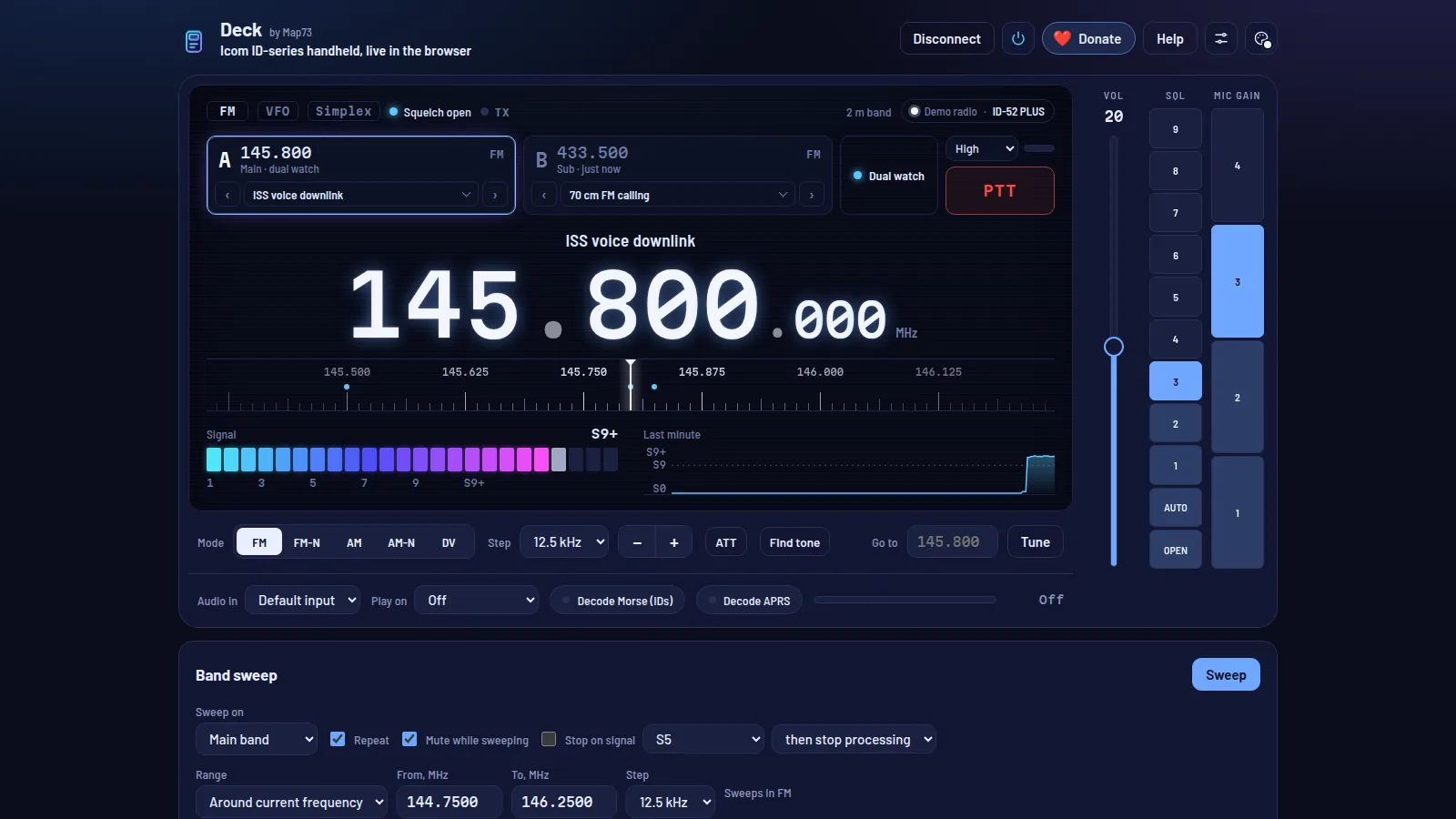
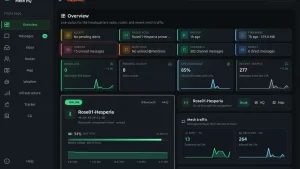
If you own an Icom ID-52 PLUS and do most of your shack work from a laptop, you know the friction. Programming needs the CS-52 cloning software or CHIRP, satellite passes need a separate tracker, APRS needs a TNC or a second app, and D-STAR repeater hunting means squinting at a two inch screen. Deck Map73 Icom ID-52 control by LZ1ETB at deck.map73.com puts the whole handheld on a big dark dashboard in Chrome or Edge: dual VFO cards, a click to tune frequency strip, live S-meter with one minute history, band sweep, Morse repeater ID decoder, APRS decoder plus beacon sender, D-STAR heard list with D-PRS radar, satellite track and tune with Doppler correction, ISS SSTV decoder, and CSV channel imports, all over the same USB or CI-V cable Icom ships software for, with nothing to install.
TL;DR: Deck by Map73 is a free browser dashboard that controls Icom ID-52 PLUS, ID-52, ID-50, ID-5200, ID-51 and ID-31 handhelds over USB or CI-V from Chrome or Edge with no install. It tunes both VFOs, sweeps bands with S-meter plots, finds CTCSS and DCS tones, decodes Morse repeater IDs, decodes and sends APRS without a TNC, logs D-STAR calls with D-PRS positions, tracks satellites with receive Doppler correction, decodes ISS SSTV pictures, and imports channel CSV files from the SD card, Icom software or CHIRP. Try the demo radio first, then set USB Connect to Serialport and CI-V Transceive to ON and press Connect radio.
What Deck by Map73 Is
Deck by Map73 is a free browser based control panel that operates Icom ID series D-STAR handhelds and mobiles over CI-V through Web Serial, with tuning, memory channels, band sweep, tone search, Morse ID decoding, APRS, D-STAR logging, satellite tracking and SSTV decoding in one page.
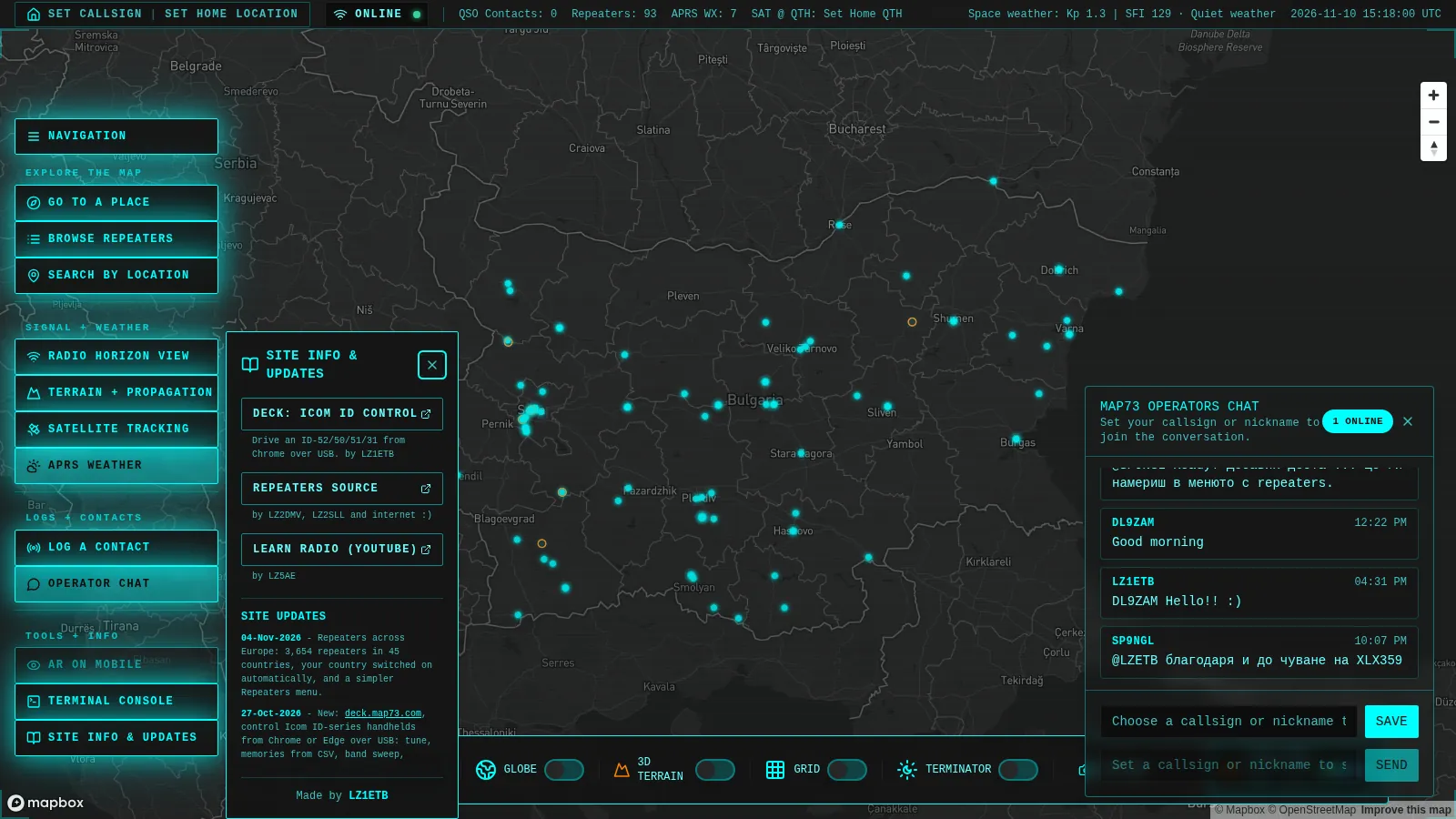
It is part of map73.com, the Maps for your 73s site by LZ1ETB that plots QSO paths over 3D terrain, repeater coverage heatmaps and ISS passes. Deck is the shack bench half of that family: the map shows where signals go, Deck drives the radio that makes them. Build 71 was released on 29 Oct 2026. It isn’t affiliated with or endorsed by Icom.
Everything runs locally in the page. No radio data goes through a server. Settings, imported channels, heard IDs, APRS packets, D-STAR logs and SSTV pictures stay in the browser that created them. The only network calls Deck makes are satellite orbit data from CelesTrak, fonts from Google Fonts, and cookieless page visit counts through Vercel and Cloudflare analytics.
Why a Browser Panel for the ID Series Matters
Icom ID handhelds are deep radios trapped behind small screens and menu trees. Changing a repeater tone, checking which band is active, or scanning a slice of 2 m for a new signal takes a dozen button presses. Desktop tools solve programming but stop at the cable: they read and write memories and then close, leaving live operating to the front panel.
Deck stays connected while you operate:
- You see both bands at once. VFO A and VFO B cards show frequency, mode, channel name, shift and tone tags, dual watch state and PTT in one glance.
- You tune with a mouse, not a knob. Click the frequency strip, type an exact frequency into Go to, or step through imported channels with arrow buttons.
- You get instruments the radio can’t show over CI-V. A software band sweep plots S-meter readings across a range. A one minute signal history graph shows whether that carrier just appeared. A tone finder brute forces the exact CTCSS or DCS code while the repeater transmits.
- You decode with the sound card, not extra hardware. Morse IDs, APRS packets and SSTV pictures decode from the speaker or SP output fed into the computer line in. APRS beacons go the other way by playing packet audio into the mic jack and keying the radio.
- You work satellites without mental Doppler math. Pick ISS voice and SSTV on 145.800 or another bird, press Track and tune, and Deck retunes the downlink as the pass moves.
For club nights this changes the demo dynamic completely. Plug a member ID-52 into a laptop, project Deck, and the whole room can follow the QSO, the S-meter, the D-STAR routing and the satellite polar plot instead of crowding around one handheld.
At a Glance
| Fact | Value |
|---|---|
| Name | Deck by Map73 |
| URL | deck.map73.com |
| Help and limits page | deck.map73.com/help |
| Author | LZ1ETB, part of map73.com |
| Build at write time | Build 71, released 29 Oct 2026 |
| Radios | ID-52 PLUS tested, ID-52, ID-50, ID-5200 mobile, ID-51, ID-31 PLUS expected to work |
| Cable | USB-C data cable for ID-52, ID-50 and ID-5200, CI-V cable on SP jack for ID-51 and ID-31 |
| Browser | Chrome or Edge on Windows, macOS, Linux or ChromeOS with Web Serial |
| Install | None, page only, demo radio at ?demo=start with no hardware |
| Price | Free, donation page covers server costs |
| License note | Free web service, radio protocol work by the author, not open source code, not affiliated with Icom |
Getting Connected in Four Steps
The connection uses the same cable as Icom cloning software, and the radio needs three menu changes before the first connect. The help page lists them with troubleshooting for every failure mode below.
- Set the radio menus. On the handheld go to Menu, Set, Function. Set USB Connect to Serialport, USB Serialport Function to CI-V, and CI-V Transceive to ON. On ID-51 and ID-31 with a CI-V cable, set the same baud rate in Deck connection settings as on the radio.
- Use a data cable. Many cheap USB-C cables carry charge only. If the radio never appears in the port list, swap the cable first before changing anything else.
- Press Connect radio. Pick the radio port. Status turns green and the frequency plus model name appear within a second. The first connect on a changed CI-V address can take a few seconds while Deck polls every factory address, then it remembers the address it found.
- Stay connected. Deck reconnects by itself when the page opens or the radio is plugged back in. Disconnect stops the auto connect until you connect again.
No radio at hand? Open the page with ?demo=start appended to the URL. The demo is a pretend handheld that answers like a real ID-52 PLUS, so every screenshot in this article comes from that mode and you can learn the whole panel before touching hardware.
Supported Radios
| Model | Connects through | Status at write time |
|---|---|---|
| ID-52 PLUS | USB-C | Tested on real hardware |
| ID-52 | USB-C | Should work, untested, please report |
| ID-50 | USB-C | Should work, untested, please report |
| ID-5200 mobile | USB-C | Should work, power Low Mid High only, no attenuator |
| ID-51 | CI-V cable on SP jack | Should work, untested |
| ID-31 and ID-31 PLUS | CI-V cable on SP jack | Should work, single 70 cm band so no band B or dual watch |
Deck identifies the model from the CI-V address it answers from. If you changed the address from factory default, pick the model in connection settings or press Find address.
Main Panel Tour
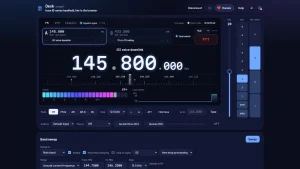
The top panel is the everyday operating surface. Band A sits left as Main with dual watch, band B sits right as Sub, and the giant frequency readout follows whichever band you last touched.
- Modes and steps. FM, FM-N, AM, AM-N and DV buttons plus steps from 5 kHz to 1 MHz cover 2 m FM, 70 cm FM, airband AM on band A, and D-STAR DV. Attenuator toggle helps near a strong transmitter, adding about 30 dB cut on 2 m and 10 dB on 70 cm.
- Frequency strip and S-meter. The horizontal scale around the big digits tunes by click. Below it the S-meter runs S0 to S9 plus 60 dB over, with a Last minute trace that shows when a signal started and whether it’s still there.
- VOL, SQL and MIC GAIN sliders. Volume, squelch and external mic gain sit right as vertical steppers. Squelch OPEN plus radio Power Save OFF gives the cleanest APRS and Morse decodes because neither clips the start of a burst.
- Audio in and decoders. Pick the line in source under Audio in, set radio volume so audio is neither clipped nor buried, then switch on Decode Morse for repeater IDs or Decode APRS for packets. Play on routes audio for monitoring.
- Find tone and Go to. Find tone cycles all 50 CTCSS tones and 104 DCS codes while a station transmits and sets the one that opens squelch. Go to plus Tune jumps to any typed frequency instantly.
Two small behaviors save confusion later. Picking a repeater channel leaves its DUP shift and tone on the VFO even after you tune away, shown as a red tag like DUP minus 0.6 with T 88.5. Press Simplex for band A, B or both to clear it. And with DV Auto Detect ON the radio itself jumps from DV to FM on an FM signal, which Deck notes in the CI-V log without changing anything.
Band Sweep Without a Hardware Scope
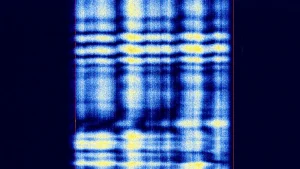
Icom handhelds won’t expose their internal band scope over CI-V, and no app can force them. Deck works around it by stepping through a frequency range and reading the S-meter at each point, about 0.1 second per point, so a full 2 m sweep takes roughly 16 seconds.
Controls include sweep on Main band, Band A, Band B or Dual A then B, Repeat, Mute while sweeping, Stop on signal at S3 S5 S7 or S9, and chained actions after a stop: just stop, find the tone, identify the Morse ID in 1, 3, 10, 30 or 60 minutes, and more. Range presets cover around the current frequency or a custom From and To in MHz with step size.
This turns repeater discovery into a background job. Start a 144.750 to 146.250 MHz sweep at 12.5 kHz with stop on signal then identify, make coffee, and come back to a list of active frequencies already labeled with callsigns.
Channels and Memories Through CSV Import
The radio won’t read out its memories over CI-V and won’t switch to a memory slot by command. Deck always drives the radio in VFO mode and recreates memories in the browser instead.
Export once, then import forever:
- From the radio SD card menu memory export to CSV., Icom CS-52 or CS-51 cloning software export., CHIRP CSV, which also works directly.
The Channels and memories section accepts the file by picker or drag and drop, with Europe Region 1, Bulgaria and North America sample lists plus an Import CSV path. Saved channels appear on each band card where arrow buttons step through them and the channel name opens the full list. Picking a channel sets frequency, mode, repeater shift, tone and D-STAR callsign routing in one action, exactly like recalling it on the radio.
Station IDs from Morse
Repeaters identify in slow Morse every few minutes, and most operators never catch the call. With Decode Morse on, Deck watches the audio, decodes those IDs, and lists each callsign with the frequency it was heard on. Those labels then appear everywhere in the panel. So a swept frequency stops showing as a bare number and starts showing as a known repeater.
Combine it with band sweep for the best effect: sweep with Stop on signal then identify, and Deck pauses on each carrier long enough to catch the next ID cycle.
APRS Without a TNC
APRS decoding needs only the audio cable. Turn on Decode APRS, tune 144.800 for terrestrial traffic or 145.825 during an ISS pass, and packets decode straight from the receiver audio with no hardware TNC. Each decoded packet feeds the APRS radar view with distance from your set location.
Sending works in reverse. The Send a beacon or message panel builds the packet, Deck keys the radio over CI-V, plays the AFSK audio from the computer output into the mic input, then drops back to receive. VOX must stay OFF, and Deck checks that before transmitting and offers to switch it off. A built in Play a test packet option under connection settings Debug verifies the whole audio path without transmitting.
Malaysian operators can pair this with the APRSdroid 9M2PJU Mod phone client for portable tracking: phone handles on foot beacons, Deck handles base station monitoring and message composition from the shack laptop.
D-STAR Heard List and Routing
Tune a D-STAR repeater or 145.375 MHz simplex in DV mode and the D-STAR panel fills with live traffic: who is calling, through which repeater, their short message, and their D-PRS position which also plots on the APRS radar.
Expandable sections hold My call sign and routing plus D-PRS, digital squelch and DV data settings. Because picking a channel programs the full UR RPT1 RPT2 routing in one step, moving between repeaters is a single click instead of a menu dive on the handheld. Cross reference active reflectors with the dstar.guru live reflector ranking guide to pick a busy module before calling.
Satellites, Doppler and SSTV Pictures
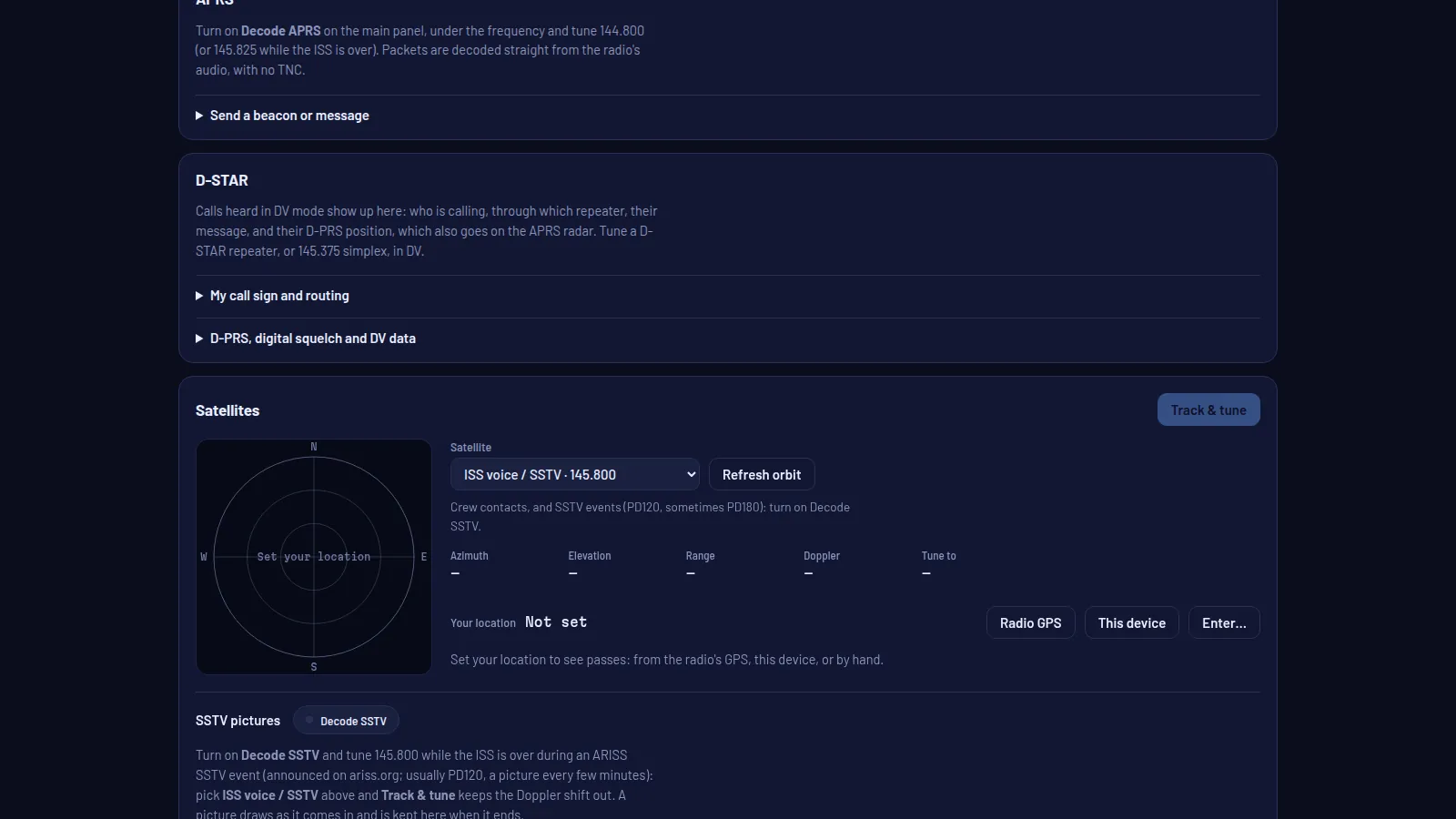
The Satellites card is the most complete part of Deck. Pick a satellite such as ISS voice and SSTV on 145.800, set location from Radio GPS, This device, or manual entry, then press Track and tune.
- Live pass math. Azimuth, elevation, range, Doppler and Tune to frequency update through the pass on a polar plot with N E S W markers.
- Receive Doppler correction. The radio can’t shift transmit and receive independently over CI-V, so Deck corrects the downlink only. On 2 m FM the total shift stays under 3.5 kHz which FM satellites tolerate, and 70 cm FM birds track cleanly on receive.
- SSTV pictures. Turn on Decode SSTV and tune 145.800 during an ARISS SSTV event announced on the ARISS site, usually PD120 with a picture every few minutes. Track and tune holds the Doppler out while the picture draws line by line and stays in the gallery when it ends.
Background orbit data comes from CelesTrak, the same source most trackers use. For deeper pass prediction and antenna planning, pair Deck with AMSAT pass tools and the ARISS contact calendar.
What the Radio Refuses, and What Deck Does Instead
The help page is unusually honest about CI-V limits. These come from Icom firmware, not from the browser, so every app hits the same walls.
| Radio limit | Deck workaround |
|---|---|
| No memory readout or memory select over CI-V | CSV import from SD card, Icom software or CHIRP, channel picker drives VFO with full shift tone and D-STAR routing |
| No band scope readout | Stepped S-meter sweep with plots, repeat, mute, stop on signal and auto identify |
| Tuning and S-meter reach only the active band | Deck flicks A and B on connect to find the active band, then switches bands around each tune automatically |
| USB cable carries control only, no audio either way | Decoders use computer line in, APRS transmit uses computer output into mic jack, PTT voice uses the radio own mic |
| No tone scan command | Find tone tries all 50 tones and 104 codes during a transmission and sets the winner |
| No 76 to 108 MHz broadcast FM or WFM over cable | Broadcast FM and wideband weather satellites stay out of reach, documented instead of failing silently |
| No airband on band B for ID-52 series | Deck pins airband to band A and greys out B there |
| No built in mic gain control | Only external SP jack mic gain steps 1 to 4 exposed |
| No independent transmit Doppler | Receive only Doppler correction on satellites |
| Radio cannot power on over USB | Turn on with the radio button, Deck reconnects itself, CI-V cable models support Deck power button |
| No internal APRS modem | Software decode from audio plus software encode to mic audio with PTT keying |
Privacy, Data and Donations
Settings, channels, imports, heard IDs, APRS packets, D-STAR logs, DV texts and SSTV pictures live only in the browser profile that created them. Another computer starts empty and clearing site data erases everything. Location from radio GPS, device geolocation or typed entry never leaves the browser either and only feeds pass predictions and APRS distances.
The project asks for donations through Stripe to cover server costs, with the author note that spare change buys beer or coffee. For a free tool with no account, no install and no tracking cookies, that’s a fair trade.
Deck vs Other Ways to Drive an Icom Handheld
| Tool | What it does | Runs on | Live control | Best moment |
|---|---|---|---|---|
| Deck by Map73 | Tune, sweep, tones, Morse IDs, APRS, D-STAR log, satellites, SSTV, CSV channels | Chrome or Edge with Web Serial, no install | Yes, full live dashboard | Operating, satellite passes, club demos, repeater hunting |
| Icom CS-52 cloning software | Official memory and settings programming | Windows with USB driver | No, programming only | First setup and backup of a new radio |
| CHIRP | Community memory programming for hundreds of models | Windows, macOS, Linux | No, programming only | Mixed brand fleets and cross radio CSV moves |
| WebChirp browser programmer | Browser CHIRP style programming over Web Serial | Chromium browser, no install | Programming only | Quick field channel edits without Windows |
| RT Systems | Commercial programming with repeater lists | Windows or Mac, paid | No, programming only | Guided repeater database fills |
| Radio front panel | Everything the firmware allows | In hand | Yes, but tiny screen | Portable and summit use with no laptop |
The practical stack is Icom software or CHIRP for the first full program, Deck for daily operating and satellite work, and WebChirp style tools for single radio field fixes. They share CSV files, so channel lists move freely between them.
For the Malaysian Shack
A few workflows translate directly to 9M operating:
- Repeater mapping afternoon. Import a local repeater CSV, sweep 144 to 148 MHz with stop then identify, and let Deck label every active machine with its Morse call while you log tones with Find tone.
- APRS base night. Monitor 144.800 MHz with Decode APRS on, squelch open and Power Save off, and watch the radar fill from digipeaters and iGates across the Klang Valley or Penang.
- ISS voice and SSTV passes. Track ISS voice and SSTV on 145.800 MHz with Track and tune on, Decode APRS armed for 145.825 MHz packet passes, and Decode SSTV armed during ARISS events for full pictures without touching the radio dial.
- D-STAR net evenings. Park on a linked repeater in DV, follow the heard list and D-PRS positions, then check reflector activity rankings before keying up.
- Club demo table. One laptop, one ID-52, one projector. The room sees tuning, S-meter history, sweep plots, satellite polar tracks and SSTV draws live instead of passing one handheld around.
Honest Limits
Deck needs Chrome or Edge on a computer because only those browsers expose Web Serial. Firefox, Safari and every iPhone or iPad browser can show the page but can’t reach the radio. The demo radio fills that gap for learning and screenshots.
Audio is the second cable people forget. Tuning, sweep, satellites, D-STAR and channels work over USB alone, but Morse, APRS and SSTV decoding need speaker or SP output into computer line in, and APRS sending needs computer output into the mic input with VOX off. Laptop built in microphones can gate the start of bursts, so a wired line in or USB sound card decodes far better.
Coverage is still growing. Only the ID-52 PLUS is confirmed tested on hardware, with ID-52, ID-50, ID-5200, ID-51 and ID-31 listed as should work pending user reports with CI-V logs. FM broadcast, WFM and independent transmit Doppler stay impossible by firmware design, and single band ID-31 models naturally lose band B and dual watch.
Getting Started Checklist
- Open deck.map73.com in Chrome or Edge and run
?demo=startonce to learn the panel with no hardware. - On the radio set USB Connect to Serialport, USB Serialport Function to CI-V, CI-V Transceive to ON.
- Connect with a data capable USB cable and press Connect radio.
- Import one channel CSV from SD card, Icom software or CHIRP and step through channels on band A.
- Feed speaker audio into line in, open squelch, turn Power Save off, and decode one repeater Morse ID and one APRS packet.
- Set location, pick ISS voice and SSTV, press Track and tune on the next pass, and watch Doppler and the polar plot move.
- Read the help page end to end before a field day, especially audio cables and the troubleshooting table.
Sources and Further Reading
- Deck by Map73, browser control for Icom ID handhelds
- Deck help, radios, limits, audio cables and troubleshooting
- Map73, QSO paths over 3D terrain with repeaters and ISS passes
- LZ1ETB profile on QRZ.com
- Icom ID-52 PLUS product page
- Icom ID-52 product page
- CHIRP open source radio programming tool
- ARISS SSTV events and ISS operations
- AMSAT satellite tracking and operations
- APRSdroid 9M2PJU Mod Android APRS client on HamRadio.my
- dstar.guru live D-STAR reflector ranking on HamRadio.my
- WebChirp browser based radio programming on HamRadio.my
73 de 9M2PJU

Post Comment