amateur radio
Technology
approved contacts, arcade games, call sign, cw, digital minimalism, Dot Dash, Elmer, family messaging, Find My Dot Dash, JOTA, kids tech, morse code, Morse trainer, pocket messenger, Samuel Posner, screen-free, SMS notifications, telegraph, Train Morse practice, Wi-Fi messenger
9M2PJU
0 Comments
Dot Dash: The Pocket Morse Code Messenger With Two Buttons and Nothing to Scroll
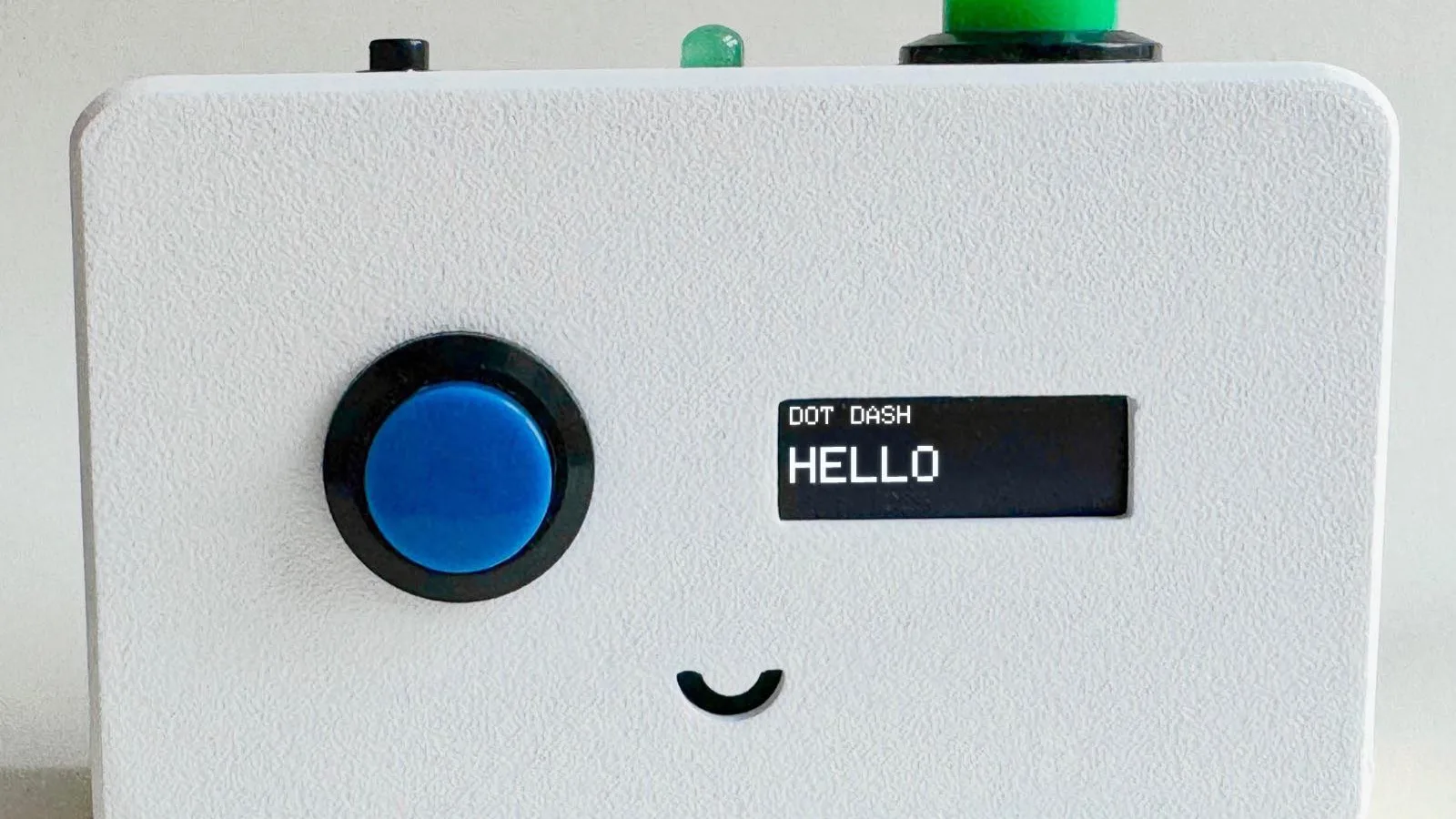
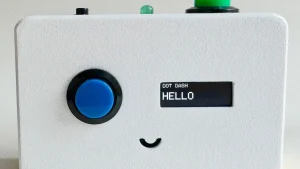
A small white box with a round blue button, a narrow black screen, and a smile cut into the case. You tap out HELLO in Morse code and it lands on another box across the house, or in a phone app across the country. No camera, no browser, no location tracking, no feed, no strangers. That’s the whole idea behind Dot Dash, the hand-built pocket messaging device from Brooklyn maker Samuel Posner, now live in a 60-device pilot.
TL;DR: Dot Dash is a pocket Morse code messenger with two buttons, a tiny screen, a buzzer and an LED. Tap dots and dashes or pick a ready-made phrase, and the message travels over Wi-Fi to another Dot Dash, the Dot Dash phone app, or a private web link. Each device holds up to 20 account-approved contacts, teaches Morse with adaptive Train stages, rewards messaging with points for arcade games, and has no camera, microphone, browser, or tracking.
What Dot Dash Is
Dot Dash is a pocket messaging device that sends and receives short messages in Morse code between approved contacts, with two buttons, a tiny screen, a buzzer and an LED, and nothing else.
No camera. No microphone. No web browser. No location tracking. There’s nothing to scroll and nobody new to meet. Each Dot Dash pairs to one account in the Dot Dash app, carries its own call sign such as MAYA0101, and can reach up to 20 contacts that the account holder approved one by one. A stranger who tries an unknown call sign never reaches the device. The attempt becomes an approve-or-decline request in the app.
That constraint is the product. While a phone is a general purpose computer that also happens to message, a Dot Dash is a messenger and nothing else. It’s easy to show as a list of things it hasn’t got, and the official site does exactly that. For a parent setting one up for a child, or a grandparent receiving one from family, the missing parts are the feature.
Around 60 devices are in use today in the pilot. Expect the occasional rough edge, and expect fast answers from [email protected], which during the pilot is usually answered by the person who built the thing.
Why Morse, and Not a Keyboard
Morse code is a real encoding: a whole alphabet built out of two symbols and the gaps between them. That’s the same idea underneath every digital system a child will ever use, and here it is small enough to hold in your head and watch working.
It is also rare in being finishable. A few weeks of practice and you have it for life, and the practice is the messaging itself. Every message sent is a rep. The device teaches Morse from nothing:
- Train adapts to your actual tapping rhythm rather than demanding textbook timing, so a slow tapper and a fast one are both read correctly.
- Most people start with ready-made phrases and emoji, then pick up the code alongside. The first dozen real messages don’t require knowing a single letter.
- Incoming messages can play out mark by mark like a telegraph when Dot Dash Mode is on, which turns reading into practice too. Turn it off and messages arrive whole like any other chat.
The slowness is the point. Morse is too slow to argue in and far too slow to doomscroll. What it is good at is the short, deliberate message you meant to send. For amateur radio operators this will sound familiar. It’s the same reason CW endures on HF: low bandwidth, high intent, and a skill that stays with you.
How a Message Gets There in Three Steps
The path is simple enough to explain to a seven-year-old and to a grandparent in the same sitting.
1. Tap it out
Wake the menu with either button, pick the recipient, then choose how to write:
- DOT DASH – tap it out in Morse yourself with SELECT. A short tap is a dot, a longer press is a dash. The letter builds on screen with dots and dashes along the top.
- A ready-made phrase – a short list you control from the app. Ideal while Morse is still new.
- An emoji – for when a phrase is more than you want to say.
Keying rules stay the same everywhere: tap SELECT per mark, tap ENTER to accept a letter, tap ENTER alone for a space between words, double-tap ENTER to delete the last character, hold ENTER for about a second to send. The screen says SENT! while you’re still holding, so there’s no guessing whether it went.
2. It travels over Wi-Fi
There is no SIM and no mobile data. A Dot Dash remembers up to five Wi-Fi networks and uses whichever it finds, so it works at home, at a grandparent house, and on holiday without being set up again. Messages go through Dot Dash own servers, not anybody else. Anything sent while a device is offline waits and delivers when it reconnects, so a Dot Dash in a bag for a weekend comes home with its messages.
3. It arrives where people actually are
- On another Dot Dash, where it buzzes, appears on screen, and sits in INBOX so nothing is missed because somebody was out of the room. Unread messages are marked.
- In the Dot Dash app on a phone, for the account holder messaging from a base call sign such as
ALEX0101. - In any browser through a private web link, for someone with neither. The account holder sends the link by text or email, the other person opens it and chats from that page with no account and no app to install. That person can optionally tick a box for SMS notifications when a new message is waiting.
The Hardware in Your Hand
The photos tell the story faster than a spec sheet. A small white case with a smile cut into it, a round blue button on the left, a narrow black screen on the right, and a green indicator along the top edge. Two arcade buttons run everything: SELECT moves to the next thing, ENTER chooses it. One shortcut is worth memorizing early: in a long list, hold SELECT for about a second to jump straight to BACK instead of cycling all the way round.
Under the case the essentials are a tiny screen, two buttons, a buzzer and an LED. The buzzer matters more than it sounds. A message arrival is a sound and a light, not a red badge competing with fifty other apps. TIMER is the one feature with nothing to do with messaging: 5, 15 or 30 minutes or a custom length, useful for work sessions, turn-taking, or anything you would otherwise pick up a phone to time.
Power behavior is plain and forgiving. The device charges over USB, the battery icon shows roughly where it is, and the screen blanks after about a minute of no button presses to save the display. The device is still awake and still receiving. After about an hour untouched it properly sleeps, and either button wakes it. A sleeping Dot Dash still collects messages. Current devices have an off switch, but sleeping and switched off draw nearly the same power, so leaving it on is fine.
Setting Up the First Dot Dash in 15 Minutes
Budget about fifteen minutes for the first device. The app walks through five steps in order.
- Put it on Wi-Fi. Save up to five networks. Add a new network before you leave, not after you arrive. A Dot Dash somewhere new with no saved network can’t message home.
- Make your account and base call sign. In the app choose I have a Dot Dash, then register. Pick a base call sign, your name plus a couple of digits like
SAM99. This is what the app shows when you message your own devices from the phone. It must be unique across Dot Dash. - Pair the device. On the Dot Dash go to TOOLS then PAIRING. It shows a six-character code that doesn’t expire. Type that into the app.
- Name the Dot Dash. Each device gets its own call sign in the same shape, such as
MAYA0101. This is the name contacts see and the name they add to reach it. - Add the first contacts. Open Approved Friends in the app. Your base call sign is already there, which is how you message between a Dot Dash and the app. Add the other Dot Dash call sign if you have one. For someone without a device, use Add someone by link instead.
Setting up two at once is common. Do one completely, then use Add another device in the app. Add each device to the other contacts and the pair can message straight away. A full FAQ covers all five steps plus Wi-Fi, battery, privacy, and troubleshooting in about sixty questions.
Points, Train and the Arcade
This is the part that surprises most people, and it’s the cleverest design decision in the product.
Points are the device currency, and the games cost them. Points are earned by messaging and by practising Morse, and spent on unlocking an arcade game for the day. There’s no leaderboard and no score to beat.
| Action | Points earned | Notes |
|---|---|---|
| Replying to a message you received | 3 | Highest reward, answering people is the habit worth rewarding |
| Sending a Morse message of real substance | 2 | At least three different characters, so SOS counts and EEEEE does not |
| Sending a ready-made phrase or emoji | 1 | The easy on-ramp while learning |
| Finishing a Train practice round | Varies | Practice payouts sit outside daily caps, practice never runs out |
Farming is blocked by quiet limits rather than scolding. Only five ordinary sends a day earn anything, and only two of those to any one contact. There’s a cool-off between awards, and sending the same message twice in a row to the same person earns nothing the second time. Replies have their own separate daily allowance, so answering people is never crowded out by sending.
Train has four stages in order: LETTERS with the code shown, WORDS with whole short words, TRAIN as a timed run where rhythm matters as much as accuracy, and TEST with no prompts. Every stage feeds the same thing: the device picture of your personal dot-and-dash timing. Practising makes real messages easier to send, which is the point of the whole arrangement. If the device sends dots when you mean dashes, a few rounds of LETTERS usually fixes it faster than any setting.
The arcade splits into free social games and paid solo games. TICTACTOE and 20 QS are two-player, played against a contact a move at a time over the same connection as messages, and both are free because they’re really another way of talking to somebody. COUNTER costs 2 points, BIRD 4, JUMPER 6, DASHER 8 and DEFENDER 10. The price buys the game for the day, not for one go. LEADERS shows standings and is free. Out of the box the arcade closes from 8pm to 7am. The app can lift that, remove the points cost, or hide the games entirely.
What You Control From the App
Everything here is per device, so two Dot Dash units on one account can have different rules. If you carry the device yourself, these are your preferences. If you set one up for somebody else, these are the limits you’re choosing on their behalf.
- Approved Friends. Who this Dot Dash can message, up to 20. Nobody reaches the device without being on this list.
- Custom Messages. The ready-made phrases. Worth setting up properly, because while Morse is still new this is how the first dozen messages get sent.
- Wi-Fi Networks. Up to five. Add before travel.
- Arcade. One switch hides games entirely. With games on, Play without points and Play after 8pm each lift one default limit. Out of the box a Dot Dash charges points and shuts the arcade overnight. You turn limits off, not on.
- Dot Dash Mode. On means incoming Morse plays out mark by mark like a telegraph. Off means it arrives whole. Toggle it with frustration level.
- Find My Dot Dash. Makes the device ring and light up for the sofa-cushion emergency. Loud for ten minutes, then quieter, with a Stop ringing button in the app.
- The Log. Every message this device sent or received. Not a notification feed you might miss, the full history.
- Points. Current balance as the device last reported it.
- Advanced settings. Unlinking, connection security, and device removal. Settings reach the device next time it connects. If it is asleep or out of range, the app says so and applies the change when it comes back.
Privacy and Safety Without Fine Print
The privacy story fits in one paragraph because there is so little to disclose. There’s no camera, no microphone and no location tracking, and no browser. So there’s no way to reach the open internet from a Dot Dash. There’s no discovery, no friend suggestions, and no way for a stranger to find a device. Every message is carried by Dot Dash own servers, which also handle updates, contact approvals and the Log. There are no ads and no trackers, and messages and numbers are never sold or shared for marketing.
Three points deserve plain language. First, the account a device is linked to can read all of it in the Log, including both sides of every conversation. If you set a Dot Dash up for somebody else to carry, tell them that plainly. Second, SMS notifications are optional and only for link contacts. They come from (866) 786-1245, say only that a message is waiting with a link back to the chat, never contain what anyone wrote, send at most one until the chat is checked again, and support STOP and HELP. Numbers are stored encrypted and deleting notifications deletes the number. Third, deleting an account releases every linked Dot Dash, erases message history, and removes the base call sign. It is permanent and the app asks you to type DELETE to confirm. Full details sit in the Privacy Policy and Terms of Service.
The site itself follows the same philosophy. Demo clips are served from the Dot Dash origin rather than embedded from Instagram, so watching them loads no third-party scripts and sets no third-party cookies. Fonts are served locally for the same reason.
Dot Dash vs the Alternatives
No device exists in a vacuum. Here is where Dot Dash sits against the tools a ham household already knows.
| Tool | Input method | Who can reach you | Distraction surface | Needs | Best moment |
|---|---|---|---|---|---|
| Dot Dash | Two-button Morse plus phrases and emoji | Max 20 approved contacts, strangers become app requests | None, messenger only plus timer | Wi-Fi, paired app account | Child, grandparent, or focused pair who want messaging without internet |
| Smartphone messenger (WhatsApp, Telegram, SMS) | Full keyboard, voice, video | Anyone with your number or handle | Full feed, groups, web, games | Mobile data, phone in hand | General purpose chat where all contacts already live |
| APRS messaging | Short text over radio | Any APRS station on frequency | Radio only, no feed | Amateur licence, RF path or APRS-IS app | Position-linked field comms, SOTA and public service events |
| Meshtastic | Phone app over LoRa | Mesh neighbours by channel key | Small, chat plus map and telemetry | LoRa radios, no infrastructure | Off-grid group text with no Wi-Fi at all |
| CW practice oscillator or app (DahDahDit, DeepCW) | Straight key, paddle, or screen taps | Nobody, solo practice | None | Just the tool | Learning and drilling code with no live contact |
| Smartwatch with LTE | Tiny keyboard, voice dictation | Same as phone | Notifications from everything | Data plan, paired phone | Quick replies while running or riding |
Dot Dash wins where the goal is fewer people, slower messages, and zero sideways doors into the internet. It loses where you need off-grid RF (Meshtastic and APRS keep working with no Wi-Fi), full keyboard speed, or group channels. Think of it as the device between a practice oscillator and a phone: it teaches the code like the first and delivers real messages like the second, but refuses to become the second.
Why Hams Should Pay Attention
Dot Dash isn’t amateur radio gear. It uses Wi-Fi and commercial servers, carries no callsign meaning under Part 97, and needs no licence. So why cover it on a ham radio blog?
Because it solves problems hams already care about. It’s a Morse trainer that pays you in messages instead of scores, with adaptive timing that feels like a patient Elmer rather than a textbook. It’s a grandparent-to-grandchild link that can’t wander onto YouTube, which is exactly what many of us want for family check-ins during travel or events. It’s a JOTA night or club night prop that lets a child send HELLO across the room and watch it arrive, then ask how dots and dashes turn into letters. Pair it with a real CW receiver such as the DahDahDit trainer or a browser decoder such as DeepCW and you have a complete on-ramp: tap on Dot Dash tonight, copy on the radio tomorrow.
The honest limits matter too. This is Wi-Fi messaging, not emergency radio. No Wi-Fi means no send or receive until it reconnects, though nothing is lost in between. Ranges are short by design: 20 contacts, five networks, pilot scale. And the Log visibility rule cuts both ways. It’s a safety feature for a parent and a privacy fact for the carrier. Say it out loud when you hand a unit over.
Getting One and Getting Help
Dot Dash is in pilot with around 60 devices out in the world. The homepage carries a notify-me email signup for the next batch. The FAQ is the long version of everything above, about sixty questions across setup, everyday use, points and Train, app settings, Wi-Fi and battery, privacy, troubleshooting, and accounts. Troubleshooting highlights: if the app says offline, wake it, check range, or re-add Wi-Fi from TOOLS then WIFI on the device. If dots arrive when you mean dashes, run Train LETTERS. If the screen looks strange after an update, try TOOLS then RESTART. If messages go one way but not the other, email support with the device call sign, that pattern is usually visible in server logs.
Follow the build in motion on Instagram at @dotdashdevice, where the clips that don’t fit the homepage live. For anything else, email [email protected].
Sources and Further Reading
- Dot Dash homepage
- Dot Dash FAQ
- Dot Dash privacy policy
- Dot Dash terms of service
- Dot Dash on Instagram
- DahDahDit Morse trainer guide on HamRadio.my
- DeepCW neural CW decoder guide on HamRadio.my
- Glissando musical weak-signal mode on HamRadio.my
- APRSdroid 9M2PJU Mod guide on HamRadio.my
73 de 9M2PJU

Post Comment