amateur radio
linux
open source
9M2PJU, 9M2PJU HamClock Installer, ADIF, amateur radio dashboard, AppImage, Arch, AUR, candidate channel, Canonical, debian, Docker, Elwood Downey, fedora, HamClock, hamclock.hamradio.my, hamlib, hamradio.my, HF propagation, linux, manjaro, MIT licence, OHB, Open Hamclock Backend, opensuse, Raspberry Pi OS, rigctld, rotctld, satellite tracking, Snap, Snap Store, snapcraft, snapd, solar flux, space weather, ubuntu, VOACAP, WB0OEW, WSJT-X, X11
9M2PJU
1 Comments
Install HamClock on Any Linux Distro from the Snap Store
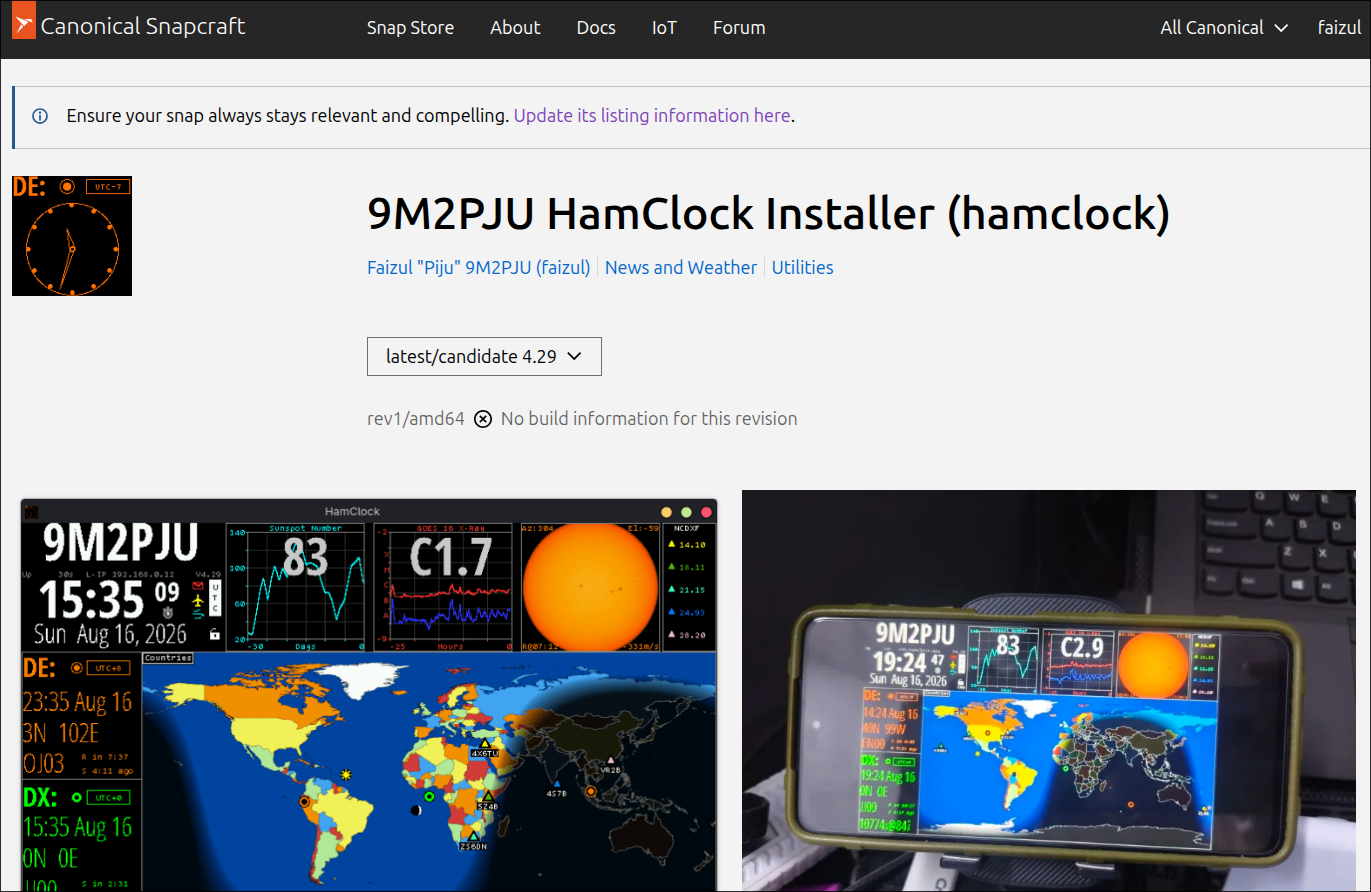
TL;DR: The 9M2PJU HamClock Installer is now published on the Canonical Snap Store as the
hamclocksnap (v4.29, candidate channel, MIT licence), so any snapd-enabled Linux distribution – Ubuntu, Debian, Fedora, Arch, Manjaro, openSUSE, Raspberry Pi OS, and more – can install the full Open HamClock Backend (OHB) space weather, VOACAP propagation, satellite tracking, and shack telemetry dashboard with a single command:sudo snap install hamclock --candidate. This post covers what the snap ships, why a snap, how the candidate channel works, step-by-step install and first-run setup on every supported distro, confinement and permission notes, switching resolutions inside the snap, connecting rigctld and rotctld, auto-start at boot, updating and rolling back revisions, and how the snap compares with the .deb, .rpm, AUR, AppImage, Docker, and one-line installer routes.
What Is the HamClock Snap?
The HamClock snap is the official Canonical Snap Store packaging of the 9M2PJU HamClock Installer, the community-maintained distribution of Elwood Downey WB0OEW’s HamClock. It is listed at snapcraft.io/hamclock, published by 9M2PJU, licensed under MIT, and categorised under News and Weather and Utilities.
A snap is a self-contained, containerised Linux application bundle that ships its own dependencies and runs in a confined sandbox managed by snapd. The same snap file runs unchanged on Ubuntu, Debian, Fedora, Arch, Manjaro, openSUSE, Kubuntu, Pop!_OS, elementary OS, KDE Neon, CentOS, RHEL, and Raspberry Pi OS, because snapd abstracts away the host distribution’s library versions and package manager. For HamClock, which is a C++ X11 application that links against specific versions of Xlib, libpng, curl, and the C standard library, this means the binary you install on a minimal Raspberry Pi OS Lite image is the exact same tested binary that runs on a Fedora Workstation desktop.
The snap currently ships on the candidate channel at version 4.29, matching the upstream Open HamClock Backend (OHB) edition. The candidate channel is the snap release track that sits between edge (continuous builds) and stable (production). It receives the same builds that are destined for stable, held back for a short soak period so early adopters can catch regressions before they reach the wider stable audience. For a single-maintainer amateur radio project, this is the honest channel to publish on: it signals that the snap works and is tested, but hasn’t yet accumulated enough field time across the full range of supported hardware to be promoted to stable.
Why a Snap for HamClock?
HamClock is a deceptively hard application to package for “Linux” as a whole. The upstream source is a large C++ codebase built against X11, with hand-rolled HTTP fetchers, Plan-13 satellite orbital mechanics, and a custom vector cartography engine. It doesn’t use a mainstream GUI toolkit like Qt or GTK, so it can’t rely on a distribution’s default widget libraries. It expects to find curl, libpng, libjpeg, Xlib, and a working X server at runtime. On a vanilla Debian install some of those are missing; on a minimal Raspberry Pi OS Lite image most of them are missing; on Fedora they live under different package names; on Arch they move with every soname bump.
The existing 9M2PJU installer already solves this five ways – a universal bash script that compiles from source, native .deb and .rpm packages, an AUR hamclock-git package, an AppImage, and a multi-arch Docker container – but each of those has a trade-off:
- Compile-from-source works everywhere but takes 5-15 minutes on a Pi and requires build tools and headers.
- .deb / .rpm are fast to install but only cover one distribution family each, and dependency naming differs between Debian and Ubuntu releases.
- AUR is Arch-only and still builds from source.
- AppImage is a single portable file but doesn’t integrate with the system menu, doesn’t auto-update, and on Wayland hosts often needs
--no-sandboxworkarounds. - Docker is clean and reproducible but adds a container runtime dependency and a layer of network configuration for X11 forwarding.
The snap closes the remaining gap: one signed, auto-updating, dependency-bundled package that installs in seconds, runs on every snapd-capable distribution, and is maintained and published through Canonical’s infrastructure rather than a personal apt repository. For an operator who just wants sudo snap install hamclock --candidate on a fresh Ubuntu box and a working space-weather clock on screen two minutes later, it’s the shortest path.
What the Snap Ships
The hamclock snap bundles the full 9M2PJU HamClock Installer OHB edition, pre-compiled and pinned to the Open HamClock Backend at ohb.hamclock.app:80. Out of the box it provides:
- Real-time space weather from NOAA: Solar Flux Index (SFI), sunspot number (SSN), planetary K-index and A-index, X-class flare alerts, and Solar Dynamics Observatory (SDO) multi-wavelength EUV imagery.
- VOACAP HF propagation modelling: live MUF and signal-to-noise ratio circuit maps for the 80m through 10m bands, computed against the current solar flux and ionospheric conditions.
- Satellite orbital tracking using Plan-13 mechanics: ISS, AO-91, RS-44, IO-117, and other popular amateur satellites, with pass azimuth/elevation timers, Doppler-shifted downlink frequencies, and sky tracks.
- Greyline day/night terminator with dual DE/DX local clocks, Maidenhead grid overlay, and solar ephemeris.
- DX cluster spots rendered live on the world map, with click-to-tune (QSY) when a rigctld connection is present.
- ADIF live QSO ingestion over UDP: contacts logged in WSJT-X, N1MM Logger+, or Log4OM appear instantly as glowing pins on the map.
- Four pre-compiled resolutions: 800×480 (Pi touchscreens), 1600×960 (recommended desktop), 2400×1440 (2K), and 3200×1920 (4K), switchable without rebuilding.
The snap hardcodes the OHB backend, so unlike older HamClock builds it doesn’t need /etc/hosts overrides or the defunct Clear Sky Institute sudo fix-hosts wrapper. Data flows on first launch.
Step 1: Make Sure snapd Is Installed
Most modern desktop Linux distributions ship snapd by default or make it a one-command install. Check whether it is present:
snap versionIf that returns a version string, skip to Step 2. If it errors, install snapd for your distribution:
| Distribution | Install command |
|---|---|
| Ubuntu / Kubuntu / Pop!_OS / elementary | Pre-installed (if removed: sudo apt install snapd) |
| Debian | sudo apt install snapd then sudo systemctl enable --now snapd.socket |
| Fedora | sudo dnf install snapd then sudo ln -s /var/lib/snapd/snap /snap |
| Arch / Manjaro | sudo pacman -S snapd then sudo systemctl enable --now snapd.socket |
| openSUSE | sudo zypper install snapd then sudo systemctl enable --now snapd |
| RHEL / CentOS | Enable EPEL, then sudo dnf install snapd and sudo ln -s /var/lib/snapd/snap /snap |
| Raspberry Pi OS | sudo apt install snapd (full desktop or with X11 forwarded) |
On a fresh snapd install, the snap command may not find the daemon until you either start a new login shell or reboot, so that the snap mount paths are picked up. If snap install complains about a missing /snap directory on Fedora or RHEL, run the symlink command in the table above.
Step 2: Install the HamClock Snap
With snapd running, install HamClock from the candidate channel:
sudo snap install hamclock --candidateYou should see output like:
hamclock (candidate) 4.29 from Faizul "Piju" 9M2PJU (faizul) installedThe --candidate flag is required because the snap isn’t yet promoted to the stable channel. If you omit it, snapd will report that no stable revision is available. This is intentional: the candidate channel gives early adopters the tested 4.29 build while the maintainer collects field reports across the full hardware matrix before promoting to stable.
If you want to follow the very latest builds (including pre-release testing), you can instead track the edge channel:
sudo snap install hamclock --edgeThe edge channel rebuilds on every push to the installer repository and isn’t guaranteed to be stable. For a shack dashboard that you want to leave running unattended, stay on candidate.
Step 3: First Run and X11 Setup
HamClock is an X11 application, so it needs a running X server. On a desktop distribution (Ubuntu, Fedora, etc.) with a graphical session, just launch it:
hamclockThe window appears at the default 1600×960 resolution. On first launch it shows the setup screen where you enter your callsign, Maidenhead grid square, and timezone. These values are stored in the snap’s writable data directory under $HOME/snap/hamclock/current/, so they persist across launches and survive snap refreshes.
Running on a headless Raspberry Pi
If the Pi is headless (Raspberry Pi OS Lite, no desktop), you have two options:
Option A – Forward X11 over SSH from your laptop:
ssh -X [email protected]
hamclock
The HamClock window renders on your laptop’s display using X11 forwarding. This is fine for checking the dashboard but is laggy over a slow link.
Option B – Run HamClock directly on the Pi’s framebuffer (no X server):
The snap’s confinement normally expects an X server. For a permanent Pi kiosk build, the dedicated one-line installer or the Docker container is a better fit than the snap, because they can target /dev/fb0 directly without an X11 layer. The snap is optimised for desktop and X11-forwarded use; for sub-3W always-on Pi touchscreens, follow the Android Termux + Fully Kiosk or Docker routes documented on the project portal.
Step 4: Switching Resolutions
The snap ships all four pre-compiled resolutions. To run at a different size, pass the resolution as an argument:
hamclock 2400x1440Valid values are 800x480, 1600x960, 2400x1440, and 3200x1920. The 1600×960 build is the recommended default for desktop monitors and tablets; 800×480 is right for a 5-7 inch Pi touchscreen; 2400×1440 and 3200×1920 suit high-DPI monitors and large 4K club-station displays.
Because each resolution is a separate pre-compiled binary inside the snap, switching is instant – there’s no recompile, unlike the source-based installer.
Step 5: Connecting rigctld and rotctld
HamClock can synchronise its displayed band with your transceiver and steer your rotator to DX bearings or satellites. Both integrations go through Hamlib daemons.
Start rigctld for your radio (example for a Yaesu FT-991A on /dev/ttyUSB0):
rigctld -m 1235 -r /dev/ttyUSB0 -s 9600 &Start rotctld for your rotator controller (example for a Yaesu G-450A via a GS-232 controller):
rotctld -m 601 -r /dev/ttyUSB1 &Then in HamClock, open the Setup menu, point the rigctld and rotctld host fields at localhost (ports 4532 and 4533 by default), and apply. HamClock will now read your VFO frequency and auto-switch the VOACAP propagation map to the matching band, and clicking a DX spot or a satellite pass will send a rotator command.
Snap confinement and serial ports
Snaps are confined, so by default the hamclock snap can’t see /dev/ttyUSB or /dev/ttyACM. To grant access to serial devices, connect the serial-port interface:
sudo snap connect hamclock:serial-portOn distributions where the snap’s serial-port plug isn’t auto-connected, you may also need to add your user to the dialout group so the underlying device nodes are readable:
sudo usermod -aG dialout $USERLog out and back in for the group change to take effect. After that, HamClock inside the snap can talk to rigctld and rotctld exactly as the native build does.
Step 6: Auto-Start HamClock at Boot
To have HamClock launch automatically when you log into your graphical session, add it to your desktop environment’s autostart entries. Create ~/.config/autostart/hamclock.desktop:
[Desktop Entry]
Type=Application
Name=HamClock
Exec=/snap/bin/hamclock 1600x960
Icon=hamclock
Terminal=false
X-GNOME-Autostart-enabled=true
On most desktop environments (GNOME, KDE Plasma, XFCE, Cinnamon, MATE) this file is honoured on next login. For a dedicated kiosk machine, you can instead launch HamClock from a minimal X session in ~/.xinitrc:
#!/bin/sh
exec /snap/bin/hamclock 1600x960
Then start X with startx. This is the lightest possible graphical setup and works well on a Pi or a thin client dedicated to running the clock full-screen.
Updating and Rolling Back
One of the main advantages of the snap over a compile-from-source install is automatic updates. Snapd checks for new revisions daily and refreshes the snap in the background. To check for and apply updates manually:
sudo snap refresh hamclockTo see which revision is currently installed and list previous revisions:
snap list hamclock
snap changes --name=hamclock
If a refresh introduces a regression, you can roll back to the previous revision without uninstalling:
sudo snap revert hamclocksnap revert switches the active revision to the one that was running before the last refresh, preserving your configuration in the snap’s data directory. This is a safety net that the .deb, .rpm, and AppImage routes don’t offer.
To switch channels (for example from candidate to edge, or back):
sudo snap switch hamclock --channel=edge
sudo snap refresh hamclock
To uninstall completely:
sudo snap remove hamclockRemoving the snap also removes its writable data under $HOME/snap/hamclock/, so back up your configuration (callsign, grid, custom layout) if you intend to reinstall.
Comparison: Snap vs the Other Install Routes
The 9M2PJU HamClock Installer offers seven install paths. The snap is the newest. Here is how it stacks up against the rest:
| Feature | Snap | .deb / .rpm | AUR | AppImage | Docker | One-line script |
|---|---|---|---|---|---|---|
| Distributions | All snapd-capable | Debian/Ubuntu or Fedora/RHEL | Arch only | Any Linux | Any Linux with Docker | Any Linux/macOS/FreeBSD |
| Install time | Seconds | Seconds | 5-15 min (builds from source) | Seconds (download) | Seconds (pull) | 5-15 min (builds from source) |
| Auto-updates | Yes (snapd) | No (manual) | Yes (pacman -Syu) | No | Yes (watchtower) | No |
| Rollback | Yes (snap revert) |
Yes (downgrade package) | Yes (pacman cache) | No (keep old file) | Yes (re-tag image) | No (rebuild) |
| Confinement / sandbox | Yes | No | No | Partial | Yes (container) | No |
| Serial port access | Needs snap connect |
Direct | Direct | Direct | Needs device passthrough | Direct |
| Headless / framebuffer | Needs X11 | Direct fb0 support | Direct fb0 support | Needs X11 | Direct fb0 support | Direct fb0 support |
| Resolution switching | Instant (pre-compiled) | Instant | Instant | Instant | Instant (env var) | Rebuild |
| Best for | Desktop Linux, X11-forwarded Pi | Dedicated Debian/Fedora shack box | Arch daily-driver | Try without installing | Home lab / NAS / Proxmox | First install, any OS |
The snap is the right choice when you want a fast, auto-updating, dependency-clean install on a desktop Linux machine or an X11-forwarded Pi. For a permanent headless Pi kiosk that drives the framebuffer directly, the Docker container or the one-line installer remain better fits because they avoid the X11 layer entirely.
Frequently Asked Questions
Why is the snap only on the candidate channel?
The candidate channel holds the tested 4.29 build while the maintainer collects field reports across the full range of supported hardware and distributions. Once enough stable run-time is accumulated, the snap will be promoted to the stable channel and sudo snap install hamclock will work without the --candidate flag.
Do I need the Open HamClock Backend setup with the snap?
No. The snap is the OHB edition and hardcodes ohb.hamclock.app:80, so space weather, propagation, and satellite data flow on first launch without any /etc/hosts edits or backend configuration.
Can the snap talk to my transceiver over USB?
Yes, but snap confinement blocks serial ports by default. Run sudo snap connect hamclock:serial-port and add your user to the dialout group, then point HamClock at your local rigctld daemon as usual.
Does the snap auto-update in the background?
Yes. Snapd refreshes snaps automatically on its daily timer. You can also run sudo snap refresh hamclock manually, and sudo snap revert hamclock rolls back to the previous revision if a refresh breaks something.
Is the snap free and open source?
Yes. The snap is published under the MIT licence, the same as the upstream 9M2PJU HamClock Installer, and the source is on GitHub. The snap itself is a packaging of that source, built and signed through Canonical’s Snap Store infrastructure.
Sources and Further Reading
- HamClock on the Snap Store (snapcraft.io/hamclock) – Official snap listing, install command, channel and revision history.
- 9M2PJU HamClock Installer Portal (hamclock.hamradio.my) – Project home, one-line installer, Android/Docker/hardware guides, and resolution show.
- 9M2PJU-HamClock-Installer GitHub Repository – Source code, snap build definition, packaging scripts, and documentation.
- Open HamClock Backend (OHB) Portal – Community-maintained backend that supplies the snap’s live data feeds.
- Snapcraft documentation: installing snapd – Distribution-by-distribution snapd setup instructions.
- Snapcraft documentation: channels and releases – How the edge/candidate/stable channel model works.
- Hamlib project (rigctld and rotctld) – The radio and rotator control library HamClock uses for CAT and tracking.
- 9M2PJU HamClock full feature deep-dive on HamRadio.my – broad companion article covering the OHB architecture, Docker, Android Termux, and all install routes.
- HamRadio.my, Amateur Radio Resources, Tools and Reviews
- About 9M2PJU, Malaysian Amateur Radio Operator
73 de 9M2PJU

1 comment