amateur radio
linux
open source
Technology
3D modeling for makers, 3D printing, 9M2PJU, AI CAD, direct modeling, FreeCAD, FreeCAD addon, FreeCAD workbench, ham radio 3D printing, igsova, Linux CAD, MCP server, MIT license, open source CAD, OpenCascade, push pull CAD, radio enclosures, SimpleCAD, SketchUp alternative, STL editor
9M2PJU
0 Comments
SimpleCAD: Direct SketchUp-Style Modeling for FreeCAD with Push-Pull and Editable STL Meshes
TL;DR: Quick Summary
SimpleCAD is a free and open source (MIT license) FreeCAD workbench by igsova that adds SketchUp-style direct modeling to FreeCAD. Version 0.38.0 runs on FreeCAD 1.1 or later with nothing else to install. You draw lines, rectangles, circles, arcs, polygons, and spheres, then use Push/Pull to turn flat regions into bosses, pockets, or through-holes. You keep editing faces and edges directly with offset, round, slice, bend, loft, sweep, mirror, and pattern tools. There are no sketches, constraints, or feature trees to manage. Imported STL meshes can be split, stretched, and patch-edited as raw triangles, or converted to editable CAD with plane, cylinder, and smooth surface fitting. Results are ordinary Part and Mesh objects in standard .FCStd files that open without SimpleCAD installed. Every edit is one Undo step. A local MCP server even lets AI clients such as Claude or Codex inspect and edit the open model. If you print radio enclosures, brackets, and field accessories and found FreeCAD PartDesign too heavy for quick jobs, this is the workbench to try first.
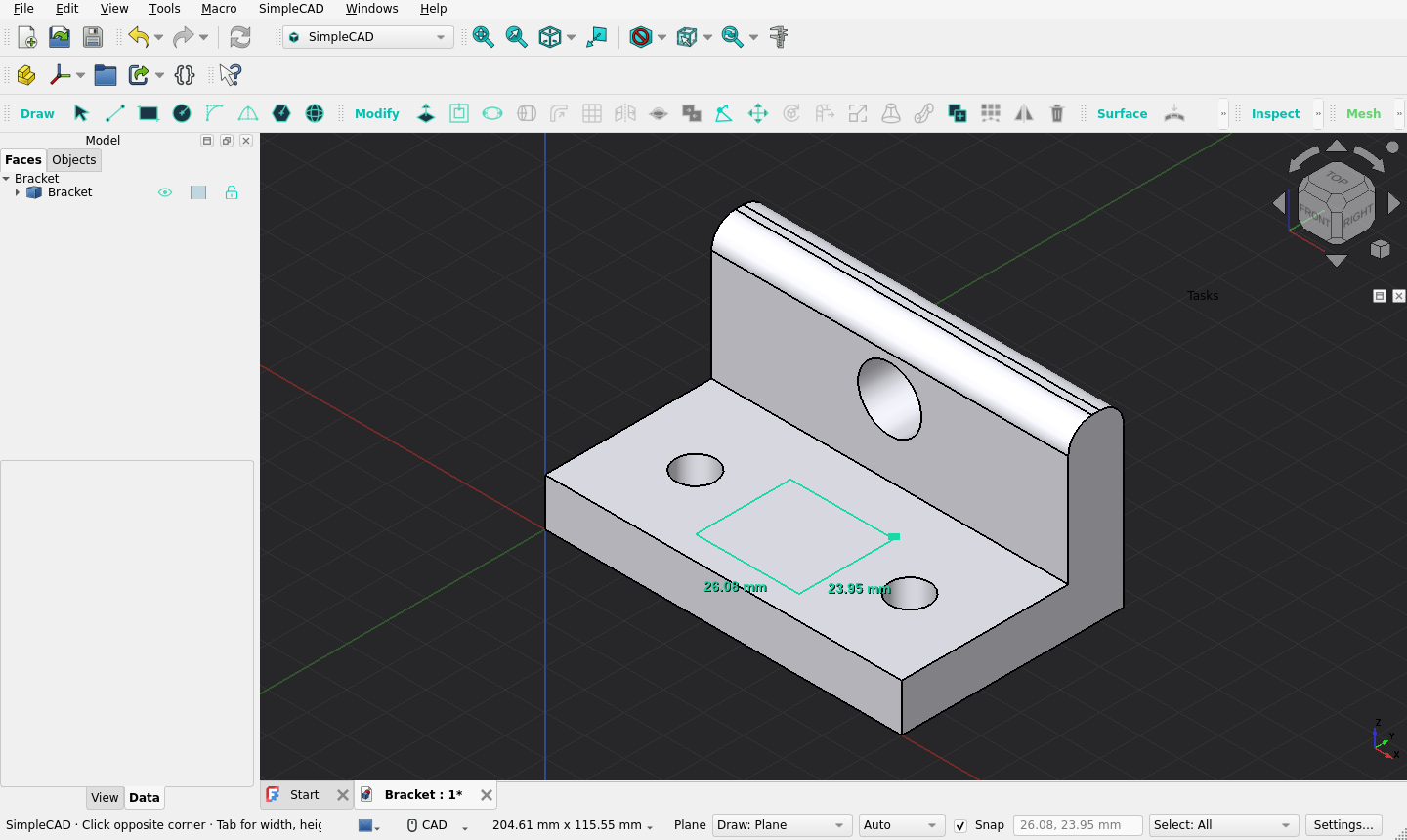
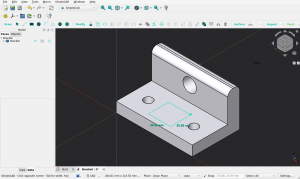
SimpleCAD 0.38.0 drawing a rectangle on a bracket with live width and height feedback beside the preview. Image: igsova/SimpleCAD docs.
What Is SimpleCAD?
SimpleCAD is a direct modeling workbench for FreeCAD that lets you draw shapes, push and pull faces into solids, and keep editing faces and edges directly with no sketches, constraints, or feature tree.
In practice that means a beginner-friendly layer on top of industrial-grade geometry. You work the way SketchUp taught a generation of makers to work: pick a face, pull it up into a box, draw a circle on top, push it down into a hole. Underneath, SimpleCAD writes normal OpenCascade Part geometry into a normal FreeCAD document. You can save, reopen, export to STL for your printer, or hand the file to someone who has never heard of SimpleCAD and it still opens.
The project lives at github.com/igsova/SimpleCAD with documentation at igsova.github.io/SimpleCAD. It is MIT licensed, developed and used on macOS, tested on Linux, and currently at version 0.38.0 with 31 stars and active development.
Why Direct Modeling Matters: A Short History
Parametric CAD is powerful but heavy for quick jobs
FreeCAD is one of the most important open source engineering tools in existence. Its PartDesign workbench follows the parametric playbook used by SolidWorks, Fusion 360, and Creo: you define a sketch on a plane, constrain every line with dimensions, extrude it into a feature, stack features into a tree, and rebuild history when anything changes.
That model is excellent for a machined assembly with 200 interlocking dimensions. It is overkill when you need a 40 by 30 by 20 mm box with one mounting hole before lunch. New users routinely stall at the same three hurdles: the sketcher constraint solver turning red, the feature tree breaking after an edit halfway down, and the topological naming problem where a fillet suddenly attaches to the wrong edge after a rebuild. For a ham printing a one-off battery lid, that friction kills momentum.
SketchUp proved there is another way
SketchUp, first released by @Last Software in 2000 and popularized after the Google acquisition in 2006, proved that millions of people can model in 3D if you remove the paperwork. You draw a rectangle, push it into a box, draw on its face, push again. Faces are the model. There’s no history tree to repair.
The trade-off was always the kernel. SketchUp used a lightweight mesh modeler that struggled with true curves, solid reliability, and manufacturing export. Direct editing inside pro parametric tools (SolidWorks Instant3D, Creo Direct, SpaceClaim acquired by Ansys in 2014) stayed locked behind commercial licenses.
SimpleCAD splits the difference
SimpleCAD keeps the SketchUp interaction model and swaps the mesh kernel for OpenCascade, the same solid modeling kernel that powers FreeCAD itself. You get direct face editing with real solid validity checks, native circles and cylinders instead of faceted approximations, and standard .FCStd output. It doesn’t replace PartDesign for fully parametric machines. It covers the huge middle ground of brackets, boxes, adapters, and repaired downloads where direct editing is simply faster.
Features at a Glance
| Capability | What you get |
|---|---|
| Draw and pull | Line, Rectangle, Circle, Arc, 2 Point Arc, Polygon, Sphere plus Push/Pull with typed sizes and units |
| Edit any shape | Offset, Elongate, Round edges, Subdivide, Slice, Intersect, Union, Move Vertex, Move, Rotate, Bend, Scale, Loft, Sweep, Copy, Pattern, Mirror, Delete, Heal |
| Curved surfaces | Draw on curved faces, offset face, shell and thicken, draft, remove rounds, fill holes, unwrap, curvature map |
| STL meshes | Split mesh with glue seam option, stretch between planes, move and rotate and extrude triangle patches, Make mesh editable with analytic fitting |
| Snapping and measuring | Endpoints, midpoints, face and hole centers, X/Y/Z axis inference, hole and distance and angle measurement with persistent dimensions |
| File compatibility | Plain Part and Mesh objects in .FCStd, opens without SimpleCAD, one Undo step per edit |
| AI-ready | Local MCP server exposes the same toolbar operations to Claude, Codex, and other MCP clients |
Draw and Pull: The Core Loop
Draw tools
The Draw group covers Select, Line (L), Rectangle (R), Circle (O), Arc (A), 2 Point Arc (H), Polygon (G), and Sphere (B). Single-letter shortcuts work while the 3D view has focus, which keeps both hands in the flow: one on the mouse, one tapping tool keys the way Vim users hop between modes.
Three details elevate this above a toy sketch pad:
- Draw anywhere. Lines and outlines can start in empty space, on a flat face, or directly on a curved face. In Surface mode, drawings wrap across the connected faces of one object and divide them into selectable regions.
- Type exact sizes. At any point while drawing you can press Tab and type
40, 30for a rectangle,5for a circle radius,2 cmor1 inwith units. Bare numbers are millimeters. The typed value shows beside the preview until you move the pointer or press Enter. - Arrow keys pick the drawing plane. Right arrow selects YZ, left arrow selects XZ, up arrow selects XY, down arrow returns to Auto, the same convention SketchUp users know by muscle memory. After a Line first click, the arrows lock direction to X, Y, or Z instead.
Drawing feedback was overhauled in 0.38.0. Line shows segment length beside the preview, Rectangle shows width and height beside its first two sides, and Circle, Polygon, and Sphere show radius. Small touches, large speed gain when you dimension as you draw.
Push/Pull (P)
Push/Pull is the tool you will use a hundred times a day. Click any flat region, drag or type a distance, and SimpleCAD turns it into a boss (positive outward), a pocket (negative inward), or a through-hole (pushed exactly to the opposite face).
The opposite-face magnet deserves special mention. With snapping on, dragging a circle down through a 20 mm block shows an amber Opposite face target. Release on it and you get a clean through-hole. Push to -10 mm and you get a pocket with a floor. Push to -30 mm and you get a capped cylinder sticking 10 mm past the block with the far face left intact. End within 0.005 mm of an existing flat level and the pull snaps exactly onto it, so no hairline step is left behind for Delete to trip over later.
You can also match another surface height by hovering a parallel flat face or constant-height edge on the same object or a different visible object. Face level snapped or Edge level snapped confirms the height. Sloping edges and nonparallel faces correctly refuse to define a level.
Edit Any Shape: The Modify Group
This is where SimpleCAD earns its keep for radio workshop jobs. Divide a face with a line, then apply any Modify tool. It works on anything that’s a plain Part shape, including converted STL meshes.
Highlights:
- Offset (E): offset a flat face, straight edge, arc, or circle. Inward offsets create inner regions ready for Push/Pull. Hole boundaries offset too, so an inset grows a hole and an outward offset shrinks it.
- Elongate (X): stretch a circular face or hole rim into an ellipse or a stadium slot, symmetrically or anchored on one side, with optional cut-through on solids. Perfect for widening a mounting slot after the drill press told you the truth.
- Round edges (F): native Part fillets with a live shaded preview, radius slider, and typed sizes. Select edges, a face boundary, or the whole solid in the Model tree.
- Subdivide face (D): split one flat face into triangles, center fan, evenly spaced grid, or equal-area grid, up to 100 pieces. Grid angle, rows and columns, and sector counts are all controllable.
- Slice and Separate: cut at a picked face with printable stud joints laid out along the cut for reassembly. Stud and socket fit is new and not yet printer-tested, so prototype before committing to a 12-hour print.
- Intersect Faces, Union, Move Vertex (V), Move, Rotate, Bend and Soft Deform (N), Scale and Stretch (K), Loft (Q), Sweep (W), Copy, Pattern, Mirror, Delete, Color and opacity, Merge coincident geometry, Heal to precision.
- Fit Circle and Cylinder (Y): select a faceted circular edge loop to replace it with a native circle, or both rims or the full faceted wall to get a native analytic cylinder. Conservative checks refuse the fit when facets disagree, so conversion never silently changes shape.
Every completed edit is one Undo step. Command plus Z or Ctrl plus Z steps back cleanly. Esc cancels an unfinished preview without touching the model.
Curved Surfaces: The Surface Group
Version 0.38.0 added a dedicated Surface group for curved faces: Draw on surface, Offset face, Shell and Thicken, Draft faces, Delete and heal faces, Remove rounds, Fill hole, and Unwrap face, plus Pattern support and a Curvature map in the Inspect group.
Practical notes from the user guide:
- Draw on surface wraps Line, Rectangle, Circle, Polygon, and Arc drawings across connected CAD faces, including around sharp corners on the same object. A closed outline divides the surface into selectable regions in one Undo step. Use Surface then Offset face to raise or recess the new curved region.
- Offset face handles what Push/Pull can’t: Push/Pull works on flat faces, so curved bumps and recesses go through Offset face.
- Shell and Thicken turns a thin imported shell into a printable solid or hollows a solid into a case with wall thickness.
- Draft faces adds release angles for molded or cast parts.
- Remove rounds strips fillets back to sharp edges when you need a clean reference for measurement or mating.
- Unwrap face flattens a curved face for inspection or template work.
- Seams (the straight line along a cylinder where the surface wraps and joins itself) stay hidden while SimpleCAD is active so they don’t clutter selection. Enable Show seams on curved surfaces in Settings only when you need to inspect them.
STL Meshes Without Conversion
Every ham with a 3D printer knows the pain: you download an STL for a handy microphone hanger, the mounting holes are 0.5 mm too small, and the original CAD is long gone. Traditional FreeCAD answers were mesh-to-solid conversion followed by fragile Boolean surgery, or remodeling from scratch.
SimpleCAD offers two paths.
Path 1: Edit the mesh as a mesh
- Split mesh: cut an STL directly into two mesh objects, with an optional triangular glue seam (raised ridge on one side, matching V groove on the other) to help align glued parts.
- Stretch mesh: stretch a mesh between two draggable, rotatable planes. Useful for lengthening a case to fit a larger battery without redrawing it.
- Mesh region Move, Rotate, and Extrude: grab a patch of triangles and move it with a live collision preview. Nudge a standoff, tilt a vent grille, raise a boss, all without leaving mesh space.
Path 2: Make mesh editable
Make mesh editable runs in a cancellable background process, combines coplanar triangles, and builds editable Part geometry while keeping the original mesh as a hidden backup. Recent versions fit smooth surfaces and analytic cylinders, giving far fewer faces than a flat-face rebuild. Closed cylindrical STL components and circular holes in planar bodies can become single native analytic cylinders when triangle normals, circular rims, and enclosed volume agree under conservative checks. Partial, fused, noisy, or ambiguous regions keep the faceted fallback rather than risk changing shape.
Once converted, the full Draw, Modify, and Surface toolset applies. Push, pull, offset, round, and slice the ex-printable exactly like native geometry. Reconvert the original mesh after updating SimpleCAD to benefit from newer fitting logic. Existing converted objects are left untouched.
Snapping, Measuring, and Inspection
Precision without paperwork is the promise, and snapping carries much of it:
- Endpoints with a green square marker and 24-pixel default capture distance.
- Edge midpoints with a blue diamond and Midpoint label, working on straight and curved edges.
- Face and circle centers with an amber Center target and 40-pixel capture radius, including round edge centers and faceted round hole centers.
- Automatic axis alignment with red X, green Y, and blue Z preview coloring.
- Push/Pull to faces and edge levels with amber Opposite face and Face level snapped confirmations.
All distances are adjustable in SimpleCAD then Settings, independent of FreeCAD general picking preferences. The Snap switch in the status bar toggles all automatic snapping at once, and X, Y, Z keys lock direction mid-tool.
The Inspect group adds Smart select (holes, edge loops, flat regions, smooth surfaces), Measure with placed dimensions left in the view for hole diameters, spacing, distances, and angles, Curvature map for surface quality checks, and Isolate selection for focusing on one part of a busy assembly.
A dark viewport style is on by default in 0.38.0: flat dark grey background, faint ground grid that follows zoom, long red, green, and blue axes through the origin, camera-following lights, and a configurable default face color (light blue-grey #E3E3EC). Hover turns light green, selection turns light blue. Turn it off or switch workbenches to get FreeCAD stock rendering back.
Plain Files, Clean Undo, and AI Clients
Three architecture choices make SimpleCAD safe to adopt:
- Plain FreeCAD files. Results are ordinary Part and Mesh objects in
.FCStddocuments. They open, render, export, and slice without SimpleCAD installed. No proxy objects, no stored module paths, no lock-in. - One Undo step per edit. Drawing feedback, previews, and hover calculations never touch the document. Only Apply or release commits, and Command plus Z restores everything including appearance and visibility.
- AI-ready MCP server. A local Model Context Protocol server documented in
docs/mcp.mdlets AI clients such as Claude or Codex inspect and edit the open model with the same operations as the toolbar: deform, move vertex, offset, and the rest. Reconnect the MCP client after updating SimpleCAD to refresh its tool list. For shack automation folks already piping logs and spots through LLMs, scripted CAD edits through the same agent loop are a natural next step.
Under the hood the source is organized by purpose: core, modeling, surfaces, mesh, repair, inspection, document, jobs, mcp, and gui, with tests split into tests/unit, tests/gui, and tests/benchmarks. Unit tests run with FreeCAD own Python, GUI suites run one process per suite inside a FreeCAD window (with xvfb-run on headless Linux). Read CONTRIBUTING.md before opening a pull request.
Quick Start: A Block, a Divider, and a Through-Hole in Five Minutes
You need FreeCAD 1.1 or later with SimpleCAD installed and the SimpleCAD workbench selected. The classic first model from the official guide:
- Click Rectangle or press R with the 3D view focused. Click a corner, press Tab, type
40, 30, and press Enter. Click Fit All if the rectangle runs out of view. - Press P for Push/Pull, click the rectangle, press Tab, type
20, and press Enter. You now have a 40 by 30 by 20 mm block. - Press L for Line, click the midpoint of one top edge (wait for the blue diamond and Midpoint snapped label), then the midpoint of the opposite edge. The top face is now two regions.
- Press P and pull one of those regions up for a stepped lid, or press O for Circle, click the lower region for center, type
5for radius, press Enter, then press P and drag the circle down until the status bar says On opposite face. Release for a clean 10 mm through-hole. - Esc cancels the current step. Command plus Z or Ctrl plus Z undoes the last edit.
Copy, cut, and paste of whole objects also works in 0.38.0 with Command plus C, Command plus X, and Command plus V (Ctrl on Windows and Linux) in the 3D view and Model tab. Paste drops the copy in place and starts Move so you can place it immediately.
Practical Ham Radio Uses
Direct modeling shines for the small mechanical jobs that pile up in any shack. Ideas mapped to SimpleCAD tools:
- HT belt-clip spacer. Rectangle, Push/Pull to thickness, two Circle holes pushed to Opposite face for M3 screws, Round edges 1 mm so it doesn’t chew a belt. Print in PETG.
- LoRa tracker case. Start from the board bounding box, Shell to 2 mm walls, Slice with stud joints for a snap-together lid, Split mesh afterwards if you need to fit a larger 18650 cell with Stretch mesh.
- SO-239 panel adapter. Circle boss, Elongate into a slot for slotted mounting holes, Fit Circle to clean up a downloaded faceted cutout into a true round hole.
- QRP field box divider. Subdivide face into a grid, Push/Pull individual bays for battery, tuner, and key, Draft faces 2 degrees so printed dividers release cleanly from the print bed supports.
- Downloaded enclosure fix. Make mesh editable on the STL, Offset the face around a too-tight USB-C cutout outward by 0.5 mm, Push/Pull to depth, re-export. No remodel from zero.
- Antenna insulator or dipole center. Draw on surface to wrap a lashing groove around a cylindrical center piece, Offset face to recess it, Measure to leave a dimension in the view for the club build night handout.
Materials and workflow tip: PLA for desk prototypes, PETG or ASA for field and vehicle parts that see heat, TPU for bumpers and strain reliefs. Model screw clearance 0.2 to 0.3 mm oversize on diameter for M3 and M4 self-tapping into plastic, and keep wall thickness at 2 mm or multiples of your nozzle width for clean slicing.
Installation
Requirements
- FreeCAD 1.1 or later. SimpleCAD 0.38.0 was developed with FreeCAD 1.1.3.
- Nothing else to install. FreeCAD own installers bundle Python, OpenCascade, Qt, Coin, NumPy, and SciPy. A FreeCAD from a Linux distribution package may need its
numpyandscipyPython packages installed separately. - Developed and used on macOS. Automated tests also run on Linux. Windows isn’t tested yet and reports are welcome.
Option A: Addon Manager (recommended)
- In FreeCAD, open Edit then Preferences then Addon Manager.
- Under Custom repositories, add
https://github.com/igsova/SimpleCADwith branchmain. - Open Tools then Addon manager, find SimpleCAD, and install it.
- Restart FreeCAD and choose SimpleCAD in the workbench selector.
Option B: Manual install
Clone or unzip the repository into FreeCAD Mod folder so that InitGui.py sits directly inside Mod/SimpleCAD:
git clone https://github.com/igsova/SimpleCAD.git "<Mod folder>/SimpleCAD"
Find the Mod folder by opening View then Panels then Python console in FreeCAD and running App.getUserAppDataDir(). For FreeCAD 1.1 it is usually:
| System | Mod folder |
|---|---|
| macOS | ~/Library/Application Support/FreeCAD/v1-1/Mod |
| Linux | ~/.local/share/FreeCAD/v1-1/Mod |
| Windows | %APPDATA%/FreeCAD/v1-1/Mod |
On macOS, python3 scripts/install_macos.py from a clone asks FreeCAD for this folder and links the clone there. Add --copy for an independent copy, or --uninstall to remove the link. Restart FreeCAD after installing or updating to load new commands.
What Is New in 0.38.0
Version 0.38.0 is a consolidation release: source reorganization, documentation split, and a long list of modeling upgrades.
- Source organized into packages by purpose with saved models storing no module paths, so existing
.FCStdfiles open unchanged. The README is now a short project page, the full manual lives indocs/user-guide.md, and version notes live inCHANGELOG.md. Documentation also publishes as a searchable site on GitHub Pages with a per-tool page containing steps, options, keys, and a short clip. - Copy, cut, and paste of whole objects with standard shortcuts in the 3D view and Model tab.
- Drawing feedback with live sizes beside the preview and typed values echoed until the pointer moves.
- Arrow-key plane selection in the SketchUp style, plus direction locking for Line.
- Dark viewport style with ground grid, axes, camera-following lights, configurable face color, and lighter hover and selection colors, on by default.
- Surface drawing mode for all six draw tools, plus the new Surface group and Curvature map.
- Make mesh editable with smooth surface and analytic cylinder fitting for far fewer faces.
- Mesh region Move, Rotate, and Extrude with live collision preview, plus draggable stretch planes.
- Measure with placed dimensions, smart selection, and Isolate selection.
- Mirror, Elongate and Make Elliptical, Heal to precision, and a Modeling precision setting shared with mesh conversion.
- Slice at a picked face with studs laid along the cut face and automatic spacing. Move and Copy snap to hole and circle centers. Commands that need a selection stay greyed out until selection is right.
Fixes include exact landing within 0.005 mm of existing flat levels, exact face clicks in Move and Copy, Line stopping when a segment closes a loop, and large speed-ups for drawing, hovering, selecting, and deleting on dense converted parts. Earlier 0.37.x point releases focused on Fit Circle and Cylinder, cylindrical STL conversion, pull contact tolerance, and Push/Pull and deletion performance on dense editable STL surfaces.
SimpleCAD Compared to Other Options
| Tool | Modeling style | Cost and license | Best for | Watch out for |
|---|---|---|---|---|
| SimpleCAD for FreeCAD | Direct face editing on OpenCascade solids | Free, MIT | Quick brackets, enclosures, STL fixes, learning CAD without sketcher pain | Flat-face Push/Pull only, young project, Windows untested |
| FreeCAD PartDesign | Parametric sketches plus feature tree | Free, LGPL | Fully dimensioned machines, assemblies, drawings | Steeper learning curve, tree repair, topological naming quirks |
| SketchUp Free and Go | Direct push-pull on meshes | Freemium, proprietary | Fast concept massing, woodworking plans | No true solids kernel, web-only free tier, limited manufacturing export |
| OpenSCAD | Code-driven CSG | Free, GPL | Parametric printable parts from scripts, version-controlled designs | No interactive push-pull, preview and render split slows iteration |
| Tinkercad | Browser primitives plus Booleans | Free, proprietary | Classroom first prints in minutes | Too simple for precise mating parts, cloud-only |
| Blender | Mesh sculpt and hard-surface | Free, GPL | Organic shapes, renders, artistic enclosures | Not a solid modeler, dimensions and tolerances need addons |
| SolveSpace | Constraint sketch plus extrude | Free, GPL | Tiny parametric parts with drawings | Small feature set, dated UI, limited mesh repair |
For ham makers the pragmatic stack is SimpleCAD for speed, PartDesign when you need a fully dimensioned assembly with drawings, and OpenSCAD when you want a version-controlled parametric generator for a family of adapters.
Limitations and Honest Notes
- Tools edit plain Part shapes. For a parametric Part or PartDesign feature, make a Part then Create a copy then Create simple copy first, then edit the copy.
- Push/Pull works on flat faces. Use Offset face for curved ones.
- SimpleCAD is young and changes quickly. The fit of printed stud joints and glue seams hasn’t been tested on a printer, so prototype joints at small scale first.
- Circles from 0.10.0 that overlap the original face may need one retrace with Circle snapped to the old rim. Triangles drawn before face division may need one segment retraced with Line. Both are one Undo step fixes documented in the changelog.
- Complex internal cavity shells, compound solids, linked features, and expression-driven objects need a simpler independent Part object first for Bend and similar rebuild tools.
None of these are deal breakers for workshop parts. They are the normal edges of a fast-moving open source project, and the changelog shows steady monthly progress on exactly these fronts.
Frequently Asked Questions
What is SimpleCAD used for?
SimpleCAD is used for fast direct 3D modeling in FreeCAD. Draw shapes, push-pull faces into solids, edit STL meshes, and export printable parts without sketches or history trees.
Is SimpleCAD free and open source?
Yes. SimpleCAD is MIT licensed and free for personal, club, and commercial use. Source, docs, and issue tracker are on GitHub.
Does SimpleCAD replace FreeCAD PartDesign?
No. SimpleCAD handles quick direct edits and STL fixes fastest. PartDesign remains better for fully parametric assemblies, technical drawings, and dimension-driven machines.
Can SimpleCAD edit downloaded STL files?
Yes. Split, stretch, and patch-edit meshes directly, or run Make mesh editable to convert to CAD faces with plane, cylinder, and smooth fitting for full solid editing.
What do I need to run SimpleCAD?
FreeCAD 1.1 or later on macOS or Linux, plus SimpleCAD from the Addon Manager custom repository. No extra Python packages on official installers. Windows is untested and feedback is welcome.
Sources and Further Reading
- SimpleCAD repository – source, README, issues, and releases
- SimpleCAD documentation site – searchable manual built from docs on every main change
- SimpleCAD user guide – full tool reference and getting started
- SimpleCAD changelog – what changed in 0.38.0 and earlier
- SimpleCAD MCP docs – local MCP server for Claude and Codex
- SimpleCAD roadmap – planned work
- FreeCAD official site – downloads for FreeCAD 1.1 and later
- FreeCAD Part Fillet docs – native fillets used by Round edges
- OpenCascade Technology – solid modeling kernel underneath FreeCAD and SimpleCAD
73 de 9M2PJU


Post Comment