DXSpider Cluster Commands for N1MM, Telnet and Every Cluster App: Show DX, Post Spots, Filters, Sun, Talk and Mail
TL;DR: Quick Summary
A DX cluster is a live chat room for DX spots, and DXSpider is the free software that runs most of the world’s cluster nodes. You type the same text commands whether you connect with plain telnet on port 7300, from N1MM Logger+, or from any cluster app. Learn about fifteen of them and you can do everything that matters: log in with your callsign, set your name and grid square once, pull recent spots with show dx filtered by band or callsign, post your own spots with the dx command, quiet the flood with accept and reject filters, check sunrise and beam headings for a target, page the channel with announcements, chat one to one with talk mode, and send cluster mail. You can try every command in this guide live right now at 9m2pju.hamradio.my on port 7300. This guide walks each one with real examples taken from the official DXSpider User Manual on wiki.dxcluster.org. One thing to know before you post: most cluster servers today only accept spots from registered users, a rule the network adopted after years of bogus spot abuse, so read the registration section before your first dx command.
What Is a DX Cluster?
A DX cluster is a shared real time bulletin where DX chasers post rare or interesting stations they’ve worked or heard, so everyone else can find new DX too.
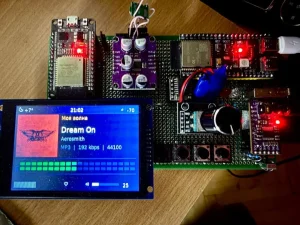
In practice a cluster is a network of linked nodes: post a spot at the node you use and it fans out to local users and across the network within seconds. Nodes also carry callbook lookups, solar data, announcements, one to one chat and a mail system. DXSpider, conceived in 1998 by Dirk Koopman G1TLH as a free Perl clone of the original AK1A PacketCluster software, runs under Linux and Windows and is fully command compatible with it, plus extras. The commands below work on any DXSpider node from telnet, N1MM Logger+, or apps like the 9M2PJU ESP32 DX Cluster Client and web front ends such as DXSpider DXWeb.
Connect in 30 Seconds: Try It Live at 9m2pju.hamradio.my Port 7300
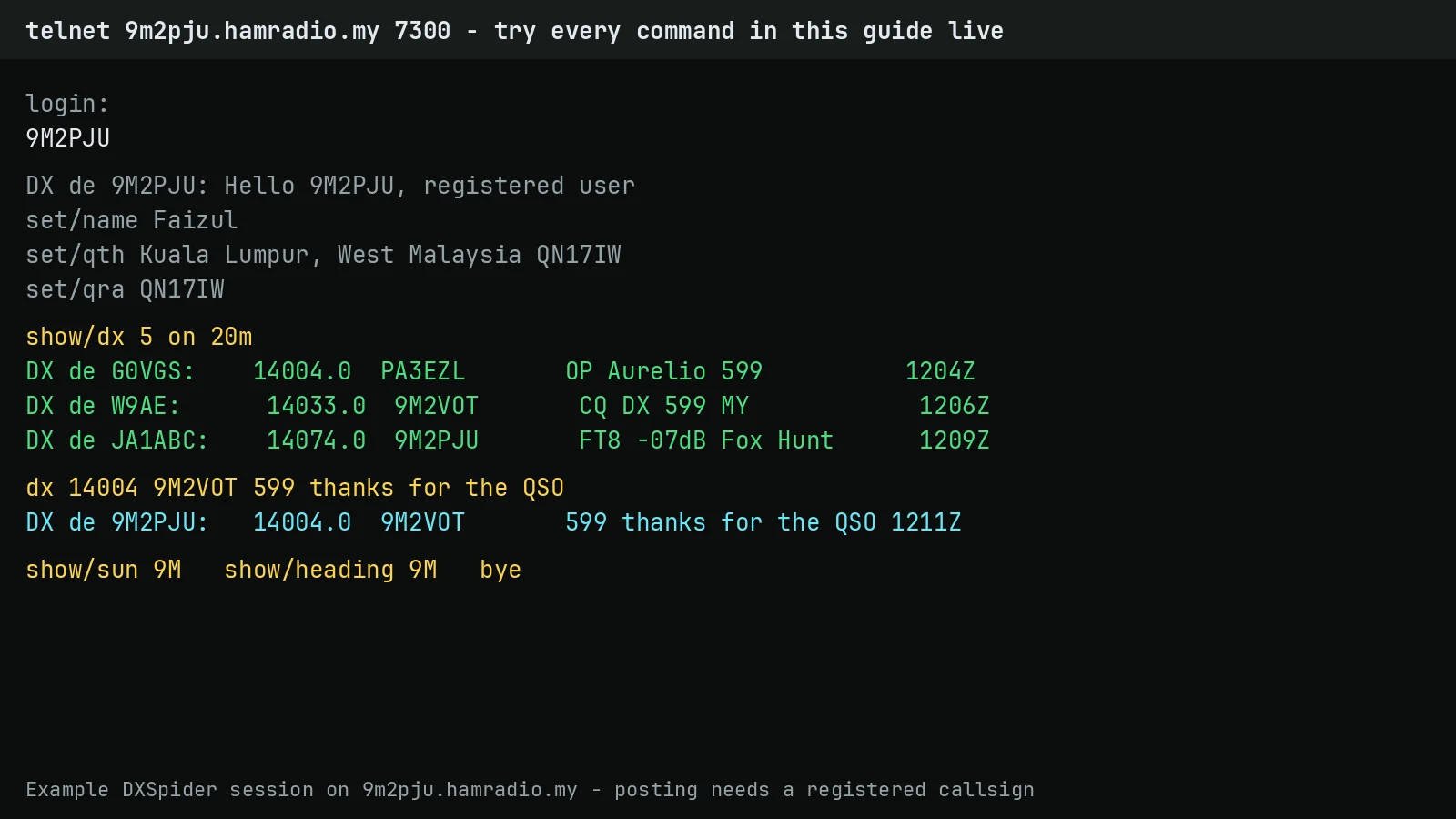
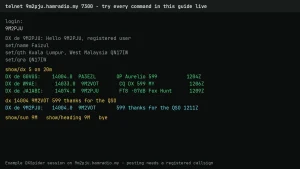
The fastest way to learn these commands is to type them into a real node. Point any telnet client at 9m2pju.hamradio.my on port 7300:
telnet 9m2pju.hamradio.my 7300
At the login: prompt type your callsign. In N1MM Logger+ put the same host, port and callsign into the Telnet window under the cluster settings; in a phone or web app they go in the host and port fields. AX25 packet and Netrom logins exist for radio paths, but internet users only need telnet. When finished, type bye to log out cleanly.
Reading spots works the moment you log in. Posting spots is a different story on most nodes today, including busy public ones: your dx commands may be held or rejected until your callsign is registered with that node. See the registration section below before you post, and never test with a made up callsign.
Commands accept a slash or a space as separator, so show/dx and show dx are identical, and case doesn’t matter. N1MM users type them into the Telnet window input line. The cluster answers in the same window while spots flow into the bandmap.
First Visit Setup: Tell the Cluster Who You Are
Four settings, typed once, unlock everything personal including headings and sun times. DXSpider greets you by name on later logins.
set/name Faizul
set/qth Kuala Lumpur, West Malaysia QN17IW
set/location 3 08 n 101 41 e
set/qra QN17IW
set/home gb7mbc
Name is free text. QTH should include your grid square, because the location setting converts to latitude and longitude once entered. You can give location as latitude and longitude or as a Maidenhead locator with set/qra. Home node tells the system where your mail lives. Without QTH and location, the heading, sun and moon commands below can’t answer correctly.
Two housekeeping toggles worth knowing: set/dx turns the live spot feed on, unset/dx stops it while keeping you connected, handy when reading mail. set/beep makes the terminal beep on new spots.
Receiving Spots: The Show DX Swiss Army Knife
Connect and spots arrive on their own. The show/dx command replays recent ones with remarkable flexibility: bare it shows the last 10, a number changes the count, a band narrows it, a callsign or fragment searches it.
show/dx
show/dx 5
show/dx 20
show/dx on 20m
show/dx 10 on 20m
show/dx g0vgs
show/dx 10 g0vgs
show/dx 30-40
show/dx 14000-14033
show/dx iota
show/dx day 30
show/dx 20 prefix 9a on vhf day 30
Each line does what it says: the last 10, 5 or 20 spots; on 20 metres only; containing a callsign; spots 30 to 40 back; a frequency slice in kHz; comments mentioning IOTA regardless of case; spots from 30 days ago; or all of it combined down to VHF prefixes from a month back. When unsure whether a combination works, just try it.
Posting Spots: The DX Command
Posting takes one line with frequency in kHz, the heard callsign, and free text remarks such as name or report. Frequency and callsign may come in either order, even dotted megahertz.
dx 14004 pa3ezl OP Aurelio 599
dx pa3ezl 14004 OP Aurelio 599
dx pa3ezl 14.004 OP Aurelio 599
All three post the same spot. It forwards to every local user and across the network, and echoes back to you as receipt. Never post your own callsign as the DX; the DX field is the station heard. Keep remarks short and factual, and only spot stations you actually copied.
Registration: Why Most Nodes Gate Spot Posting
If your first dx command seems to vanish, nothing is broken. Most cluster servers today only propagate spots from registered users, and many additionally restrict self spotting to permitted accounts. The rule exists because of real abuse: spoofed callsigns posting fake openings, pirate spots for rare entities that were never on the air, and bogus spots injected to sabotage contests. Sysops have network wide block lists for repeat offender callsigns, and registration is how a node ties every posted spot back to an accountable operator.
What this means for you at 9m2pju.hamradio.my:7300 and everywhere else:
- Log in with your real callsign, never a made up one. A fake call at login is itself the kind of misuse registration exists to stop.
- Complete your details first. A bare login with no name, QTH or locator looks exactly like a throwaway abuse account, so run the set commands from the section above.
- Follow whatever the node tells you at login. If it asks you to register on a web page or wait for sysop approval, do that and stay in read only mode meanwhile. Reading spots, headings, sun data, talk and mail all work while you wait.
- Never test posting with fake spots. One bogus test spot reaches thousands of bandmaps in seconds and can earn your callsign a block. Test with
show/dx, notdx. - Self spotting rules vary by node and contest. Some nodes and contests allow it with permission, others forbid it. Check the node rules and the contest rules before spotting yourself.
Quiet the Firehose: Accept and Reject Filters
Unfiltered clusters during a contest weekend are unreadable. Since version 1.45 every user gets ten line accept and reject filters per type: spots, WWV solar data, announcements and WCY, checked with show/filter and cleared per line or wholesale.
reject/spots on hf/cw
accept/spots not on hf/cw or info iota
reject/spots 1 on hf/cw
reject/spots 2 on 50000/1400000 not (by_zone 14,15,16 or call_zone 14,15,16)
clear/spots 1
clear/spots all
show/filter
Reject drops matches and passes the rest; accept passes only matches and drops everything else. Pick whichever needs fewer lines. Line numbers run 0 to 9 and default to 1 when omitted. Always bracket OR groups, because the parser reads left to right and on vhf and zone X or zone Y isn’t what you meant without them. Grown up example: reject HF CW chatter plus VHF spots outside your continent with one numbered pair, then clear line 1 during a CW contest.
Three starter filters that suit most HF chasers:
| Goal | Command |
|---|---|
| No HF CW, everything else | reject/spots on hf/cw |
| SSB and digital only, except IOTA anywhere | accept/spots not on hf/cw or info iota |
| VHF and up, Europe only | accept/spots on vhf and (by_zone 14,15,16 or call_zone 14,15,16) |
Greyline and Beams: Sun, Moon and Heading
These three turn your stored location into operating answers: when the sun rises at a target, where the moon is for EME, and where to point the beam with the reciprocal heading for the other station.
show/sun
sh/sun 5b4
sh/sun gw4veq 5b4ab zs
show/moon ea
show/heading zl
Bare show/sun reports your own sunrise and sunset in Zulu with azimuth and elevation. Add callsigns or prefixes to compare several at once, exactly what a greyline opening needs. show/moon answers rise, set, azimuth, elevation and illuminated fraction the same way. show/heading zl returns beam degrees plus miles and kilometres, for example New Zealand at 19 degrees and 18,500 km with reciprocal 345 degrees. None of it works until set/location or set/qra is stored.
Talk to a Human: Announcements and Talk Mode
For channel wide notes that aren’t DX, use announce locally or announce full network wide. Full reaches every linked node, so the manual asks restraint: frequent full announcements are frowned upon for the traffic they create.
announce 10 FM is open in QN17IW to europe.
announce full Anyone seen EA7WA today?
show/announce
show/announce 10
For one to one chat, talk callsign message sends a single line, while bare talk callsign opens a session that ends with /ex and still lets spots through. Commands run mid session prefixed with slash, like /sh/dx. If the target sits on another node, route it: talk g0rdi > gb7djk. Find people first with the node commands below.
Who Is Around: Nodes and Users
show/configuration
show/configuration nodes
show/configuration gb7
show/configuration pi4tue-8
show/users
The first lists every linked node with its users, the second nodes only, the third filters a prefix group such as UK nodes, the fourth one node in depth, and show/users lists locals at your node. Nodes on limited protocol during contests may show user counts instead of callsigns.
Cluster Mail: Directory, Read, Send, Reply, Delete
Mail predates the web here and still carries QSL chatter and bulletins. Listing defaults to your last ten personal plus bulletin messages, with new mail announced at login and on arrival.
directory
directory/20
directory/new
directory/own
directory/all
directory/from g0hdb
read 25
set/page 20
send m0azm
reply 2500
delete 25
Personal messages show a p after the number until read. Reading takes the message number, paging pauses long output at your set length, sending prompts for subject then text ending with /ex or /abort, reply prefixes Re automatically, and you can only delete your own mail while bulletins age out or fall to the sysop.
Same Task, Three Screens: Telnet, N1MM and Web Apps
| Task | Plain telnet | N1MM Logger+ | Web or firmware app |
|---|---|---|---|
| Connect | telnet 9m2pju.hamradio.my 7300, callsign at prompt |
Telnet window host, port, callsign | Host and port fields |
| Read recent spots | show/dx 20 on 20m |
Bandmap auto fills, command in input line | Spots list or waterfall |
| Post a spot | dx freq call remarks |
Right click entry, Spot it | Spot button |
| Silence the flood | reject/spots on hf/cw |
Telnet window, same text | Usually no filter UI |
| Beam heading | show/heading zl |
Same command in Telnet window | Rarely exposed |
| Chat | talk call msg |
Telnet window | Rarely exposed |
| Quit | bye |
Close window or bye |
Disconnect button |
The honest takeaway: the cluster is one text protocol underneath every pretty interface. Learn the commands once in telnet and every app becomes a skin over knowledge you already own.
Practical Tips for Real Operation
- Register before you need to post. Most nodes gate spot posting to registered users, so complete any registration and set your details on a quiet evening, not mid pileup.
- Log in with your full callsign including portable designators when operating away, so replies and mail route correctly.
- Set filters before a contest, not during. Two lines taming the loudest mode saves more QSOs than any later tweak.
- Spot what you hear, not what you wish. Wrong spots waste hundreds of beam turns across the network.
- Use announce for openings, full almost never. Local covers your audience; network wide pages the planet.
- Keep mail hygiene. Read with a page length set, delete your own stale messages, and treat QSL bulletins as shared space.
Honest Limitations
- Spots are claims, not confirmations. A wrong call gets amplified worldwide in seconds. Verify before calling.
- Filters are per node login. Reconnect elsewhere and your ten lines stay behind unless the nodes share a database.
- Announce full creates real traffic. Every network wide page costs bandwidth on slow radio links still in use.
- Mail is plain text on shared infrastructure. Treat it like a postcard, never a safe, and keep secrets out.
- Old nodes vary. Very old software may lack filters or behave slightly differently than this DXSpider reference.
Why It Matters
Contesting and DXing run on seconds, and the cluster is where seconds come from. An operator who can pull twenty spots on the open band, post a clean spot in one line, filter out the mode they can’t work, and read a beam heading without leaving the keyboard works more stations per hour with less noise. These commands are also the common tongue across generations of software: the same show/dx your Elmer typed on packet in the nineties works in N1MM today and on a ten dollar ESP32 display tomorrow. Learn the protocol once and every interface obeys you.
Frequently Asked Questions (FAQ)
How do I connect to a DX cluster?
Telnet to a public node on port 7300 and type your callsign at the login prompt. Try 9m2pju.hamradio.my on port 7300 to practise every command in this guide. N1MM Logger+ and cluster apps need the same host, port and callsign in their settings.
How do I see only recent spots on one band?
Type show dx with a count and band, for example show/dx 20 on 20m. Add a callsign to search for one station instead.
How do I post a DX spot?
Type dx, frequency in kHz, the heard callsign and short remarks, for example dx 14004 pa3ezl OP Aurelio 599. Note that most nodes only propagate spots from registered users, so register first and never test with fake spots.
How do I stop the spot flood during contests?
Set reject or accept filters, for example reject/spots on hf/cw, list them with show/filter and remove lines with clear/spots. Keep lines few and bracketed.
Do these commands work in N1MM Logger+?
Yes. N1MM Telnet window speaks the same protocol, so every command here types verbatim into its input line while spots feed the bandmap automatically.
Sources and Further Reading
- DXSpider User Manual index – Entry point to every user topic on the official wiki.
- Getting and posting DX – Receiving with show/dx variants and posting with the dx command.
- Setting your personal details – Name, QTH, location, grid square and home node setup.
- Headings and propagation – Show sun, moon and heading with sample outputs.
- Announcements – Local and full announcements plus listing.
- Nodes and users – Configuration listings and local user lists with samples.
- Talk mode – One line talks, sessions, slash commands and cross node routing.
- Mail – Directory, read, send, reply and delete with sample output.
- Filtering from version 1.45 – Accept, reject, clear and show filter with worked examples.
- DXSpider User Command Reference – Complete command list including show/wwv, show/wcy and set toggles.
- N1MM Logger+ Telnet and cluster docs – Where to type cluster commands inside N1MM.
- DXSpider DXWeb modern browser frontend – HamRadio.MY guide to the EA3CV web interface for DXSpider nodes.
- 9M2PJU ESP32 DX Cluster Client – Hardware client that consumes the same telnet spot feed.
73 de 9M2PJU

Post Comment