amateur radio
open source
Technology
application firewall, C#, Event 5157, ham radio shack security, Little Snitch, LOLBins, malware defense, network security, open source security, outbound firewall, PacketHound, privacy tools, WFP, Windows 10, Windows 11 security, Windows Filtering Platform, Windows Firewall, WPF
9M2PJU
0 Comments
PacketHound: The Open-Source Outbound Application Firewall for Windows
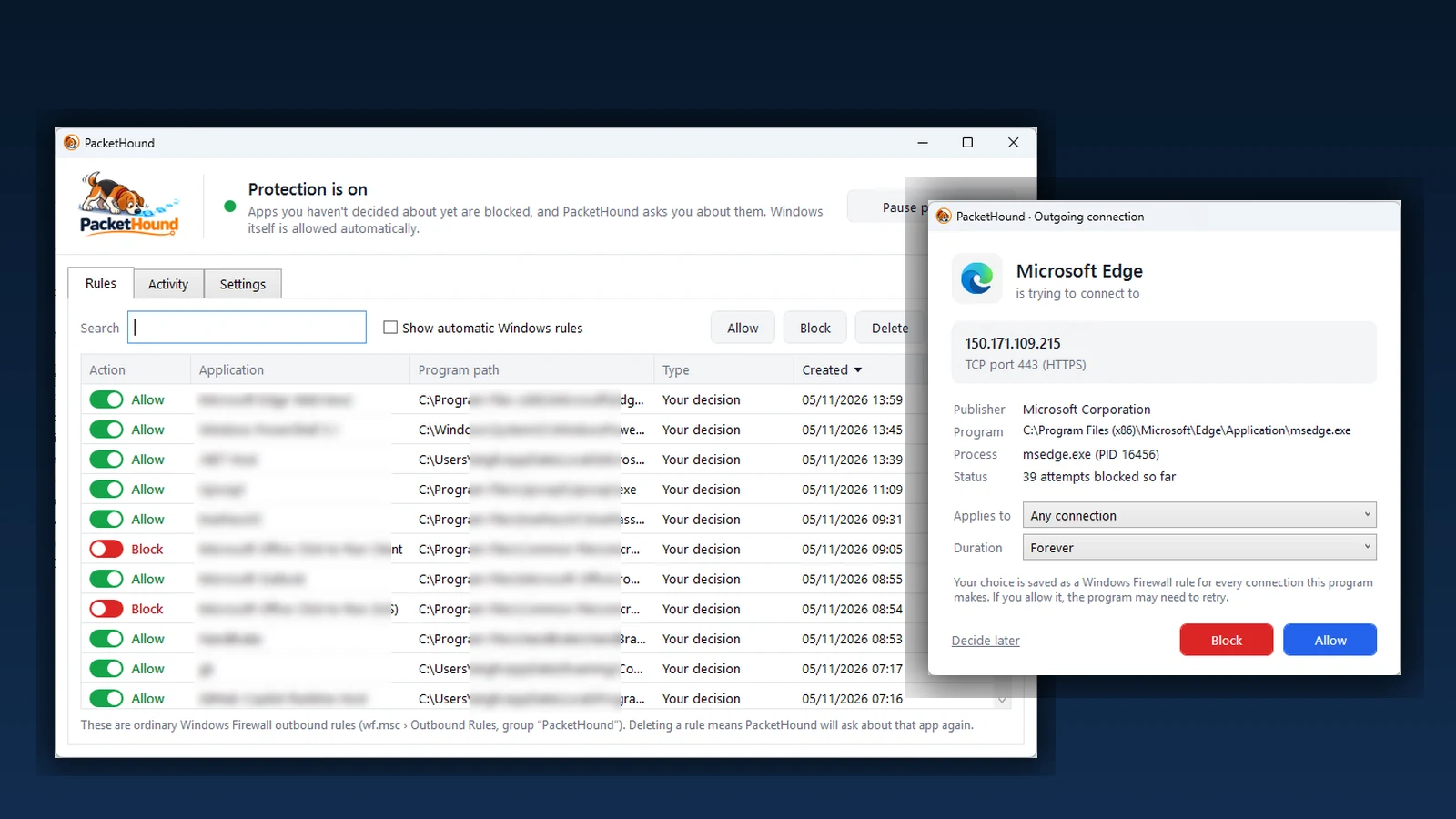
Most desktop firewalls operate on an obsolete assumption: they vigilantly guard your inbound ports against incoming probes while letting any local process connect out to the internet without restriction. In an era where operating systems collect telemetry, modern desktop software routinely embeds analytics beacons, and background processes frequently phone home, an inbound-only firewall leaves half of your network perimeter unmonitored. On macOS, utilities like Little Snitch and LuLu popularized interactive outbound firewalls that intercept every new outgoing socket connection and ask for user consent. On Windows, users were historically forced to choose between complex, proprietary suites that install intrusive kernel drivers or clunky interfaces that flood the screen with notifications for every core OS service.
PacketHound changes that paradigm. Developed by Henrys_Cat and released under the GNU General Public License v3.0, PacketHound is a lightweight, driverless outbound application firewall for Windows 10 and Windows 11. It transforms the native Windows Advanced Firewall into an interactive, “ask me first” security barrier without loading third-party kernel drivers or drowning you in system alerts.
TL;DR: PacketHound turns Windows Firewall into an interactive outbound application firewall in the spirit of Little Snitch. By pairing a default-block outbound policy with Windows Filtering Platform security auditing (Event ID 5157), PacketHound prompts you whenever a third-party app attempts to connect out. It silences core Windows noise through cryptographic signature checks, inspects command lines for script engines, and operates completely without kernel drivers.
What Is PacketHound?
PacketHound is an open-source outbound application firewall for Windows 10 and Windows 11 that monitors outgoing network attempts and prompts you to allow or block them in real time without installing a kernel driver. Instead of injecting a filter driver into the Windows network stack, PacketHound configures Windows Firewall profiles to block outbound traffic by default, enables failure auditing on the Windows Filtering Platform (WFP), and monitors security event logs in real time.
When an unknown application attempts to initiate an outbound network connection, Windows Firewall immediately drops the packet and logs Event ID 5157 in the Windows Security Log. PacketHound catches this event, resolves the executable path, checks its digital signature, evaluates whether the program belongs to core Windows components, and presents an interactive, non-intrusive prompt asking whether to allow or block future traffic. Your decision is written directly into Windows Firewall as a standard rule, meaning the operating system itself enforces your choices at native wire speed.
Why Outbound Traffic Control Matters
For years, security guidance assumed that outbound traffic from a workstation was trusted. That assumption no longer holds true for several practical reasons:
- Pervasive Application Telemetry: Productivity tools, media players, PDF readers, and developer SDKs now routinely transmit diagnostics, usage telemetry, and hardware fingerprints to cloud endpoints without explicit opt-in dialogs.
- Silent Background Updaters: Commercial applications frequently bundle independent updater daemons that run continuously in the background, consuming bandwidth and checking external servers outside your control.
- Command-and-Control (C2) and Reverse Shells: Modern malware, trojans, and phishing payloads almost never listen on open inbound ports. Instead, they beacon outward over standard HTTP, HTTPS, or DNS tunnels to remote servers. Blocking unauthorized outbound connections breaks the communication chain before data exfiltration occurs.
- Developer and Radio Shack Exposure: Radio amateurs running logging software, software-defined radio (SDR) packages, weather stations, or custom Python automation scripts frequently interact with untrusted binaries, plugins, and third-party APIs. Outbound filtering ensures that an experimental utility can’t connect to unintended external hosts without explicit permission.
Under Windows default settings, the outbound firewall policy is configured to “Allow”. Any program running under your user account, whether it’s a trusted browser or a malicious background script, can establish outbound TCP or UDP connections unimpeded.
The Kernel-Free Architecture: How PacketHound Works
Most outbound firewalls on Windows rely on custom Windows Filtering Platform (WFP) callout drivers or Network Driver Interface Specification (NDIS) intermediate drivers. While effective, kernel drivers introduce significant drawbacks:
- Kernel Instability: A bug in a third-party kernel driver can trigger a Blue Screen of Death (BSOD) and bring down the entire operating system.
- Code Signing and WHQL Requirements: Microsoft imposes stringent Extended Validation (EV) code-signing and Windows Hardware Quality Labs (WHQL) certification requirements, making open-source driver distribution costly and complex.
- Anti-Cheat and Security Conflicts: Many gaming anti-cheat systems (such as Riot Vanguard or Easy Anti-Cheat) and enterprise endpoint detection and response (EDR) agents flag or block third-party network drivers.
PacketHound bypasses these hurdles through a clean user-space design built entirely on native Windows subsystems:
[ New Application Connection Attempt ]
               |
               v
  [ Windows Filtering Platform (WFP) ]
   - Default Outbound Policy: BLOCK
   - Failure Auditing: ENABLED
               |
               v
  [ Windows Security Event Log: Event 5157 ]
   - Process ID, App Path, Remote IP:Port, Protocol
               |
               v
  [ PacketHound ConnectionMonitor.cs ]
   - Subscribed to Security Log via EventLogWatcher
               |
        +------+------+
        |             |
        v             v
[ Windows Component? ]   [ Third-Party Application ]
 - SystemRoot path?       - Resolve DNS/Host name
 - TrustedInstaller?      - Query Authenticode Signature
 - MS Authenticode?       - Check LOLBin Command Line
        |                        |
        v                        v
[ Auto-Allow Rule Added ]  [ Interactive Allow/Block Prompt ]
(Group: Windows Components)      |
                                 v
                     [ User Decision Stored ]
                     (Native Windows Firewall Rule)
1. Default-Block Firewall Policy
Upon activation, PacketHound uses the official Windows Firewall COM automation interface (HNetCfg.FwPolicy2) to set the default outbound action on all three firewall profiles (Domain, Private, and Public) to Block. Any application without an explicit outbound allow rule is blocked from transmitting data across the network.
2. Failure Auditing via Event ID 5157
To discover which application attempted to connect, PacketHound turns on failure auditing for the subcategory Filtering Platform Connection. When Windows Firewall drops an unauthorized outbound packet, the kernel’s Windows Filtering Platform engine writes an audit event to the Windows Security Log under Event ID 5157. This record includes:
- Application file path (converted from kernel device paths like
\device\harddiskvolume3\to standard Win32 drive letters) - Process ID (PID)
- Remote destination IP address and destination port
- Transport protocol (TCP, UDP, ICMP, ICMPv6)
- Direction token (
%%14593for outbound)
3. Real-Time Event Subscription
Inside ConnectionMonitor.cs, PacketHound instantiates a .NET EventLogWatcher targeting the Windows Security Log. Rather than polling disk files, it receives instant asynchronous notifications the moment a 5157 event is committed. PacketHound parses the event XML, extracts the connection metadata, and passes it to the central controller pipeline.
Eliminating Alert Fatigue: Intelligent Windows Classification
The biggest flaw in previous “block-all” outbound firewalls was alert fatigue. Users were bombarded with dozens of cryptic popups for svchost.exe, ntoskrnl.exe, spoolsv.exe, Windows Update, and Network List Service. After clicking “Allow” thirty times in ten minutes, most users gave up and uninstalled the software.
PacketHound solves this through its classification engine in WindowsAppClassifier.cs. Instead of trusting a naive file name or folder whitelist, PacketHound applies a strict three-pillar verification check before deciding a process is a legitimate Windows component:
- Protected Directory Path: The executable must reside within
%SystemRoot%,%ProgramFiles%\Windows *, or the Windows Defender platform folder. It explicitly excludes writable subdirectories likeSystem32\DriverStore\(where vendor telemetry services live),Temp,Tasks,Tracing, andDownloaded Program Files. - File Ownership Verification: The binary file on disk must be owned by
NT SERVICE\TrustedInstallerorNT AUTHORITY\SYSTEM. A rogue file dropped by standard user credentials can’t spoof this ownership. - Authenticode Signature Check: The executable must carry a valid, cryptographically verified Microsoft Windows Authenticode signature (either embedded or through a signed system catalog file).
If all three conditions are satisfied, PacketHound silently generates a native allow rule under the group PacketHound (Windows components). The core operating system continues to function smoothly without prompting the user.
Intercepting Living-off-the-Land Binaries (LOLBins)
Attackers frequently use built-in Windows administrative utilities to download payloads or execute malicious scripts. These programs (known in security circles as LOLBins) pass standard Microsoft signature checks because they are legitimate system binaries.
PacketHound includes a dedicated protection layer for scripting tools. In WindowsAppClassifier.cs, PacketHound maintains an explicit inspection list for tools like:
powershell.exeandpowershell_ise.execmd.execurl.exebitsadmin.execertutil.exemshta.exerundll32.exeandregsvr32.exewscript.exeandcscript.exemsbuild.exe
When any of these tools attempts an outbound socket connection, PacketHound intercepts it as an untrusted third-party event. PacketHound queries the process handle to retrieve the full command line, displaying the exact script parameters, downloaded URLs, and execution flags directly inside the prompt.
Granular Prompting and Scoping Options
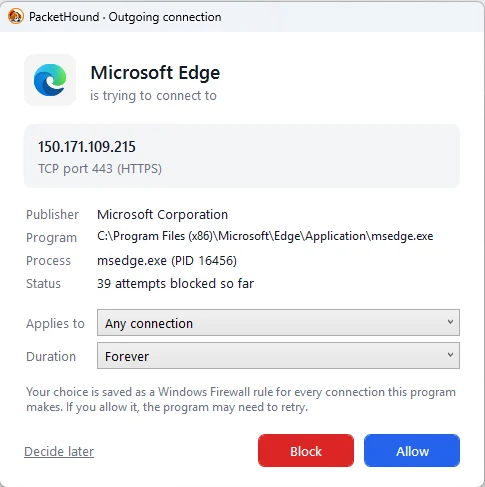
When a third-party application initiates a connection, PacketHound displays a streamlined prompt in the corner of your screen. Prompts appear on top without stealing keyboard focus, ensuring that active typing in a document, terminal, or game is never interrupted or inadvertently answers the dialog.
The prompt provides broad contextual details:
- Application Identity: Friendly application name, publisher from Authenticode certificate, executable path, and PID.
- Network Target: Destination IP address, destination port, protocol, and reverse-resolved domain name (via Windows DNS client cache and PTR lookups).
- Connection Attempts: The number of packets blocked while the prompt was waiting for your input.
Scoping Your Rules
Rather than forcing an all-or-nothing binary choice, PacketHound allows you to scope each rule:
- Any connection: Grants full outbound access to the entire application across all ports and destinations.
- Only this IP address: Restricts network communication strictly to the specific remote IP address queried.
- Only this host (
api.example.com): Restricts the rule to a specific fully qualified domain name. - Only this domain and subdomains (
*.example.com): Permits communication to the apex domain and any underlying subdomains.
Because the underlying Windows Firewall engine only filters by IP address, PacketHound maintains dynamic hostname mappings. As the target application resolves and contacts additional IP addresses belonging to the permitted hostname, PacketHound automatically updates the corresponding Windows Firewall rule behind the scenes.
Flexible Rule Durations
Rules can be configured with specific lifetimes:
- Forever: Persists permanently across reboots until manually modified or deleted.
- Until the app quits: A temporary rule that automatically purges when the process terminates.
- For 1 hour: A timed rule that auto-expires after 60 minutes.
- For the rest of today: Expires at midnight local time.
If you are unsure how to classify an unfamiliar connection, clicking Decide later keeps the application blocked while parking the request in the Rules tab under Waiting for your decision.
Navigating the PacketHound Interface
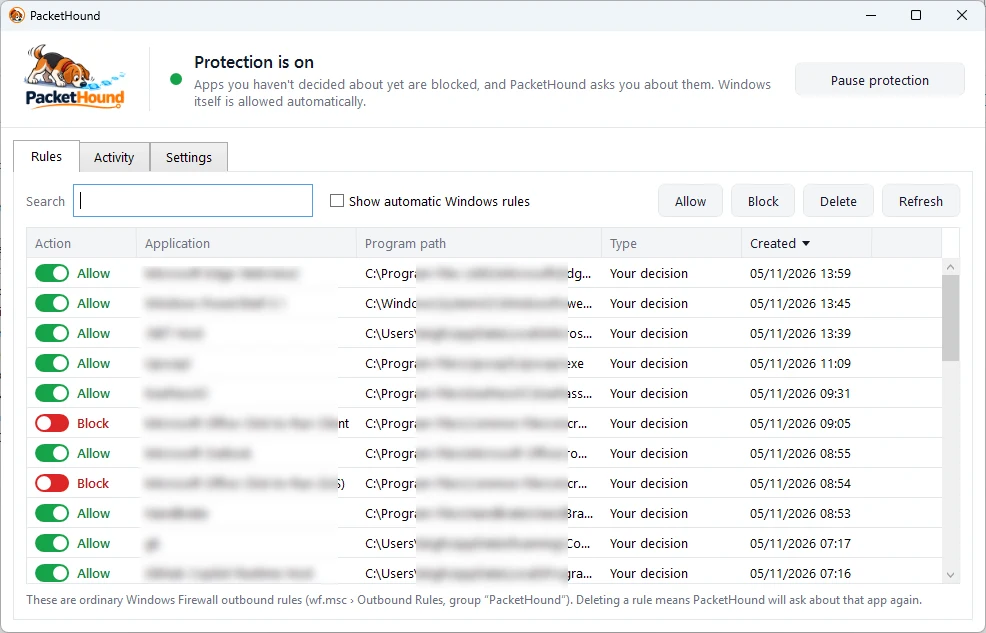
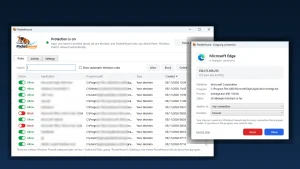
PacketHound lives unobtrusively in the Windows notification area (system tray). Double-clicking the tray icon opens the main management console, organized into three primary tabs:
1. Rules Tab
The Rules tab displays every active outbound rule on the system. Each entry shows the program icon, application name, file path, rule type (user decision or automatic Windows rule), and creation timestamp.
- Instant Toggles: You can flip any rule between Allow and Block using an immediate toggle switch without opening secondary property sheets.
- Missing Program Detection: If an application has been uninstalled or moved, PacketHound flags the rule as Program not found and provides a one-click button to purge orphaned rules.
- Search and Filter: Filter rules by status (Allowed, Blocked, Waiting for decision, Temporary, Timed, or Unused) or search directly by application name or path.
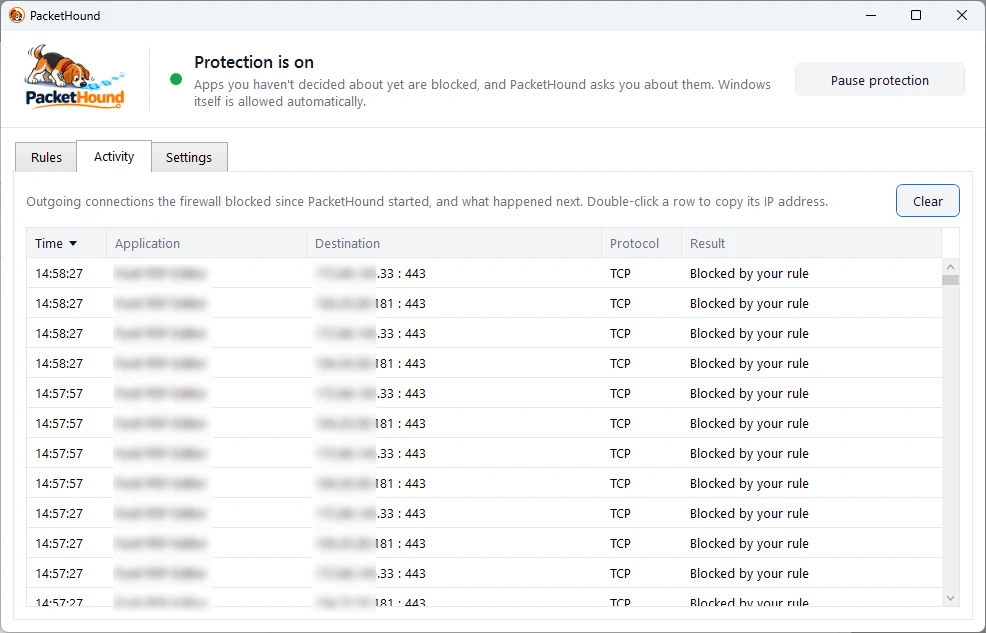
2. Activity Tab
The Activity tab provides a searchable, real-time audit ledger of blocked connection events. Each entry records the exact timestamp, application name, remote host/IP, destination port, protocol, and the resulting action. Double-clicking any row instantly copies the remote IP address to your clipboard for WHOIS investigations or threat analysis.
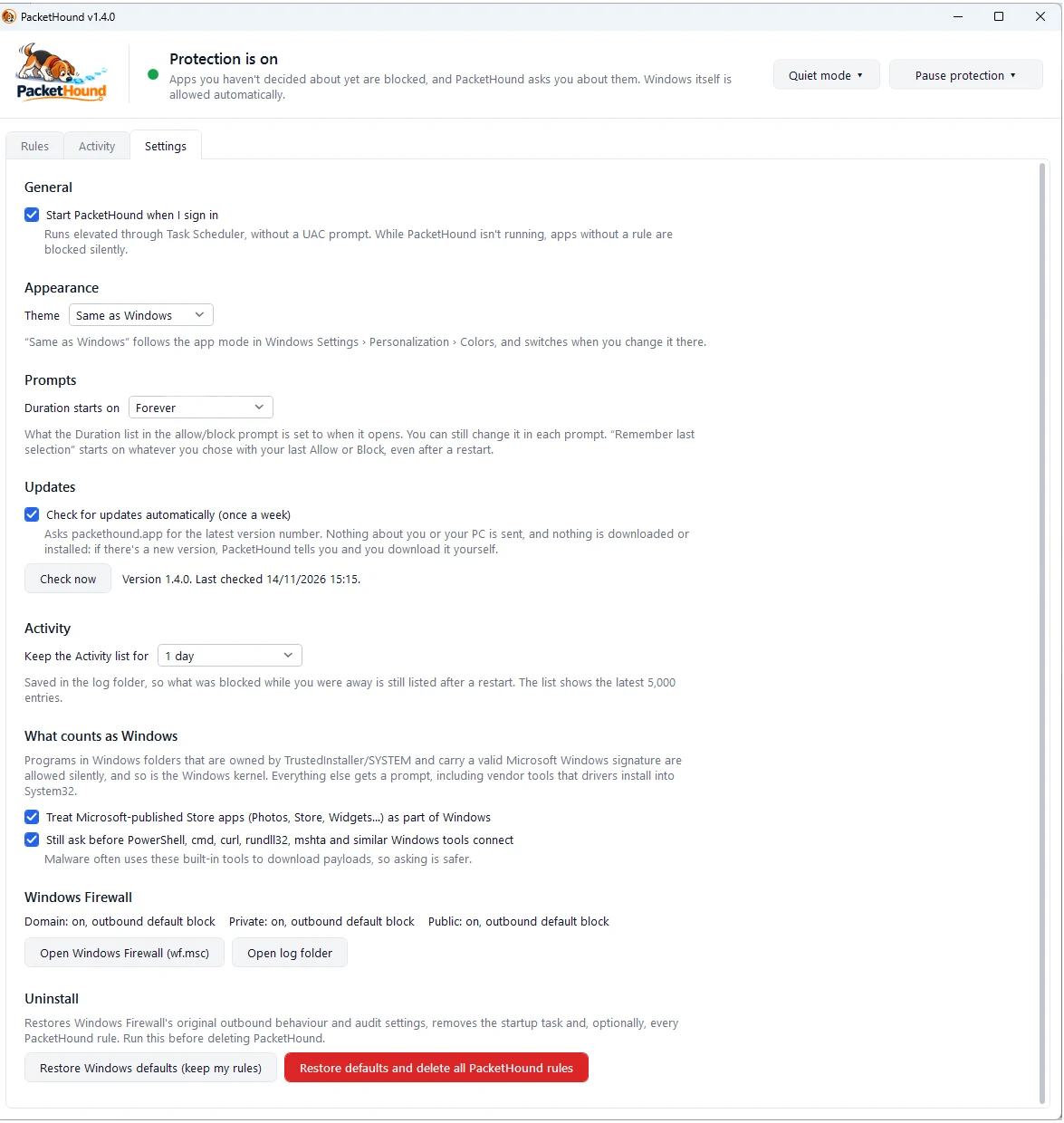
3. Settings Tab
The Settings tab provides granular toggles for core engine behavior:
- Theme Selection: Choose between Light, Dark, or System default (which dynamically synchronizes with Windows app mode and system title bars).
- Start at Sign-in: Manages a scheduled logon task in Windows Task Scheduler to launch PacketHound automatically with required administrative privileges.
- LOLBin Protection: Toggle inspection on or off for built-in scripting interpreters.
- Restore Windows Defaults: A single-click failsafe that restores the default Windows Firewall outbound action to Allow, clears PacketHound rules, and disables audit policies.
Handling Updaters and Ephemeral Installers
Two common scenarios plague outbound firewalls: versioned installation directories and ephemeral temporary updaters. PacketHound includes specialized heuristics for both:
Versioned Update Migration
Many popular applications (such as Discord, Slack, Spotify, and Electron-based tools) install each new release into a separate, version-numbered subfolder (for example, app-1.2.3\ to app-1.2.4\). In traditional firewalls, every update invalidates the old rule and triggers a barrage of fresh prompts.
PacketHound detects when a newly blocked executable path matches an existing rule differing only by a version number. The prompt displays a notification banner stating “This looks like an update” and presents a Same as before button. Clicking this button immediately migrates your existing rules to the new directory while pruning the obsolete rule for the deleted version. To prevent spoofing, this shortcut is suppressed if the digital signature signer changes between versions.
Temporary Folder Watcher
Software installers and patch utilities routinely extract helper binaries into randomized folders under %TEMP%. If an installer executes and terminates within seconds, standard path rules become obsolete immediately.
When PacketHound detects an application running out of a temporary directory, it flags it as an installer or updater and defaults its rule duration to Until the app quits. If the installer is validly signed and you click Allow, PacketHound memorizes the file name and cryptographic signer. When future installers from the same publisher unpack into temporary locations, PacketHound pre-provisions the allow rule before execution, holding the binary file open to prevent file-swapping attacks.
Comparison: PacketHound vs Alternative Firewalls
The table below contrasts PacketHound with other popular Windows firewall utilities and macOS alternatives:
| Feature / Attribute | PacketHound | Portmaster | GlassWire | TinyWall | Windows Firewall Control | Little Snitch (macOS) |
|---|---|---|---|---|---|---|
| License | GPLv3 (Free & FOSS) | AGPLv3 (Open Core) | Proprietary / Paid | Proprietary / Freeware | Proprietary (Malwarebytes) | Commercial ($59) |
| Driver Architecture | Driverless (Native WFP) | Kernel Driver | Kernel Driver | Driverless (Native API) | Driverless (Native API) | NetworkExtension API |
| BSOD / Crash Risk | Zero (User-Space Only) | Low to Medium | Low | Zero | Zero | Zero (Modern macOS) |
| Outbound Interactive Prompt | Yes (Real-Time) | Yes (GUI Notification) | Yes (Paid tier only) | No (Whitelist-driven) | Yes (Notifications) | Yes (Interactive) |
| Script / LOLBin Command Line | Yes (Full CLI visible) | No | No | No | No | No |
| Windows Component Filter | Automatic (3-point check) | Partial (Rule lists) | Manual rules | Built-in list | Built-in rules | N/A (macOS built-in) |
| Native ARM64 Support | Yes (Native binary) | Partial | x64 emulation | Yes | Yes | Native Apple Silicon |
| Native wf.msc Compatibility | 100% (Standard rules) | Custom network stack | Custom driver stack | Manipulates WFP rules | 100% (Standard rules) | N/A |
| Clean Uninstallation | Restores native policy | Requires network reset | Standard uninstaller | Standard uninstaller | Standard uninstaller | Standard uninstaller |
Technical Limitations and Trade-Offs
Because PacketHound avoids kernel-level callout drivers, it makes a specific architectural trade-off that users should understand:
- The First Packet Drop: In a true kernel-driver firewall like Little Snitch, the network stack freezes the initial SYN packet in memory while the user decides whether to allow the connection. In PacketHound, the initial connection attempt is immediately dropped by Windows Firewall because no allow rule exists yet. Only after the drop does Event 5157 fire, prompting PacketHound to ask for your decision. Once you click Allow, the program must retry the connection. For web browsers, this simply requires refreshing the tab; for background services, built-in retry timers handle it automatically.
- Fast-Failing Installers: Some aggressive network installers abort immediately upon encountering a failed connection. For these edge cases, right-clicking PacketHound’s tray icon and selecting Pause protection -> For 5 minutes temporarily sets the outbound policy to Allow, letting the installer complete without hindrance before protection automatically re-engages.
- Domain Name Rules Match IP Addresses: Windows Advanced Firewall doesn’t inspect HTTP Host headers or SNI values in user-space. When you create a rule for
api.example.com, PacketHound associates the resolved IP address with the application’s rule. If multiple domains share a single Cloudflare or CDN IP address, allowing that IP permits outbound traffic to that shared node for that specific binary.
Installation and Safe Removal
PacketHound requires Windows 10 (version 1809 or later) or Windows 11. It provides dedicated, native installation packages for both x64 and ARM64 processors (such as Qualcomm Snapdragon X Elite laptops).
Installation Steps
- Download the latest installer from packethound.app or the PacketHound GitHub repository.
- Run
PacketHound-Setup-x64.exe(or ARM64). The installer provisions the application directory and sets up the Windows Task Scheduler entry. - Upon first launch, PacketHound prompts for administrative consent to enable connection auditing and set the default outbound policy to Block.
- Core Windows components are immediately scanned and allowed silently, while third-party apps will prompt on their next outbound attempt.
Clean Uninstallation
One common hazard with network filtering software is leaving broken network adapters or blocked firewall states after uninstalling. PacketHound provides a completely clean removal procedure:
- Uninstalling via Windows Settings -> Apps -> Installed apps launches
PacketHound.exe --uninstall. - The uninstaller asks whether you wish to preserve or delete PacketHound’s created rules.
- It automatically reverts the default outbound firewall policy back to Allow, restores original audit policy flags, removes the scheduled task, and cleans up
C:\ProgramData\PacketHound.
Practical Ham Shack and Lab Applications
For amateur radio operators, makers, and lab engineers, PacketHound provides invaluable visibility into shack computers:
- SDR and DSP Software: Many software-defined radio suites and DSP packages bundle remote server capabilities. PacketHound ensures that local SDR software only communicates with authorized LAN devices or approved WebSDR reflector nodes.
- Proprietary Rig Control and Programming Cables: USB drivers and vendor programming suites for Chinese and commercial transceivers often include background updater utilities that transmit serial numbers and system data to foreign servers. PacketHound blocks these telemetry channels with a single toggle.
- Digital Mode Applications (WSJT-X, JS8Call, VarAC): Operators frequently install third-party callsign lookup add-ons and automated spotting bridges. PacketHound lets you verify exactly which remote servers are being queried during digital mode operation.
- Scripted Automations: Radio amateurs running Python scripts for antenna rotor control, satellite tracking, or DX cluster scraping can run their scripts through PacketHound to ensure no accidental API loops or unencrypted outbound leaks occur.
Sources and Further Reading
- PacketHound Official Website
- PacketHound GitHub Repository
- PacketHound Releases and Downloads
- Microsoft Documentation: Windows Filtering Platform (WFP)
- Microsoft Security Audit: Event ID 5157 (Connection Blocked by Filtering Platform)
- Windows Firewall COM Interface: INetFwPolicy2 Documentation
73 de 9M2PJU.

Post Comment