Costas: The Free Windows Digital Modes App That Shows Stations, Not Messages
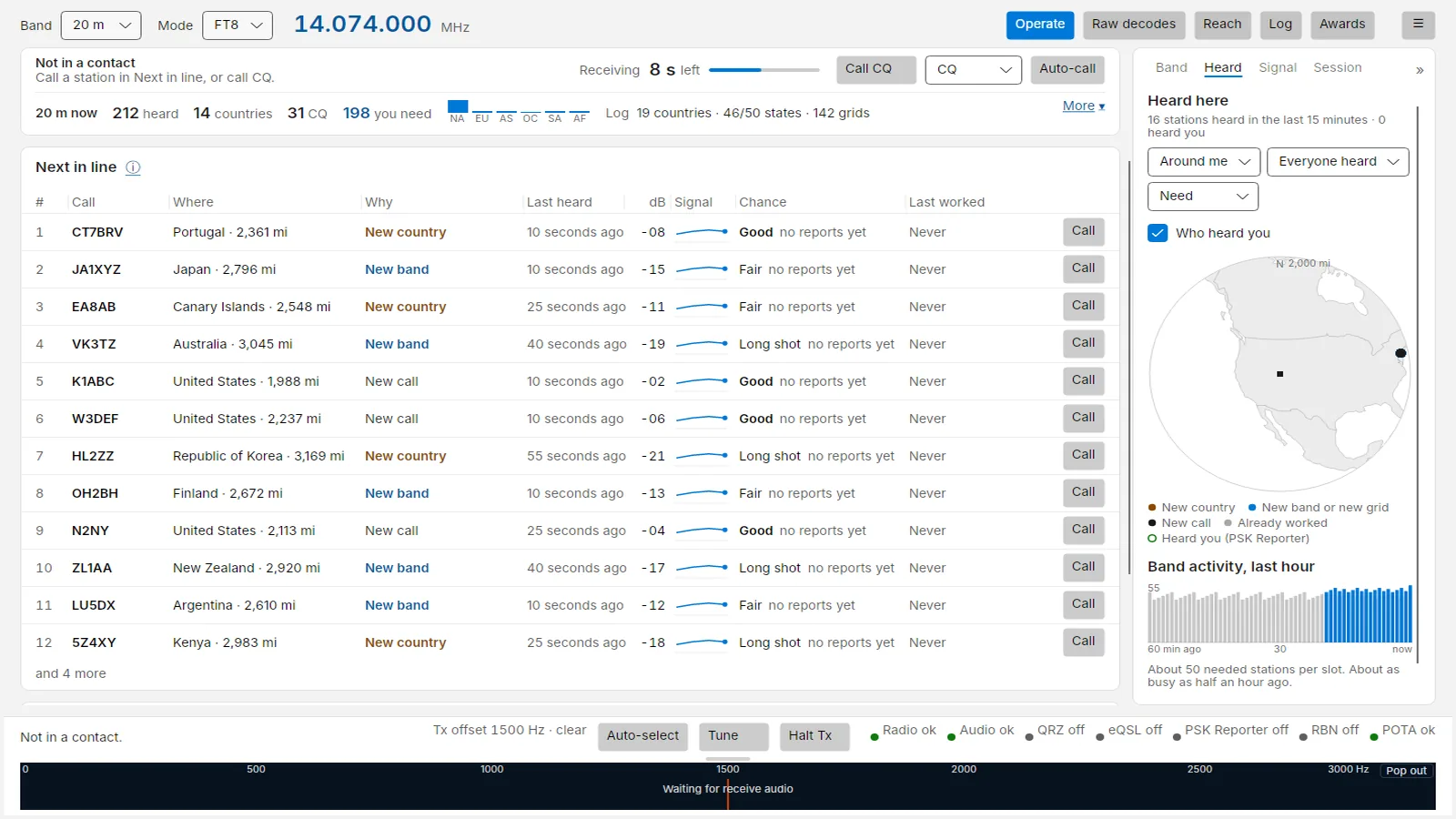
Open WSJT-X on a busy evening and you drown in a scrolling river of decodes. Every 15 seconds brings another screenful of callsigns, and the job of figuring out which one is a new country, which one can actually hear you, and which one is already working someone else falls entirely on you. Costas, a free open source digital modes program for Windows by Tony W7LIT, flips the display around: one line per station, ranked by what you still need, with a plain language verdict on whether the contact is likely to complete.
This post walks through what Costas is, where its name comes from, how the Operate screen ranks the band, how one click contacts and auto call work, how it knows who can hear you, what the keyboard modes and phone remote add, how logging and awards fit in, and how it compares with WSJT-X, JTDX, GridTracker, and MSHV.
TL;DR: Costas is a free GPLv3 digital modes app for Windows 10 and 11 that decodes FT8 and FT4 with the same decoder as WSJT-X, then ranks every station heard by what you need: new country first, then new band, grid, or call. One click runs the standard exchange, Fox and Hound contacts go automatically, PSK Reporter and RBN spots rate each chance as Good, Fair, or Long shot, and PSK31, PSK63, and RTTY ride on the same screen. A phone remote and an always on top mini mode cover operating from the couch.
What Costas Is
Costas is a free open source digital modes program for Windows that decodes FT8 and FT4 with the same decoder as WSJT-X and presents the band as one ranked line per station instead of a scrolling decode list, so you always know who you still need, who is free to call, and who can hear you. It is written by Tony W7LIT, published by Ember Ridge Development, and released under the GNU GPL version 3. Everything ships in the installer including the jt9 decoder and Hamlib, so you don’t need WSJT-X at all, though Costas speaks the WSJT-X UDP protocol so GridTracker, JTAlert, and your existing logger keep working beside it.
The author operates FT8 from grid DN40 on a Yaesu FT-710, and Costas started as a fix for his own station: a cleaner way to see who was worth calling, plus transmit audio and keying that just worked. Every feature is tried against real band recordings first, and the on air rules are strict: Costas never starts transmitting unless you asked it to, stops by itself if you walk away, never changes a message without telling you, and never shows made up data. With no radio configured it receives nothing and says so plainly.
Where the Name Comes From
Every FT8 signal carries the same small pattern three times: at the start, in the middle, and at the end of its 12.6 seconds. It’s a Costas array, seven tones in the order 3, 1, 4, 0, 6, 5, 2, and it’s how a decoder finds a signal in the noise, both when it started and exactly where it sits on the waterfall. The pattern is named after John P. Costas, an engineer at General Electric who worked out these arrays in the 1960s for sonar and radar and published them in 1984. Their trick is that no two pairs of dots sit the same distance apart in both time and pitch, so sliding a copy over itself lines up in exactly one place and the match is sharp and hard to fool.
That is what the program tries to do for you: pick the stations that matter out of a crowded band, quickly and without fuss. The 7 by 7 array is also the application icon.
The Operate Screen: Next in Line, Repeats, Watching
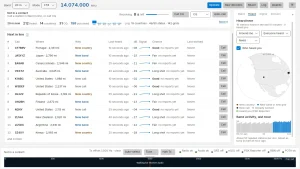
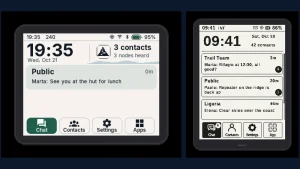
Operate is the one screen where you spend your session, and it holds still while you think. The top card folds to two lines when idle: status with the slot countdown, Call CQ with a CQ picker and Auto-call, and a band strip counting stations heard in the last 5 minutes, countries, CQ callers, and how many you need, plus per continent bars and one line summarizing your log on the band. Under it sit three lists.
Next in line holds the stations you need and can call right now, best first, at most 12 rows. In FT8 the list fills about 13 seconds into each slot from an early decode pass, so you can pick before the slot ends, and the order then holds steady instead of reshuffling under your mouse. A small amber tag such as 3 calling warns of a pileup before you click, and hovering shows who is calling with their signal at your station. The Why column states the reason: new country with a five cell rarity meter drawn from the Club Log most wanted list, new band, new grid, or new call. Park hunters get a second line for Parks on the Air activations. Doing now reports calling CQ, calling you, or fading, and Chance rates the shot as Good, Fair, or Long shot with the evidence beside it, for example hears you at minus 22. Selecting a row opens a details card with name, location, grid, bearing, past contacts, and a who else is calling section that even notes how the distant station picks its callers.
Repeats lists stations already in your log on this band and mode, at most 8 rows, with confirmed state front and center so chasing confirmations is one glance. Watching holds needed stations you can’t call yet because they went quiet or are mid contact, with a Call when free button that tail ends them automatically the moment they sign off with RR73, RRR, or 73. A DXpedition Fox never waits here: it stays in Next in line with a purple Fox Hound tag and is worked the Hound way on click.
Beside the lists, the side column tabs through Band, Heard, Signal, and Session views: full band summary, a map of recent decodes with per minute activity bars, your signal report counts by country from PSK Reporter with farthest and best reports, and this session contacts with upload states. The bottom bar carries status text, transmit offset with automatic clear spot selection, Call CQ, power setting, Tune, an always available Halt, slot progress, and per service indicator dots for radio, audio, QRZ, eQSL, PSK Reporter, RBN, and POTA. The waterfall strip doubles as an offset picker, grows to half the window or pops out to a second monitor, and every popped view remembers its place between sessions.
One Click Runs the Contact
Click Call or press Enter and Costas sends the standard exchange, follows the other station replies, and logs the contact when it completes, in the same slot timing you already know. A progress strip along the top shows every message sent and received. So a glance tells you where the contact stands. Clicking a DXpedition Fox works it the Hound way automatically, and contest callers are handled once you pick the contest.
Auto-call works down Next in line for you: it calls the top station next slot, moves to the next when the contact ends, calls each station once per run, and yields to any Call when free mark first. It stops on Esc, Halt, band or mode change, any transmit refusal, or the 6 minute watchdog with no click or key from you, so it never keeps calling after you walk away. The on air banner spells the honest contract: auto call saves clicks, it doesn’t make the station unattended.
It Knows Who Can Hear You
Spots from PSK Reporter and the Reverse Beacon Network attach to each row: whether the distant station or someone near it is hearing your signal, rated Good, Fair, or Long shot with the report behind the verdict. A map centered on your grid shows who you hear and who hears you, and the Reach view tracks band activity near you with spots, continents, and countries you still need per band. With no spot data the rating falls back to signal strength alone: Good at minus 10 dB or better, Fair at minus 18 or better, otherwise Long shot.
This is the feature that changes behavior. Calling only Good and Fair shots on a marginal band converts an evening of unanswered calls into a steady run of log entries, and the band activity bars tell you when to QSY instead of guessing.
Keyboard Modes, Phone Remote, and Mini Mode
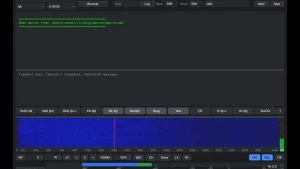
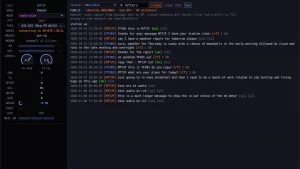
PSK31, PSK63, and RTTY live on the same screen under the same mode menu. Click a trace on the waterfall to read it, type in the line at the bottom, and send name, QTH, and 73 from F key macros. Callsigns in the typed text land in the station list just like FT8 decodes, and nothing transmits until you press a key. The author labels these modes a preview: newer and less tried on the air than the FT8 and FT4 core.
Costas serves a remote page on your home network, so a phone or tablet on the couch can call, answer, change band, and halt transmit while the radio stays in the shack, with a large Halt TX button for safety. Mini mode shrinks the program to an always on top strip showing band, countdown, stations in line, and the top candidate, with dots tracking contact progress in red outline while transmitting. In keyboard modes the dots give way to macro keys.
Logging, Awards, Hunt List, and Transmit Discipline
The local log imports and exports ADIF, forwards to QRZ, LoTW through TQSL, and eQSL as you go, and syncs confirmations back. Awards tracking covers DXCC, WAS, WAZ, and VUCC from your own log, plus the hours each needed country is usually heard so you know when to show up. The hunt list watches for countries, calls, states, or grids you chase and alerts when one appears on any band, and alerts never transmit.
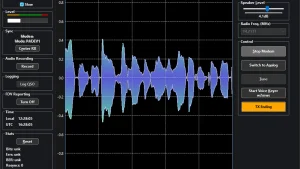
Transmit discipline is engineered rather than promised. Audio level sets itself per band from your radio ALC, with live power, ALC, and SWR meters read over CAT twice a second during the ON AIR banner, turning yellow with advice on hover when SWR passes 2 or ALC runs high. Radio control runs over Hamlib, FLRig, or network rigctld, and Costas follows your front panel: change band on the radio and it clears the list, loads per band levels, and remembers the band. Your PC clock is corrected from internet time with an amber warning past half a second and red past two seconds, because FT8 lives or dies on time.
Setup and Installation
Download the installer from the GitHub releases page, run it, and if Windows SmartScreen complains choose More info then Run anyway after checking the download per the code signing policy. Installation is per user with self updates, and a Linux preview build for x64 already receives and transmits but hasn’t yet been tried on a real radio. Then follow the six step setup: station details, radio, audio, a transmit test into a dummy load or at low power, clock check, and QRZ credentials. The manual warns plainly that FT8 and FT4 see daily use on the author FT-710 while other radios, keyboard modes, and Linux have had far less airtime, so watch your first contacts.
Costas Next to the Usual Suspects
| Tool | What it is best at | Where Costas differs |
|---|---|---|
| WSJT-X | Reference FT8 and FT4 decoding and QSO engine | Same decoder, but stations ranked by need instead of a decode scroll |
| JTDX | Weak signal FT8 decoding with extra sensitivity | Adds who hears you ratings, POTA lines, and rarity meters |
| GridTracker | Maps, alerts, and logging beside WSJT-X | Costas bakes needed first ranking and chance ratings into the QSO screen |
| JTAlert | Audio and visual alerts for wanted stations | Costas adds hunt bars, auto call, and Call when free on top of alerts |
| MSHV | Multimode contest and DXpedition operation | Costas focuses on the nightly chase with one click Fox Hound handling |
| VarAC HF chat | Live keyboard chat with mailboxes on HF and FM | Costas is weak signal DX chasing with awards and hunt automation |
| Fldigi plus FLMSG | Keyboard modes and structured emergency forms | Costas unifies FT8 ranking with PSK and RTTY on one list |
If your logbook goal is working everything you can hear with minimum fuss, Costas earns its place beside the reference tools rather than replacing them: same airwaves, same decoder bloodline, far less staring at scrolling text.
Sources and Further Reading
- Costas homepage
- About Costas and W7LIT
- The Operate screen manual
- Making contacts
- Maps and who hears you
- PSK31, PSK63 and RTTY
- Operating from a phone
- First-run setup
- Install guide
- Release notes on GitHub
- Source code on GitHub
- Support Costas on Ko-fi
- WSJT-X by Joe Taylor K1JT
- Club Log most wanted lists
- PSK Reporter
- Reverse Beacon Network
73 de 9M2PJU.

Post Comment