netboot.xyz: Boot Any Linux Distro, Rescue Tool, or OS Installer Over the Network With One iPXE Menu
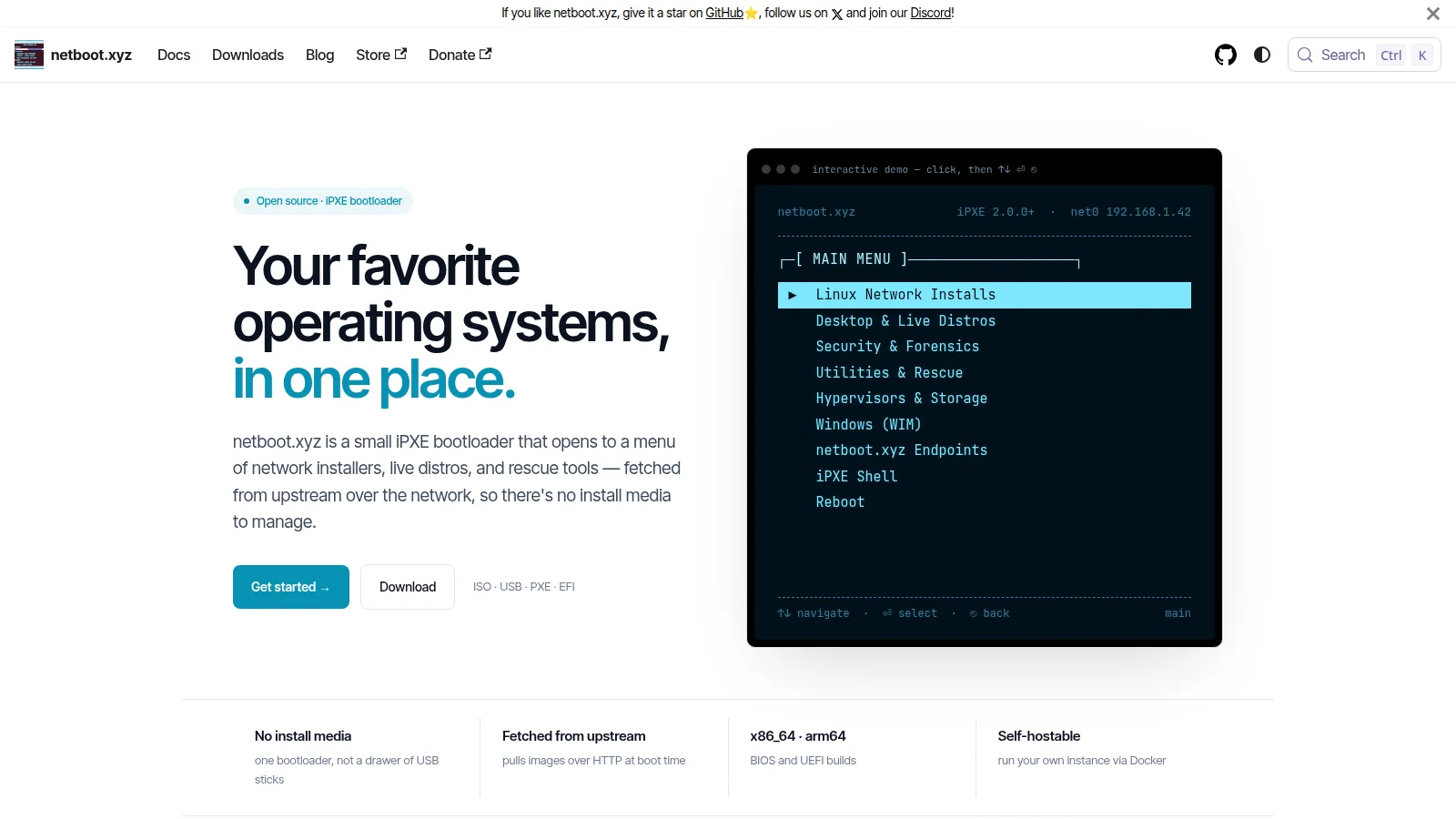
If your shack PC refuses to boot on a contest morning, or a club member shows up with a laptop full of malware and no install media, the fix shouldn’t involve hunting for a USB stick you burned three years ago. Netboot.xyz puts dozens of operating system installers, live Linux distributions, and rescue utilities behind a single boot menu that loads over the network. So one USB stick or one network boot entry covers nearly every reinstall, recovery, or trial-boot job you’ll ever face.
TL;DR: netboot.xyz is a free open source iPXE bootloader that opens a menu of network installers, live distros, and rescue tools fetched from upstream mirrors at boot time. Write one image to USB, attach one ISO to a VM, or point DHCP at one file, then pick Ubuntu, Debian, Fedora, Proxmox, Clonezilla, GParted, or Memtest from the menu. No drawers of USB sticks, no reburning ISOs, self-hostable with Docker or Ansible.
What netboot.xyz Is
Netboot.xyz is a small open source iPXE bootloader that presents a text menu of network-bootable operating systems and utilities, downloading only the kernel and initrd it needs from upstream mirrors at boot time. It is built on the iPXE network boot firmware, supports x86 64-bit, 32-bit, and arm64 on both Legacy BIOS and UEFI, and is maintained publicly on GitHub with automated builds on every release.
The core idea is simple. Traditional rescue work means one USB stick per ISO: one for Ubuntu, one for Clonezilla, one for Memtest, one for GParted, and a forgotten drawer of slowly rotting flash drives. Netboot.xyz replaces all of that with a single bootloader of a few megabytes. The heavy files stay on upstream mirrors and stream down only when you select them, so the menu never goes stale the way a burned ISO does.
Key facts at a glance:
- Project: netboot.xyz by the netbootxyz organization, Apache 2.0 licensed
- Base technology: iPXE open source network boot firmware
- Architectures: x86 64-bit, x86 32-bit, arm64, plus Raspberry Pi 4 builds
- Firmware modes: Legacy BIOS (PCBIOS) and UEFI builds
- Boot media: USB image, ISO, floppy images, DHCP/TFTP boot files, GRUB chainload kernel
- Popularity: thousands of GitHub stars, hundreds of forks, used by homelabs, repair shops, and data centers
- Self-hosting: full Ansible playbooks and a Docker build container, free to run your own mirror
How It Works: iPXE, DHCP, and HTTP
To understand netboot.xyz, you need about sixty seconds of background on network booting.
The five-step boot flow
- Firmware hands off to iPXE. Your PC boots the netboot.xyz bootloader from USB, ISO, or the network card itself instead of a local disk.
- iPXE brings up the network. Over a wired Ethernet connection, it takes an address from DHCP or uses a static address you set with the
mkey failsafe menu during startup. - The menu script downloads. The bootloader fetches a small text menu from boot.netboot.xyz over plain HTTP.
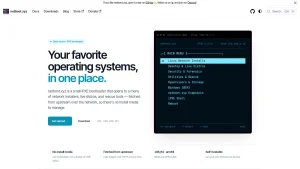
- You pick an entry. Arrow keys navigate, Enter selects, Esc goes back, exactly like the demo on the netboot.xyz homepage.
- Kernel and initrd stream down. iPXE pulls just the installer kernel and initial ramdisk from the upstream distribution mirror, boots them into RAM, and the installer takes over, fetching packages live from the internet.
Why kernels, not ISOs
A full Ubuntu desktop ISO weighs several gigabytes, and iPXE can’t boot raw ISOs reliably. Netboot.xyz sidesteps the problem in two ways. For distributions that publish network installers, such as Debian, Fedora, Arch, and openSUSE, it loads the official minimal netboot kernel, which then installs only the packages you select. For distributions that ship only as ISOs, the project monitors upstream releases, extracts the images, patches the initrd where needed to make it network friendly, and re-hosts the pieces so the bootloader can load a small kernel into memory instead of the whole ISO. Either way you get a faster, more consistent boot than dragging a multi-gigabyte ISO across the wire.
HTTP by default, HTTPS where possible
By default the menu loads over plain HTTP because stock iPXE builds don’t compile in TLS support. If your iPXE build includes HTTPS support, you can chainload the HTTPS endpoints instead. This is worth knowing, not fearing: installer packages themselves are verified by the distribution installer through signatures and checksums after download, so the transport being HTTP doesn’t mean your install is untrusted.
What You Can Boot: The Menus
The main menu groups everything into a handful of categories. Here is what lives under each one, based on the current supported operating system list.
Linux network installs
These are minimal installer kernels that pull packages during installation. Highlights include Debian, Ubuntu, Fedora, Arch Linux, openSUSE, AlmaLinux, Rocky Linux, Gentoo, NixOS, Alpine Linux, Slackware, Mageia, Devuan, Kali Linux, and the CentOS and Fedora CoreOS immutable variants. Network installs are the fastest path to a fresh system because they download only what your package selection requires.
Desktop and live distros
Full live environments that boot into RAM so you can try or install without touching local storage. This menu covers Linux Mint, Pop OS, Manjaro, EndeavourOS, Garuda Linux, elementary OS, Zorin OS, KDE Neon, MX-style lightweight options such as Bodhi Linux, LXLE, and Linux Lite, plus privacy focused Tails and penetration testing favorites Kali Linux, Parrot Security, BlackArch Linux, and Backbox.
Security and forensics
Live toolkits for auditing, incident response, and recovery, including Kali Linux, CAINE, and Septor alongside the general live distro entries. The separation matters in a workshop: you hand a student the forensics menu, not your everyday installer stick.
Utilities and rescue
The menu most readers of this blog will use first. It includes Clonezilla for disk imaging, GParted for partition editing, Rescuezilla with its graphical restore workflow, Redo Rescue, System Rescue, Boot Repair CD, Rescatux and Super Grub2 Disk for bootloader repair, ShredOS and DBAN for secure drive wiping, Memtest and MemTest86 Free for RAM diagnostics, Kaspersky Rescue Disk for offline malware scans, Breakin for cluster hardware burn-in, Grml for sysadmin rescue shells, Ultimate Boot CD as the classic all-in-one, and ZFSBootMenu for ZFS recovery.
Hypervisors and storage
Bare metal virtualization and storage platforms: Proxmox VE and its product family, VMware ESXi with user supplied media, Harvester HCI, Talos Linux, Kairos, K3OS, Flatcar Container Linux, SmartOS, and VyOS for routing. This is the menu that turns a bare mini PC into a virtualization host without ever burning an ISO.
Windows via WIM
Microsoft Windows and VMware entries work with user supplied media rather than public downloads, for licensing reasons. You provide the install files on your own infrastructure and netboot.xyz provides the boot plumbing. Red Hat Enterprise Linux works the same way.
Bootloader Formats and Which One to Grab
Netboot.xyz publishes a matrix of bootloader files for every firmware and media type. Pick exactly one row for your first test.
| Format | File | Best used for |
|---|---|---|
| USB image | netboot.xyz.img | Writing to a USB stick with dd, the most common starting point |
| ISO image | netboot.xyz.iso | Attaching to VMs, IPMI virtual media, iLO, DRAC, VMware, VirtualBox |
| DHCP BIOS | netboot.xyz.kpxe | Network boot on Legacy BIOS via DHCP and TFTP |
| DHCP undionly | netboot.xyz-undionly.kpxe | Network boot when the full driver build has NIC trouble |
| Kernel | netboot.xyz.lkrn | Chainloading from GRUB or EXTLINUX on an existing Linux box |
| Floppy | netboot.xyz.dsk / .pdsk | Virtual floppy for old DRAC, iLO, and VMware consoles |
| DHCP UEFI | netboot.xyz.efi | Network boot on modern UEFI machines |
| UEFI SNP | netboot.xyz-snp.efi | UEFI machines where you want the Simple Network Protocol driver to try every NIC |
| UEFI snponly | netboot.xyz-snponly.efi | UEFI chainloaded from a specific device |
| Legacy USB set | netboot.xyz-legacy.* | Old machines whose USB keyboards break under standard iPXE USB NIC drivers |
| ARM64 UEFI | netboot.xyz-arm64.efi | ARM servers and developer boards network booting over UEFI |
| Raspberry Pi 4 | netboot.xyz-rpi4-sdcard.img | Booting a Pi 4 from SD card or USB into the menu |
Practical guidance: for a first test on a normal PC, use the USB image. For a virtual machine or a remote server with virtual media, use the ISO. For a home lab where you want every machine to offer the menu at power on, set up the DHCP boot file once and never touch media again. SHA256 checksums for every build are published alongside the files so you can verify downloads before trusting them.
Three Ways to Boot, Step by Step
Method 1: USB stick, five minutes
- Download the USB image from the downloads page.
- Verify the SHA256 checksum against the published checksum file.
- Write it to a spare stick:
dd if=netboot.xyz.img of=/dev/sdX bs=1M status=progresson Linux, replacing sdX with your actual device, or use any raw image writer on Windows and macOS. - Plug it into the target machine, boot from USB, and the menu appears.
- If the network needs a static address, press
mduring startup for the failsafe menu and configure it manually.
Method 2: ISO on a VM or remote server
- Download the ISO from the downloads page.
- Attach it as virtual CD media in Proxmox, VMware, VirtualBox, or your server BMC virtual media console.
- Boot the VM from CD. The menu loads over the VM virtual NIC.
- Pick a network installer and complete the install to the virtual disk, then detach the ISO.
Method 3: True network boot with DHCP and TFTP
- Download the right DHCP boot file for your firmware:
.kpxefor Legacy BIOS,.efifor UEFI. - Place it on your TFTP server and set the DHCP boot filename option, for example
dhcp-boot=netboot.xyz.kpxein dnsmasq. - Set the machine to boot from network (PXE) first.
- Every compatible machine on the LAN now offers the netboot.xyz menu with no local media at all.
If you already run iPXE on your network, you can skip media entirely and chainload with one line: chain --autofree http://boot.netboot.xyz/ipxe/netboot.xyz.lkrn on Legacy BIOS or the .efi equivalent on UEFI.
Self-Hosting With Docker or Ansible
Relying on the public boot.netboot.xyz endpoint is fine for occasional use. But workshops, clubs, and EmComm caches should self-host. The same scripts that build the public site generate your private copy, and you can pin versions, swap in a local mirror, and add your own custom menu entries.
Docker build
Install Docker, then build and run the provided Dockerfile. The container renders all menus and compiles the iPXE disks, dropping the finished site into a buildout directory that you copy onto any web server. Docker gives you a clean, reproducible build without installing the full toolchain on your workstation.
Ansible deploy
Install Ansible, git, and Apache on Debian, Ubuntu, RHEL, Rocky Linux, or Fedora. Clone the GitHub repository to /opt/netboot.xyz and run ansible-playbook -i inventory site.yml. Output lands in /var/www/html by default. All defaults live in the role defaults/main.yml, and your changes go in user_overrides.yml using the documented example, so redeploys never clobber your mirror URLs or branding.
Custom menus
Set custom_generate_menus: true and point custom_templates_dir at your own template directory to add private entries, such as a club standard image or a field day toolkit, served from the main menu under a custom submenu. The sample custom menu in the repository shows the exact structure to copy.
netboot.xyz Compared to the Alternatives
| Tool | What it is | Needs reburning | Network boot | Best for |
|---|---|---|---|---|
| netboot.xyz | iPXE menu streaming installers from mirrors | Never, menu updates server side | Yes, native | Repair benches, labs, VMs, remote servers |
| Ventoy | Multiboot USB holding whole ISOs | Yes, when ISOs update | No | One portable stick with hand picked ISOs |
| Plain PXE + TFTP | Hand built per-distro netboot files | Every update, by hand | Yes | Single distro fleets with an admin |
| Installer USB per distro | One stick per OS burned from ISO | Every release | No | One-off installs with no network |
| IPMI virtual media | Remote ISO attach via BMC | Per use | Effectively yes | Remote servers with a BMC |
Netboot.xyz and Ventoy complement each other rather than compete. Ventoy is unbeatable as a pocket stick carrying exact ISO versions you have tested, working fully offline once loaded. Netboot.xyz wins everywhere the network is available: no ISO maintenance, dozens of entries in megabytes, identical menu on USB, ISO, and PXE, and one DHCP entry that equips a whole lab. Many technicians carry both, and a Ventoy stick can even chainload the netboot.xyz menu as one of its entries.
Why Hams Should Care: Shack, Field, and Club Uses
- Shack PC rebuilds. The logging computer, the WSJT-X box, the satellite tracker: all of them eventually need a clean OS. Boot the USB image, pick a Debian or Ubuntu network install, and you’re reinstalling in minutes without finding last year’s ISO.
- Dead disk triage. No boot, clicking drive, corrupted partition table: open Utilities and Rescue, launch GParted to inspect, Clonezilla to image the dying disk before it fails completely, Memtest if crashes smell like RAM, and a live distro to copy precious logs off first.
- Field Day and portable ops. One netboot.xyz stick in the go-kit plus a phone hotspot or camp LAN covers every laptop at the site. Standardize the whole team on the same distro image instead of debugging five different homebrew installs at midnight.
- EmComm cache. A self-hosted netboot.xyz copy on a small LAN server gives a shelter or EOC a complete reinstall and recovery capability with zero internet dependence for the boot files, as long as install mirrors or a local mirror are reachable.
- Club installfests. Point the clubroom DHCP server at netboot.xyz for the evening and every attendee boots the same menu. Newcomers try five distros in an hour without burning a single disc.
- Raspberry Pi and ARM. Pi 4 images and arm64 UEFI builds mean the same workflow covers ARM boards, handy as more shack accessories move to Pi hardware.
- Training nights. Walk members through partitioning with GParted, imaging with Clonezilla, and memory testing with Memtest on a sacrificial box, all from one menu, with nothing to download in advance.
Honest Limits
- Wired Ethernet only. iPXE doesn’t do WiFi, so the target needs a wired connection. USB Ethernet adapters work on many machines but check compatibility first.
- RAM matters. At least 4 GB is recommended, and heavy live images pulled over the network can need more. Failed initrd loads with out of space errors almost always mean the machine needs more RAM assigned.
- Live images are heavier. Network installs are quick and light. Full live environments download far more data, so on slow links prefer the minimal installer and add packages later.
- Windows and RHEL need your own media. Licensing keeps those entries as plumbing for files you supply yourself, not one-click downloads.
- HTTP by default. Stock iPXE lacks TLS, so menu fetches use HTTP unless your build adds HTTPS support. Post-download verification happens in the installers themselves.
- Not an offline tool. Without a network path to mirrors, or to your self-hosted server, the menu can’t fetch payloads. For truly offline sites, pair it with a local mirror or carry a Ventoy stick as backup.
Getting Started in an Evening
- Read the introduction and the quick start guide to learn the menu layout and system requirements.
- Grab one bootloader from the downloads page: the USB image for real hardware or the ISO for a VM.
- Write or attach it, boot a test machine on a wired connection, and walk the menus without installing anything.
- Try a rescue task first: run Memtest, open GParted, or boot a live distro to prove the workflow.
- When comfortable, do a real network install of Debian or Fedora on a spare box.
- If you run a lab, set up the DHCP boot file so every machine offers the menu, then graduate to self-hosting with Docker or Ansible and add your own custom submenu.
Sources and Further Reading
- netboot.xyz homepage
- netboot.xyz documentation
- netboot.xyz quick start guide
- netboot.xyz self-hosting guide
- netboot.xyz downloads
- netboot.xyz FAQ
- netboot.xyz source code on GitHub
- netboot.xyz releases on GitHub
- netboot.xyz documentation source on GitHub
- iPXE open source network boot firmware
- Preboot Execution Environment on Wikipedia
- Ansible automation platform
- Clonezilla disk imaging suite
- GParted partition editor
- SystemRescue toolkit
- Rescuezilla backup and restore
- MemTest86 memory diagnostics
- Kali Linux penetration testing distribution
- Tails amnesic live system
- Debian network install
- Fedora Project
- Proxmox Virtual Environment
- Super Grub2 Disk bootloader rescue
- Ultimate Boot CD diagnostics collection
- Ventoy multiboot USB solution
- netboot.xyz service status
73 de 9M2PJU.



Post Comment