Ventoid: Turn Your Android Phone into a Ventoy Bootable USB Workshop
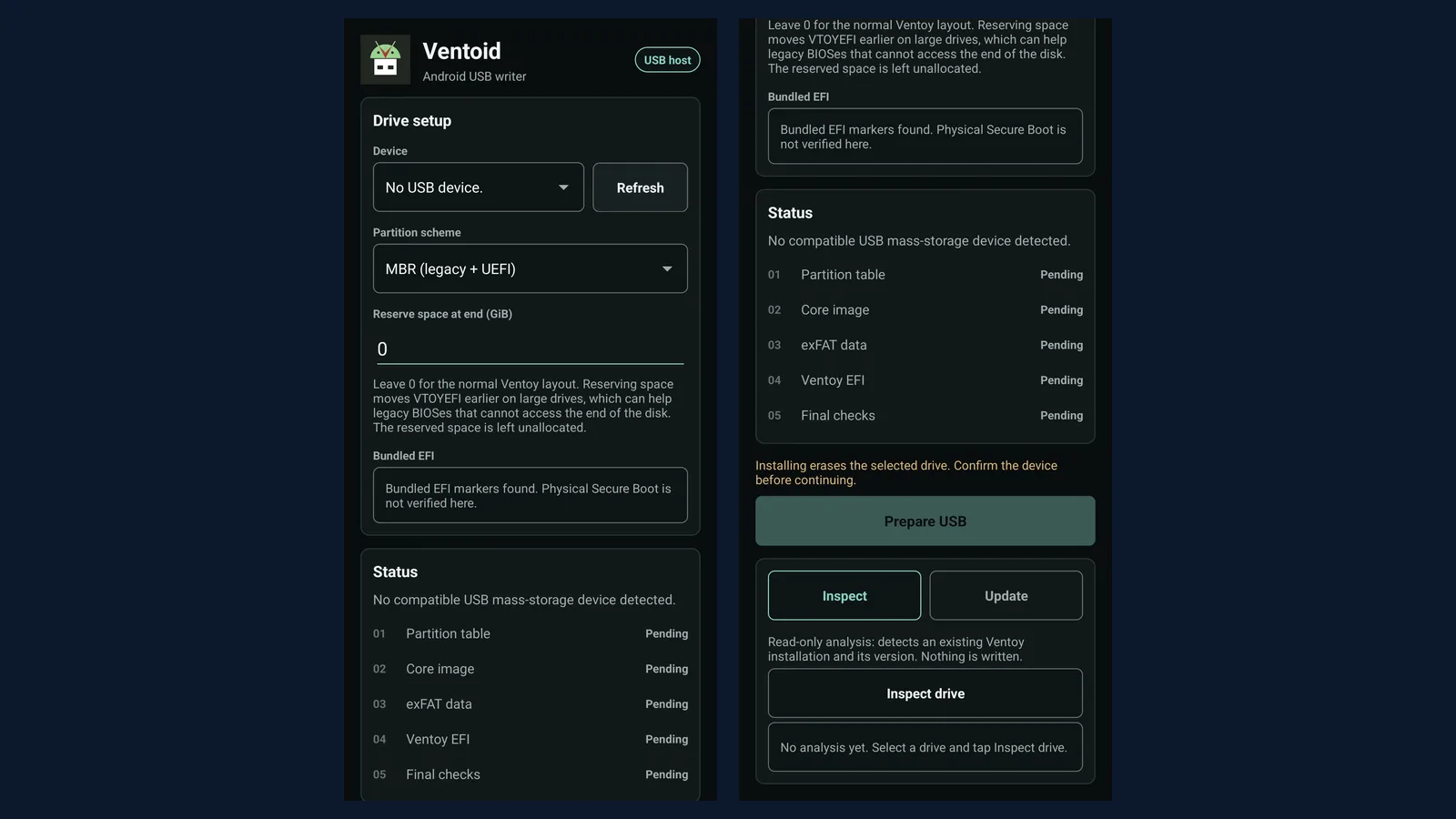
TL;DR: Ventoid is a free, GPL-3.0-only Android app that prepares Ventoy-style multiboot USB drives over OTG with no PC, no root, no ads, and no network needed. One USB stick can then carry Windows installers, Linux live images, Clonezilla, and Memtest side by side. That makes it a pocket bench for computer technicians, a field repair kit for amateur radio portable ops, a clean media preparation step for forensic analysts, and an auditable offline tool for law enforcement labs.
Every technician knows the dead PC paradox. The one computer that needs an operating system reinstall is the only computer on site, and the USB installer you need can only be created from a working computer. So you drive back to the shop, or you borrow a stranger laptop, or you keep a drawer of aging single purpose installer sticks and hope the one you grab still boots on modern firmware.
Ventoid breaks that loop. With an Android phone, a USB OTG adapter, and any spare USB stick, you can prepare a full Ventoy multiboot drive on the spot: Windows installer, Ubuntu live, Clonezilla, Memtest86+, and a hardware diagnostic ISO, all on one stick, all selectable from a boot menu. No laptop, no root access, no internet connection, no proprietary installer tools phoning home.
This guide covers what Ventoid is, why the Ventoy idea it builds on changed bootable USB forever, exactly what the app can do, how to go from install to first bootable stick in about 10 minutes, who benefits most (computer technicians, amateur radio field operators, forensic analysts, and law enforcement), how it compares against Rufus, balenaEtcher, EtchDroid, and desktop Ventoy, and the honest limits you should know before trusting it on a job.
What Is Ventoid?
Ventoid is a free and open source Android utility that prepares Ventoy-style multiboot USB drives directly from a phone over USB OTG, with no PC, no root access, and no network connection required for normal use.
It is built by the independent developer GPLaider, published as GPLaider/Ventoid on GitHub under GPL-3.0-only, and distributed through F-Droid and GitHub Releases. At the time of writing the project holds around 429 stars and 18 forks, ships as the com.ventoid.app package (minimum Android 5.0, target Android 15), and carries no ads, no analytics SDKs, and no tracking of any kind. The current release is Ventoid 0.4.1 from 1 November 2026, which bundles the checksum-verified Ventoy 1.1.18 payload, and the GitHub APK alone has passed 1,700 downloads.
Three facts define the project:
- It removes the working PC from the workflow. Plug a USB stick into the phone with an OTG adapter, pick MBR or GPT, tap Prepare, then copy ISO files onto the stick with any Android file manager. The phone is the entire workstation.
- It is honest open source, not a repackaged black box. The Ventoy payload ships inside the repository with pinned provenance, Secure Boot markers are verified before every write, and anyone can rebuild the APK from source with Gradle or Android Studio.
- It respects destructive operations. Capacity confirmation, readback sampling, non-destructive update and repair paths, and a bounded diagnostic report all show a developer who has thought about what happens when the tool is used on real jobs.
Why Ventoy Changed Bootable USB Forever
To understand why Ventoid matters, you need about two minutes of Ventoy history.
Before Ventoy arrived in 2020, every bootable USB was a single purpose object. Rufus, UNetbootin, balenaEtcher, and dd all worked the same way: pick one ISO, burn it onto the stick, and the whole drive becomes that one installer. Need a second tool? Find a second stick, or wipe the first and start over. Every technician carried a pouch of labeled flash drives, half of them outdated.
Ventoy, by Chinese developer Hailong Sun (longpanda), inverted the model. You install Ventoy onto the USB stick exactly once. After that the stick keeps a normal exFAT data partition that works like any flash drive, and you simply copy ISO files onto it. Plug it into a PC, and Ventoy presents a boot menu listing every image on the drive. Add a new ISO by copying a file. Remove one by deleting a file. Update the Ventoy core without touching your ISOs. One stick can carry a Windows 11 installer, three Linux distributions, Clonezilla, Memtest86+, and a network rescue image at the same time, selected from a menu at boot.
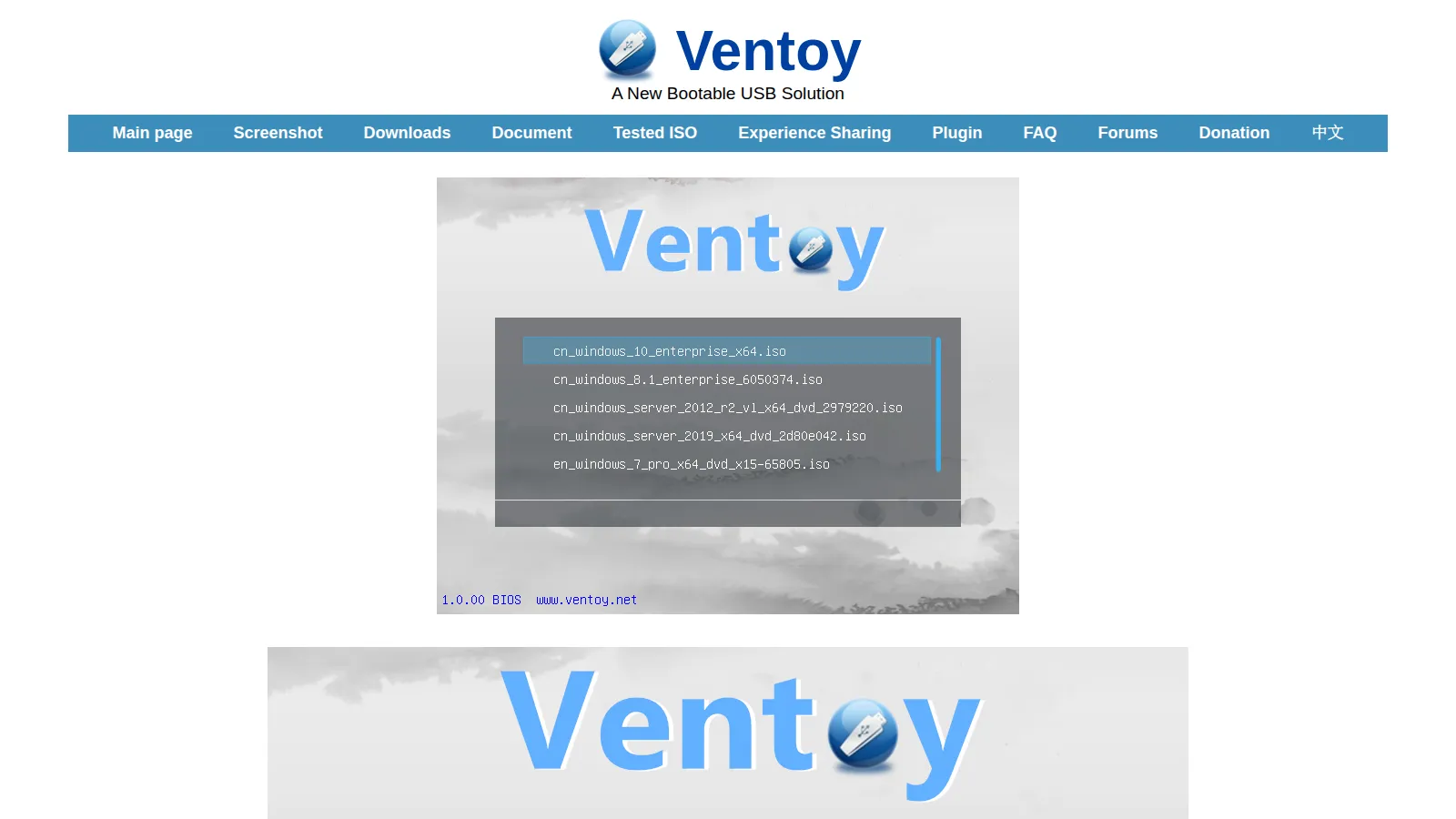
The numbers explain the adoption. Ventoy is 100 percent open source, supports ISO, WIM, IMG, VHD(x), and EFI files without extraction, handles both MBR and GPT layouts across Legacy BIOS and IA32, x86_64, ARM64, and MIPS64EL UEFI, supports Secure Boot with a one-time MOK certificate enrollment, offers Linux persistence images, and lists more than 1,100 tested ISO files in its compatibility table. Files larger than 4 GB work fine on the exFAT data partition, and the stick doubles as ordinary file storage between jobs. The Ventoy 1.1.18 release that Ventoid bundles shipped on 9 October 2026 with published SHA-256 hashes on the Ventoy download page.
Ventoid takes that entire ecosystem and makes it phone-portable. The Ventoy project itself only ships Windows and Linux desktop preparation tools. If the only working computer within reach is the phone in your pocket, desktop Ventoy can’t help you. Ventoid closes exactly that gap.
What Ventoid Can Do From Your Phone
The app divides its work into preparation, inspection, update, and repair, all over Android USB host mode with no root required.
Prepare a fresh Ventoy drive
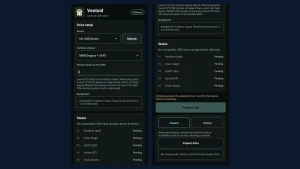
Connect the stick over OTG, grant the USB permission prompt, select the target device carefully, choose an MBR or GPT layout, and start preparation. Ventoid writes the partition table, the Ventoy core image, the exFAT data partition, and the VTOYEFI payload in five tracked steps (partition table, core image, exFAT data, Ventoy EFI, final checks), with live transfer speed and estimated remaining time. A reserve-space option moves VTOYEFI earlier on large drives for legacy BIOS firmware that can’t reach the end of the disk, and drives larger than 2 TB are handled with SCSI READ CAPACITY(16) and 16-byte commands under GPT.
Inspect any stick without writing a byte
The read-only Inspect path detects an existing Ventoy layout, reads its installed version, and tells you whether the bundled Ventoy is newer. Nothing is written. This is the feature forensic analysts will appreciate most: you can verify what is on a stick before trusting it on a job, and document what you found.
Update and repair without losing ISOs
Update rewrites only the boot files and VTOYEFI payload while the data partition keeps every ISO, and it blocks any operation that would downgrade a newer installed Ventoy. Repair fixes a matching version in place. Both preserve the payload that took hours to copy over a slow link.
Safety engineering that shows
Ventoid ships the Ventoy x86_64 Secure Boot chain (Rocky-signed shim plus MOK manager) and verifies the bundled Secure Boot markers before writing. It validates reserved space first, samples written core and EFI sectors back for readback verification, and re-analyses the drive after installation. Destructive preparation requires confirming the actual device name, capacity, partition scheme, and reserved space. USB and layout controls lock while an operation runs, attach and removal events refresh the device list automatically, and a detached drive stops subsequent reads and writes instead of resuming blindly onto a replacement. One operation runs at a time and survives screen rotation and app switching through a foreground service with a progress notification, and a killed process never replays a write.
Built for the field, not the lab
The exFAT data partition holds large ISO files past the 4 GB FAT32 limit, and an image listing shows up to 100 file names with free space plus warnings for zero-byte copies. The UI ships in English, Korean, and Chinese with offline USB and first-boot help, including the MOK certificate enrollment path for first boots on Secure Boot PCs. A bounded diagnostic report (app version, phone model, selected device, operation status, drive analysis, up to 64 KiB of recent log) can be previewed, saved, or shared when asking for help, and sharing only happens when you choose a target. There’s no account, no cloud step, and no network dependency in normal use.
From Install to First Bootable Stick in About 10 Minutes
The official quick start distills to a field sequence you can run from a vehicle bonnet. You need an Android phone with OTG host support, a USB OTG adapter or USB-C hub, a USB stick (any size that fits your ISOs), and the ISO files themselves stored on the phone or reachable offline.
Step 1: Install Ventoid
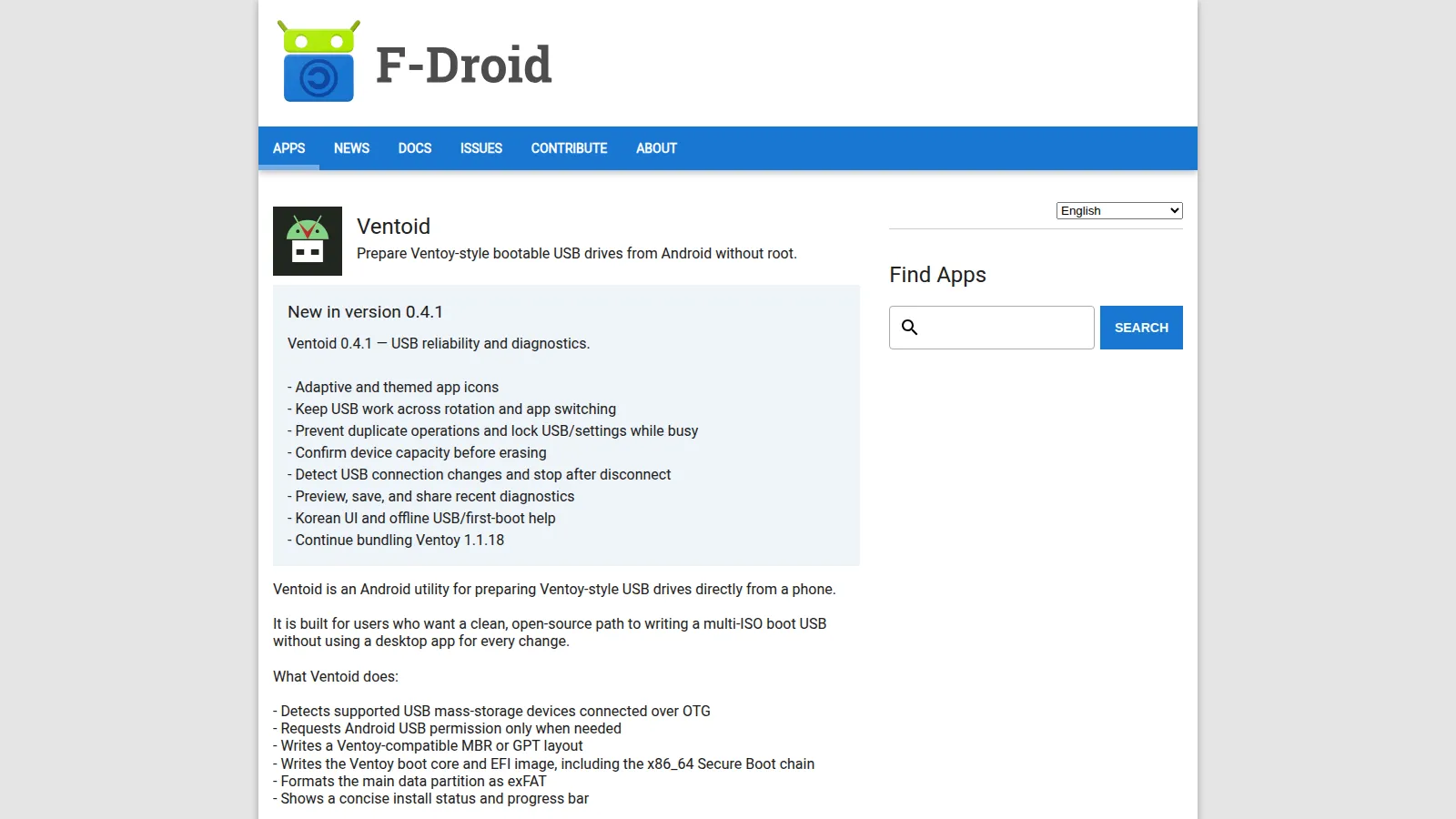
Install from F-Droid for automatic updates under the F-Droid signature, or download the APK from GitHub Releases. One signing caveat: GitHub APKs from 0.1.7 onward use a new release key, so an in-place update over a very old GitHub install may be rejected. Uninstall the old APK first, then install fresh, or switch to the F-Droid build which is unaffected.
Step 2: Connect the stick and grant permission
Plug the USB drive in through the OTG adapter, open Ventoid, and accept the USB permission prompt. If nothing appears, reconnect after opening the app, try a direct OTG adapter instead of a hub, or try a powered hub for thirsty drives.
Step 3: Choose the layout
Select the target device by name and capacity, slowly, twice. Then pick MBR for maximum legacy BIOS compatibility or GPT for large drives and modern UEFI-only machines. Leave reserved space at 0 unless you know the target BIOS can’t reach the end of the disk.
Step 4: Prepare and verify
Confirm the erase dialog showing device name, capacity, scheme, and reserved space, then start. Watch the five progress rows through to final checks. If Android doesn’t show the exFAT partition afterward, remount or physically reconnect the drive.
Step 5: Copy ISOs with any file manager
Open Android Files, copy your ISO files onto the data partition, and check the in-app image listing for zero-byte warnings. On a Secure Boot PC, the first boot asks for a one-time MOK enrollment of the Ventoy certificate. Enroll it once and that machine trusts the stick from then on.
Step 6: Boot and pick from the menu
Plug the stick into the target PC, select it in the boot menu, and Ventoy lists every image. Keep one stick as your master and clone its ISO set to a second stick for the go-kit.
Who Benefits Most: Four Field Profiles
Ventoid is a general tool, but four professions get a disproportionate return from it because their work regularly strands them with broken computers and no working PC to make media from.
Computer technicians: the whole bench in one pocket
The classic callout is a dead laptop at a client office with no second machine on site. With Ventoid, the phone already in the technician pocket becomes the media station. One Ventoy stick prepared in advance (or rebuilt on site) carries the Windows installer for the reload, an Ubuntu live image for data recovery when Windows won’t boot, Clonezilla for the pre-wipe disk image, and Memtest86+ for the RAM suspicion, all selectable at boot with no reburning between steps. The non-destructive Update path keeps the stick current without re-copying gigabytes of ISOs, Inspect verifies a stick pulled from the drawer before it goes near a client machine, and the diagnostic report gives the ticket a documented preparation step. For background on imaging workflows that pair well with a Ventoy stick, see our disk cloning guide.
Amateur radio: field repair for portable and EmComm stations
Portable operations fail at the worst moment. The logging laptop for a SOTA activation refuses to boot, the Field Day network control PC picks up a corrupted update, or an EmComm deployment needs a clean machine for message handling and the only installer media is three states away. A Ventoid-prepared stick in the go-kit turns any phone into the recovery station: boot Linux live to rescue the log files first (our llog field logger keeps its SQLite database in one portable file for exactly this reason), run Memtest on the suspect RAM, then reinstall clean. Because everything works offline, it functions on a summit, at a remote repeater site, or in a blackout deployment where there’s no connectivity to download tools. It earns its place next to the antenna analyzer and the spare fuses.
Forensic analysts: clean media preparation with a paper trail
Forensic value comes from preparation hygiene, not from the app touching evidence. Ventoid lets an analyst prepare known-good boot media (Kali Linux, CAINE, or a write-blocked triage environment) from a phone without routing the process through a suspect network or an untrusted workstation. The checksum-verified bundled payload with pinned provenance answers the “where did this boot code come from” question, read-only Inspect verifies a stick before it goes into the kit, and the shareable diagnostic report documents the preparation step for the case file. The offline design means the preparation machine never touches case networks. Two honest boundaries apply: Ventoid prepares media, it isn’t a hardware write blocker, so standard evidence handling and a proper blocker still govern the examination itself; and analysts should confirm the tool against their laboratory validation policy before first operational use, as with any new utility.
Law enforcement: auditable offline tooling for labs and patrols
Digital forensics units and technical officers face the same dead-machine problem during search, seizure triage, and lab rebuilds, with an added constraint: supply chain auditability. A GPL-3.0-only codebase with reproducible Gradle builds, F-Droid distribution under a separate repository signature, no analytics SDKs, and no network dependency is about as procurement-friendly as mobile software gets. Nothing leaves the device, so there’s no data leakage vector to brief against, and the offline workflow suits air-gapped lab environments. As with forensics generally, agency tool policy governs adoption, and release hashes should be verified and recorded before deployment.
Ventoid Versus the Alternatives
No tool wins every category. The honest picture is that Ventoid trades desktop speed and maturity for phone portability, and the right choice depends on where the working computer is.
| Category | Ventoid | Ventoy2Disk (desktop) | Rufus | EtchDroid | balenaEtcher |
|---|---|---|---|---|---|
| Host device | Android phone, OTG | Windows or Linux PC | Windows PC | Android phone, OTG | Windows, Mac, or Linux PC |
| Root required | No | N/A | N/A | No | N/A |
| Works fully offline | Yes | Yes | Yes | Yes | Yes |
| Multiboot one stick | Yes, Ventoy menu | Yes, Ventoy menu | No, one image per burn | No, one image per burn | No, one image per burn |
| Update without erasing ISOs | Yes, non-destructive | Yes, non-destructive | No, reburn every time | No, reburn every time | No, reburn every time |
| Read-only drive inspection | Yes, version detect | Partial | No | No | No |
| Secure Boot chain | Bundled, MOK enroll | Bundled, MOK enroll | Per-ISO handling | Depends on image | Depends on image |
| License and cost | Free, GPL-3.0-only | Free, GPL-3.0 | Free, GPL-3.0 | Free, GPL-3.0 | Free, Apache-2.0 |
| Best for | No working PC on site | Desktop preparation | Single Windows installer | Single image from phone | Cross-platform flashing |
The short version: if a working PC is available, desktop Ventoy plus Rufus covers everything. If the phone is the only working computer, Ventoid is the only option in this table that produces a full multiboot stick, and EtchDroid remains a fine lighter alternative for burning exactly one image.
Honest Limits
A tool this capable deserves a plain limits section, and the project documents most of these itself.
- It prepares media, it doesn’t fetch it. Ventoid downloads no ISO files. You supply the images, and image listing checks names and sizes, not bootability. Confirm each ISO against the Ventoy tested list.
- It is independent, not official. Ventoid isn’t the official Ventoy Android app. It’s a separate GPL implementation of Ventoy-style preparation, and behavior follows its own release notes and changelog.
- Phones, hubs, and drives vary. OTG behavior differs across phone models, USB-C hubs, card readers, and flash drives. The project runs a device compatibility form precisely because real hardware surprises happen. Carry a direct OTG adapter as well as a hub.
- First Secure Boot needs a human. The bundled shim plus MOK manager path requires a one-time certificate enrollment on each Secure Boot PC. On locked-down corporate machines where you can’t reach the MOK screen, plan for Legacy boot or a pre-enrolled machine.
- Physical validation is still growing. QEMU checks reach the Ventoy 1.1.18 menu under BIOS and UEFI for fresh and updated MBR and GPT layouts, but ISO guest boots, Secure Boot enforcement, and physical OTG workflows need separate verification per the release notes. Test your exact phone, adapter, and stick before the job that matters.
- Know the error codes. A PC reporting error 4098 or a missing
ventoy/ventoy.cpiomeans the VTOYEFI payload didn’t land cleanly. Re-prepare with the latest release without disconnecting mid-write, and file a bug report with phone, adapter, drive, and log if it repeats. - Mind the signing keys. GitHub APKs changed signing keys at 0.1.7. Mixing very old GitHub builds with new ones fails; F-Droid builds are unaffected.
Why It Matters for Ham Radio
Amateur radio has absorbed adjacent technology in every decade: packet radio borrowed from X.25, APRS borrowed from GPS, MMDVM borrowed from DSP. The repair bench is next. Club stations run on donated laptops with dying drives, repeater committees maintain programming PCs nobody dares to reinstall, and portable teams carry more computing than RF into the field.
A phone app that mints multiboot repair sticks offline, auditable, and free turns “the laptop died on Friday night” from a cancelled activation into a 20 minute recovery. Standardize the club on one Ventoy stick image set (Linux live, Clonezilla, Memtest, the programming software ISOs), document the MOK enrollment for the clubhouse machines once, and hand every new committee member the same stick. For the hardening side of that bench, our connected devices security guide covers keeping those same PCs safe after the reinstall.
Sources and Further Reading
- Ventoid on GitHub: GPLaider/Ventoid
- Ventoid on F-Droid: com.ventoid.app
- Ventoid 0.4.1 release notes
- Ventoid changelog
- Ventoid roadmap
- Ventoy official site: a new bootable USB solution
- Ventoy getting started: copy ISOs and boot
- Ventoy download page with SHA-256 hashes
- Ventoy tested ISO list
- Kali Linux download page
- CAINE live digital forensics distribution
- Memtest86+ memory testing
- Clonezilla disk imaging
- EtchDroid: write bootable USB from Android
73 de 9M2PJU



Post Comment