amateur radio
open source
Technology
AGPL-3.0, Android webcam, Camo alternative, club presentations, DroidCam alternative, EmComm, field day, Iriun alternative, linux, live streaming, OBS virtual camera, open source, phone as webcam, POTA, shack automation, sota, Telescope, v4l2loopback, video calls, virtual webcam, windows
9M2PJU
0 Comments
Telescope: Turn an Android Phone into a Pro Webcam for Linux and Windows
TL;DR: Quick Summary
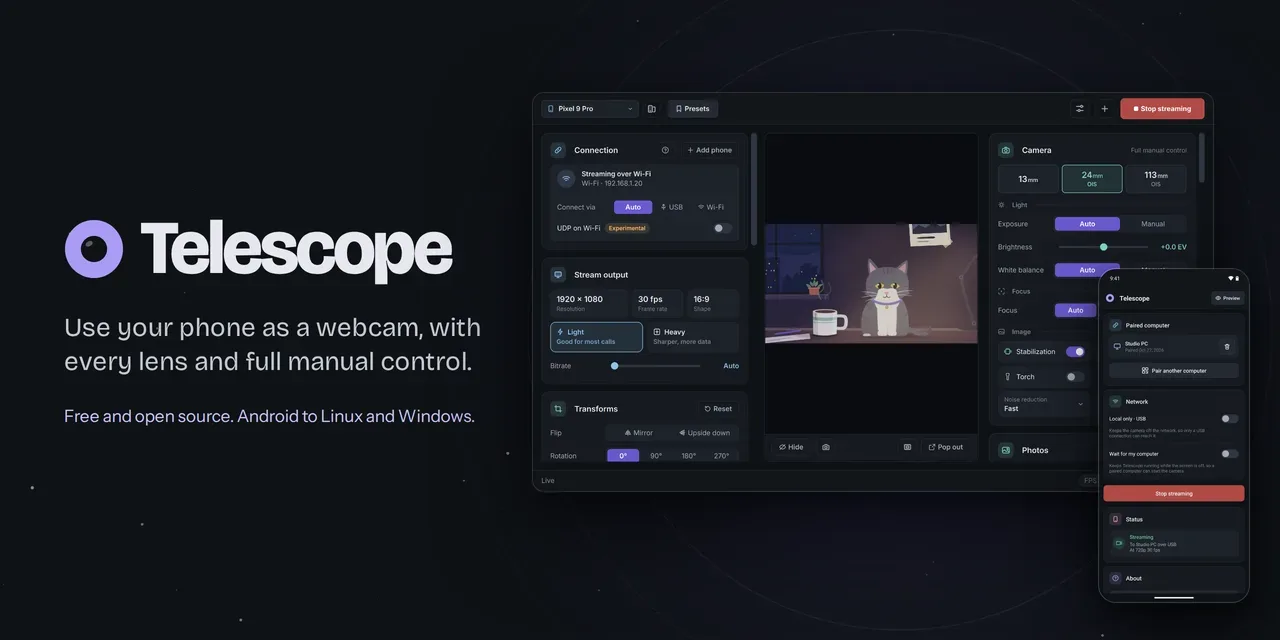
Telescope by LunarKittyy is a free and open source AGPL-3.0 application that turns an Android phone into a pro webcam for a Linux or Windows computer. Every real lens works (ultra-wide, main, telephoto), ISO, shutter, white balance, focus and torch are adjustable live from the desktop, and the phone mic can serve as the computer mic. Video travels phone to computer only, encrypted with TLS, over USB or Wi-Fi, with no account, no cloud and no tracking. Version 4.4.2 adds ten new interface languages, per-phone pairing buttons, webcam and capture-card inputs, and a fix that blocks a MediaPipe usage report. For amateur radio operators this solves the classic shack video problem: a beat-up laptop webcam becomes a sharp phone camera for club talks, remote exam proctoring, build livestreams, net check-ins with a bench view, and Field Day documentation, while desk mode flattens logbooks and schematics for the call and the On Air sign can light a shack lamp through a webhook.
What Is Telescope?
Telescope is a free open source phone-as-webcam system that streams video and audio from an Android phone to a Linux or Windows PC, where it appears as an ordinary virtual webcam and microphone any app can use.
Install the desktop app on the computer and the phone app on Android, pair once with a QR code or USB cable, then pick Telescope (Windows) or Phone Camera (Linux) in Discord, Zoom, Teams, OBS Studio or a browser. The desktop handles lens choice, exposure, framing and effects as plugins, most of them optional and off until wanted. Up to four phones, tablets, laptops or USB webcams can stream at once, each on its own virtual camera, or combined into one picture for apps that take a single camera. Anything else with a browser (iPhone, tablet, old laptop) can stream too with nothing to install, through the browser-camera page.
The project lives at https://github.com/LunarKittyy/Telescope with the product site and comparison at https://telescope.webcam. It holds about 48 stars and 1 fork, 1,445 commits on master, and ships a Windows installer plus portable zip, a Linux tarball with start.sh, and an Android APK, all from the GitHub releases page.
Project Snapshot
| Item | Detail |
|---|---|
| Project | Telescope by LunarKittyy |
| License | GNU AGPL-3.0, free and open source |
| Latest release | 4.4.2 (28 Oct 2026: ten new languages, pairing race fix, MediaPipe telemetry block; 4.4.0 added webcam inputs; 4.3.0 added thirteen plugins and Windows 11 camera) |
| Desktop platforms | Windows 10 and 11 (per-user installer, no admin; portable zip), Linux (tarball with start.sh, Python 3.12 plus) |
| Phone platforms | Android 8 plus native app; any other phone, tablet or laptop via browser camera with nothing to install |
| Codebase | Python desktop with Qt interface and plugin host, Kotlin Android app, WebRTC browser path, UnityCapture driver on Windows, v4l2loopback on Linux |
| Network | USB via adb or Wi-Fi via TLS; experimental UDP option; browser camera over WebRTC on LAN port 8767; On Air page on port 8768 |
| Privacy model | No account, no cloud relay, no tracking in the apps; video stays phone to computer; update checks hit GitHub only; MediaPipe vision telemetry blocked since 4.4.2 |
| Links | GitHub repo, product site, full feature docs, comparison, releases |
Why Phone Cameras Beat Laptop Webcams
A built-in laptop camera is usually a fixed-focus 720p module with a tiny sensor, no low-light headroom and a wide-angle lens that flatters nobody. A mid-range Android phone from the last five years carries a larger main sensor with autofocus, a real ultra-wide and often a telephoto, optical or electronic stabilization, a torch, and a DSP that handles noise far better.
The established phone-as-webcam tools each keep something back. DroidCam watermarks HD unless paid and gates manual controls and ad removal behind Pro. Iriun watermarks the free tier and gates manual ISO, exposure and white balance. Camo caps free output at 720p and gates 4K, 60 fps and Smart Zoom. All three are closed source with per-vendor accounts, cloud hooks or ad SDKs in the loop.
Telescope takes the opposite stance: the whole app is free, every lens and manual control is included, output runs up to 4K, there is no watermark and no ads, and the source is public under AGPL-3.0. The trade is narrower platform coverage (Android plus Windows/Linux only, no native iPhone or Mac app) and a younger device-testing base than tools that have been around for years.
How It Fits Together
Three pieces cooperate, and each has a clear job.
1. The Android app
The phone app owns the camera hardware. It enumerates the real wide, main and telephoto sensors, exposes ISO, shutter, brightness compensation, white balance, focus, stabilization, noise reduction and torch per lens, and encodes the stream as H.264 (Light format) or MJPEG (Heavy format). It keeps screen and Wi-Fi awake while open to avoid lag spikes, drops to 720p when very hot on Android 10 plus, shows as a Live Update with Stop button on Android 16 plus, and can run with the screen blacked out to save OLED battery. Pairing tokens live in a config folder readable only by the user on Linux, and the desktop pins the phone certificate at pairing so a different certificate is refused.
2. The desktop app
The desktop app owns the virtual camera, the mic path, the plugin pipeline and pairing. On Windows it installs a UnityCapture-based driver (with a dedicated Windows 11 camera since 4.3 so every app including the Windows Camera app can see it). On Linux it drives v4l2loopback through PulseAudio or PipeWire, exposing Telescope Microphone with no extra packages on most desktops. The interface is card based (Camera, Transforms, Stream output, Microphone, Connection plus one card per enabled plugin), cards fold, everything is keyboard navigable, and almost any control can be bound to a key. Presets save camera, output, transform and active plugin settings per phone, lens included, each with an optional shortcut.
3. The link between them
USB when the phone is plugged in and answering over adb, Wi-Fi otherwise, with a per-phone override to force either. A new router IP breaks nothing because the phone announces itself on the network. Streams reconnect across transports (pull the cable mid-call and it continues over Wi-Fi), apps see a configurable wait screen after 10 seconds of loss instead of a frozen frame, and a banner names the phone as unreachable after 30 seconds. Light format defaults to about 8 Mbps at 1080p30 with Auto or Dynamic bitrate that backs off before lag starts and even drops frame rate to 15 before giving up, then climbs back. Heavy format trades bandwidth for sharper fast motion and suits USB or strong Wi-Fi. An experimental UDP switch trades reliability signals for lower latency on crowded airwaves but can stutter on many networks, which is why 4.4 moved it from the Connection card into Settings where it is harder to flip by accident.
Up and Running in About Two Minutes
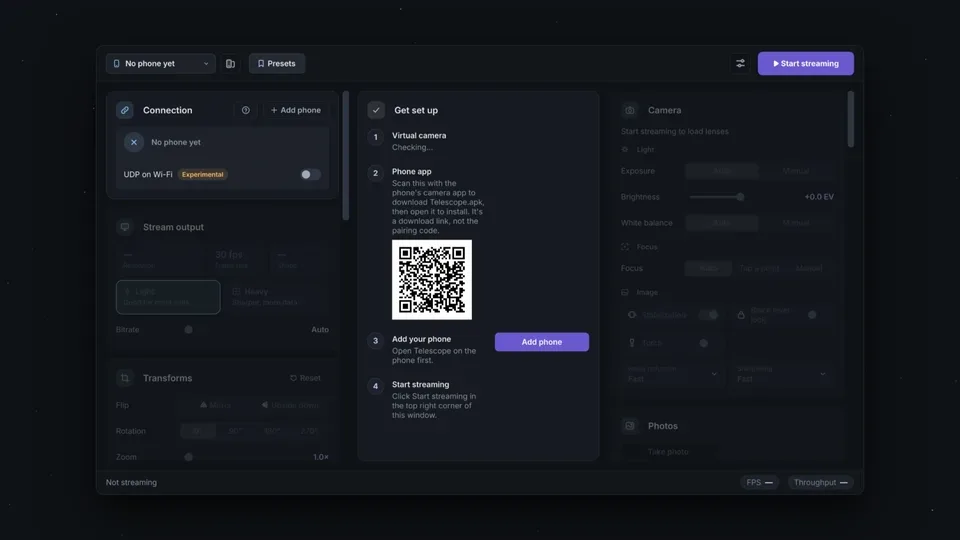
- Download the desktop build from the releases page:
TelescopeSetup.exeon Windows (per-user, no admin needed) orTelescope-linux.tar.gzon Linux (extract and run./start.sh, which installs the pinned Python dependencies and launches). - Follow the checklist that opens on first run. It sets up the virtual camera (one password prompt on Linux for the driver, one Update click on Windows if migrating to the Windows 11 camera), puts the phone app on Android over a QR code, and pairs the two. With the phone on USB, 4.4.1 and later show a Pair button per phone instead of pairing immediately, so a cable-left-plugged phone can’t win the race against the one being scanned.
- Pick the camera in the meeting or streaming app: Telescope on Windows (Telescope 2 to 4 for extra streams), Phone Camera on Linux. Set the mic to Telescope Microphone (Linux) or CABLE Output after the one-time VB-Cable install (Windows).
What Linux needs: a v4l2loopback-capable kernel path handled by start.sh, PulseAudio or PipeWire for the mic, and optionally VA-API setup for GPU decode of Light streams on AMD and Intel (NVIDIA works out of the box, Windows uses any GPU). No Android phone at all still works: pick Browser camera in the phone picker, scan the code from an iPhone, tablet or old laptop, accept the self-signed certificate warning once, tap Start, and keep the page open with the screen on.
Camera Control: Every Lens, Set by Hand
The Camera card is the reason to pick Telescope over a generic reflector.
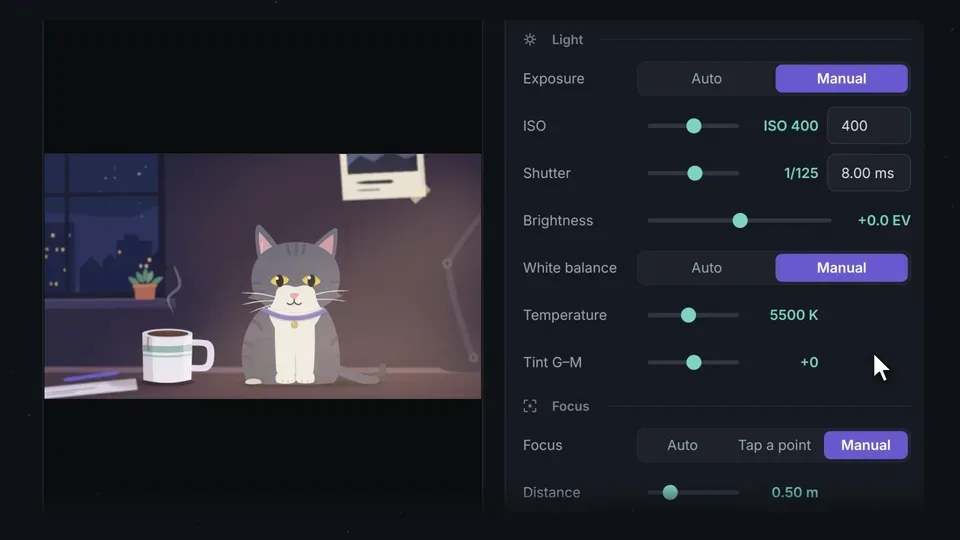
- Lens picker lists the real wide, main and telephoto sensors instead of faking it with crop zoom. Auto mode switches lenses as the framing demands.
- ISO and shutter by slider or typed value, ranged per lens, plus brightness compensation (usually plus or minus 8 EV).
- White balance in Kelvin from 2000 to 10000 with green-magenta tint, handy under mixed shack fluorescents and warm bench lamps.
- Focus in three modes: Auto, tap-a-point (click the preview to focus and meter there), or Manual slider. Greyed-out controls mean the current lens can’t do them; hovering the control header shows per-lens capability.
- Helpers: stabilization, noise reduction, sharpening, black level lock and torch where the lens offers them, plus a Low light switch that lets auto exposure run the sensor slower (often down to 10 fps at the dark end) so each frame gathers more light, but only when needed.
- Zoom 1 to 10x with pan on the Transforms card (up to 30x with Max zoom in Settings), flip and 90-degree rotation, independent width and height stretch from 50 to 200 percent. Zoom crops from the full sensor first and hops to the telephoto once the framing fits inside it, which is why zooming in gets sharper instead of blurrier. Dots on the slider mark each lens handover.
Stream Pipeline: Resolution, FPS, Format and Bandwidth
- Resolution list comes from what the current lens and encoder really support, up to 4K. One FPS setting (15 to 60) drives phone and virtual camera together, with unsupported rates greyed out.
- Canvas size in Settings decouples the virtual camera from the phone: 720p, 1080p or 4K in landscape or portrait, 4:3, or custom even-numbered sizes. On Linux a canvas change reloads the driver (close OBS first).
- Light (H.264) suits most links at roughly 8 Mbps for 1080p30. Bitrate modes are Auto, fixed 1 to 100 Mbps, or Dynamic which rides the link capacity and trims frame rate before quality collapses. Hardware acceleration decodes on the GPU, most useful at 4K or on laptops.
- Heavy (MJPEG) suits sharp fast motion on USB or strong Wi-Fi, with a JPEG quality slider. Phones that can’t do Light fall back to Heavy automatically.
- Footer telemetry shows FPS and throughput live, with a Can’t keep up note that distinguishes weak signal or 2.4 GHz congestion from a full dropout, so the fix (move closer, switch to 5 GHz, plug in USB) is obvious.
Microphone Without a Second Device
The phone mic becomes a computer mic while streaming.
- On Linux, Telescope Microphone appears through PulseAudio or PipeWire with nothing extra to install on most desktops.
- On Windows, the card offers a one-click VB-Cable fetch from VB-Audio (admin prompt plus restart), after which CABLE Output is selected as the mic in other apps.
- Gain spans minus 24 to plus 12 dB with a limiter (yellow) and clip (red) meter, optional Auto level that rides quiet and loud speech without lifting room noise in pauses, and optional RNNoise-based noise reduction running on the computer (about 20 ms extra delay, best with the call app’s own suppression switched off to avoid thin double-processed audio).
- Mute lives on the card and in the tray, resets on restart, and can be bound to a push-to-talk key. Camera-off with mic-on is supported (apps see the wait screen), including a start-mic-only mode.
The Plugin System: Switch On Only What You Want
Most of the desktop is plugins now, a design that landed across 3.5 through 4.3. The Plugins tab in Settings groups them, each with its own search, per-plugin restart, and safe handling (a changed or crashing plugin is left out with a banner naming it). New plugins install from a zip by dialog or drag and drop, start switched off, and carry an explicit trust warning since a plugin can run arbitrary code. Settings and presets survive toggling.

Auto framing and Expose for my face
Auto framing finds people with the shared MediaPipe vision download (about 47 MB on Linux, 28 MB on Windows, fetched once from GitHub releases) and drives zoom and pan to hold the framing, from head-only to full body, framing two people together and zooming out after two seconds with nobody in view. Speed (Sloth to Zippy, Easy default), room-to-move deadband (Fidget to Roam, Off follows everything), and an optional widen-for-something-in-hand mode tune the behavior. A skeleton overlay shows what tracking reacts to, preview only, never in the output. Power-saving effects in Settings slows vision plugins while moving to save CPU and battery at the cost of slightly later following.
Expose for my face moves the phone metering point to the face, which rescues backlit shack windows, waits during manual focus, and parks where the face was when leaving frame instead of chasing the empty room.
Background and Chroma key
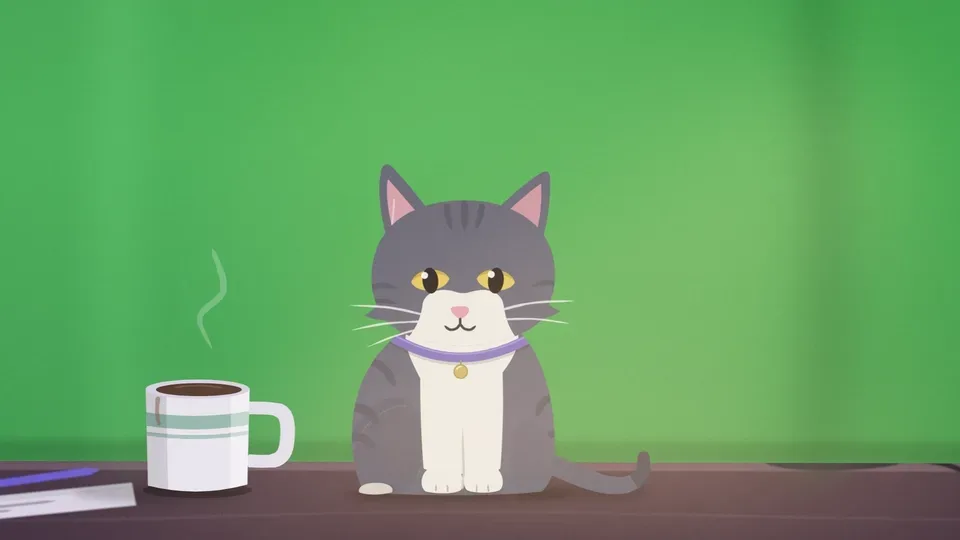
Background (vision-based) blurs the room or replaces it with a PNG, JPEG, WebP or BMP, with edge softness control, running on the computer so it works with any phone and browser camera. Chroma key (no download) swaps a green, blue or picked-color screen for a color or picture with tolerance, edge and spill controls, giving sharper hair edges under even light at far lower CPU than segmentation.
Desk and document mode
Point the phone down at a page, drag four corners onto the sheet on the preview, and Telescope rectifies it flat and head-on for the call. Shape modes (Auto perspective, A4, Letter, Square, Fill), Contrast mode for uneven light, and Black and white mode for print and pen turn a shaky overhead shot into a readable document. Tap-to-focus still lands on the clicked word, each phone remembers its corners, and the card warns if zoom or framing pushes the sheet out of frame.
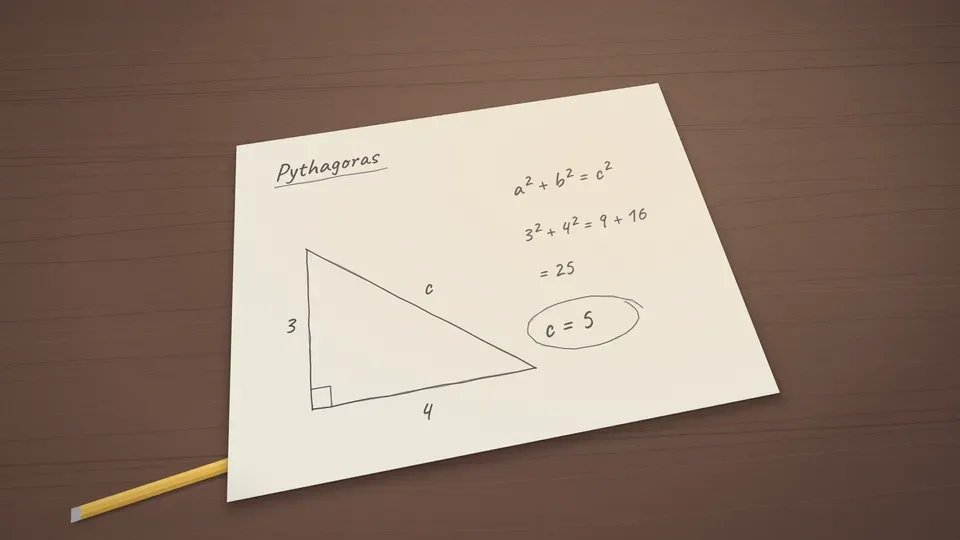
Several cameras in one picture
With two to four streams running, the One picture plugin composites them side by side, in a grid, big-and-small, or in a free layout with OBS-style drag, snap, Shift-stretch, Alt-crop, per-stream zoom window, borders and rounded corners over a color or picture. The composite goes out on the main Telescope camera while each stream still feeds its own virtual camera for OBS scenes. Layouts save by name, switch by key, and ride along in presets. Streams that drop leave the picture after 3 seconds and rejoin on reconnect without freezing the rest.
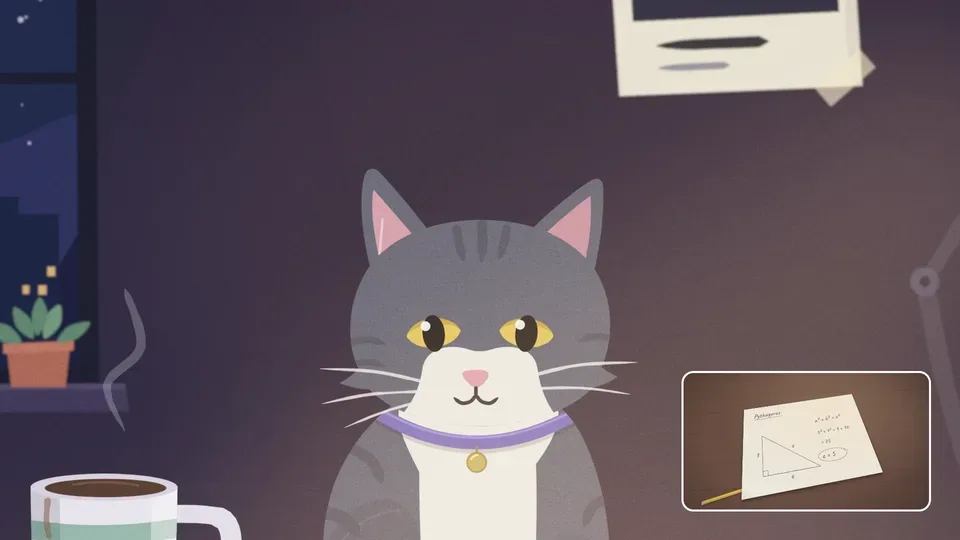
Fun pack, Colour grading and Cinema tools
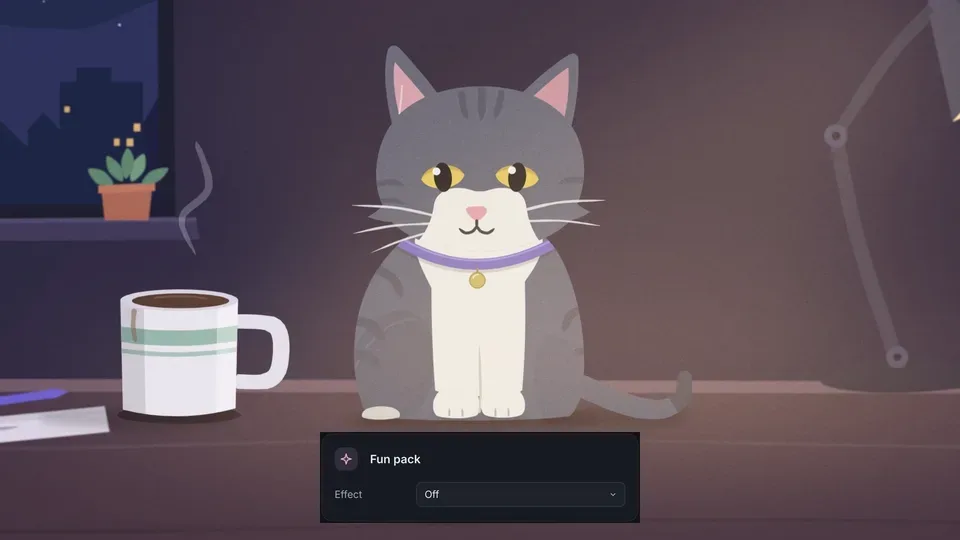
Fun pack (under Extras) bundles Clone party up to eight copies, Invisibility cloak against a captured empty room, Light painting trails, Slit-scan motion shear, Stick figure tracking, retro Game Boy, 1998 webcam, VHS, CRT and ASCII looks, and Datamosh keyframe-drop smear on Light streams. Colour grading adds Lift, Gamma, Gain and Offset wheels plus temperature, contrast with pivot, saturation, shadows and highlights, RGB and Hue curves, .cube LUT import with strength, grade export, per-phone grades and a before-after split. Cinema tools adds focus peaking, zebras with adjustable threshold, false color, thirds and golden-ratio guides, histogram, waveform, RGB parade, vectorscope and a sensor-driven horizon level, all preview only.
Photos, Notes, Name tag, On Air sign, QR codes, Privacy blur
Photos captures full-quality stills on the phone (JPEG, HEIC, Ultra HDR on Android 14, RAW DNG, full sensor resolution, Night, HDR, Bokeh, bursts to 60, exposure and focus brackets, long exposures, 3 or 10 second timer) to a chosen folder while video continues or briefly pauses on demanding modes. Notes next to the lens pushes scrolling teleprompter text under the front camera so eyes stay near the lens, with Next and Previous keys and presenter-clicker support. Name tag stamps name, pronouns and role in Bar, Pill, Light or Shadow styles. On Air sign serves a big On/Off page to any browser on the LAN plus a webhook (POST or GET with test buttons and backoff retry) for Home Assistant, smart plugs and shack lights. QR codes copies held-up codes to the clipboard, decoding Wi-Fi passwords directly. Privacy blur hides late arrivals three ways (blur the others, blur all but me, full wait screen) with flicker-proof timing, plus a manual Blur now key.
More Inputs: Browser Camera, Webcams and Capture Cards
Browser camera streams anything with a modern browser and nothing to install: iPhone over Safari, tablet, second laptop. Resolutions 480p to 1080p at 15 to 30 fps, flash or white-screen light, flip on multi-camera devices, one code shared by several devices each getting its own virtual camera, browser mic supported raw, and per-device names with 60-day forget for untouched entries. First-visit certificate warning is expected (self-signed, still encrypted), and the page must stay open with the screen on.
Since 4.4.0, USB webcams and capture cards appear in the phone picker under their own names and stream like phones with every effect applied. That covers Logitech-class webcams, mirrorless and DSLR bodies in USB webcam (UVC) mode, and any clean-HDMI camera through an HDMI capture card (Telescope doesn’t speak maker USB protocols or gphoto2). Per-camera resolution, frame rate, exposure, gain, white balance, focus, zoom and anti-flicker (seeded from time-zone mains frequency) persist across unplugs, hot plug is handled live, and Telescope’s own virtual cameras are excluded to prevent loops. The developer tested with a Logitech C920 and an HP webcam on Linux; Windows testing was VM-only, so oddities there are worth a bug report with diagnostics.
Several Cameras at Once
The plus button beside Stop adds streams up to four total. Each gets its own virtual camera (Phone Camera 2 to 4 on Linux, Telescope 2 to 4 on Windows, created once with a password or permission prompt and removable in Settings). Tiles show every stream with live state and output slot, clicks bring each stream’s panels forward, and effects belong to the stream they were set on. Slot stickiness keeps OBS scenes stable across reconnects. Only the first stream holds the mic (move it per tile), and with multiple streams mic-only mode, canvas resize and camera-open auto-stop are parked until all stop.
Privacy: Local Link, Pinned Certificates, No Account
- All phone to computer traffic is TLS encrypted, with the phone certificate pinned at pairing and mismatches refused.
- Pairing tokens travel only in the QR code, over adb, or inside the encrypted session. A network observer can see that a stream runs and roughly how much data moves, nothing else.
- Local only USB mode in the Android app takes stream and control off the network entirely. Wait for my computer mode (off by default) allows remote start with the app closed.
- Browser camera listens on port 8767 only while selected or streaming, with a per-start token; certificate isn’t pinned, so untrusted networks call for a real phone instead. On Air sign listens on port 8768 for its page and on-air state only.
- The apps go online solely for GitHub update checks (Stable or Nightly channels, one-click desktop install with rollback, USB phone updates from the desktop). Windows additionally fetches adb from Google and VB-Cable from VB-Audio only on request.
- MediaPipe telemetry note: 4.4.2 found the vision bundle reporting model load stats to Google with no opt-out, so Telescope now blocks it and asks vision users to re-download once. Nothing from the camera ever left the machine.
Telescope Compared with DroidCam, Iriun and Camo
The product site comparison (checked 27 Oct 2026 against each vendor’s own pages) reduces to one line: the competitors each hold back resolution, controls or clean output for paid tiers, while Telescope holds back nothing.
| Tool | Free resolution | Watermark | Ads | Manual exposure and white balance from PC | Computer | Phone | Source |
|---|---|---|---|---|---|---|---|
| Telescope 4.4 | Up to 4K | None | None | Free, full ISO, shutter, WB Kelvin, focus | Windows, Linux | Android 8 plus native; any device via browser | Public, AGPL-3.0 |
| DroidCam | 640×480 (HD watermarked) | On HD video | Yes | Pro only | Windows, Linux, Mac via OBS plugin | Android, iPhone | No published source found |
| Iriun | Up to 4K with watermark | Yes | Yes | Pro only | Windows, macOS, Linux | Android, iPhone | No published source found |
| Camo | Up to 720p | None | None | Free | Windows, macOS | Android 7 plus, iPhone iOS 15 plus | No published source found |
Where Telescope pulls ahead: every physical lens selectable by hand, full manual control live from the desktop, plugin pipeline with framing, keying, grading and desk rectification, up to four simultaneous cameras, browser fallback with no install, mic path included, local-only encrypted link with no account. Where the others still win: native iPhone apps plus macOS desktops, and longer device-compatibility track records on unusual phones.
How Amateur Radio Operators Can Use Telescope
This is where a generic webcam tool becomes shack infrastructure. Each pattern below maps to operating, training or outreach.
1. Club talks and show and tell without hauling gear
Point the phone at the bench, tower base or antenna tuner and bring it up as the meeting camera. Telephoto framing keeps distant details sharp where digital zoom would smear. Auto framing follows the presenter around the whiteboard, and the notes teleprompter keeps eyes near the lens during a technical talk. Visitors see the work, not a blurry laptop shot across the room.
2. Remote exam sessions and mentoring with real evidence
Phone camera quality plus tap-to-focus documents an ID, a bench setup or a build step readably. Desk mode flattens a logbook page, schematic or QSL card head-on for the examiner or elmer. Photos capture full-resolution stills of the same scene mid-call for the record.
3. Build livestreams and net check-ins with a bench view
Run face on the laptop cam and bench on the phone through One picture, or give OBS each stream separately for scene switching. Colour grading tames mixed bench lighting, cinema peaking nails manual focus on a tiny SMD joint, and the mic path means no second headset when narrating a solder job.
4. SOTA, POTA, Field Day and EmComm documentation
The phone is already on the summit. Stream the activation view to the logging laptop for a club net check-in, photograph antennas and mast work at full sensor resolution, and use USB tethering plus local-only mode where the site network can’t be trusted. The no-account, no-cloud design fits go-kit discipline: nothing to log into, nothing phoning home over a fragile link.
5. Shack automation with the On Air sign
Point the On Air page at a wall tablet and wire the webhook to Home Assistant or a smart plug: red lamp when the virtual camera or mic is live, off six seconds after the call ends, with retry backoff across Wi-Fi blips. The same webhook can mute speakers, park the rotator reminder, or flag the station busy on a dashboard.
6. Multi-camera shack coverage on one PC
Face camera for the call, desk camera on the logbook, whiteboard camera on the net plan, each on its own virtual camera or composited side by side. Privacy blur keeps family members who walk through the shack out of the stream. Name tag labels each feed so the net control knows which is which.
7. Training nights and foxhunts
Chroma key puts the instructor over slides without a capture card. QR code capture pulls the venue Wi-Fi password to the shack PC in one hold-up. Fun pack retro looks and clone party sound frivolous until a youth outreach night needs exactly that energy.
Honest Limitations
No native iPhone app and no macOS desktop: Apple devices join only through the browser camera, which needs its page open and screen on and lacks some camera and alert settings. Vision plugins need 64-bit Intel or AMD for now. Installs are unsigned workflows (per-user Windows installer avoids admin but SmartScreen still asks; Linux tarball needs its dependency install; Android sideload needs install-from-source approval). Webcam support on Windows was VM-tested only. UDP streaming is experimental and often worse than TCP. Plugin trust is on the user: a malicious zip has full computer access, so install only from sources you would trust with your logbook and keys.
Get Started
- Pick the desktop build for the shack PC and the APK for the Android phone from releases (Stable tags
v*for daily use, Nightly for testers). - Run the two-minute checklist: virtual camera, QR phone install, pairing. Keep the phone on the same Wi-Fi or USB for the first pairing.
- Set a preset per operating position: bench close-up with desk mode and manual focus, face with auto framing and background blur, portable with USB forced and black screen on. Bind Start, Stop, Mute and Take photo to keys.
- Read the full feature docs once: the Camera, Transforms, Stream output and Connection cards repay ten minutes of study, and the troubleshooting page covers the common gotchas. Bugs go to issues with a Copy diagnostics report, ideas to Discussions, translations via
docs/translating.md, and the author takes support on Ko-fi.
Frequently Asked Questions
Is Telescope really free with no watermark or account?
Yes. Telescope is AGPL-3.0 open source with no paid tier, no watermark, no ads, no account and no cloud. Every lens, manual control and plugin is included, and video stays between phone and computer.
Which phones and computers work with Telescope?
Android 8 plus runs the native phone app; Windows 10 and 11 plus most Linux desktops run the desktop app. IPhones, tablets and laptops join through the browser camera with nothing to install.
Will Telescope work with Discord, Zoom, OBS and browsers?
Yes. It appears as an ordinary virtual webcam (Telescope on Windows, Phone Camera on Linux) plus a mic, selectable in Discord, Zoom, Teams, OBS Studio and browser meeting apps.
Does my video go through a server or get tracked?
No. Phone to computer traffic is TLS encrypted over USB or local Wi-Fi with pinned certificates, and the apps only go online for update checks. The 4.4.2 release also blocks a MediaPipe usage report.
How is Telescope different from DroidCam, Iriun or Camo?
Telescope includes 4K output, all lenses, manual controls and effects free with public source, while rivals gate HD, manual controls or clean output behind paid tiers. Rivals still lead on native iPhone plus Mac apps and longer device history.
Sources and Further Reading
- Telescope GitHub repository, README, releases and docs: https://github.com/LunarKittyy/Telescope
- Telescope official site with setup guide and plugin tour: https://telescope.webcam/
- Telescope comparison with DroidCam, Iriun and Camo: https://telescope.webcam/compare.html
- Telescope full feature documentation: https://github.com/LunarKittyy/Telescope/blob/master/docs/features.md
- Telescope troubleshooting guide: https://github.com/LunarKittyy/Telescope/blob/master/docs/troubleshooting.md
- Telescope plugin authoring docs: https://github.com/LunarKittyy/Telescope/blob/master/docs/plugins.md
- DroidCam official site and feature tiers: https://droidcam.app/
- Iriun webcam official site: https://iriun.com/
- Camo Studio official site and pricing: https://camo.com/studio
- V4l2loopback virtual camera kernel module: https://github.com/umlaeute/v4l2loopback
- OBS Studio virtual camera and scene workflows: https://obsproject.com/
- MediaPipe on-device vision models: https://ai.google.dev/edge/mediapipe/solutions/guide
73 de 9M2PJU. Point the good camera at the bench, keep the stream local, work everyone.

Post Comment