How to Switch the TIDRADIO TD-M2 Pro from FRS to PMR446 in 2 Minutes
TL;DR: Back up your FRS channels first with Read then Save As, because the installer includes no factory FRS file. Then download the free TD-M2Pro CPS from the TIDRADIO programming software page, open the bundled
M2pro--PMR446-16 channel frequencyDAT file, select the correct COM port, and click Write. Your TD-M2 Pro reboots on 16 PMR446 channels from 446.00625 to 446.19375 MHz. The video steps start at 0:53.
Many TD-M2 Pro units arrive programmed for the North American 22-channel FRS plan. That is perfect in the United States and Canada, but it’s the wrong band plan in Europe, the UK, and Malaysia where license-free handheld use lives on PMR446 around 446 MHz.
The fix is very easy and doesn’t need manual frequency entry. TIDRADIO bundles a ready-made PMR446 channel file inside the CPS installer folder. You open that file and write it to the radio over USB. The whole job takes about two minutes.
(Watch the PC programming demonstration on YouTube, programming steps start at 0:53)
What Switching from FRS to PMR446 Means on the TD-M2 Pro
Switching from FRS to PMR446 on the TD-M2 Pro means replacing the analog channel table in the 400-480 MHz RF transceiver from the American 462/467 MHz FRS plan to the 446 MHz PMR446 plan using the factory DAT file and the TD-M2Pro CPS Write function.
The TD-M2 Pro has two independent systems inside one body. The 4G LTE PoC side with its IoT SIM and ODmaster talkgroups is untouched by this procedure. Only the local analog UHF side changes. After the write, the upper analog PTT transmits on PMR446 frequencies instead of FRS frequencies, while PoC, Bluetooth binding, contacts, and OTA firmware stay exactly as before.
This matters because FRS and PMR446 aren’t interoperable and aren’t legally interchangeable across regions:
- FRS hardware in Europe or Malaysia transmits outside the local license-free allocation and can cause interference to licensed services.
- PMR446 hardware in the United States transmits outside FCC Part 95 and isn’t authorized for unlicensed use there.
- Loading the correct regional plan keeps you legal, ensures you can talk to local handhelds, and avoids confusion during events, convoys, and emergency standby.
FRS vs PMR446: Frequency, Power, and Legal Comparison
| Item | FRS (North America) | PMR446 (Europe, UK, Malaysia) |
|---|---|---|
| Frequency range | 462.5625 to 467.7125 MHz | 446.00625 to 446.19375 MHz |
| Analog channels | 22 shared FRS/GMRS channels | 16 analog channels, 12.5 kHz spacing |
| Channel example | CH1 462.5625, CH15 462.5500 | CH1 446.00625, CH16 446.19375 |
| License | License-free in US and Canada under FCC/ISED rules | License-free in UK/EU under PMR446 rules, Malaysia under MCMC Class Assignment |
| Typical power | Up to 2 W ERP on FRS | 0.5 W ERP, integrated antenna rule in EU/UK |
| TD-M2 Pro file | Not bundled, back up from your own radio via Read then Save As | M2pro--PMR446-16 channel frequency DAT file in the installer folder |
| Use with TD-M2 Pro | Default on many shipped units | Required rewrite for Europe, UK, Malaysia, and most of Asia |
The TD-M2 Pro RF section covers 400-480 MHz, so it physically supports both plans. The CPS DAT file simply loads the correct frequency, power, squelch, and signaling table for your region.
What You Need Before You Start
- Windows PC with USB port: The TD-M2Pro CPS is a Windows desktop program. Windows 10 and Windows 11 both work.
- USB programming cable for the TD-M2 Pro: Connect the radio powered on before opening the port dialog.
- Official TD-M2Pro CPS: Free download from TIDRADIO Programming Software. Download the TD-M2Pro V1.2 package, unzip it, and install it. Keep the extracted folder because it contains the channel DAT files.
- Two minutes of time: No manual typing, no driver hacking, no hex editing. The PMR446 table is prebuilt.
- Mandatory backup first: The installer folder contains a ready-made PMR446 file but no factory FRS/GMRS file. Before you overwrite anything, read the channels out of your own radio and save them, otherwise your original FRS plan is gone for good.
- Optional second radio or notebook: Note which channel and CTCSS tone your group uses, so you can verify voice contact after the rewrite.
Your ODmaster account, 4G PoC talkgroups, Bluetooth pairing, and 18650 battery setup aren’t affected.
Step-by-Step: Load PMR446 and Write It to the Radio
Step 1: Install the CPS from the official download page
Go to https://tidradio.com/pages/programming-software, find the TD-M2Pro entry, download the ZIP, extract it, and run the installer. After installation, keep the extracted folder such as TD-M2Pro-V1.2. That folder holds the language folders en and zh-CN plus the factory DAT files.
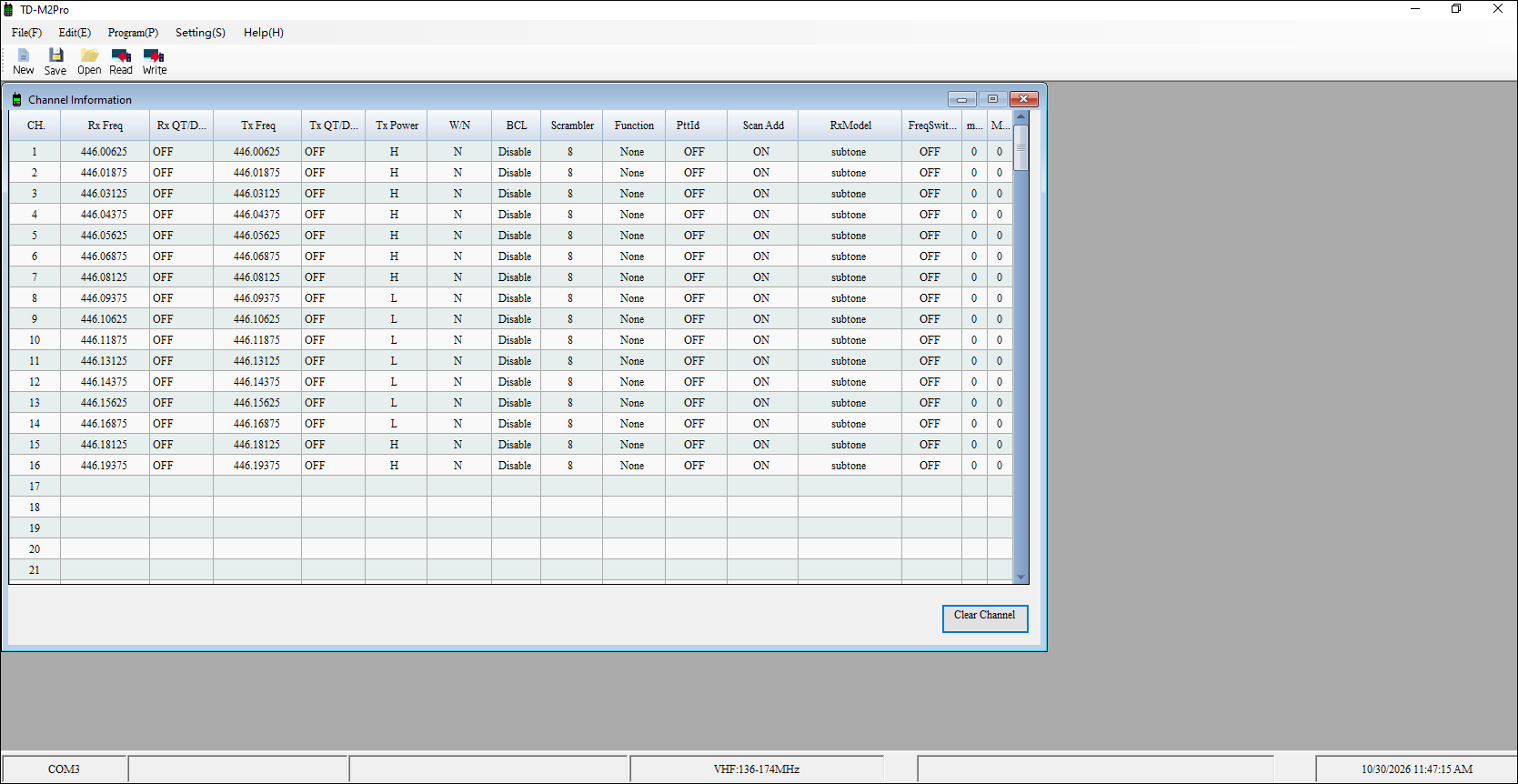
Launch TD-M2Pro from the Start menu. You’ll see the blue toolbar with New, Save, Open, Read, and Write icons, and the empty Channel Information grid.
Step 2: Connect the radio and select the COM port
Power on the TD-M2 Pro, plug the USB programming cable between the radio and the PC, wait a few seconds for Windows to enumerate the serial device, then in the CPS open the Port selector.
Pick the correct port for your cable, for example COM3, and click OK. If you pick the wrong port, Read and Write will fail immediately. Open Windows Device Manager under Ports (COM and LPT) to confirm which COM number appears when you plug and unplug the cable.
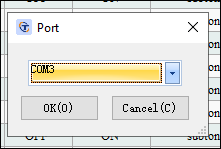
If no port appears, try a different USB socket, a data-capable USB cable, and reinstall the cable driver, then restart the CPS.
Step 3: Back up your current FRS/GMRS channels first
This step is compulsory, not optional. The installer folder ships only the PMR446 DAT file. There’s no factory FRS/GMRS DAT file to fall back on. If you overwrite the radio without a backup, you can’t restore the original FRS plan from the installer.
- In the CPS click Read to pull the current channel table out of your radio.
- Wait for the read to finish, then click File then Save As and store it somewhere safe, for example
my-M2Pro-FRS-backup.dat. - Confirm the backup reopens correctly with File then Open before you continue.
Keep that backup file. It is your only way back to FRS.
Step 4: Open the bundled PMR446 DAT file
In the CPS click File then Open. Browse into the installer folder you extracted, for example TD-M2Pro-V1.2, and select the file named M2pro--PMR446-16 channel frequency...dat. Click Open.
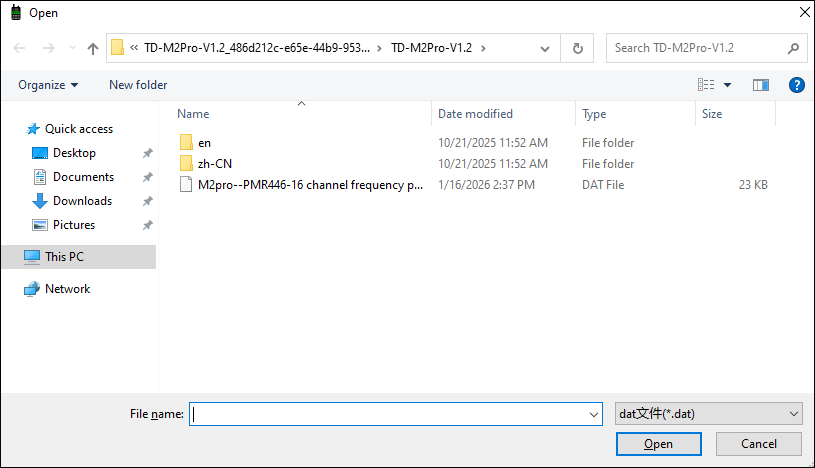
Don’t rename the DAT extension and don’t open it in Notepad. It’s a binary channel image meant only for the CPS.
Step 4: Verify the 16 PMR446 channels loaded correctly
The Channel Information grid should now show 16 rows:
- CH1 446.00625, CH2 446.01875, CH3 446.03125, CH4 446.04375
- CH5 446.05625, CH6 446.06875, CH7 446.08125, CH8 446.09375
- CH9 446.10625, CH10 446.11875, CH11 446.13125, CH12 446.14375
- CH13 446.15625, CH14 446.16875, CH15 446.18125, CH16 446.19375
All rows use simplex with matched Rx and Tx frequency, which is correct for PMR446 handheld to handheld use. Leave power, bandwidth, and signaling at factory defaults unless you have a specific group CTCSS/DCS plan.
Step 5: Write the table to the radio
Click Write in the top toolbar. Don’t unplug the cable or power off the radio during the progress bar. When the CPS reports success, power-cycle the TD-M2 Pro by turning it off and on again.
Spin the channel knob and confirm the display shows PMR446 frequencies such as 446.00625 on CH1. Make a short simplex test with a second PMR446 handheld on the same channel and code.
Step 6: Switching back to FRS with your backup file
There is no FRS DAT file in the installer folder. So the only way back is the backup you saved in Step 3. In the CPS click File then Open, select your my-M2Pro-FRS-backup.dat, click Write, and reboot the radio. If you skipped the backup, the original FRS plan can’t be recovered from the installer.
Backup, CTCSS, and PoC Notes
- Back up first: Before opening the PMR446 file, click Read to pull the current radio image, then Save As to store it as
my-M2Pro-FRS-backup.dat. There’s no factory FRS file in the installer, so this backup is the only way to restore your original channels later. - Privacy tones: The factory PMR446 file loads carrier squelch (OFF) on all channels so you hear everyone on frequency. If your group uses CTCSS or DCS, set matching Tx and Rx tones on all your radios after loading PMR446, then Write again.
- PoC side is independent: 4G talkgroups, ODmaster device binding, friend lists, and GPS tracking live in the cellular partition. Rewriting analog channels doesn’t unbind ODmaster and doesn’t trigger the yellow Network anomaly dot.
- Amateur 70 cm use: The 400-480 MHz front end can also hold custom simplex entries, but only transmit where your license allows. In Malaysia, an amateur license doesn’t authorize FRS frequencies or out-of-band transmit. Keep PMR446 for license-free team use and use proper amateur gear on 430-440 MHz.
Troubleshooting: When Read or Write Fails
- No COM port in the list: Use a rear motherboard USB port, avoid unpowered hubs, confirm the cable clicks fully into the radio, and check Device Manager for a yellow warning icon that signals a missing driver.
- Write fails halfway: Close other serial programs, keep the radio screen awake, use a short direct USB cable, then retry Write. A half-written channel table is fixed by simply writing again.
- Wrong channels after write: You probably opened the wrong DAT file. Reopen the
M2pro--PMR446-16 channelfile, confirm 446.00625 on row 1, and Write again. - Radio still shows FRS after success: You read instead of writing, or you wrote to a second radio profile. Repeat Step 5 and watch for the success dialog before power-cycling.
- CPS won’t start: Right-click and Run as Administrator, allow it through Windows antivirus quarantine, and install from the official TIDRADIO page rather than a mirror.
Frequently Asked Questions
Do I need to type PMR446 frequencies by hand?
No. Open the bundled PMR446 DAT file in the CPS and click Write. All 16 frequencies load automatically with correct spacing.
Where is the PMR446 file located?
Inside the extracted CPS installer folder such as TD-M2Pro-V1.2, next to the en and zh-CN folders. Look for the M2pro PMR446 16 channel DAT entry.
Will this delete my 4G PoC talkgroups?
No. The Write only replaces the analog UHF channel table. PoC groups, ODmaster binding, and SIM service remain unchanged.
How do I switch back to FRS for US travel?
Open the FRS backup DAT file you saved with Read then Save As before converting, and click Write. The installer includes no factory FRS file, so without your own backup there’s nothing to restore.
Is it legal to use FRS frequencies in Malaysia or Europe?
No. Use the PMR446 plan for license-free use in those regions. FRS frequencies fall outside the local license-free allocation and shouldn’t be used there.
Sources and Further Reading
- TIDRADIO Programming Software Download – Official TD-M2Pro CPS installer with bundled PMR446 channel DAT file (back up your FRS channels from the radio first, no factory FRS file is included).
- TD-M2 Pro PC Programming Video Guide – Step-by-step channel file open and write demonstration starting at 0:53.
- TIDRADIO TD-M2 Pro Official Product Page – Complete specifications, pricing, and direct purchase details.
- Official TIDRADIO Store – Full lineup of wireless programmers, ham transceivers, and accessories.
- TIDRADIO TD-M2 Pro Dual-Mode PoC and FRS Radio on HamRadio.my – Full hybrid radio review with ODmaster binding, dual PTT, and 18650 power details.

Post Comment