Klip: The Free CapCut-Style Video Editor for Linux Reels, Shorts and TikTok
Klip by chamals3n4 is a free, native Klip Linux video editor that cuts vertical video on Linux without a browser, an account or a subscription. It trims clips on a magnetic timeline, adds text and SRT captions, lays music under waveforms, grades with filters, and exports a ready to post H.264 MP4 using the same FFmpeg engine for preview and render.
TL;DR: Klip is a free, MIT licensed Rust video editor for Linux built for Reels, Shorts and TikTok. It offers a magnetic timeline, 9:16 plus 4:5 plus 1:1 plus 16:9 canvases, text with SRT import, music tracks, 9 transitions, 9 color filters, and libx264 MP4 export. Grab the AppImage, .deb or .rpm from GitHub releases, or build with Cargo, and mind that v0.1.0 is early software with breaking project file changes.
What Klip Is
Klip is a free, native video editor for Linux that edits Reels, Shorts and TikToks with a magnetic timeline, styled text, SRT captions, music tracks, transitions, color filters and FFmpeg powered H.264 export.
The tagline on the project homepage says it plainly: the CapCut alternative Linux never had. CapCut ships polished desktop apps for Windows and macOS plus mobile apps, but there’s no Linux build, which leaves Linux creators choosing between a browser based editor that uploads their footage to somebody else’s server, a phone app inside a walled garden, or a full desktop non linear editor designed for a different job. Klip picks the fourth option: a small, fast, offline program that opens on a Linux desktop, treats 9:16 as the default instead of an afterthought, and costs nothing under the MIT license.
The project lives at github.com/chamals3n4/klip, written in Rust against the egui immediate mode GUI toolkit with FFmpeg doing all media decoding and encoding. Version 0.1.0 carries an explicit early development warning: things may break between updates, and project files saved by one version mightn’t open in the next. That honesty is refreshing, and for a young editor it sets the right expectation. What exists today already covers the complete short video loop from import to posted MP4.
Why Linux Needed a CapCut Alternative
Linux isn’t short of video editors. It is short of short video editors, and the distinction matters more than it first appears.
The established Linux editors, Shotcut, Kdenlive, OpenShot and Pitivi, are horizontal timeline editors built for YouTube length productions. They assume 16:9, deep effect stacks, multi track compositing and long sessions. Cutting a 40 second vertical clip in them feels like driving to the corner shop in a tour bus: possible, but every control is scaled for a longer journey. None of them wakes up thinking about 9:16 safe areas, caption first storytelling or one click export tuned for phone screens.
Meanwhile the tools that do think that way are either proprietary, cloud tied or platform locked. CapCut’s desktop builds skip Linux entirely. Browser editors demand uploading raw footage, which is slow on field connections and unacceptable for anything private. Phone apps work until you want a keyboard, a real file system and your own fonts. A Linux creator who films a summit activation or a club build night currently edits on a different operating system or in a browser tab. Klip exists to close exactly that gap: native, offline, no account, vertical first, free software.
First Look: The Editor Window
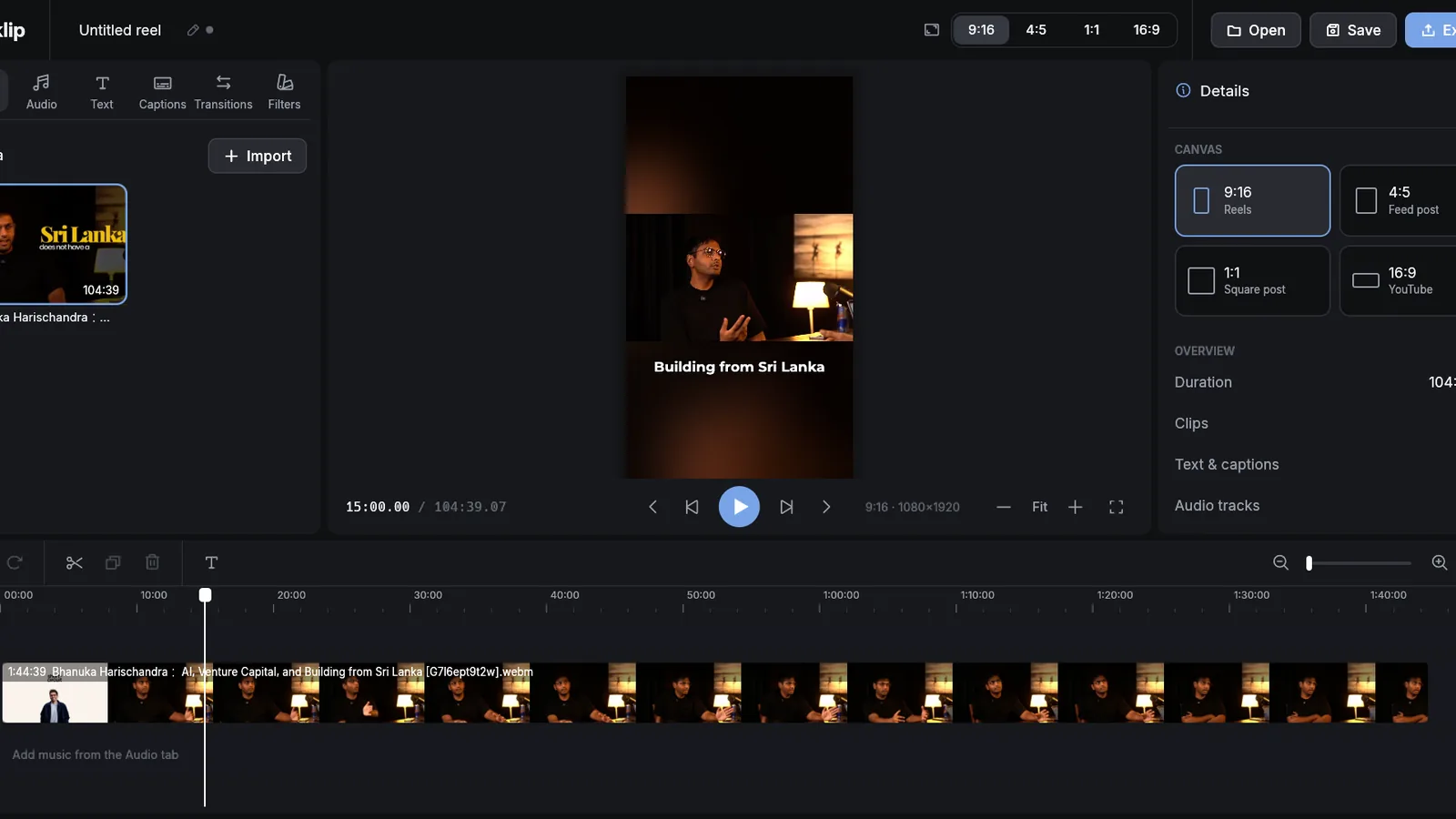
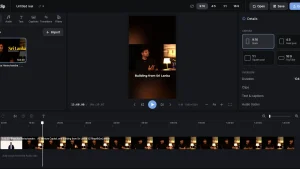
The screenshot on the project page shows the whole philosophy in one frame. The window is dark, single purpose and uncluttered. A top bar holds the project name on the left, a canvas switcher offering 9:16, 4:5, 1:1 and 16:9 in the middle, and Open, Save and Export buttons on the right. There’s no menu maze and no dockable panel sprawl.
Down the left edge runs a tab rail: Media, Audio, Text, Captions, Transitions and Filters. Each tab swaps the bin panel beside it, so adding a clip, a song, a title, a caption file, a transition or a look is always one click away. An Import button feeds the media bin, which in the screenshot holds a 104 minute interview file ready to be mined for highlights.
The center is a live 9:16 phone frame preview showing an interview subject with a bold caption reading Building from Sri Lanka. Transport controls, a timecode readout in minutes, seconds and frames, and a Fit zoom control sit directly under it. The right hand Details panel groups canvas cards, each labeled with its destination such as Reels, Feed post, Square post or YouTube, above an Overview readout that counts duration, clips, text items and audio tracks at a glance. In the example it reports 104:39.07 total, 1 clip, 1 text item and 0 audio tracks.
Along the bottom stretches the timeline: a time ruler, a text track row, a filmstrip clip row with thumbnails, and a music row that prompts the user to add music from the Audio tab. A compact toolbar offers undo, redo, split, duplicate, delete and text above the ruler, with a zoom slider at the far right. Everything visible maps to one job: find the good 40 seconds, dress them, post them.
Editing: Timeline, Canvases, Text, Captions and Music
A magnetic main track
Klip cuts on a single magnetic main track. Clips play back to back with no gaps to manage, splitting at the playhead divides video, text and audio cleanly, and transitions overlap neighboring clips instead of requiring manual handles. The overlap is clamped so a transition never eats more than half of either neighbor, which keeps short clips safe. Splits refuse to cut within 50 milliseconds of a clip edge, another small guard against accidental slivers. Undo covers everything because the project model is plain data: each edit clones the project state, and saving writes that state out as JSON.
Four canvases for four destinations
Aspect handling is a first class citizen rather than an export preset buried three dialogs deep:
| Format | Aspect | Full quality canvas | Made for |
|---|---|---|---|
| Reel | 9:16 | 1080 x 1920 | Reels, Shorts, TikTok |
| Portrait | 4:5 | 1080 x 1350 | Feed posts |
| Square | 1:1 | 1080 x 1080 | Square posts |
| Landscape | 16:9 | 1920 x 1080 | YouTube |
Each clip also carries its own fit mode: Fill crops to cover the canvas, Fit letterboxes on black, and Blur bg fills the frame with a darkened blurred copy of the footage itself, the classic Reels treatment for landscape source material. On top of fit comes free transform: uniform scale from 5 percent to 400 percent, fractional X and Y offsets, and clockwise rotation in degrees with the bounding box recomputed so rotated clips composite correctly.
Text with four styles, captions from SRT
Text clips store position as normalized canvas coordinates, size in canvas pixels against a canvas that is always 1080 wide, RGB color, and one of four styles: Plain, Outline, Boxed or Shadow. The Boxed style draws the familiar semi transparent caption bar, Outline punches the text out from busy backgrounds, and Shadow lifts it with a soft drop. A caption flag distinguishes imported subtitle cues from decorative titles.
Caption import parses standard SubRip (.srt) files, tolerates both comma and dot millisecond separators, normalizes Windows line endings, and strips italic, bold and karaoke tags so pasted subtitle markup can’t leak angle brackets into the rendered frame. That makes the YouTube auto subtitle file or the transcription export from any other tool a valid starting point: import it, then style every cue at once.
Music and clip audio
Audio clips reference a media file with independent start, source offset, duration and volume, resampled to 48 kHz stereo and mixed with the timeline under a limiter set to 0.97 to catch clipping. Clip audio gets per clip volume plus fade in and fade out, and silent clips are padded with generated silence so the filter graph never breaks. The roadmap still lists dedicated audio fade in and fade out curves as upcoming work. So today volume shaping is done with splits plus clip volume rather than draggable curves.
Look and Motion: Transitions, Filters and Free Transform
Nine transitions with real FFmpeg xfade behind them
Every transition in the Transitions tab maps to a genuine FFmpeg xfade effect at export, not an approximation, which is why the preview and the render agree:
| Transition | Feel | FFmpeg xfade used at export |
|---|---|---|
| Mix | Classic cross dissolve | fade |
| Black fade | Dip through black | fadeblack |
| White flash | Punchy flash cut | fadewhite |
| Slide left | Push to the next scene | slideleft |
| Slide right | Push back | slideright |
| Slide up | Vertical push for Reels energy | slideup |
| Wipe | Hard traveling edge | wipeleft |
| Zoom in | Punch toward the subject | zoomin |
| Blur | Defocus dissolve | hblur |
Clip fades from and to black are separate per clip settings measured in seconds, and audio fades track the same durations through matching audio fade filters.
Nine filter presets plus five manual sliders
Color work comes in two layers. Nine presets cover the common looks: Vivid, Warm, Cool, Film, Faded, Mono, Noir and Dream, plus None. Underneath sit five manual sliders with documented ranges: brightness from -0.5 to 0.5, contrast from 0.5 to 1.5 around mid grey, saturation from 0 to 2 with 0 giving black and white, temperature from -1 for cool to 1 for warm, and fade from 0 to 1 for the washed out film lift. The preset scales toward its look by an amount slider, then the manual adjustment stacks on top with clamped ranges.
The elegant engineering detail is that each grade is defined once as simple maths and implemented twice: once in Rust on the CPU pixel buffer for the live preview, and once as an FFmpeg filter chain of color channel mixer plus per channel lookup tables for export. Because both paths evaluate the same equations, the washed out film look auditioned in the preview is bit for bit the look baked into the MP4. An identity grade collapses to an empty filter string, so untouched clips pay no processing cost.
Under the Hood: Rust, egui and One FFmpeg Pipeline
Klip’s architecture reads like a case study in doing less but doing it twice identically. The project model in the source is plain serializable data: media inventory, video clips, text clips, audio clips and a running ID counter, all in one struct that defaults to an empty project named Untitled reel in 9:16. Undo and redo clone that struct. Save writes it as JSON. Nothing hides in widget state, which is exactly why the format warning exists: the schema is still evolving and old files may stop loading.
The interface is built on egui through eframe 0.36, an immediate mode GUI where each frame redraws every control from the current project state. There’s no retained widget tree to desynchronize from the data, no web view, no Electron runtime. Icon glyphs come from the egui-phosphor set, file dialogs from the rfd crate, and background work such as decoding rides on crossbeam channels. The whole program compiles to one native binary, which is why it starts instantly and idles lightly compared with browser based editors.
Media flows through FFmpeg in two directions from a single description. While editing, FFmpeg decodes frames for the preview at a fixed 30 frames per second project rate with timecodes shown as minutes, seconds and frames. At export the editor constructs one FFmpeg filter graph: each clip is graded, composited over black or its blurred copy, transformed, faded, then joined to its neighbor with xfade and acrossfade at transitions or concatenation at hard cuts. Text renders through drawtext with the bundled Inter typeface, music mixes through amix, and the final encode is libx264 at medium preset with CRF 18 for High quality or CRF 23 for Standard, High profile, yuv420p pixels for maximum player compatibility, 30 fps, AAC audio at 192 kbps and 48 kHz, with faststart set so the MP4 starts playing before it finishes downloading. Export runs as a cancellable background job with live progress parsed from FFmpeg’s own progress pipe, and a failed render surfaces the last lines of FFmpeg’s error log instead of a generic failure toast. The test suite even synthesizes test patterns and sine tones with FFmpeg, renders a full graded project with rotation, transitions and all four text styles, and asserts the output resolution, duration and audio track.
Fonts deserve a footnote: the bundled Inter ships under the SIL Open Font License, and the export embeds its path into the drawtext filter. So titles render identically on any machine without hunting for system fonts.
Keyboard First: Shortcuts Worth Memorizing
Short form editing lives or dies by keyboard flow, and Klip ships a compact set that covers the whole loop:
| Keys | Action |
|---|---|
| Space | Play and pause |
| S | Split clip at playhead |
| Delete | Delete selection |
| Left and Right arrows | Step one frame |
| Ctrl plus D | Duplicate |
| F | Full screen preview |
| Ctrl plus Z | Undo everything |
| Ctrl plus S | Save project |
| Ctrl plus E | Export |
Learn Space, S, arrows and Ctrl plus E and the mouse becomes a precision instrument rather than a navigation device.
Installing Klip on Linux
Three packages cover the mainstream distributions from the releases page:
| File | For | Install |
|---|---|---|
| klip-x86_64.AppImage | Any distro, no install needed | chmod plus x, then run it |
| klip_amd64.deb | Ubuntu, Debian, Mint, Pop!_OS | sudo apt install ./klip_amd64.deb |
| klip.x86_64.rpm | Fedora, openSUSE and RPM based distros | sudo dnf install ./klip.x86_64.rpm |
The .deb and .rpm declare FFmpeg as a dependency so it arrives automatically. The AppImage needs FFmpeg from the system package manager instead, one install either way. All builds target 64 bit Linux; there’s no Windows, macOS or ARM build at v0.1.0.
Building from source takes three steps. First install FFmpeg, enabling RPM Fusion on Fedora for full H.264 support since the free repository set is codec limited. Next install Rust from rustup.rs. Then clone, build and run:
git clone https://github.com/chamals3n4/klip.git
cd klip
cargo run --release
Use the release profile deliberately: the debug build is too slow for smooth 1080p preview, while the release enables light optimization on project code, full optimization on dependencies and thin link time optimization. Media files can also be passed on the command line, for example klip clip.mp4 song.mp3 subs.srt, which drops straight into a new project.
Roadmap: What Is Done and What Is Next
The project page tracks progress as a frank done versus next list:
| Feature | Status at v0.1.0 |
|---|---|
| Timeline editing, text, captions, music, MP4 export | Done |
| Transitions, fades, filters, free move, scale and rotate | Done |
| Project manager to browse, open and organize projects | Next |
| Audio fade in and fade out curves | Next |
| Auto captions from on device Whisper | Next |
| Speed control for slow motion and speed ups | Next |
| Templates for common Reel formats | Next |
The ordering is sensible. The editing core landed first, and the missing pieces are the ones that multiply output: templates for repeatable formats, Whisper transcription so captions generate locally instead of being imported, and speed ramping for action footage. The planned project manager implies a home screen for browsing saved projects, which today are opened as individual files.
Klip vs the Alternatives
No single editor wins every job. The honest comparison is about fit:
| Editor | Platform | Vertical first | Price and license | Best for |
|---|---|---|---|---|
| Klip | Linux x86_64 | Yes, 9:16 default | Free, MIT open source | Fast Reels, Shorts and TikToks on Linux |
| CapCut desktop | Windows, macOS, mobile | Yes | Free with account and cloud features | Template driven shorts where Linux is not required |
| Shotcut | Cross platform | No, landscape NLE | Free, GPL open source | Longer edited pieces, filters, color pipelines |
| Kdenlive | Mainly Linux | No, landscape NLE | Free, GPL open source | Multi track productions, effects, scopes |
| OpenShot | Cross platform | No, landscape NLE | Free, GPL open source | Gentle learning curve for desktop video |
| Pitivi | Linux | No, landscape NLE | Free, LGPL open source | Simple GNOME style timeline editing |
The pattern is clear. Reach for Kdenlive or Shotcut for a 20 minute documentary and for Pitivi or OpenShot for a gentle desktop edit. Reach for Klip when the deliverable is vertical, under a few minutes, captioned and due today. CapCut remains the reference for templates and effects breadth, but it demands a non Linux machine plus an account, while Klip demands neither.
Klip in the Ham Shack
A general purpose short video tool earns its place on hamradio.my through the jobs radio amateurs actually film. Summit and park activations are the obvious one: a two hour SOTA or POTA outing compresses into a 60 second vertical cut of the mast going up, the pileup roaring and the summit view, with callsign captions burned in. Pair the footage with the llog minimalist Linux logger at the operating position and the video plus the ADIF log tell the whole activation story.
Screen content works too. A Pi Streamer broadcast of an sBitx session can be trimmed in Klip into Shorts highlights: one rare DX contact, one waterfall moment, one digital mode decode. App demonstrations like the APRSdroid 9M2PJU Mod screen recordings become captioned vertical explainers that play natively in phone feeds instead of letterboxed landscape captures.
Club outreach is the quiet superpower. Committees that currently post meeting notices as plain text can cut 30 second reels of build nights, foxhunts, antenna raisings and JOTA stations operating with young people. Vertical video is the format those audiences already consume, and an offline editor that runs on the club’s Linux laptop, needs no account and uploads nothing until the finished MP4 is posted is exactly the right tool for volunteer hands. Field Day and contest groups on weak camp WiFi will appreciate that nothing uploads until they say so.
Honest Limitations
The early development banner means what it says. Project files may break between versions, so treat v0.1.0 projects as disposable and keep the source clips. There’s no project manager yet, no speed control, no caption generation, no templates and no audio fade curves. Builds cover 64 bit Linux only, with no ARM build for the Raspberry Pi laptops and no other operating systems. The AppImage shifts FFmpeg installation onto the user. Fedora users must remember RPM Fusion for H.264. And a young single maintainer codebase carries the usual bus factor risk: check the commit history and release cadence before building a club workflow around it. None of this disqualifies the editor, but all of it belongs in the decision.
Getting Started in Ten Minutes
A first project that proves the loop end to end: import one landscape clip, set the canvas to 9:16 with Blur bg so the frame fills the phone nicely, split out the best 30 seconds with S, add a Plain title at the top and import an SRT for captions, drop a music track under it and trim to taste, pick one Mix transition and the Film preset at partial amount, then export at Standard quality and watch the MP4. If that file plays on a phone with readable captions and clean audio, Klip has earned a place in the toolbox. The High quality CRF 18 pass can wait for the keeper uploads.
Sources and Further Reading
- Klip project homepage
- Klip source repository on GitHub
- Klip latest releases: AppImage, .deb and .rpm
- Klip MIT license
- Klip editor screenshot
- egui immediate mode GUI for Rust
- FFmpeg multimedia framework
- Rust installer from rustup.rs
- RPM Fusion configuration for Fedora codecs
- AppImage portable Linux packaging
- Inter typeface by Rasmus Andersson
- CapCut background on Wikipedia
- Shotcut open source video editor
- Kdenlive open source video editor
- OpenShot video editor
- Pitivi video editor
- SubRip subtitle format on Wikipedia
- Advanced Video Coding H.264 on Wikipedia
- OpenAI Whisper speech recognition
- Pi Streamer sBitx YouTube Live guide on HamRadio.my
- APRSdroid 9M2PJU Mod on HamRadio.my
- llog minimalist SOTA and POTA logger on HamRadio.my
73 de 9M2PJU


Post Comment