amateur radio
open source
Technology
AMSAT, AO-123, AO-27, AO-91, App Manager, CelesTrak, Doppler tracking, FM satellites, H9 Toolbox, ham radio satellites, handheld satellite, iss, LILACSAT-2, PO-101, SAT PASS, satellite pass predictor, SO-50, TD-H9 apps, TIDRADIO TD-H9, Web Bluetooth
9M2PJU
0 Comments
H9 Toolbox SAT PASS: FM Satellite Tracker for the TD-H9
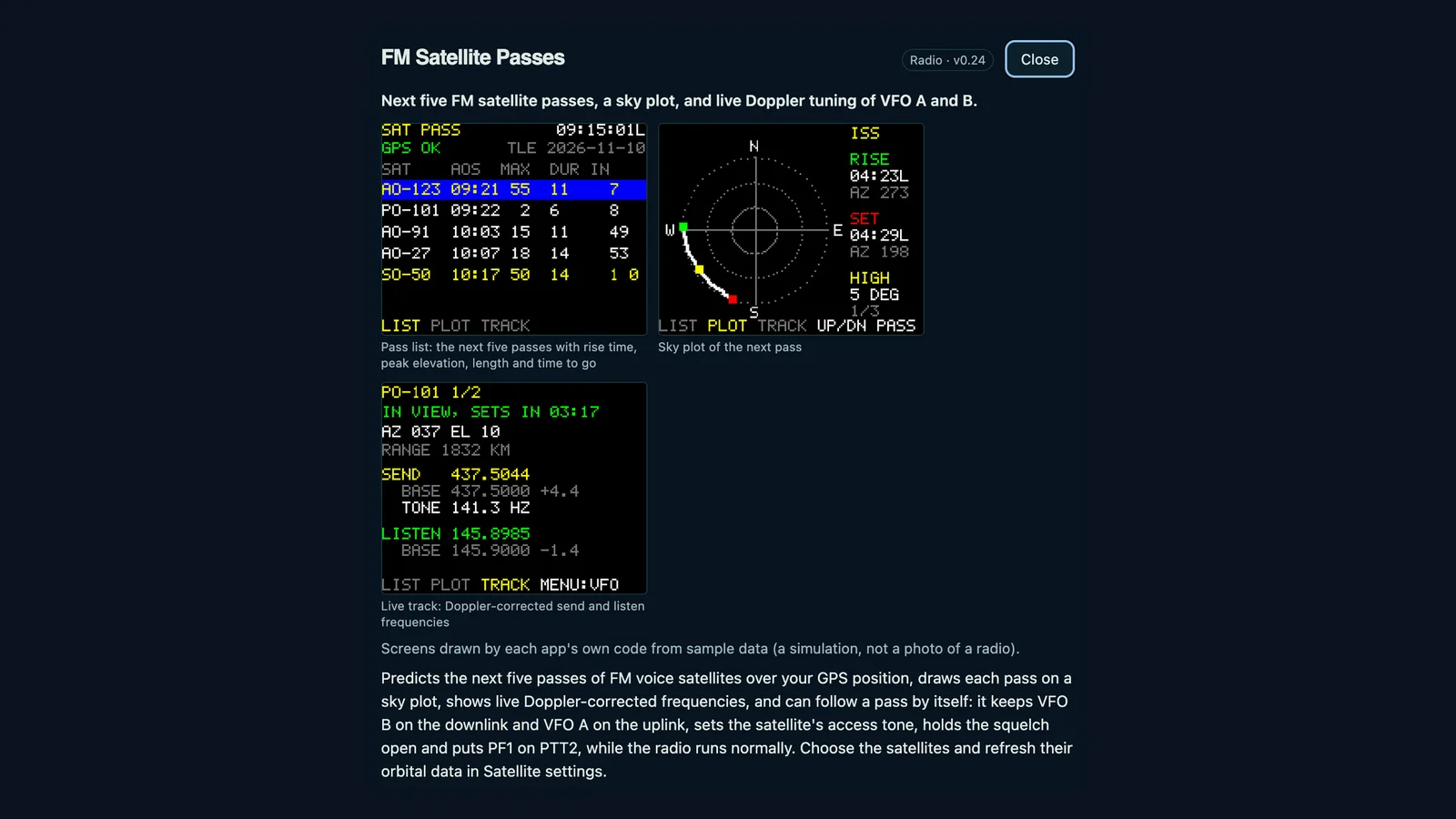
Your TIDRADIO TD-H9 can now tell you when the next FM satellite flies over, draw its path across the sky, Doppler-correct both VFOs as it passes, and follow the whole contact while the radio keeps working as a radio. That’s what SAT PASS does, the standout app in the new H9 Toolbox App Manager.
In this guide we cover the full App Manager system: what it is, which apps ship today, how to install the firmware and load apps over Bluetooth, and a deep technical tour of SAT PASS v0.24, from its integer orbit propagator and CelesTrak TLE refresh to its LIST, PLOT, and TRACK screens and its resident VFO tracker. If you work FM satellites with a handheld, this turns the TD-H9 into a self-contained pass predictor and Doppler tuner.
TL;DR: H9 Toolbox App Manager at h9toolbox.com/apps loads apps onto your TD-H9 over Bluetooth, including SAT PASS v0.24 which predicts the next five FM satellite passes over your GPS position, draws each pass on a sky plot, shows live Doppler-corrected uplink and downlink frequencies, and can auto-track a pass on VFO A and B with tone, open squelch, and PF1 as PTT2. Install H9 Toolbox Firmware over USB-C, add apps over Bluetooth, refresh TLE data every week or two from CelesTrak, and check amsat.org/status before transmitting.
What the H9 Toolbox App Manager Is
The H9 Toolbox App Manager is a browser-based Bluetooth tool at h9toolbox.com/apps that adds, updates, and removes on-radio apps on a TIDRADIO TD-H9 running H9 Toolbox Firmware, with every change staged locally, written over Bluetooth, and read back to verify. It manages the app menu you open by holding Back on the channel screen, shows free space on the 16 MB resource chip, enforces the 8 KiB RAM slot limit per app screen, and also changes the radio boot logo stored in its own chip area.
The App Manager only works after you install H9 Toolbox Firmware, which is stock TD-H9 v1.0.38 plus an app loader. The firmware itself changes nothing about normal radio operation: channels, settings, APRS, and GPS all behave as stock until you hold Back and pick an app. Each app loads from the resource chip into RAM when you open it, and RADIO returns to the normal radio.
Key properties of the design:
- No account, no install: desktop Chrome or Edge over HTTPS with Web Bluetooth, same as the H9 Toolbox programmer
- Staged writes: changes sit in a pending list, then Write to radio sends them, reads them back, and verifies
- Coexists with the radio: apps run only when opened, the stock radio stays intact
- Boot logo in the same session: pick any PNG or JPG, it converts to the 160 by 128 radio screen and verifies
- Open source: the loader, apps, and App Manager source live in melidosian/h9toolbox on GitHub
The App Catalog Today
The catalog the App Manager offers is defined in modules/catalog.json in the repo. Version numbers below are current at the time of writing in November 2026. SAT PASS is at v0.24, APRS at v0.7, GPS at v0.3, with games and research probes alongside.
| App | Version | Category | What it does |
|---|---|---|---|
| MENU | 1.1 | System | The on-radio list that opens on hold-Back, plus RADIO restart and USB UPDATE entries. Installed automatically with the first app |
| BRICK BREAKER | 1.0 | Games | Break 30 bricks with a bouncing ball. The original firmware experiment, now one app among others |
| MAZE CHASE | 0.3 | Games | Original 25 by 19 maze game with four prowlers, power pellets, 3 lives, speaker sound effects |
| APRS | 0.7 | Radio | Full on-radio APRS client: station list with age and bearing, details, map around GPS, messages with ACK, SEND screen, and SMART or TIMED beaconing |
| SAT PASS | 0.24 | Radio | Next five FM satellite passes, sky plot, live Doppler frequencies, automatic VFO tracking. The subject of this guide |
| GPS | 0.3 | Radio | GPS receiver readout on four pages: position and grid, sky plot, per-satellite signal bars, UTC and local time. Read only |
| APRS MONITOR | 0.1 | Experimental | Receive-only probe: reads packets and GPS from the APRS modem ring and shows the last four stations heard |
| VFO PROBE | 0.6 | Experimental | Read-only research tool showing VFO tuning fields, RAM frequency scan, and SAT tracker status. Writes nothing |
Hidden helper modules (names starting with a dot) don’t appear in the radio menu: .SAT PLOT, .SAT TRACK, .SAT TRACKER, .SAT DATA for the satellite passes, .APRS LIST, .APRS INFO, and similar for APRS internals.
SAT PASS at a Glance
SAT PASS predicts the next five passes of FM voice satellites over your GPS position, draws each pass on a sky plot, shows live Doppler-corrected frequencies, and can follow a pass by itself: it keeps one VFO on the downlink and the other on the uplink, sets the satellite access tone, holds the squelch open, and maps PF1 to PTT2, while the radio runs normally. You choose the satellites and refresh their orbital data in Satellite settings.
The three on-radio screens mirror the workflow:
- LIST: the next five passes with rise time, peak elevation, duration, and countdown
- PLOT: a horizon sky plot of the selected pass with rise and set azimuths
- TRACK: live azimuth, elevation, range, and Doppler-corrected SEND and LISTEN frequencies, plus the VFO tracking start screen
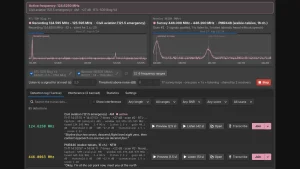
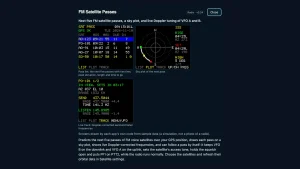
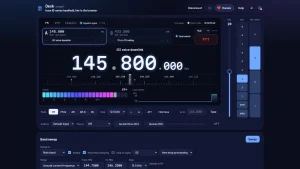
The screenshot at the top of this article shows all three: a pass list headed by AO-123 at 09:21 with 55 degrees peak, a sky plot for the ISS rising at 04:23 local, and a live track view for PO-101 showing SEND on 437.5044 MHz and LISTEN on 145.8985 MHz with tone 141.3 Hz.
The Seven Supported FM Satellites
SAT PASS ships with seven FM voice satellites. Frequencies come from AMSAT listings and the work-sat.com FM voice list. Always check amsat.org/status before transmitting, because several FM birds are intermittent or silent on any given week.
| Label | Full name | Uplink (MHz) | Downlink (MHz) | Tone (Hz) | Operating notes |
|---|---|---|---|---|---|
| SO-50 | SAUDISAT 1C | 145.850 | 436.795 | 67.0 | Arm its 10 minute timer first with a 2 second carrier and 74.4 Hz tone |
| ISS | ISS (ZARYA) | 145.990 | 437.800 | 67.0 | FM repeater only active at times, check status |
| AO-91 | RADFXSAT (FOX-1B) | 435.250 | 145.960 | 67.0 | Sunlit passes only. Some lists say no tone needed |
| AO-27 | EYESAT A | 145.850 | 436.795 | None | Often switched off |
| PO-101 | DIWATA-2B | 437.500 | 145.900 | 141.3 | Active only on a published schedule, may be silent |
| AO-123 | ASRTU-1 | 145.850 | 435.400 | 67.0 | Newer bird, check current status |
| LILAC2 | LILACSAT-2 | 144.350 | 437.200 | None | Frequencies from project memory, not in AMSAT lists |
Up to 16 satellites fit the data module, but seven keeps the bundle small and the pass search fast on the radio CPU.
How the Orbit Math Fits in a Handheld
A phone app can bundle the full SGP4 propagator without thinking. A radio app with an 8 KiB RAM slot can’t. SAT PASS solves this with a compact mean-element model built for the radio integer core.
The pipeline has three stages:
- On a PC or in the browser,
satpack.py(or the App Managersatdata.mjs, tested byte-identical against it) takes current TLEs from the CelesTrak amateur group feed and compresses each satellite into 64 bytes: SGP4 un-Kozai mean motion and semi-major axis recovery, secular J2 rates for node, perigee, and anomaly, the ndot over 2 decay term, all moved to one shared epoch, plus a Greenwich sidereal reference using IAU 1982 with UT1 equal to UTC. - The packed table becomes the hidden
.SAT DATAmodule: a 32-byte header with magicSATD, version, count, shared epoch, GMST angle, newest element date, then 64 bytes per satellite (52 bytes orbit plus 12 bytes frequency and tone). Code modules read it through the loader NOR read instead of carrying it, so TLE refreshes never rebuild any code. - On the radio,
orbit.cpropagates that table with integer fixed-point arithmetic: binary angles, Q30 sine and cosine, Q8 ranges. No floating point, no SGP4 library, no large tables.
Accuracy is validated on the host against real SGP4 with the sgp4 Python package across Chicago, Sydney, Reykjavik, Quito, and Tokyo. The gate is strict: no missing passes, rise and set within 60 seconds. Range error stays under 30 km and Doppler error under 400 Hz at 437.8 MHz within a week of the element epoch, drifting to about 20 km and 130 Hz at 7 days and 50 km and 550 Hz at 14 days. That’s why the project tells you to refresh orbital data every week or two.
Doppler Without the Flicker
The Doppler shift comes from the change of slant range over an 8-second window centered on now (range at t minus 4 s and t plus 4 s), scaled by frequency over the speed of light. The centered difference matters: a one-second forward difference lags by half a second (up to 25 Hz off at 2 m on an overhead pass) and the 1/256 km range quantization makes the readout flicker by 10 to 20 Hz. Eight seconds divides the noise by eight and pushes the difference error far under a hertz. The radio display stays rock steady as the pass peaks.
LIST, PLOT, and TRACK in Detail
LIST: the next five passes
Open SAT PASS from the radio menu (hold Back). It needs GPS time and a position, or a saved fix from the fix_store record the firmware keeps across power-off. Times use the radio own time zone setting, marked L for local or Z for UTC.
Each row shows the satellite label, rise time, peak elevation in degrees, duration, and countdown. In the reference screenshot, AO-123 rises at 09:21 with 55 degrees peak and an 11 minute duration in 7 minutes, followed by PO-101, AO-91, AO-27, and SO-50. Up and Down select a pass, Menu opens the plot, Back exits.
PLOT: the sky plot
The plot draws the pass on a horizon circle with N, S, E, W markers and dotted elevation rings. Rise is green, culmination yellow, set red, with the ground track in white. The side panel names the satellite, RISE time and azimuth, SET time and azimuth, and HIGH peak elevation. Up and Down step through the passes, Menu goes to TRACK, Back returns to the list.
TRACK: live Doppler and the handoff to auto-tracking
TRACK updates once per second: azimuth, elevation, range in km, time to rise or set, and the two frequencies to use. DOWN equals downlink minus Doppler shift. UP equals uplink plus Doppler shift, so the satellite hears you on its own channel. Before the rise, figures are those at the rise. The panel also shows the base frequencies, the shift in kHz, and the access tone.
Pressing Menu here opens the VFO TRACKING start screen: sending on or off, which side listens, squelch open during the pass, single-pass or continuous, PF1 as PTT2 mapping, then start. Option 1 tests immediately regardless of time. After you start, control passes to the hidden .SAT TRACKER resident module.
The Resident Tracker: the Radio Follows the Pass
The .SAT TRACKER module (satauto.c) is the hidden twin of TRACK. When armed, the loader stub calls it twice per second from the radio main loop, so the stock radio keeps running with PTT, squelch, and display while it follows the pass.
What it does on start:
- Saves your current VFO A and B frequencies, tones, squelch, and PF1 mapping to the chip
- Puts the listening VFO (A, or B when swapped) on the Doppler-corrected downlink and retunes as the shift moves by 400 Hz
- Puts the sending VFO on the Doppler-corrected uplink when sending is enabled, saving each update the way the stock stepper saves, because stock reloads VFOs from saved records on refresh and at PTT
- Sets the satellite CTCSS access tone on the uplink side
- Optionally holds the squelch open and maps PF1 short-press to PTT2 for one-handed satellite operation
- Draws a small AOS or LOS countdown in the status bar gap between the signal and Bluetooth icons
When the last pass ends, or when you hold Back to open the menu, it puts your original VFO frequencies, tones, squelch, and PF1 key back. If the radio loses power mid-pass, VFO A and B keep the last tracked values until you open the menu. The tracker never retunes the receiver onto the sending side.
Practical cautions from the source comments: try the uplink on a dummy load first, keep power low with a suitable antenna, confirm the satellite is actually active, and remember that leaving the track screen stops the auto beacon style behavior. Transmitting needs an amateur licence.
Satellite Settings and TLE Refresh
Orbital elements age. The App Manager Satellite settings page lets you choose which satellites to load and refreshes their data from CelesTrak without a compiler. The browser code does the same packing as satpack.py, so either path produces an identical .SAT DATA module.
Recommended routine:
- Refresh every week or two, weekly during contest or expedition season
- After refresh, Write to radio and let it read back and verify
- Check the TLE date shown on the LIST header (for example TLE 2026-11-10) before a planned operation
- Check amsat.org/status the same morning, because an accurate pass for a silent satellite is still a silent pass
Installing: Firmware First, Then Apps
- Install H9 Toolbox Firmware from h9toolbox.com/firmware-update in desktop Chrome or Edge over USB-C. The flasher backs up the radio first, verifies every sector, upgrades stock v1.0.38 or earlier H9 builds, and can restore stock at any time. Enter USB update mode as documented (PTT plus 2 HID path) and keep the backup file.
- Power the radio on normally, enable Bluetooth programming mode, and open h9toolbox.com/apps in Chrome or Edge.
- Connect, click Read from radio, and review memory, app storage, RAM slot, and menu entries.
- Click Add on SAT PASS (plus GPS, APRS, or games as wanted), review the staged list, then Write to radio. Let it read back and verify. Discard or remove apps the same way.
- Optionally set the boot logo on the same connection: read the current logo, pick a PNG or JPG, write, verify.
- On the radio, hold Back on the channel screen, pick SAT PASS from the menu, and confirm LIST shows five passes once GPS time arrives.
If anything misbehaves, the recovery path is the same as the firmware page: hold 8 or use the PTT plus 2 HID restore with your own backup. Your channels and settings are never changed by the installer.
SAT PASS Versus Phone and PC Predictors
| Task | SAT PASS on TD-H9 | Phone apps (ISS Detector, SatSat, Heavens-Above) | PC (GPredict, Orbitron, SatPC32) |
|---|---|---|---|
| Needs phone or PC in the field | No, runs on the radio screen | Yes, phone in hand | Yes, laptop plus rig control |
| Pass prediction | Next 5 passes in 36 h over GPS fix | Days ahead with maps and alarms | Full scheduling, rotator control |
| Sky plot | Yes, horizon plot with rise and set azimuth | Yes, plus AR sky view | Yes, plus footprint maps |
| Live Doppler tuning | Yes, auto-tracks VFO A and B with 400 Hz steps | No, manual dial guidance | Yes, full rig CAT control |
| TX tone and PTT ergonomics | Yes, sets tone, open squelch, PF1 as PTT2 | No radio integration | Depends on rig interface |
| TLE refresh | Weekly via App Manager and CelesTrak | Automatic in app | Automatic or manual |
| Satellite count | 7 FM voice birds, up to 16 slots | Hundreds including ISS, weather, Starlink | Thousands with transponder database |
| Best for | Single-radio portable FM sat operation | Visual spotting and alerts | Base station and rotator operation |
The table isn’t a ranking. Phone apps win on alerts and visual spotting, PC suites win on rotators and logging. SAT PASS wins on integration: one device predicts, points, tunes, tones, and transmits, with no second screen to juggle on a hilltop.
Practical Workflows That Work on Day One
First FM satellite listen, no transmit. Load SAT PASS, refresh TLEs, pick a high-elevation SO-50 or ISS pass, open TRACK, and leave sending off. Listen on the downlink as the tracker follows Doppler. Confirm the peak time and azimuth against a phone app once, then trust the radio next time.
First FM contact. Choose a weekend morning pass above 30 degrees, check AMSAT status, set sending on, squelch open, PF1 as PTT2. Use a directional antenna (arrow style Yagi or tape-measure beam), low power, and short exchanges with your full callsign and grid. Log immediately; FM passes last about 10 minutes.
ISS digipeater or voice window. Load ISS in Satellite settings, watch for active windows on status pages, and keep exchanges minimal during crowded passes. The same TRACK screen works for both FM voice and packet windows, but packet needs a separate modem path.
Club demo night. Project the App Manager page, walk through LIST to PLOT to TRACK on sample data, then move to a live radio for one real pass. The three screenshots in this article make good slides: list, plot, track.
Honest Limits and Safety Rules
SAT PASS is experimental research software with unusual transparency: the source, tests, accuracy gates, and open questions are public. Treat it accordingly.
- Tested on limited hardware: the loader trial notes heap pressure beside Bluetooth as the main risk, with a fallback to a smaller slot if reboots appear
- Elements age fast: beyond two weeks the Doppler error exceeds what a narrow FM receiver tolerates comfortably
- Several FM birds are intermittent: an accurate prediction isn’t a guarantee of an active transponder
- Transmitting is your responsibility: low power, suitable antenna, correct licence, dummy-load test first
- Power loss mid-pass leaves tracked frequencies in the VFOs until you open the menu
- Desktop Chrome or Edge only: Web Bluetooth excludes iPhone Safari, and some Linux Bluetooth stacks need coaxing
- Keep both backups: the
.imgchannel backup and the firmware main-flash backup, labeled with serial, version, and date
Safety checklist before a satellite pass
- Refresh TLEs within the last 14 days and confirm the TLE date on LIST
- Check AMSAT status for the target satellite the same day
- Confirm GPS time and position, or a recent saved fix
- Review uplink, downlink, and tone against a published frequency list
- Start with sending off for one full receive-only pass on a new setup
- Keep power low and antenna appropriate for the link
Why This Matters for Handheld Satellite Operators
FM satellites are the most accessible space contact in amateur radio: a handheld, a beam, and ten minutes of sky. The friction has always been the second screen: phone for passes, printed Doppler tables, manual tuning while trying to hold an antenna. SAT PASS collapses that stack into the radio itself, using the GPS the TD-H9 already has and the Bluetooth workflow H9 Toolbox already proved for programming.
It also respects how hams actually learn: open code, published accuracy tests, stated limits, and a recovery path. The earlier H9 Toolbox programmer guide covered safe Bluetooth codeplug editing; the TD-H9 experimental firmware notes covered the UHF side of the same radio family. This app layer is the natural third piece: program the radio in the browser, then run satellite passes on the radio.
Sources and Further Reading
- H9 Toolbox App Manager
- H9 Toolbox firmware and App Manager overview
- H9 Toolbox home
- H9 Toolbox web Bluetooth programmer
- H9 Toolbox source on GitHub
- H9 Toolbox module loader source
- H9 Toolbox SAT PASS app source
- TIDRADIO TD-H9 official product page
- AMSAT satellite status
- CelesTrak amateur satellite elements
- Work-sat.com FM voice satellites
- ARRL satellite communication resources
- H9 Toolbox programmer guide on HamRadio.my
- TIDRADIO TD-H9 experimental firmware notes on HamRadio.my
73 de 9M2PJU.


Post Comment